



Introduction
The Make-up Request feature inside the Class Replacement module allows administrators or super admins to:
- View all make-up class requests
- Approve replacement class requests
- Reject requests when necessary
- Filter requests based on approval status and date range.
Under the Make-up Request tab, administrators can review, approve, or reject a student’s request after they submit it via the Mobile App or Scholar Portal.
This helps institutes manage replacement classes smoothly and maintain accurate class schedules.
Access Make-up Requests
Navigation to Make-up Requests
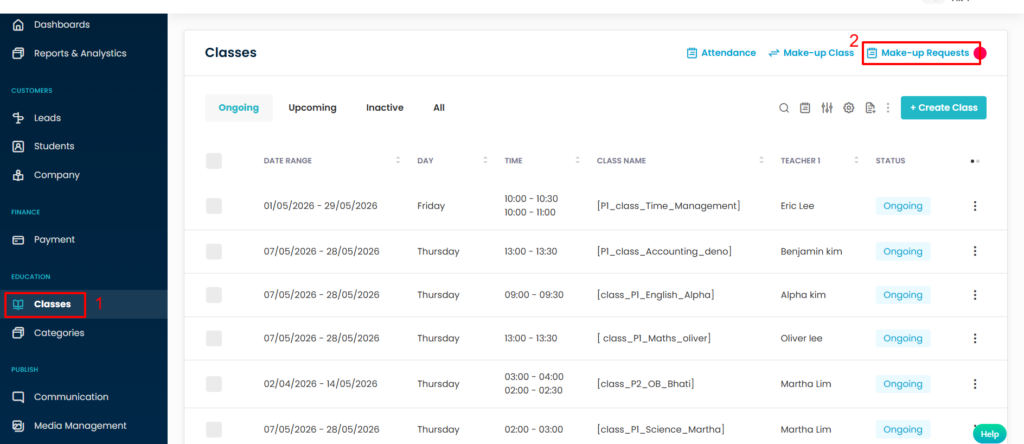
Step 1: Open Classes Module
From the left-side menu, click on Classes.
Step 2: Open Make-up Requests
Click on Make-up Requests from the top-right section
This will redirect you to the Class Replacement page.
Approve OR Reject Make-up Request
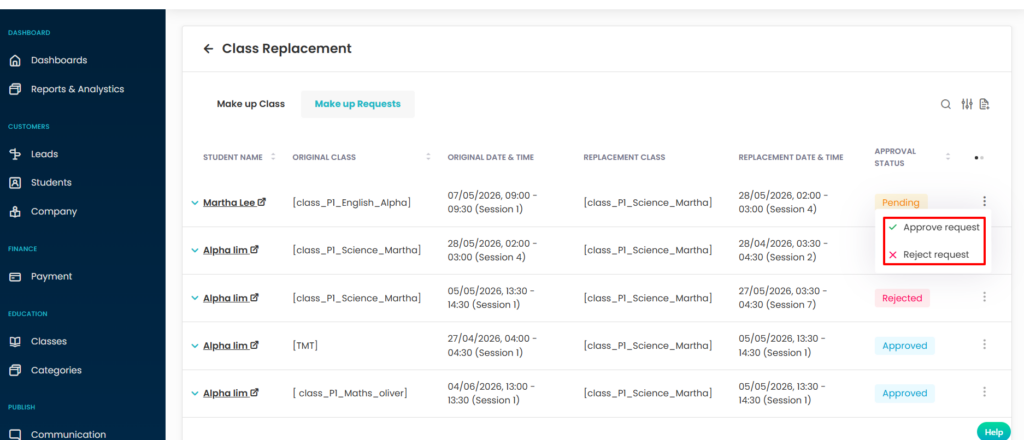
Step 1: Locate Pending Request
-
Go to the Make-up Requests tab.
-
Find the request with Pending status.
-
Click on the three-dot action menu beside the request.
Step 2: Approve OR Reject the Request
-
Click on Approve / Reject request.
-
The system will update the request status to Approved /Reject.
Filter Make-up Requests
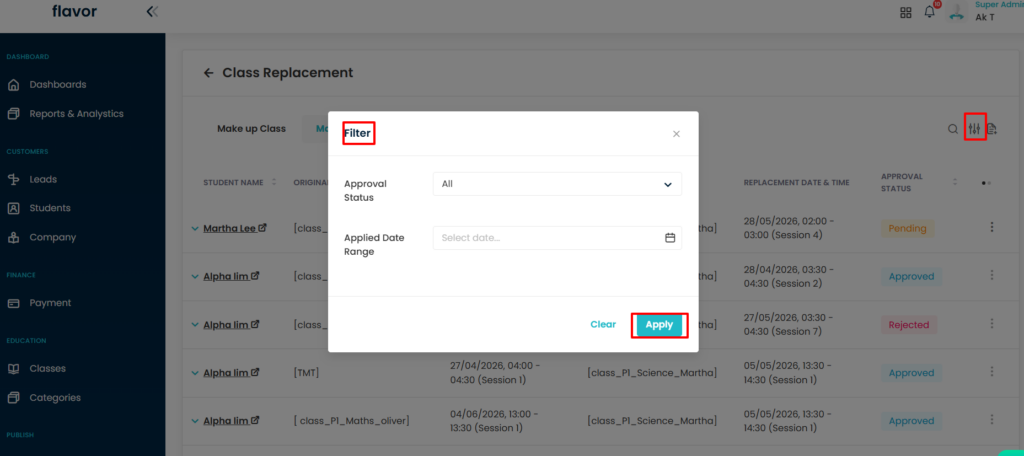
Flavor CRM provides filtering options to quickly find requests based on status or date range.
Step 1: Open Filter Option
On the top-right side of the page, click the Filter icon.
Step 2: Apply Filters
- Approval Status
- Applied Date Range
- Select a custom date range
After selecting the required filters:
1. Click on Apply to view filtered results.
2. Click Clear to reset filters.
| Status | Meaning |
|---|---|
| Pending | Waiting for admin approval |
| Approved | Request successfully approved |
| Rejected | Request declined |
Make-up Request Notification Settings
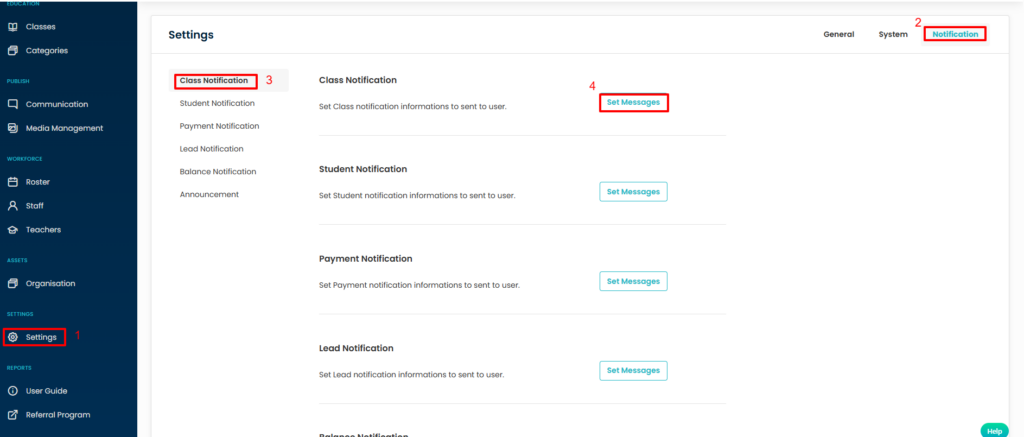
Step 1 — Open Settings Module
From the left-side menu, click on Settings.
Step 2 — Open Notification Settings
Inside Settings
Click on the Notification tab available at the top right section of the page.
Step 3 — Select Class Notification
From the notification categories on the left panel, select Class Notification.
This section contains all notification settings related to class activities and make-up requests.
Step 4 — Click Set Messages
Click the Set Messages button available beside the Class Notification section.
This will open the notification configuration page.
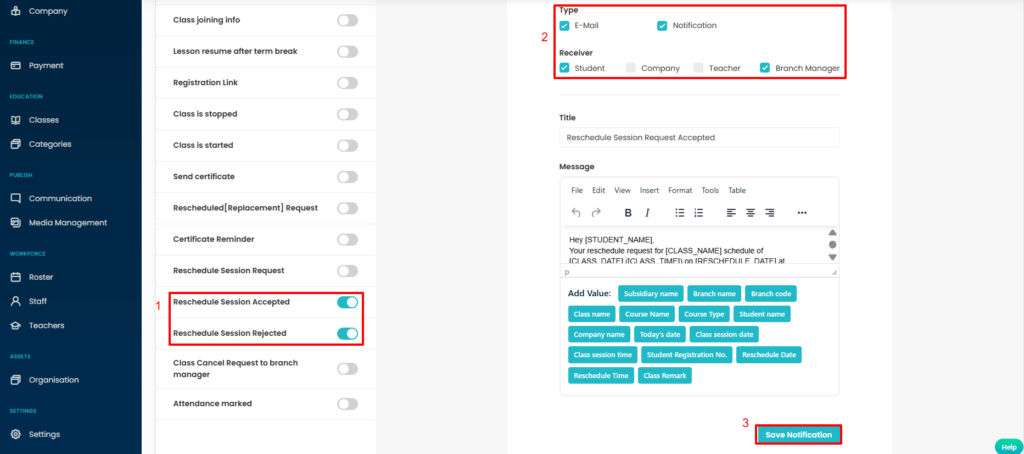
Configure Reschedule Session Notifications
Inside the notification setup page, administrators can enable and configure different make-up request notifications.
The following notification events are available:
-
Reschedule Session Accepted
-
Reschedule Session Rejected
These notifications help keep all related users informed whenever a make-up class request is submitted, approved, or rejected.
Auto Approve Make Up Requests
Follow the steps below to enable automatic approval for make-up requests in the mobile app.
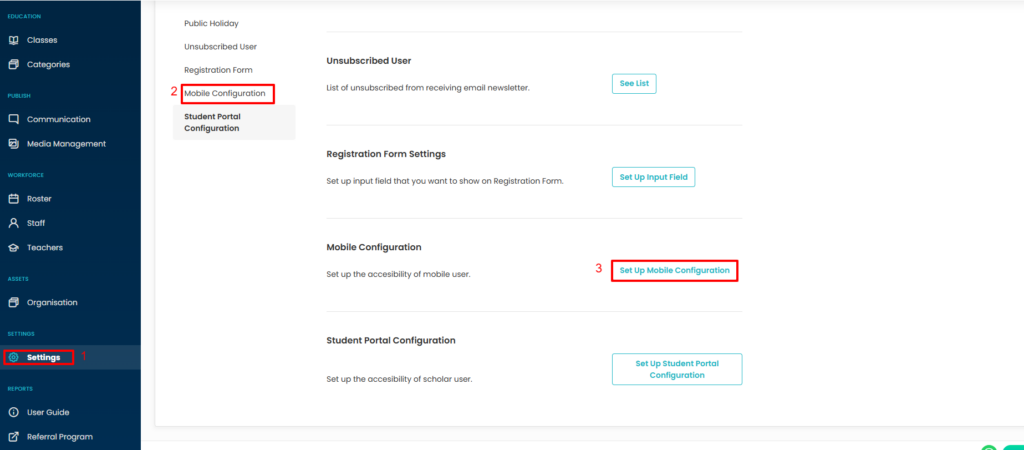
Steps to Enable Auto Approve Make Up Requests
-
Go to Settings from the left navigation menu.
-
Open Mobile Configuration.
-
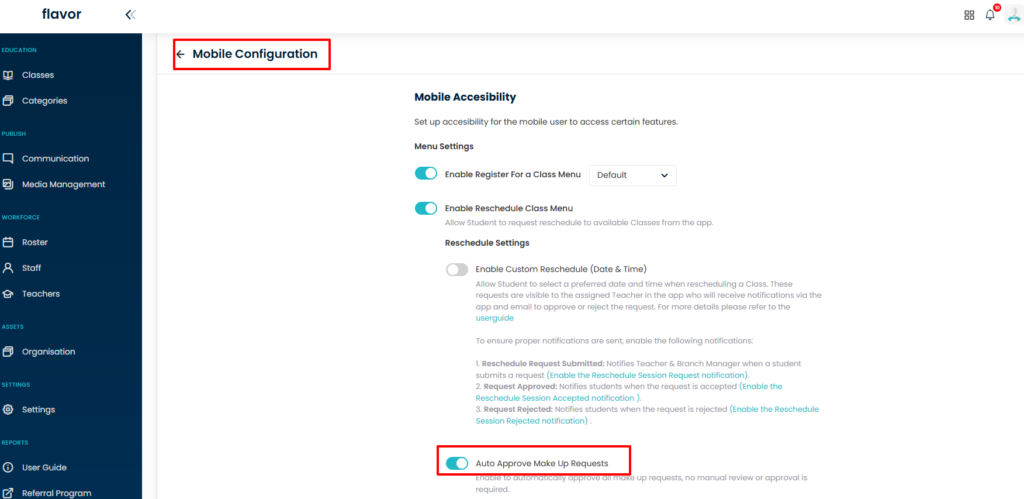
Scroll down to the Reschedule Settings section.
-
Locate the option Auto Approve Make Up Requests.
-
Toggle the switch ON to enable automatic approval for all make-up requests.
-
Once enabled, all make-up requests submitted from the mobile app will be approved automatically without manual review.
Conclusion
The Make-up Request feature in the Class Replacement module simplifies the process of handling replacement class requests in Flavor CRM. Administrators can quickly approve, reject, or filter requests, ensuring smooth class management and better operational efficiency.
Need more help? Ask us a question
Please let us know more of your details and our team will reach out to you very shortly.
