



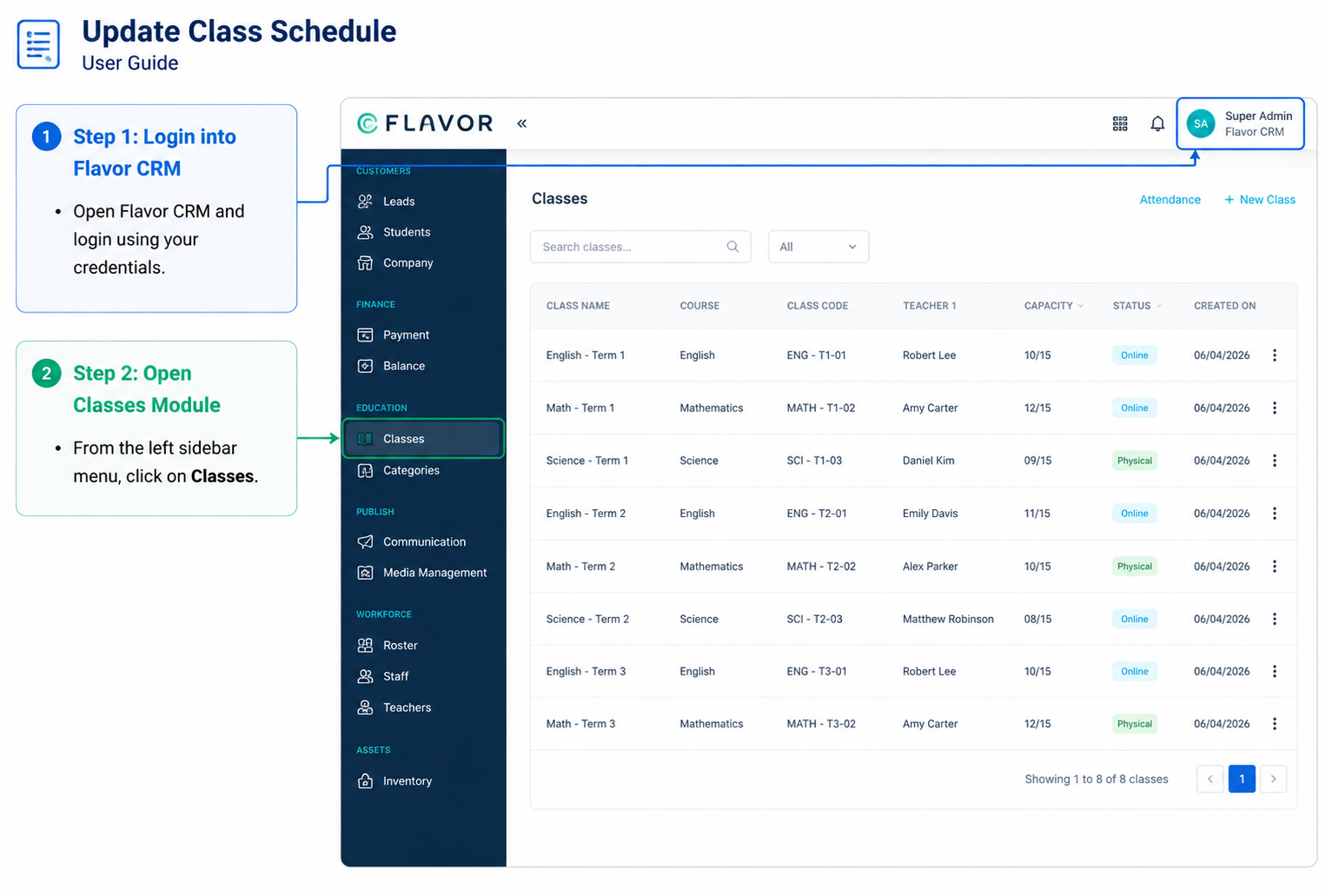
Login into Flavor CRM
Open Flavor CRM and login using your credentials.
Open Classes Module
From the left sidebar menu, click on Classes.
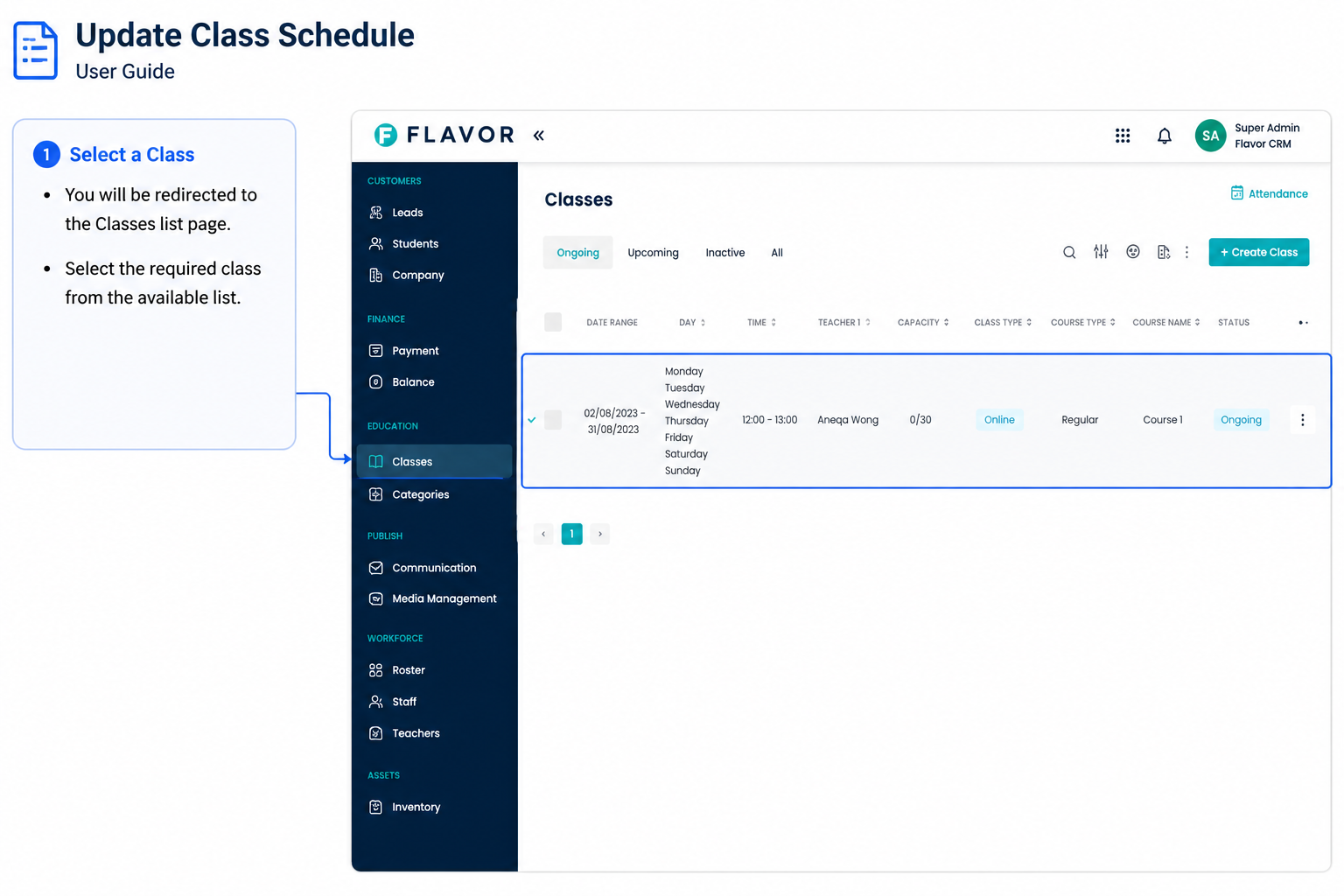
Select a Class
- You will be redirected to the Classes list page.
- Select the required class from the available list.
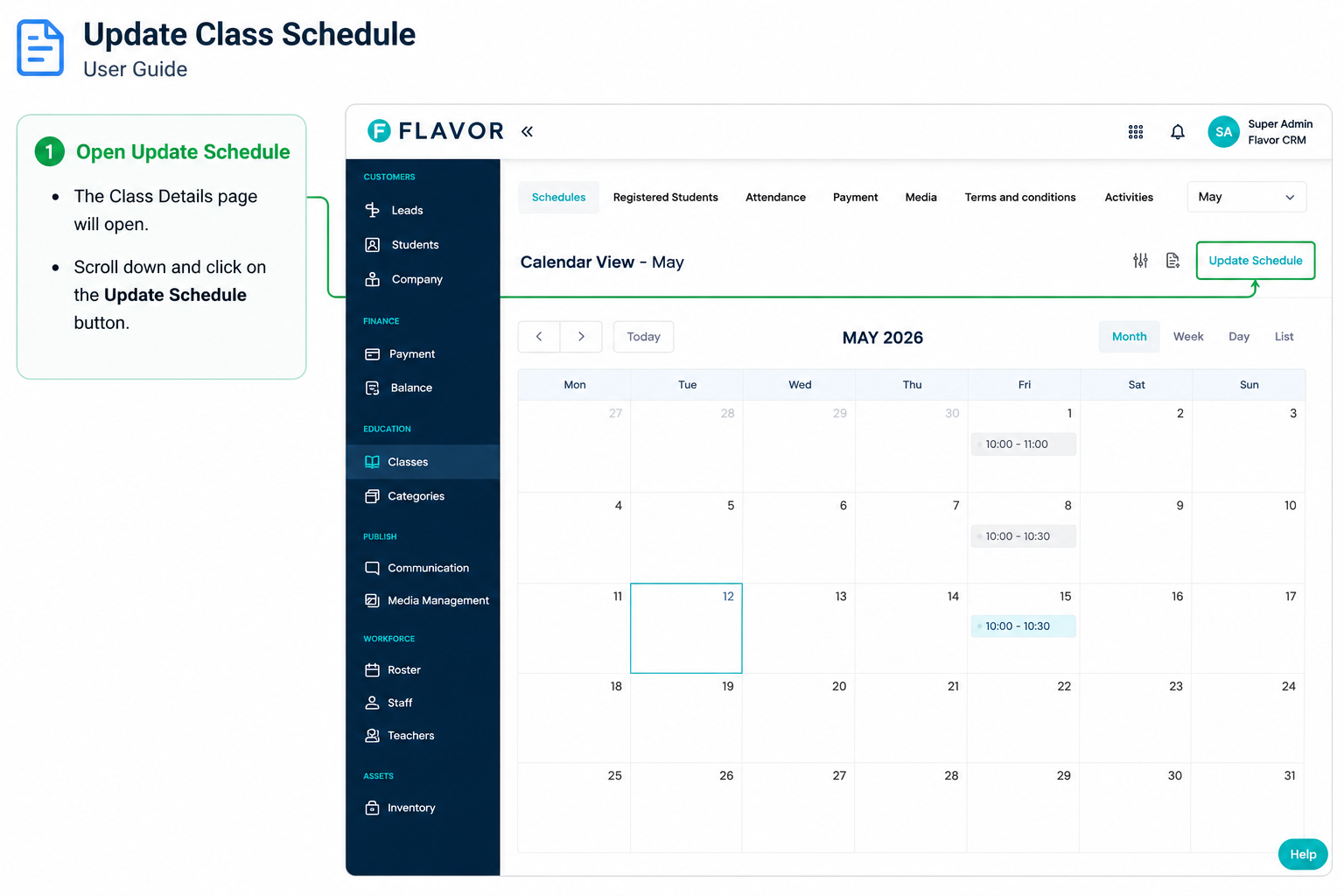
Open Update Schedule
- The Class Details page will open.
- Scroll down and click on the Update Schedule button.
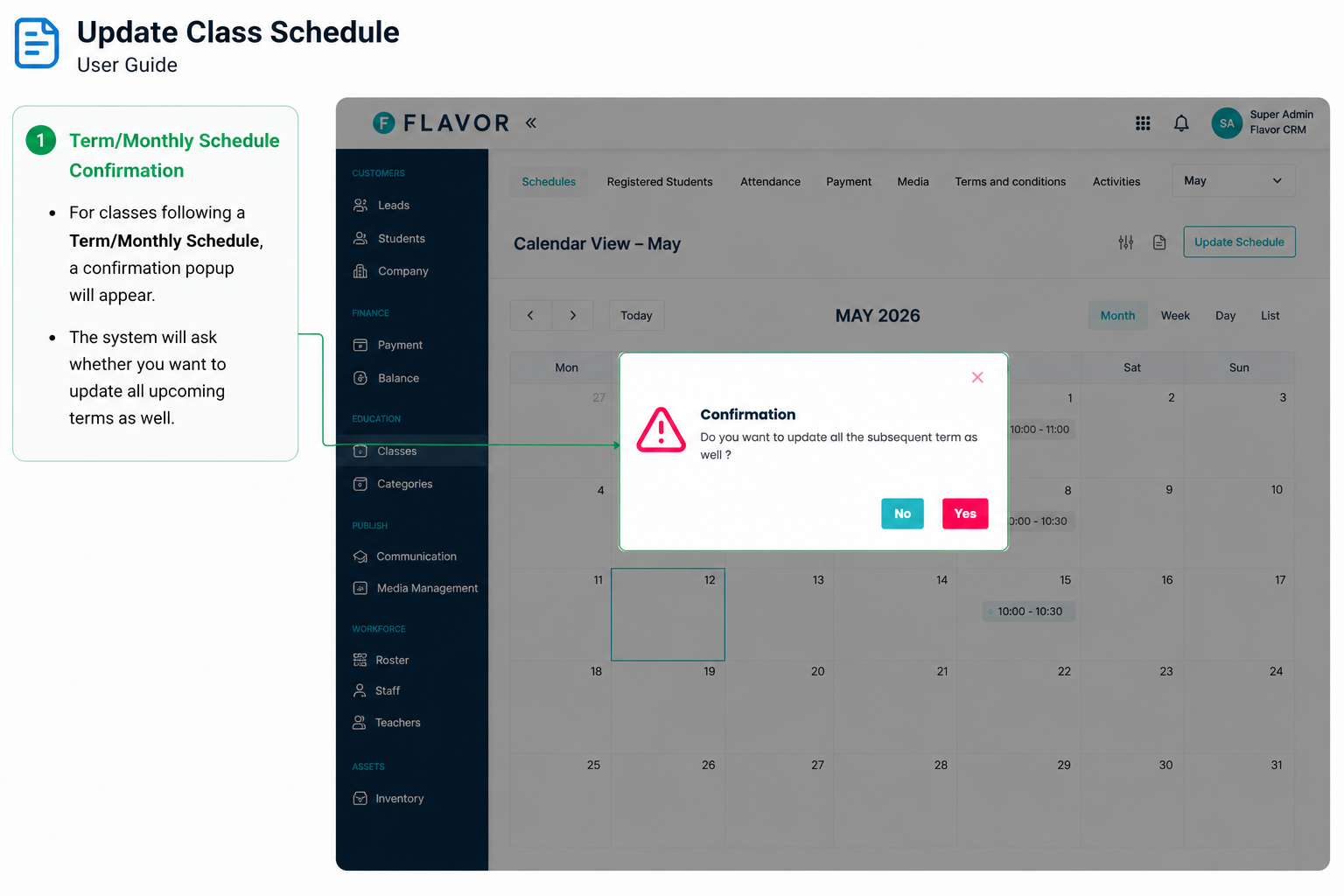
Term/Monthly Schedule Confirmation
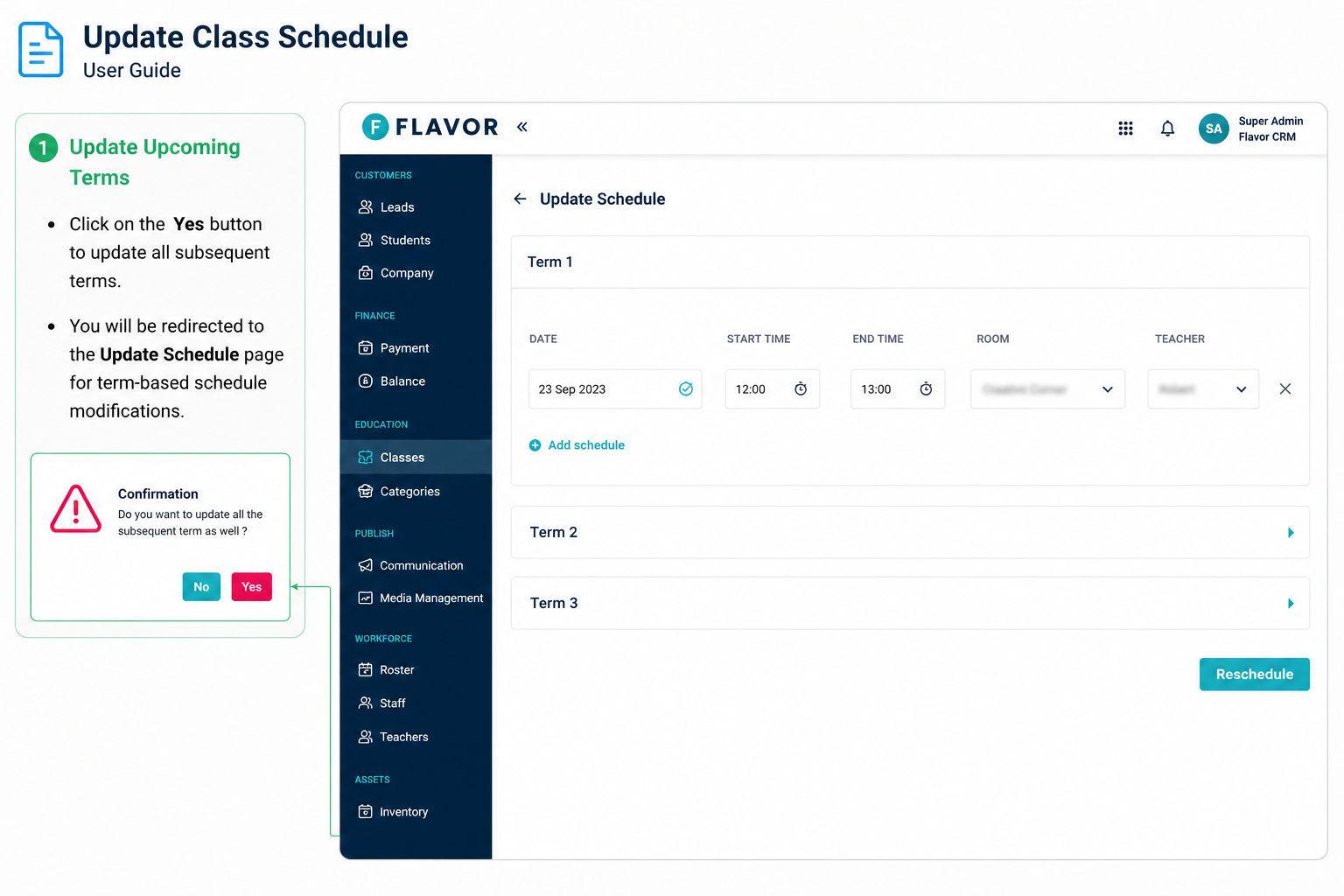
- For classes following a Term/Monthly Schedule, a confirmation popup will appear.
- The system will ask whether you want to update all upcoming terms as well.
Update Upcoming Terms
- Click on the Yes button to update all subsequent terms.
- You will be redirected to the Update Schedule page for term-based schedule modifications.
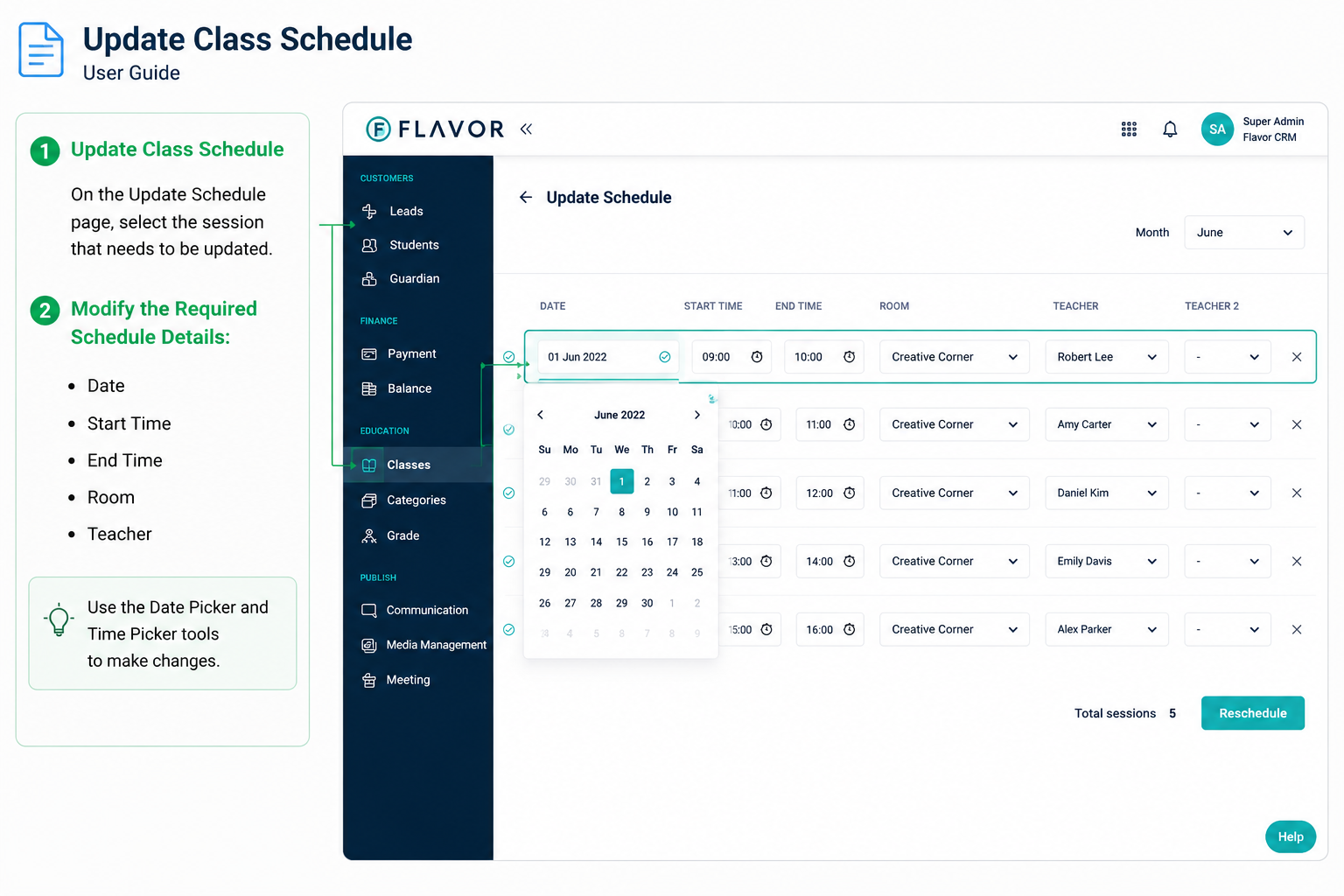
Update Schedule Details
- On the Update Schedule page, select the session that needs to be updated.
- Modify the required schedule details:
- Date
- Start Time
- End Time
- Room
- Teacher
- Use the Date Picker and Time Picker tools to make changes.
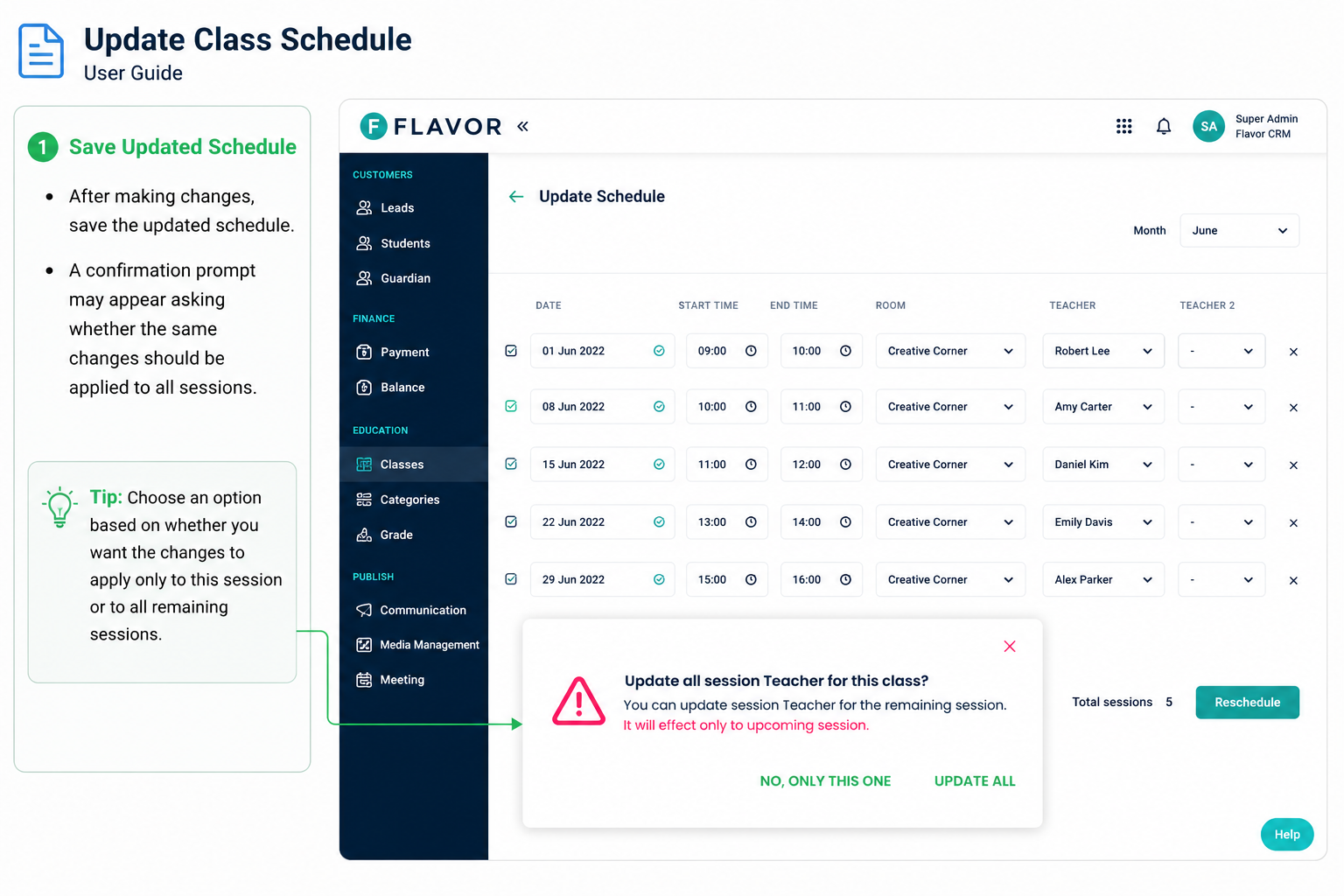
Save Updated Schedule
- After making changes, save the updated schedule.
- A confirmation prompt may appear asking whether the same changes should be applied to all sessions.
Teacher Replacement & Schedule Tracking Enhancement
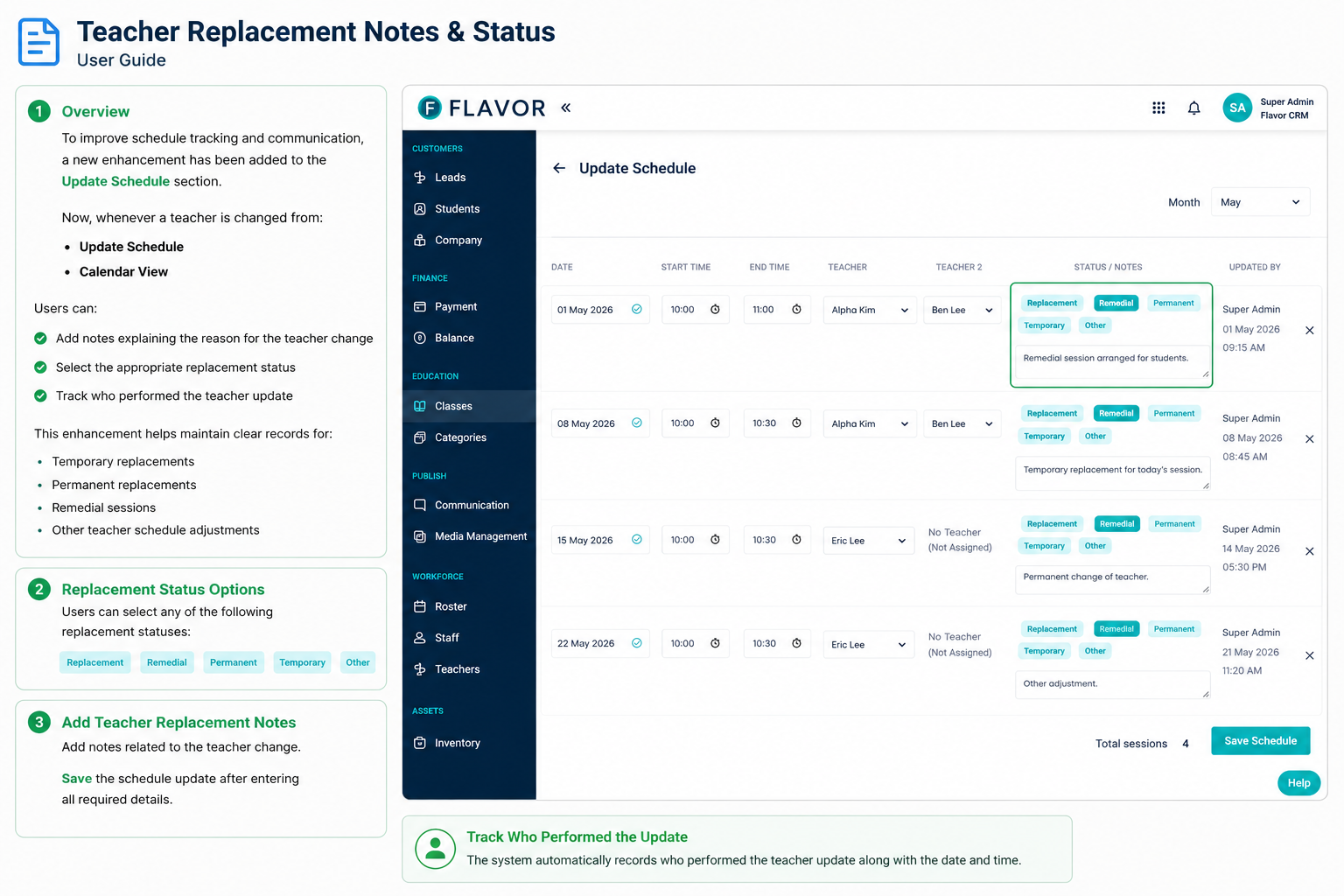
Teacher Replacement Notes & Status
To improve schedule tracking and communication, a new enhancement has been added to the Update Schedule section.
Now, whenever a teacher is changed from:
- Update Schedule
- Calendar View
Users can:
- Add notes explaining the reason for the teacher change
- Select the appropriate replacement status
- Track who performed the teacher update
This enhancement helps maintain clear records for:
- Temporary replacements
- Permanent replacements
- Remedial sessions
- Other teacher schedule adjustments
Replacement Status Options
Users can select any of the following replacement statuses:
- Replacement
- Remedial
- Permanent
- Temporary
- Other
Add Teacher Replacement Notes
- Add notes related to the teacher change.
- Save the schedule update after entering all required details.
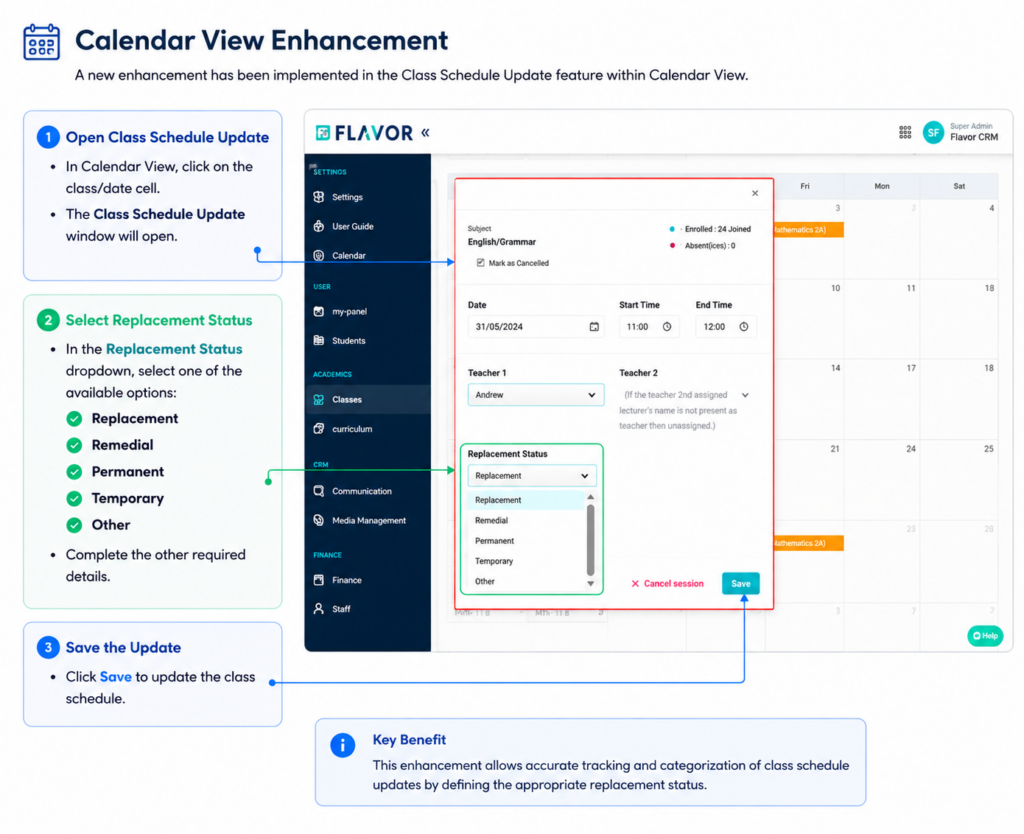
Calendar View Enhancement
A new enhancement has been implemented in the Class Schedule Update feature within Calendar View.
Features Added
Replacement Status Selection
Users can now select:
- Replacement
- Remedial
- Permanent
- Temporary
- Other
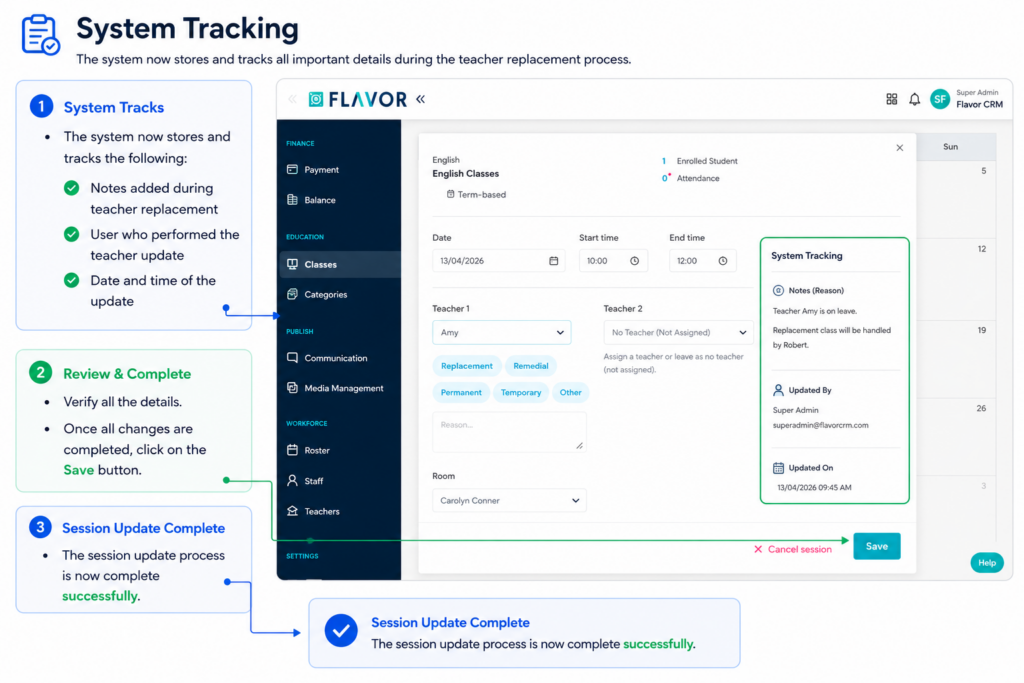
System Tracking
The system now stores and tracks:
- Notes added during teacher replacement
- User who performed the teacher update
- Once all changes are completed, click on the Save button.
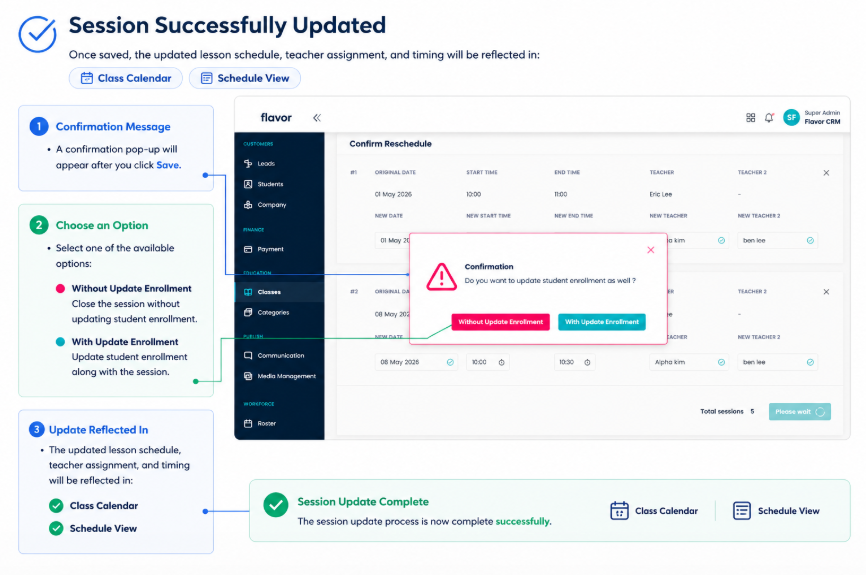
Session Successfully Updated
- Once saved, the updated lesson schedule, teacher assignment, and timing will be reflected in:
- Class Calendar
- Schedule View
- The session update process is now complete successfully.
Need more help? Ask us a question
Please let us know more of your details and our team will reach out to you very shortly.
