



Overview
Flavor CRM allows you to:
- Set a separate capacity for Trial Students.
- Configure Trial Fees for a class.
- Track Trial Capacity independently from regular class capacity.
- Register trial students directly into the class.
Enable Separate Trial Capacity
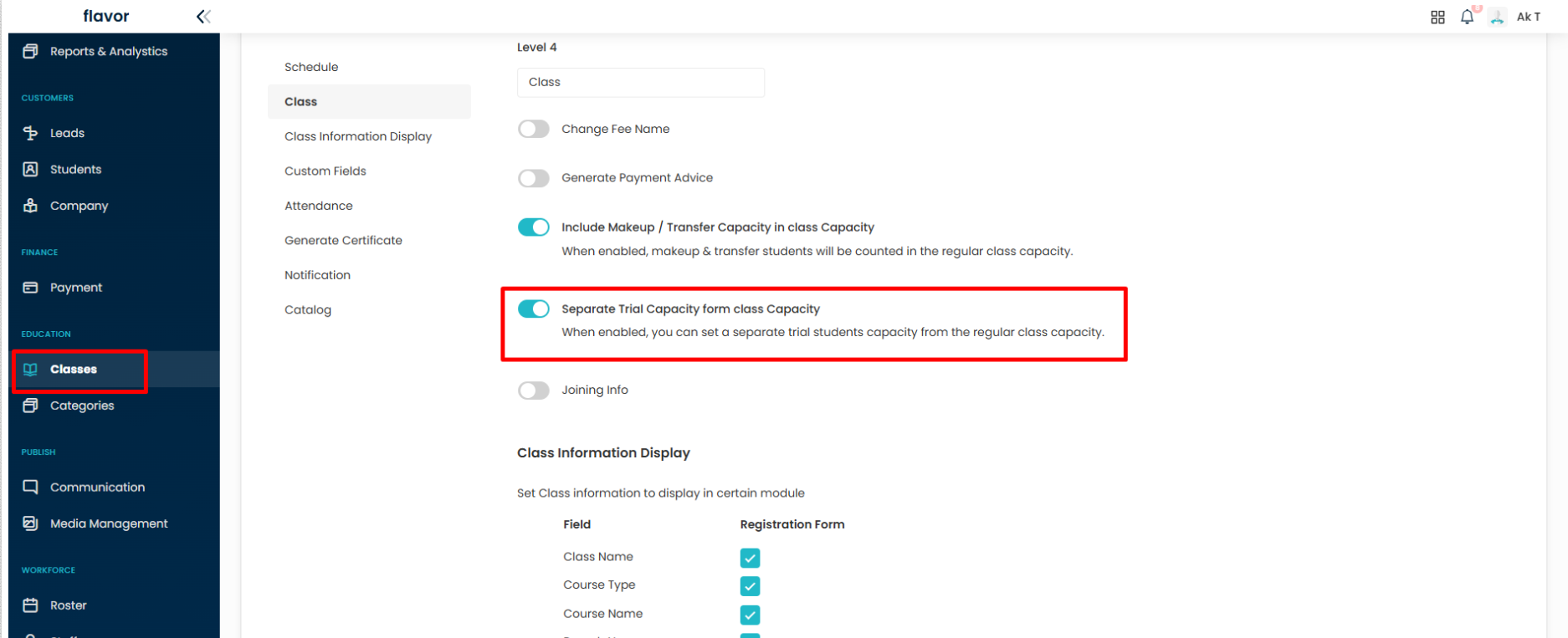
Before creating classes with trial fees, you must first enable the Separate Trial Capacity setting. This allows trial students to have their own capacity limit without affecting the regular class capacity.
Navigate to Class Settings
- Go to Classes from the left navigation menu.
- Click the Settings icon.
- Select the Class tab.
- Locate Separate Trial Capacity from Class Capacity.
- Enable the toggle to activate separate trial capacity management.
Purpose
When enabled, Flavor CRM allows you to set a dedicated capacity for trial students separately from the regular class capacity. This helps manage trial enrolments independently while maintaining accurate capacity tracking for enrolled students.
Create a New Class
Navigate to:
Classes → Create Class
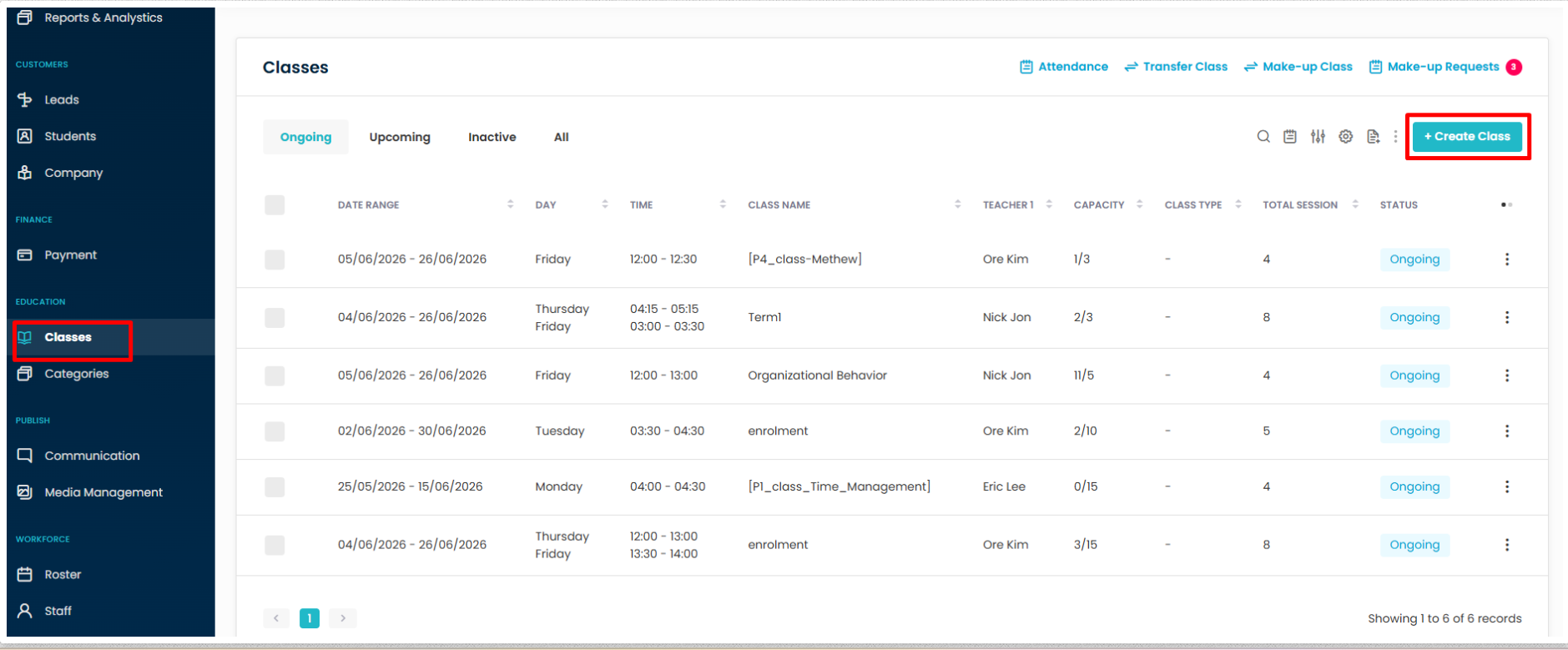
Click the + Create Class button.
Reference Image
- Select Classes
- Click Create Class
Complete the Class Information
Fill in all required class details such as:
- Class Name
- Course Type
- Schedule
- Teacher
- Room
- Capacity
Once completed, click Next.
Reference Image
- Complete the schedule details
- Click Next
Add a Trial Fee During Class Creation
-
When creating a class, you can configure a dedicated trial fee for students attending the class on a trial basis.
Configure the Trial Fee
- Proceed to the Payment section during class creation.
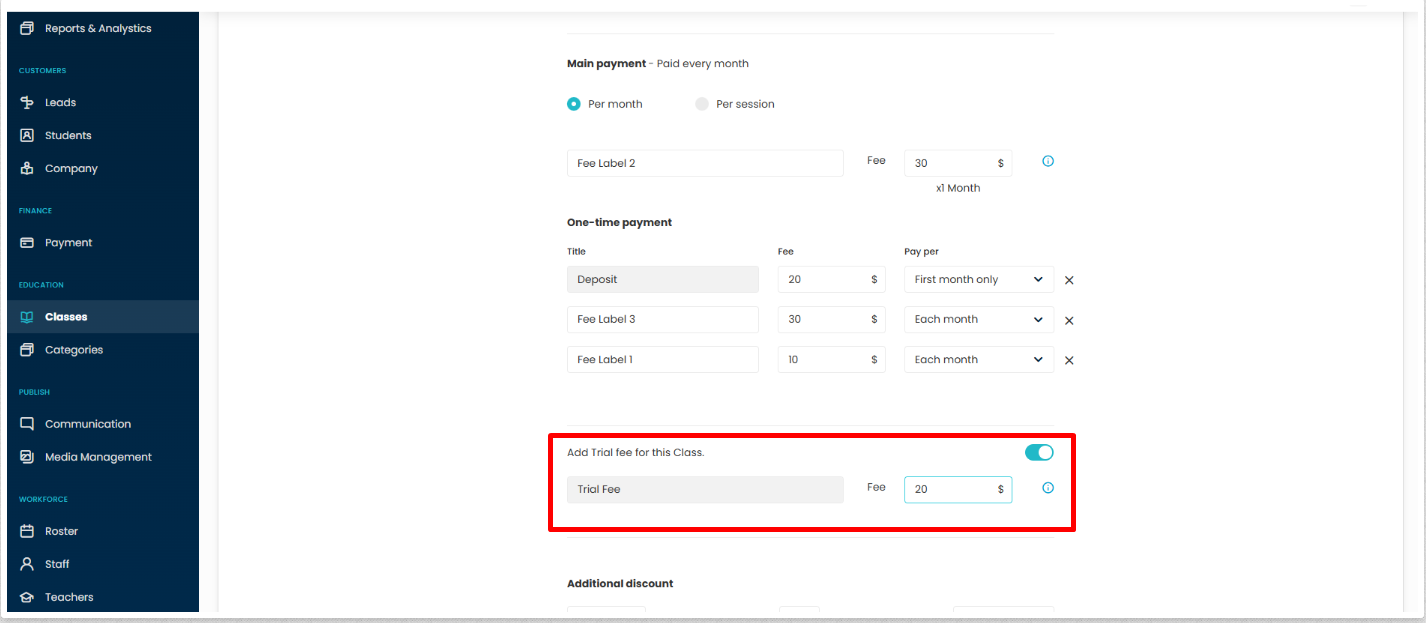
- Locate Add Trial Fee for this Class.
- Enable the toggle.
- Enter the desired Trial Fee amount.
- Continue with the remaining class setup and save the class.
Purpose
The trial fee will be applied when a student is registered as a trial student for the class.
Add or Update a Trial Fee in Class Payment Settings
If a class has already been created, you can add or update the trial fee from the class payment settings.
Edit the Class Payment Settings
- Go to Classes.
- Open the required class.
- Navigate to the Payment tab.
- Click Edit Payment.
Reference Image
- Open the required class
- Select the Payment tab
- Click Edit Payment
Add or Update the Trial Fee
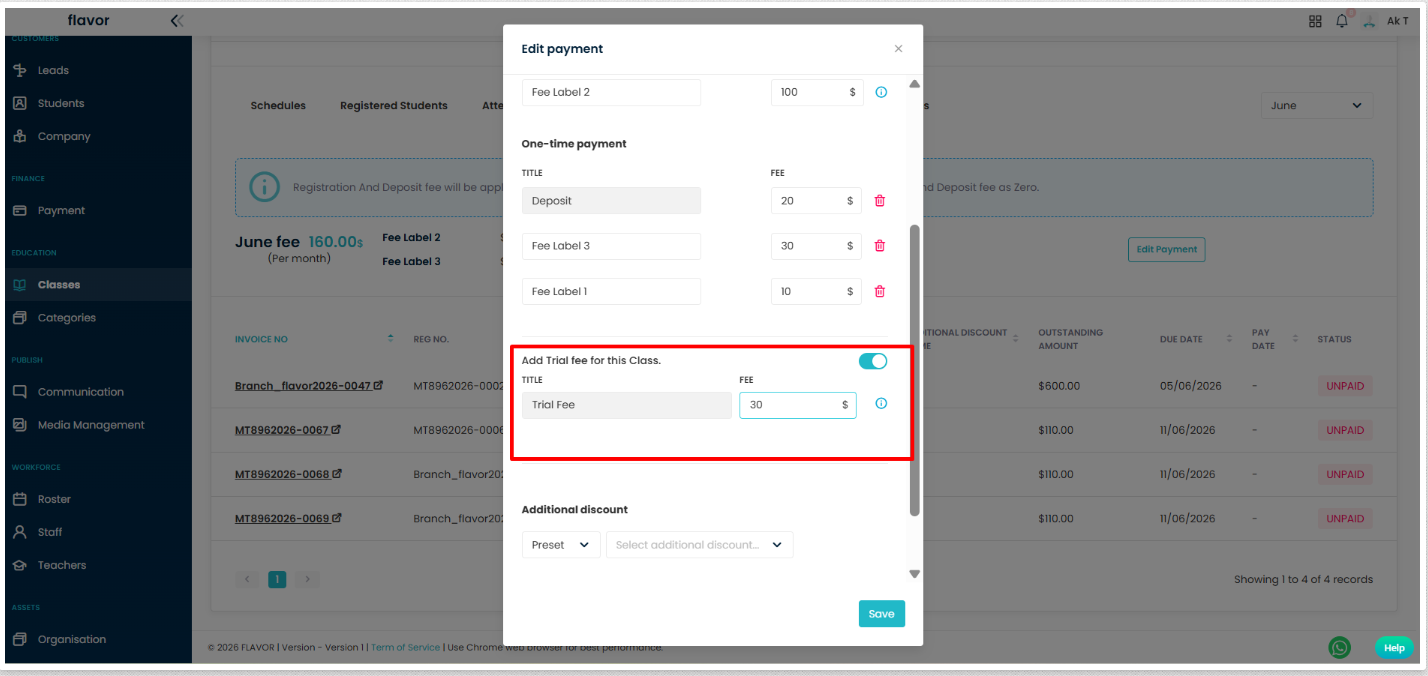
- In the Edit Payment window, locate Add Trial Fee for this Class.
- Enable the toggle if it is disabled.
- Enter or update the Trial Fee amount.
- Click Save.
Reference Image
- Enable Add Trial Fee for this Class
- Enter or update the Trial Fee amount
- Click Save
Register a Trial Student
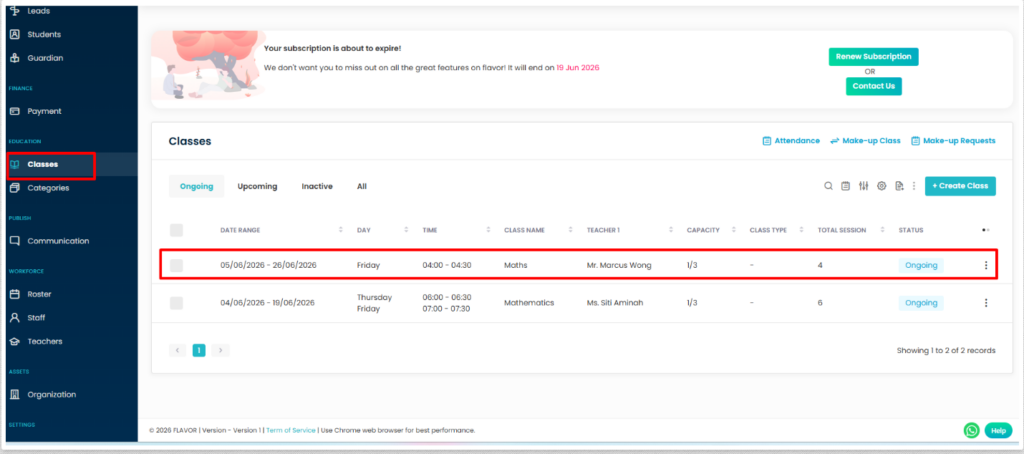
Navigate to the Class
Go to Classes.
Open the required class.
Click Register Student.
Reference Image
- Select Classes
- Open the required class
- Click Register Student
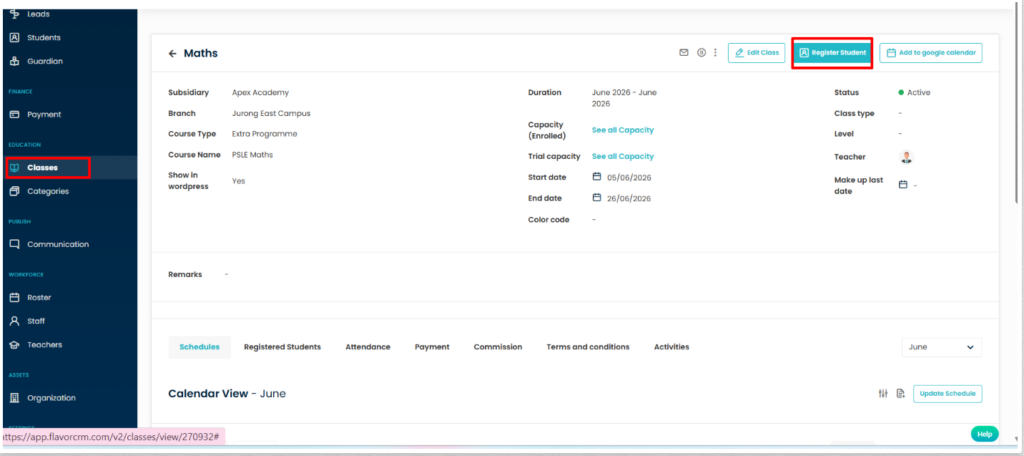
Select the Student
In the Add Students window, select the student you want to register.
Click Register Students.
Reference Image
- Select the required student
- Click Register Students
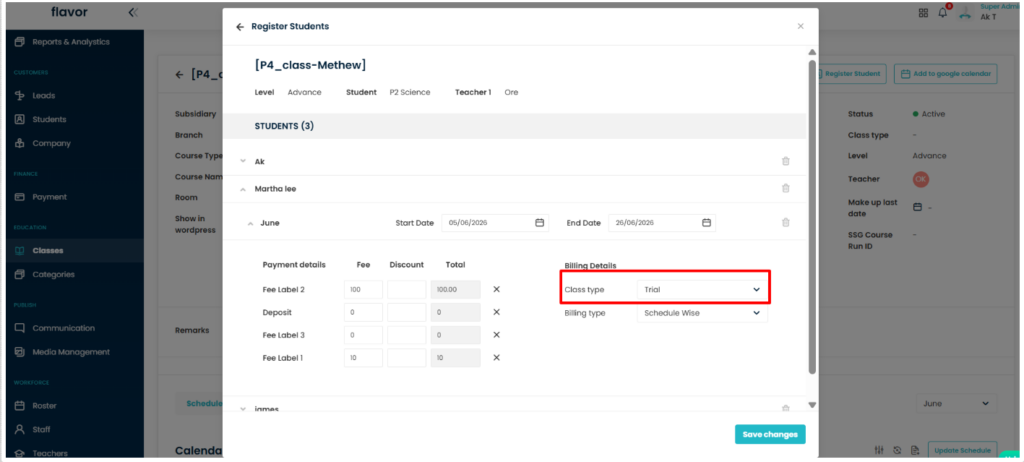
Set the Student as a Trial Student
In the Register Students window, locate Class type under Billing Details.
Select Trial from the dropdown.
Review the registration details and click Save changes.
Purpose
Selecting Trial applies the configured trial fee and registers the student as a trial student for the class.
Reference Image
- Locate Class type under Billing Details
- Select Trial
- Click Save changes
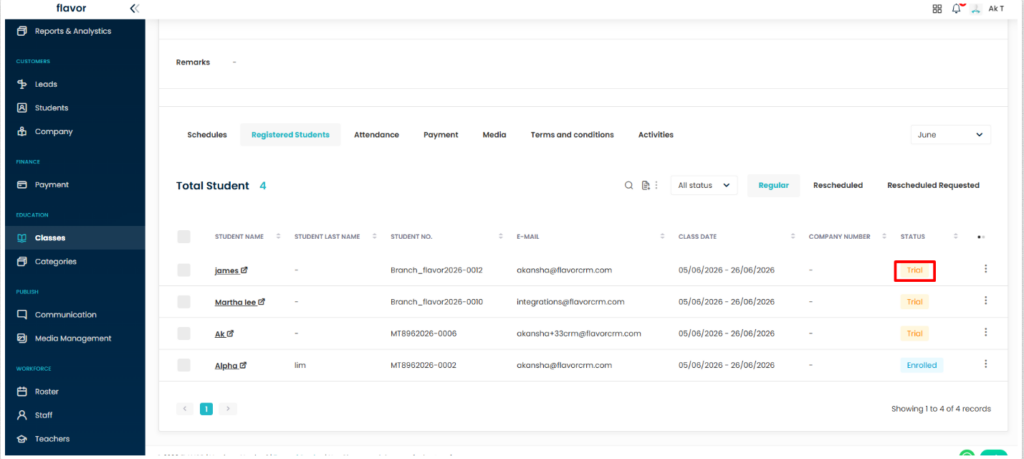
Verify the Trial Student Registration
Navigate to the Registered Students tab.
Confirm that the student is displayed with the Trial status.
Reference Image
- Open the Registered Students tab
- Verify the student is displayed with the Trial status
Register a Student Through a Form Link
Open Registration Form Settings
- Click Settings from the left navigation menu.
- Select the General tab.
- Click Registration Forms.
- Click Manage Forms.
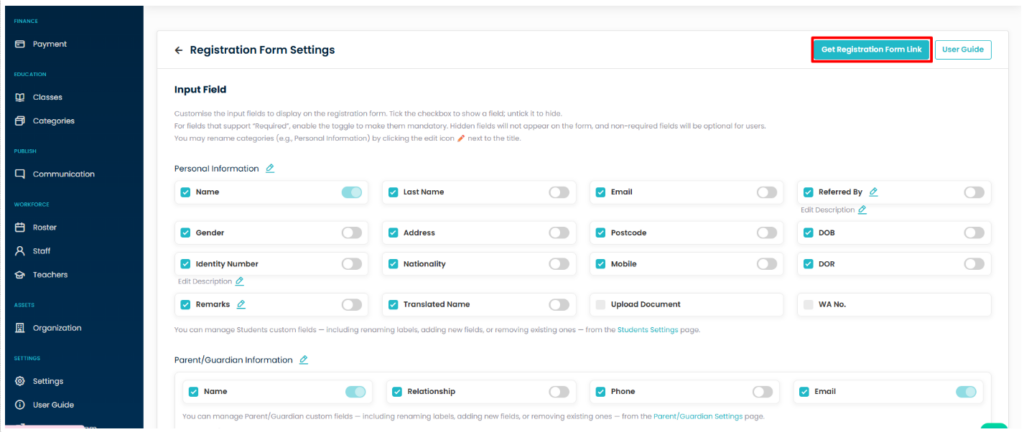
Get the Registration Form Link
- On the Registration Form Settings page, click Get Registration Form Link.
- Copy the generated registration form link and open it in a browser.
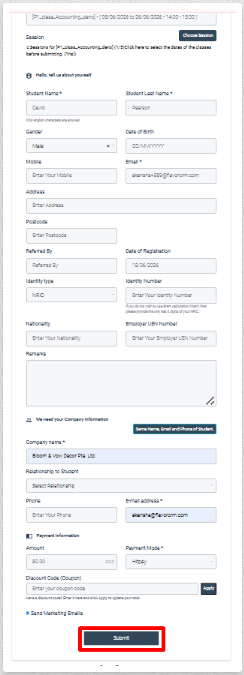
Complete the Registration Form
How Trial Fees Work
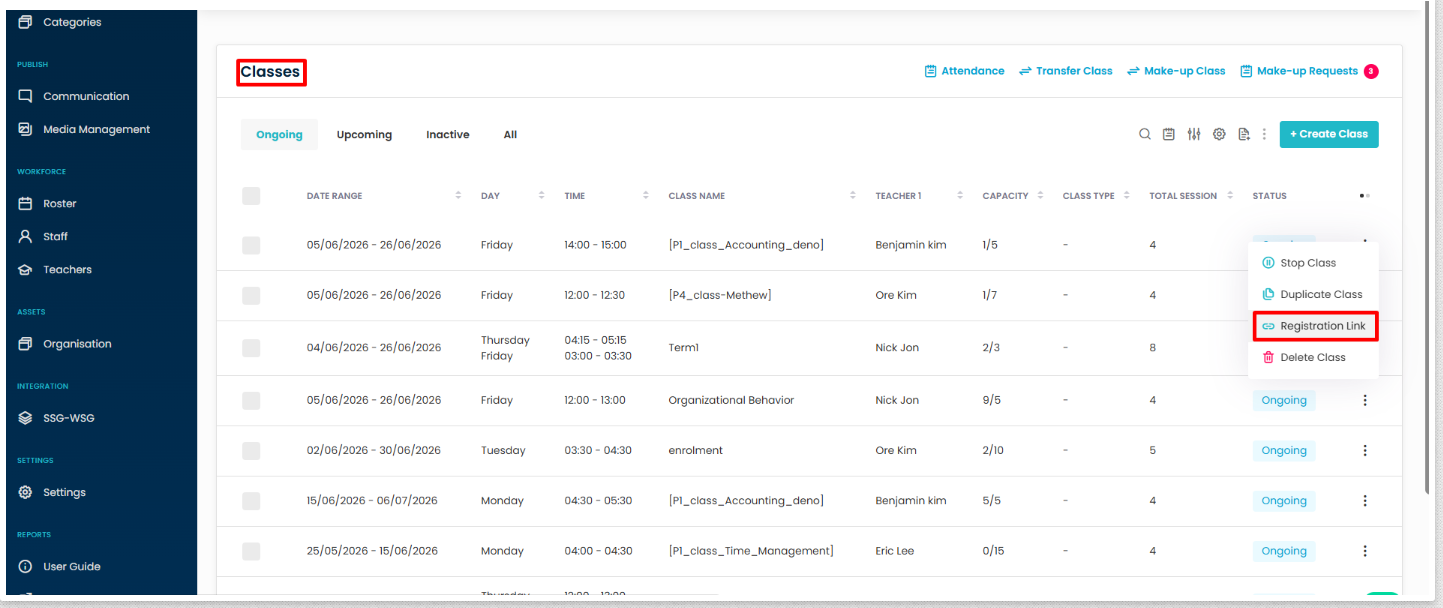
Register a Student Directly from the Classes Module
Need more help? Ask us a question
Please let us know more of your details and our team will reach out to you very shortly.
