



Overview
The Student Profile provides a centralized view of all classes and attendance records associated with a student.
This allows administrator, staff, and teachers to quickly review enrollment details, attendance history, and class participation without opening individual class records.
This feature is useful for:
- Reviewing a student’s attendance performance.
- Checking class enrollment information.
- Verifying attendance related inquiries.
- Monitoring student participation across multiple classes.
How to Access Attendance Information
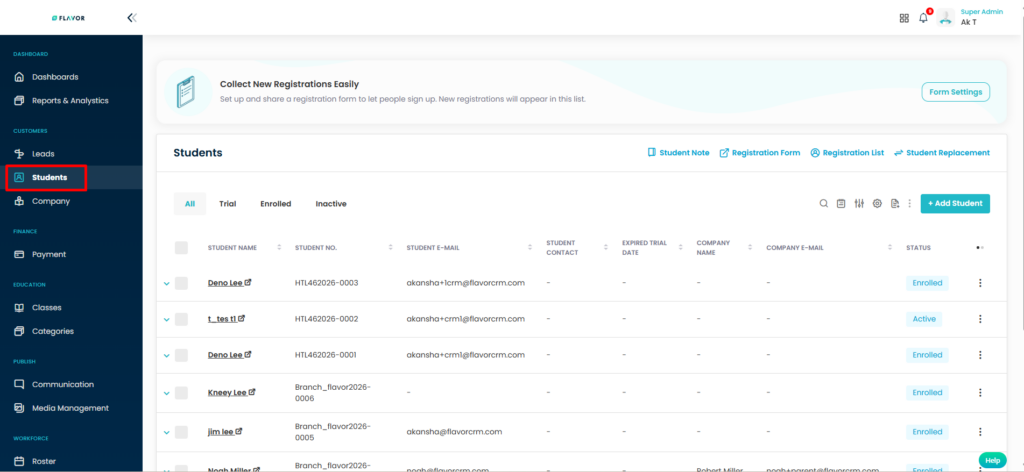
Step 1: Open the Students Module
- Navigate to Students from the left-hand menu.
- The student whose attendance information you want to view.
- Click on the student’s name to open the Student Profile.
Step 2: Open the Attendance Section
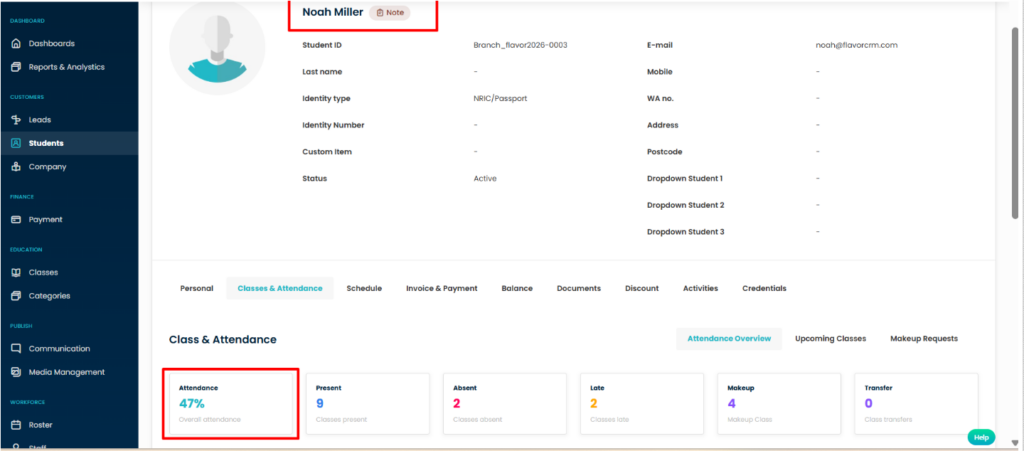
- Inside the Student Profile, locate the available tabs.
- Click on the Classes & Attendance tab.
Understanding Attendance Information
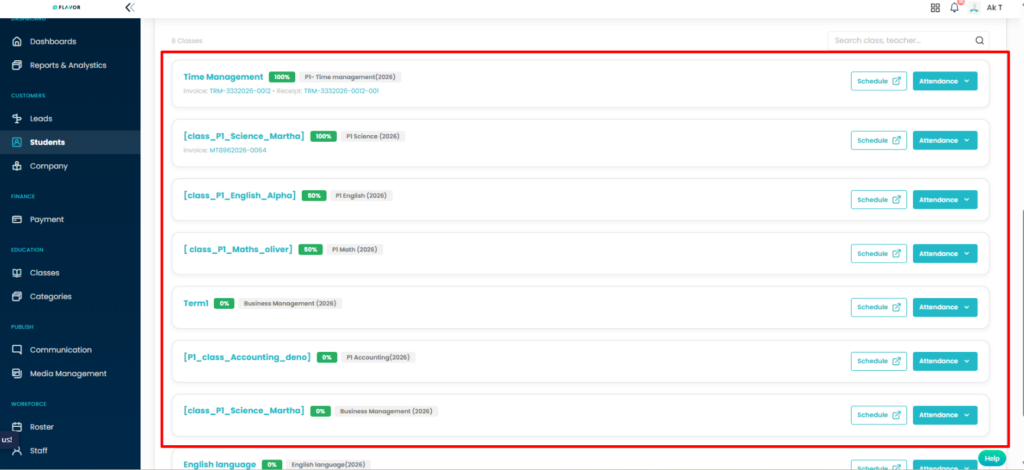
The Attendance section displays detailed information about each class session attended by the student.
Typical information includes:
|
Field
|
Description
|
|
Date
|
Date of the class session
|
|
Class Name
|
Name of the enrolled class
|
|
Course
|
Associated course name
|
|
Teacher
|
Assigned teacher
|
|
Attendance Status
|
Present, Absent, Late, Leave, etc.
|
|
Remarks
|
Additional attendance notes (if any)
|
Search Attendance Records
If the student has a large attendance history, you can use the Search option.
- Click the Search icon.
- Enter the class name or teacher name in the search field.
- Press Enter or apply the search.
- Class Name
- Teacher Name
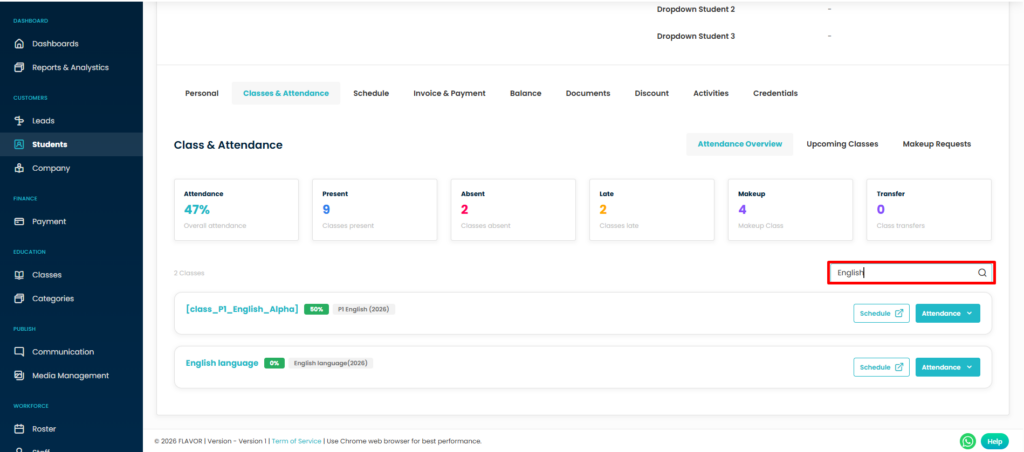
Only matching attendance records will be displayed.
View Attendance Details
To view more information about a specific attendance record:
- Click on the attendance entry.
- Review the detailed attendance information displayed.
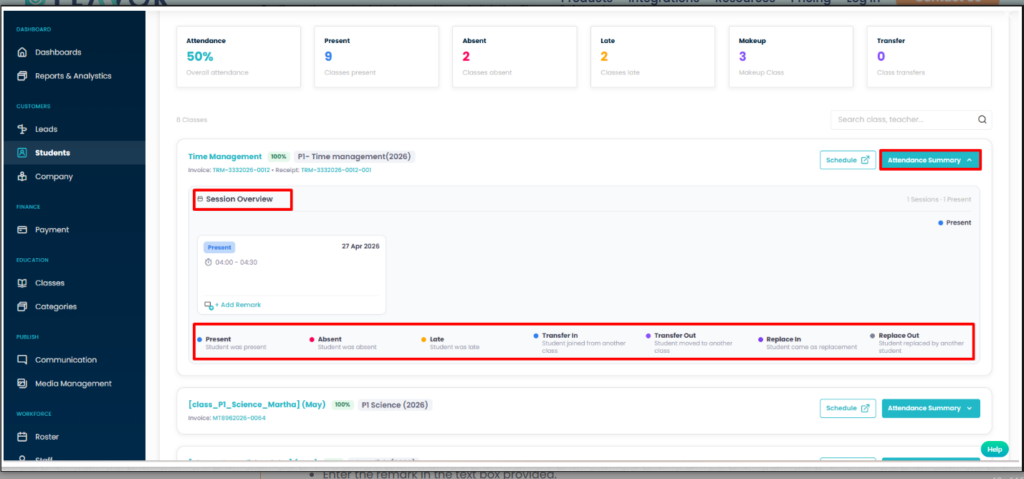
You can view:
- Attendance status.
- Session information.
- Teacher details.
Additional remarks (if available)
Manage Attendance Remarks
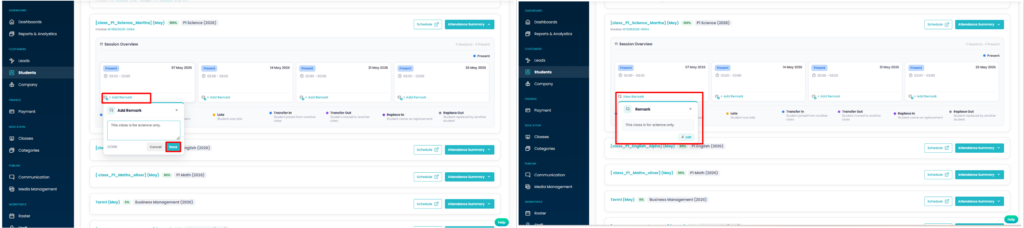
Attendance remarks can be added to individual sessions to record important
information related to a student’s attendance, behavior, participation, or any special circumstances during that class.
Add a Remark
- Navigate to the student’s Classes & Attendance tab.
- Locate the session for which you want to add a remark.
- Click + Add Remark below the session card.
- Enter the remark details.
- Click Save.
Edit an Existing Remark
- Open the student’s Classes & Attendance tab.
- Locate the session containing the remark.
- Open the existing remark.
- Update the information as required.
- Click Save Changes.
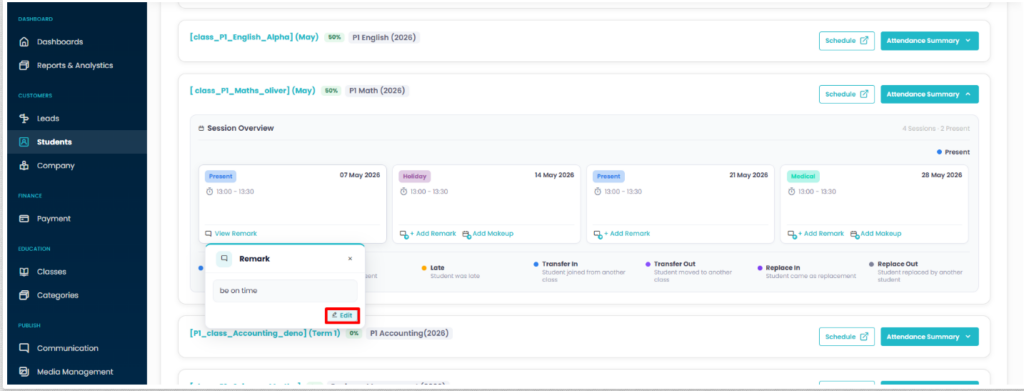
Result:
The updated remark will be reflected in the attendance record immediately.
Manage Makeup Classes
The system provides two options:
- Use an Existing Class.
- Create a New Makeup Session.
- This allows schools to provide replacement lessons while maintaining accurate attendance records.
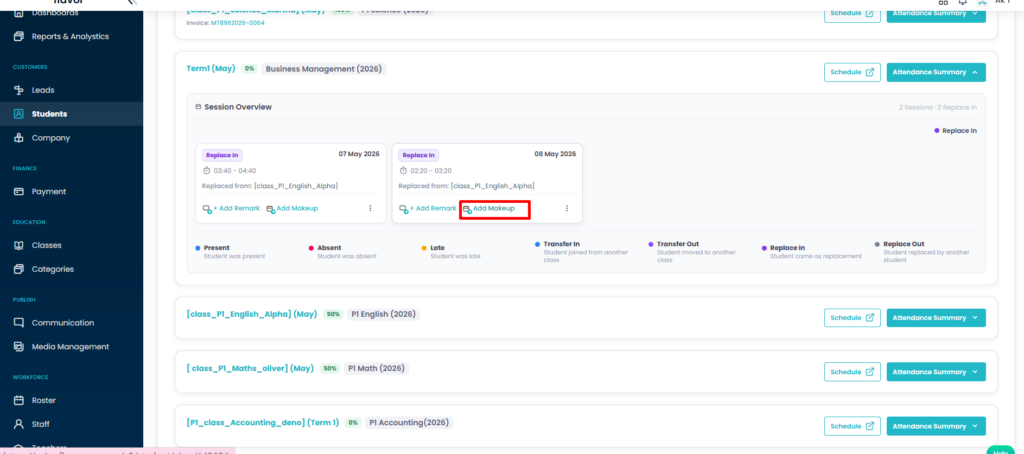
Add a Makeup Class
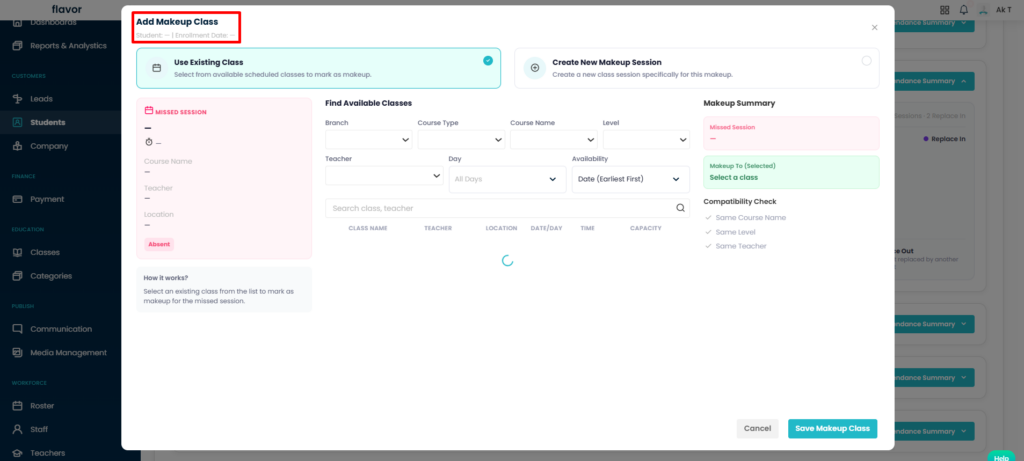
Step 1: Open the Makeup Class Window
1.Navigate to the student’s Classes & Attendance tab.
2.Locate the missed or unattended session.
3.Click + Add Makeup.
Option 1: Use an Existing Class
Use this option when there is already a scheduled class available that can be used as a makeup lesson.
Step 1: Select “Use Existing Class”
1.In the Add Makeup Class window, select Use Existing Class.
2.The system will display available classes matching the selected criteria.
Step 2: Find Available Classes
Use the available filters to search for suitable classes.
- Branch
- Course Type
- Course Name
- Level
- Teacher
- Day
- Availability
You can also use the search box to search by class name or teacher.
Step 3: Select a Makeup Class
The Makeup Summary panel will automatically update with the selected class information
Step 4: Save the Makeup Class
1.Review the selected class details.
2.Click Save Makeup Class.
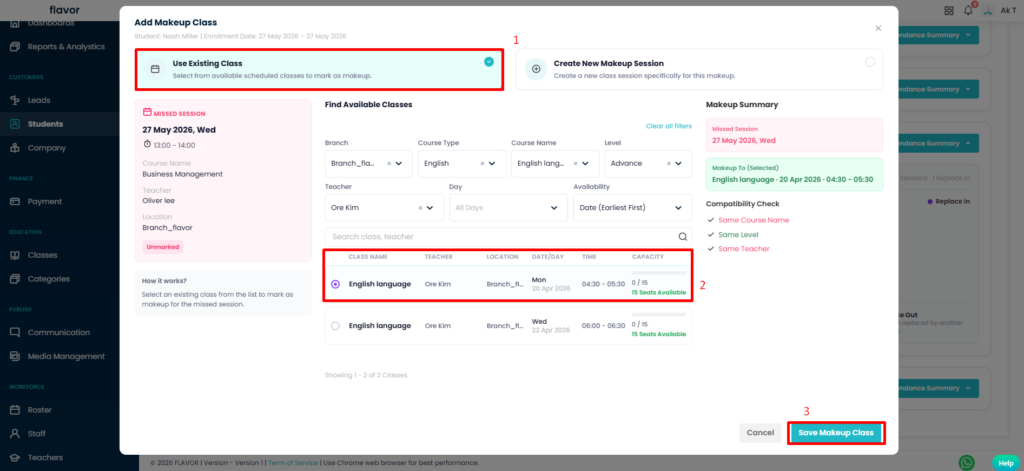
The selected class will be assigned as the student’s makeup lesson and linked to the missed session.
Option 2: Create a New Makeup Session
Use this option when no suitable scheduled class is available and a dedicated makeup session needs to be created.
Step 1: Select “Create New Makeup Session”
1.Open the Add Makeup Class window.
2.Select Create New Makeup Session.
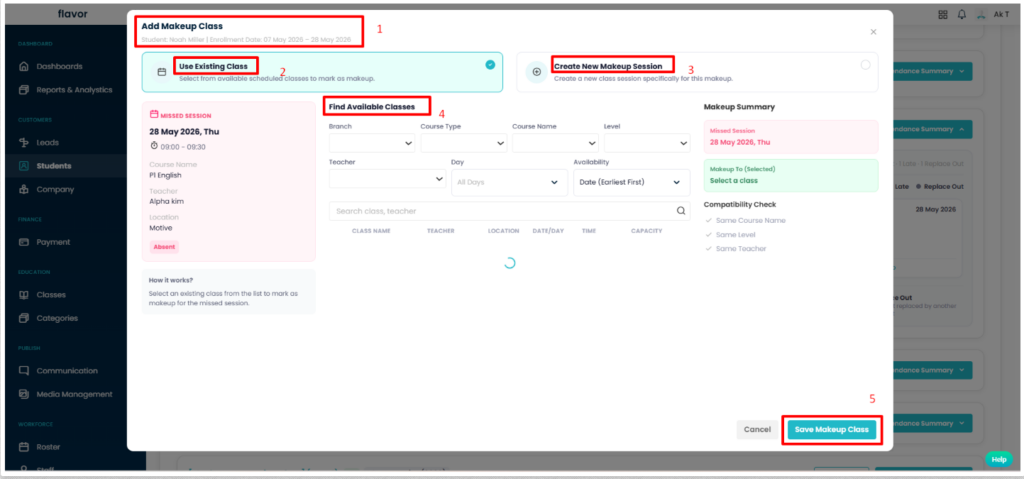
Step 2: Enter Session Information Complete the required session details.
- Makeup Date
- Start Time
- End Time
Makeup To
- Course Type
- Course Name
- Class Name
- Level
- Room
- Teacher
- Maximum Student Capacity
- Makeup Capacity
- Remarks (Optional)
The summary panel on the right side will display:
- Date
- Time
- Course Type
- Course Name
- Class Name
- Level
- Teacher
- Branch
- Maximum Capacity
- Makeup Capacity
- Payment Information (if applicable)
Review all information carefully before creating the session.
2.Click Create Makeup Session.
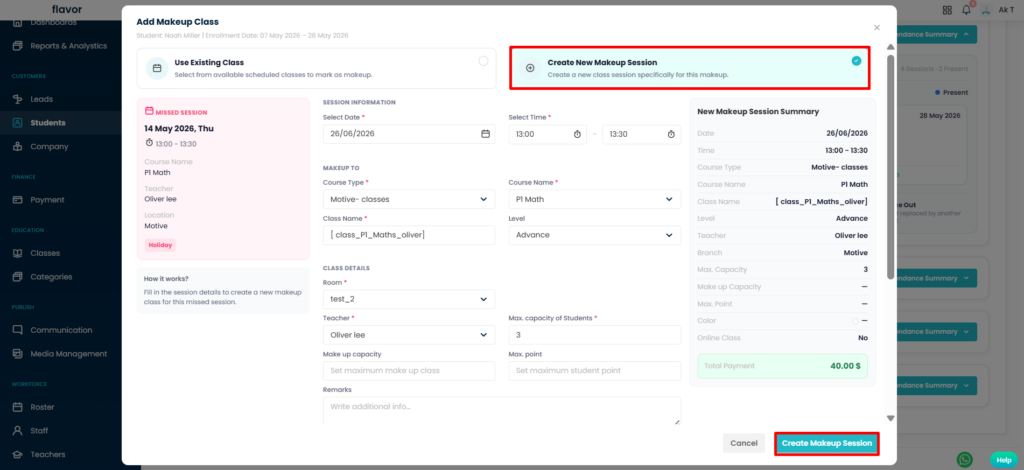
A new makeup session will be created and automatically linked to the student’s missed attendance session.
View and Manage Existing Makeup Classes
Once a makeup class has been assigned or created, additional actions are available from the session menu.
1.Navigate to the student’s Classes & Attendance tab.
2.Locate the makeup session in the Session Overview section.
3.Click the More Actions (⋮) menu on the session card.
- View Makeup Details
- Cancel Makeup
View Makeup Details
The View Makeup Details option allows users to review information about the linked makeup session.
- Locate the makeup session.
- Click the More Actions (⋮) menu.
- Select View Makeup Details.
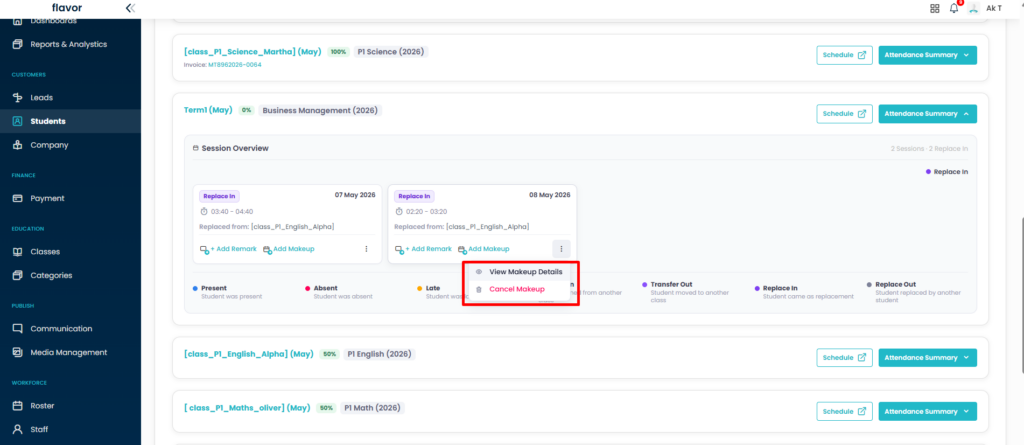
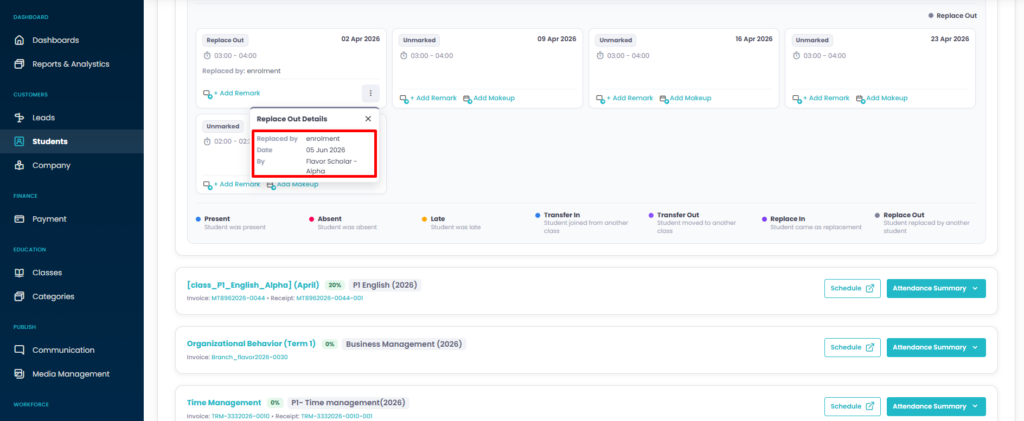
You can review the complete makeup history and identify how the student was assigned to the replacement session.
Cancel Makeup
If a makeup session was assigned incorrectly or is no longer required, it can be cancelled directly from the attendance record.
- Locate the makeup session.
- Click the More Actions (⋮) menu.
- Select Cancel Makeup.
- Confirm the cancellation when prompted.
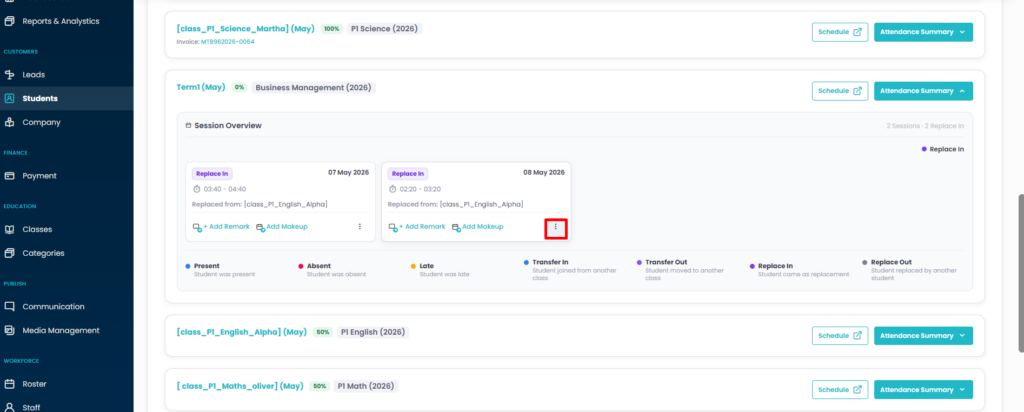
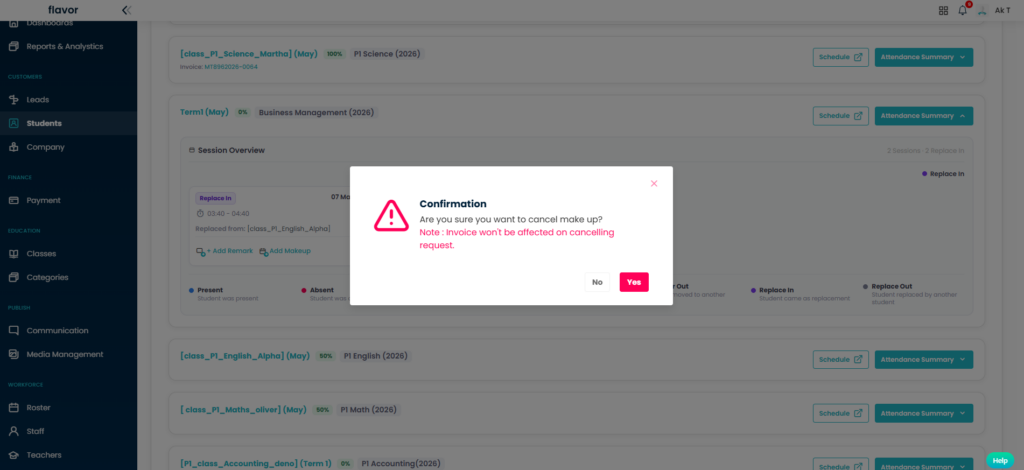
The makeup assignment will be removed and the session will no longer be linked as a makeup class.
- Cancelling a makeup session does not delete the original attendance record.
- Attendance history will be updated automatically after cancellation.
Attendance Status Indicators
The attendance section may display different attendance statuses for each session.
|
Status
|
Description
|
|
|
Present
|
Student attended the class
|
|
|
Absent
|
Student did not attend the class
|
|
|
Late
|
Student arrived late
|
|
|
Transfer In
|
Student joined from another class
|
|
|
Transfer Out
|
Student moved to another class
|
|
|
Replace In
|
Student attended as a replacement
student
|
|
|
Replace Out
|
Another student attended as a
replacement
|
|
| Unmarked |
|
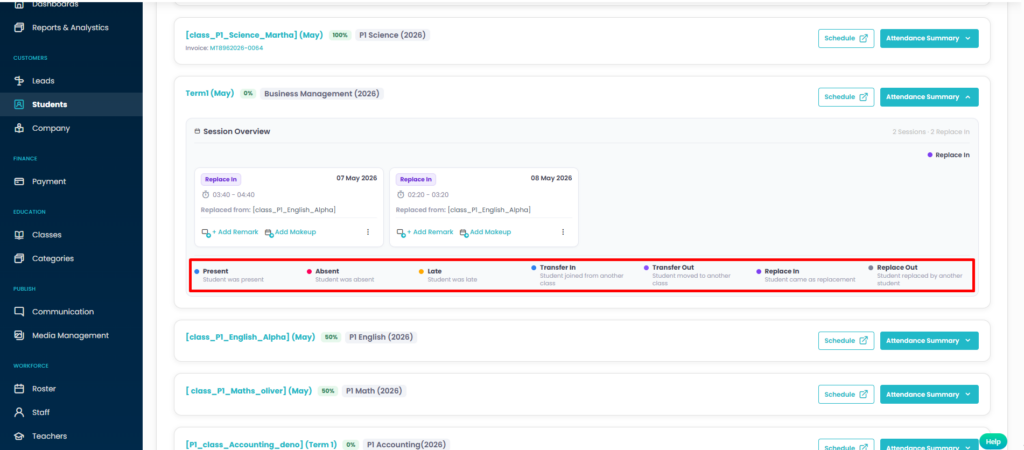
- Attendance information shown in the Student Profile is read directly from attendance records marked in the Attendance Module.
- Attendance remarks are linked to the individual session where they were created.
- Makeup classes can be assigned using an existing class or by creating a new dedicated makeup session.
- Users can review makeup details from the session action menu.
- Makeup assignments can be cancelled when required.
- All makeup sessions remain associated with the student’s attendance history for future reference.
Expected Outcome
After following this guide, you will be able to:
- View a student’s attendance history.
- Review class session information.
- Search attendance records.
- Add and update attendance remarks.
- Assign makeup classes using existing scheduled classes.
- Create dedicated makeup sessions for missed lessons.
- View makeup details and replacement history.
- Cancel makeup assignments when required.
- Track attendance and makeup history from a single location within the Student Profile.
This provides a complete overview of the student’s attendance activities, remarks, and makeup sessions from a centralized location within Flavor CRM.
Need more help? Ask us a question
Please let us know more of your details and our team will reach out to you very shortly.
