



Allow Students to Self-Cancel Make-Up and Rescheduled Classes in the Mobile App
This feature allows students to cancel their pending or approved make up / rescheduled class requests directly from the mobile app. When enabled, students can manage their make up requests without requiring manual intervention from administrators.
Step 1
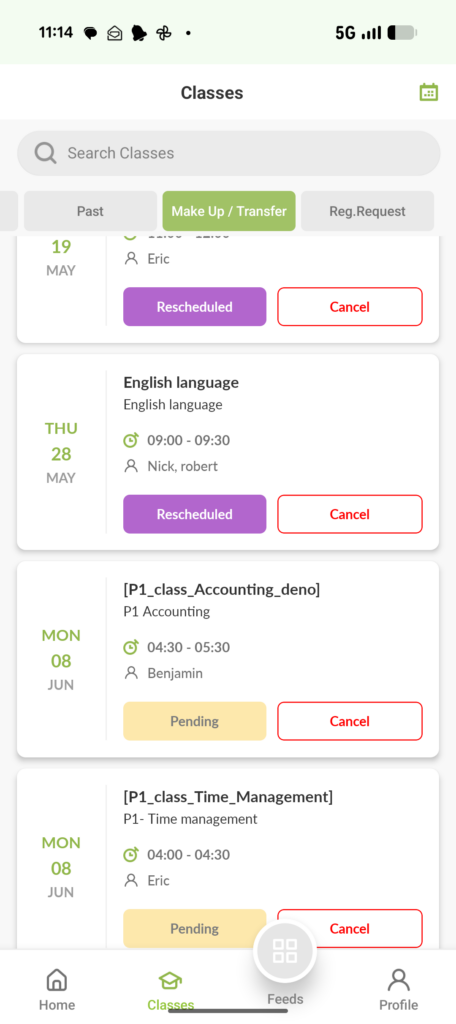
- Login to the Flavor Mobile App.
- On the Make Up/ Transfer Tab, you can see the list of classes.
Note:
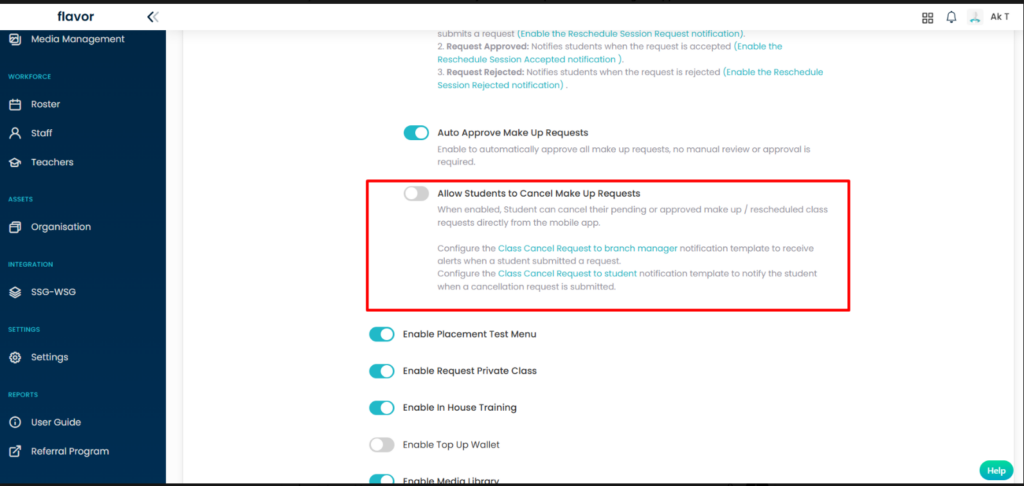
You can do the settings to show/hide the cancel button as per your need. Follow the steps to do so.
Step 1: Navigate to the Mobile App Configuration page.
Step 2: Scroll down to locate the Allow Students to Cancel Make Up Requests setting.
Step 3: Toggle Allow Students to Cancel Make Up Requests to Enabled.
Step 4: Click Save to apply the changes.
Step 2
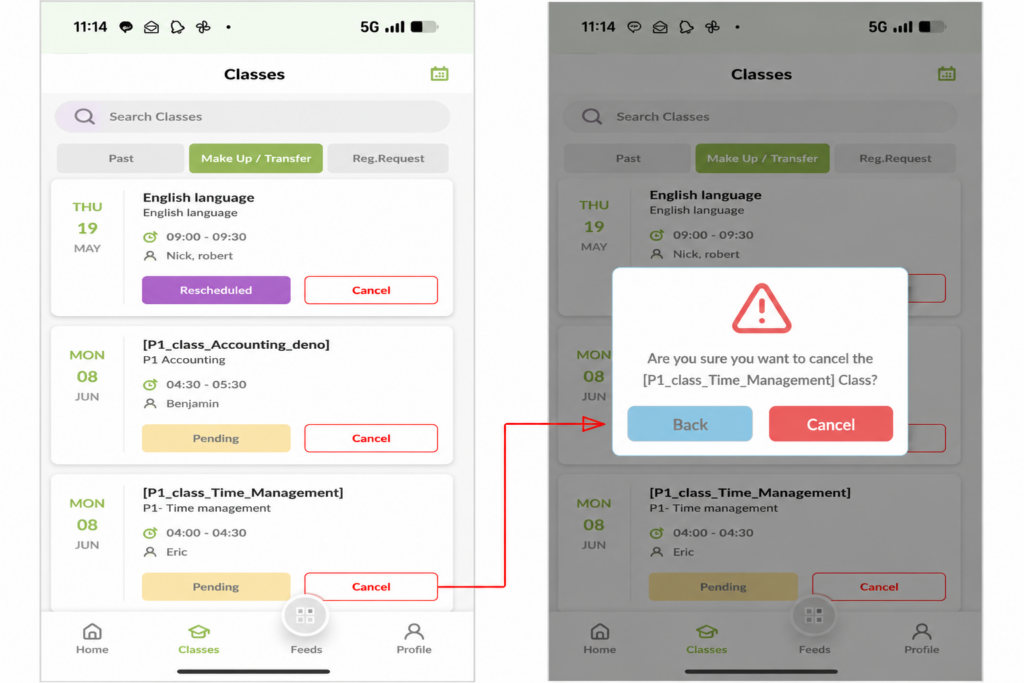
- There will be a cancel button against each class.
- Click on the cancel button against the specific class which you want to cancel.
- A confirmation popup will appear on your screen.
- Click on the Cancel button.
 Result
Students will be able to cancel their pending or approved make up / rescheduled class requests directly from the mobile app.
Track Cancelled Make Up and Rescheduled Classes
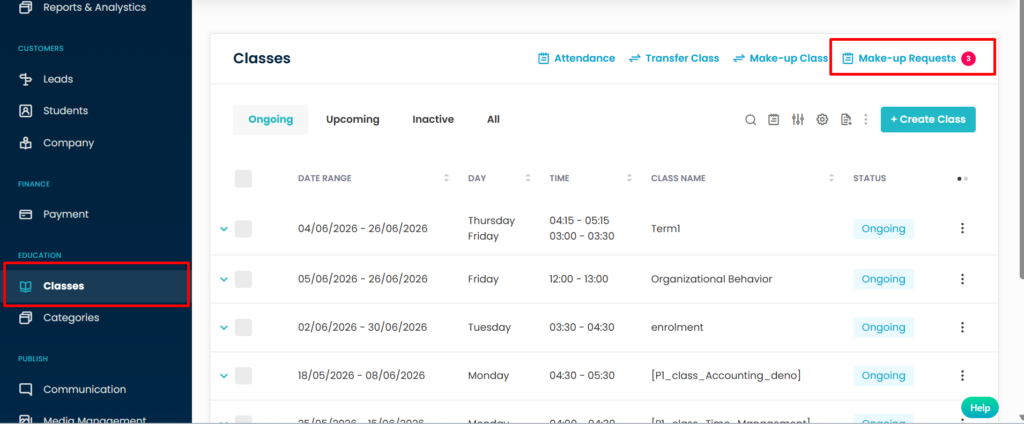
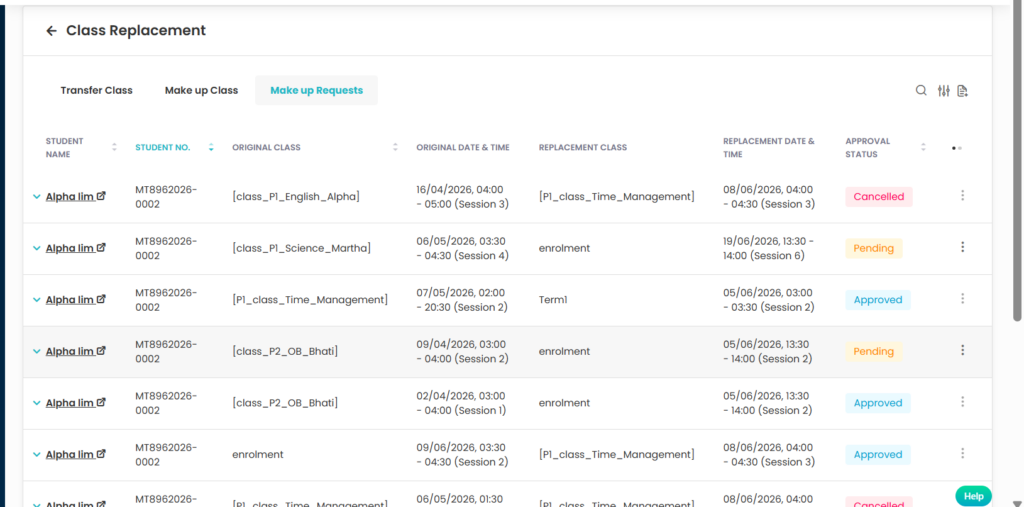
When a student cancels a make-up or rescheduled class via the Flavor Scholar App, the record syncs instantly to Flavor CRM. Admins can manage cancellation logs, review affected student profiles, and track statuses directly under Classes > Make Up Request
Configure Email Notifications
To send cancellation request notifications, configure the following notification templates:
Step 1
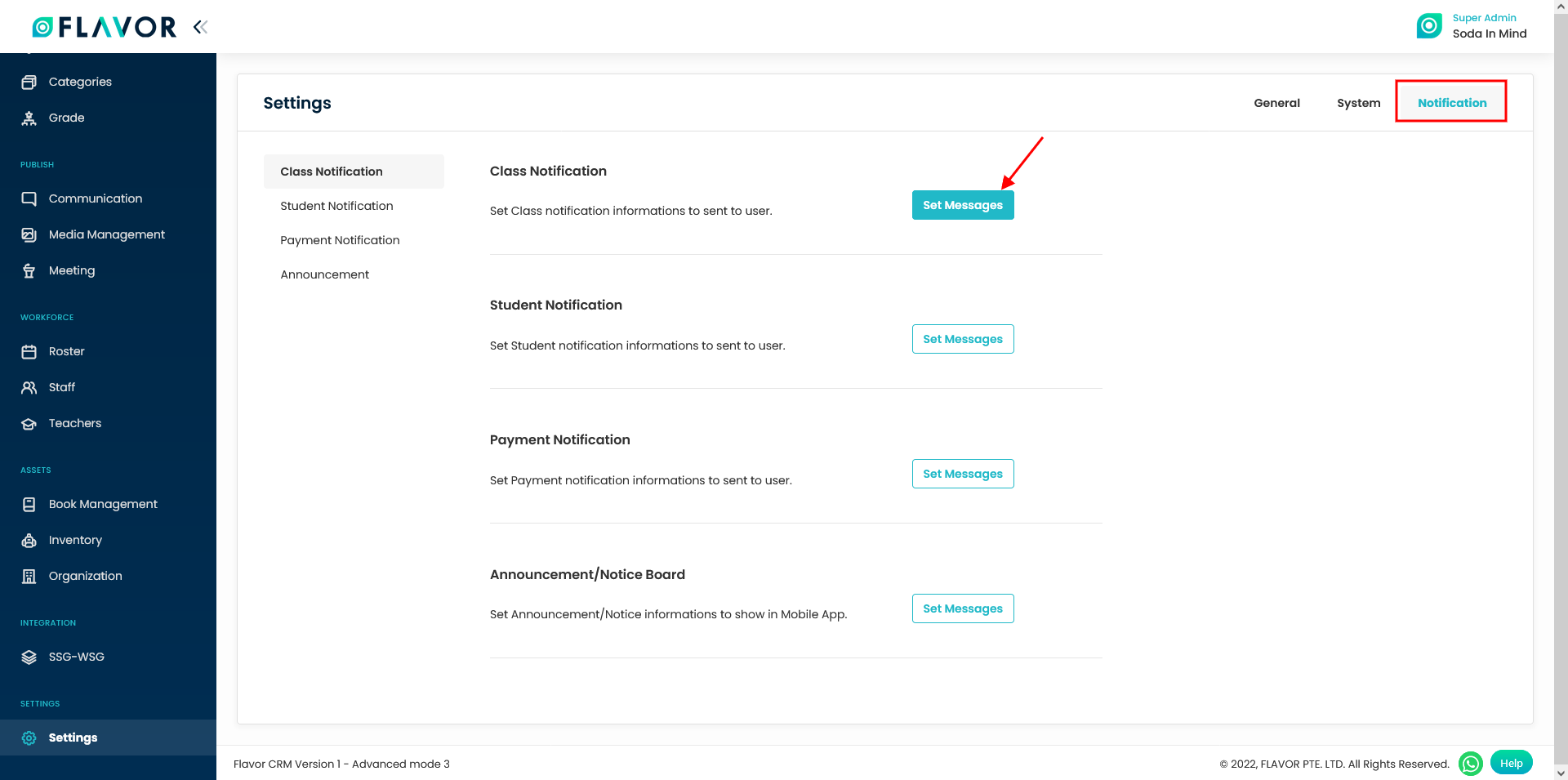
- Go to the Settings from the left-side menu of the Flavor System.
- Under the Notification Tab, click on Set Messages against Class Notification.
Step 2
- It will navigate you to the Notification Settings page.
- On the right hand side select the Subsidiary from the dropdown. It means the settings ahs been done for that specific Subsidiary.
- Scroll down and enable the switch for Class Cancel Request to branch manager.
- On the right hand side, select the Type and Receiver.
- Set the Title and Message Template.
- Click on Save Notification button.
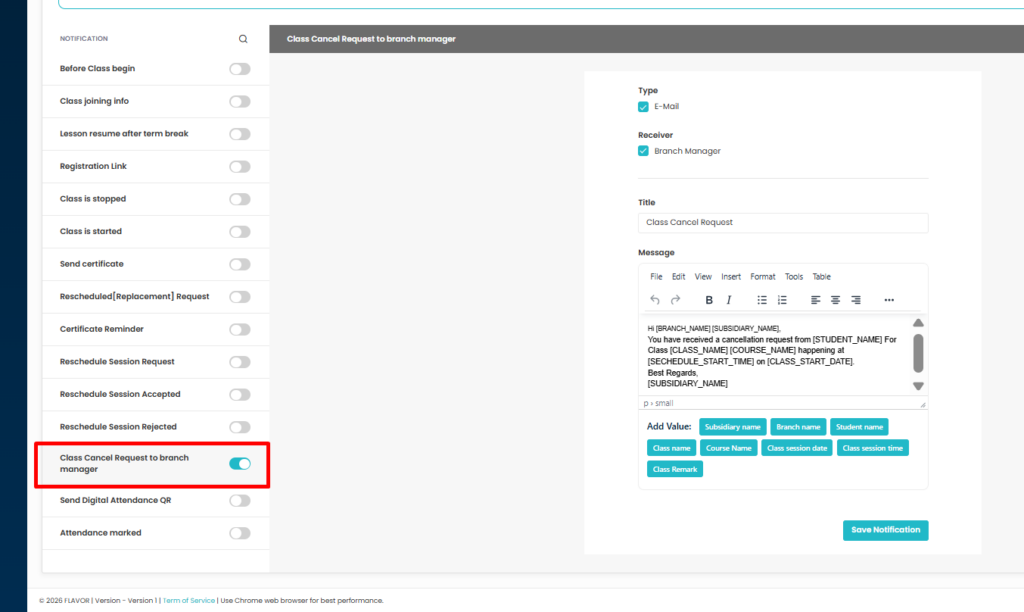
Class Cancel Request to Branch Manager –
Sends a notification to the branch manager when a student submits a cancellation request.
Step 3
- Again to set the template for Student Notification, on the Settings page under the Notification tab, click on Set Messages button against the Student Notification.
- On the Notification settings page, scroll down and click and enable the Class Cancel Request to student switch.
- On the right hand side, select the Type and Receiver.
- Set the Title and Message Template.
- Click on Save Notification button.
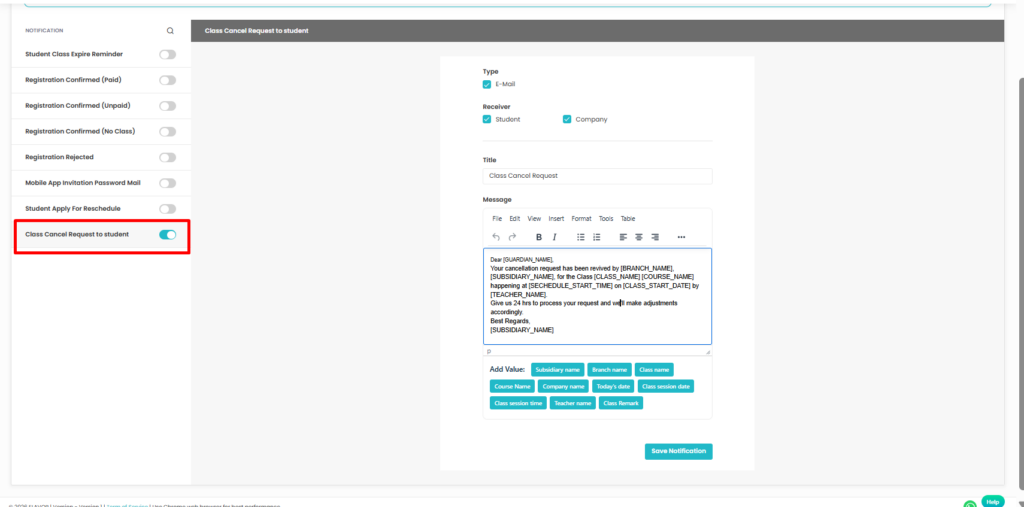
Class Cancel Request to Student – Sends a notification to the student after the cancellation request has been submitted.
Need more help? Ask us a question
Please let us know more of your details and our team will reach out to you very shortly.
