



Announcement / Feed
In this article, you will learn how to use the Announcement Feed in the Flavor Parent & Teacher Mobile App.
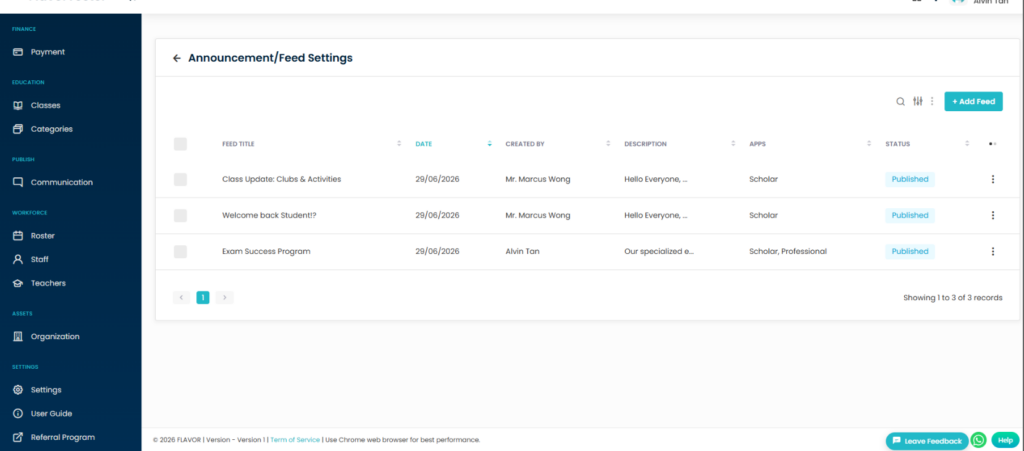
Before using the Announcement Feed in the mobile app, you must first configure the announcement feed information to be displayed.
To enable the Announcement Feed, follow the steps below:
Announcement / Feed Settings
1. From the dashboard, click Settings > Notification.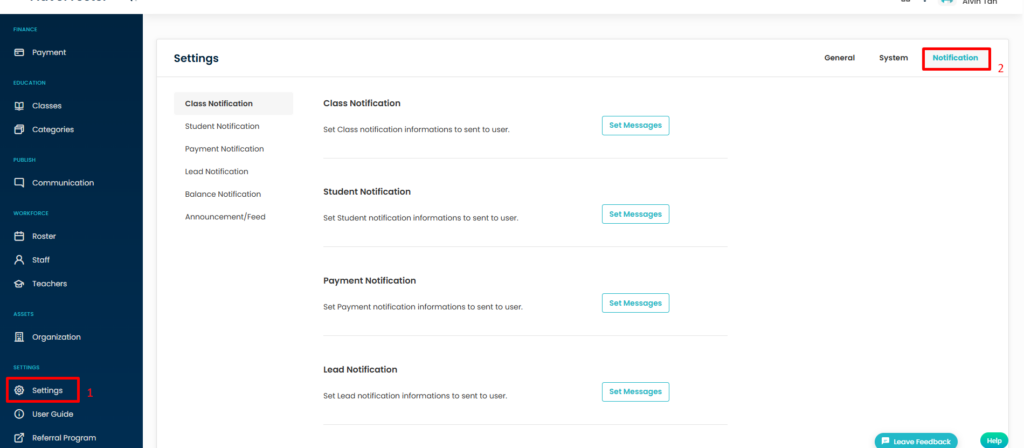
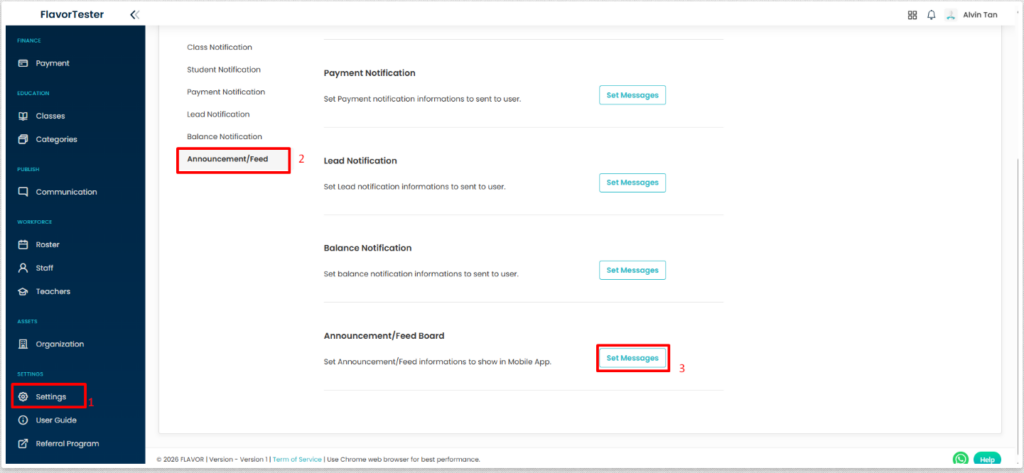
2. Select Announcement/Feed under Notification Settings.
3. In the Announcement/Feed Board section, click Set Messages.
Create the Announcement / Feed
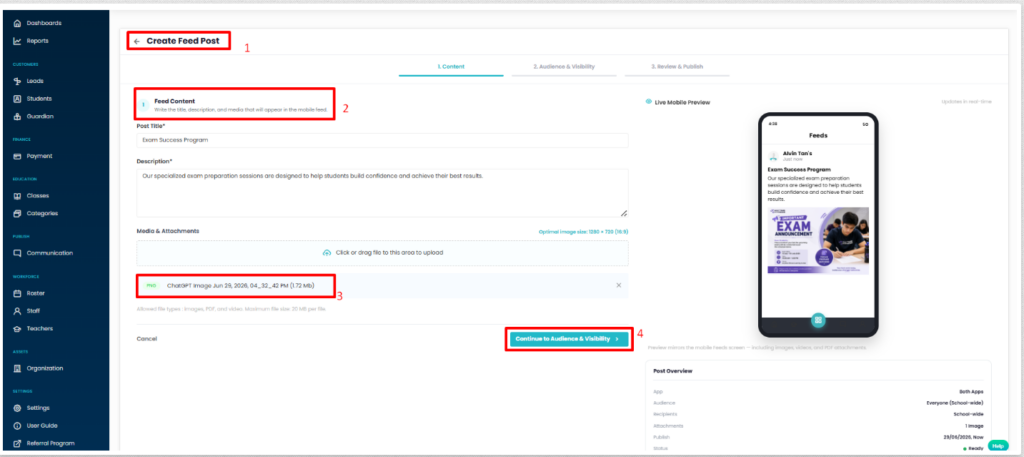
- On the Create Feed Post page, enter the Post Title and Description for the announcement.
- Upload the required media or attachment that you want to display in the Announcement Feed.
- Review the Live Mobile Preview to verify how the announcement will appear in the mobile app.
- Click Continue to Audience & Visibility to proceed.
Configure Audience & Visibility
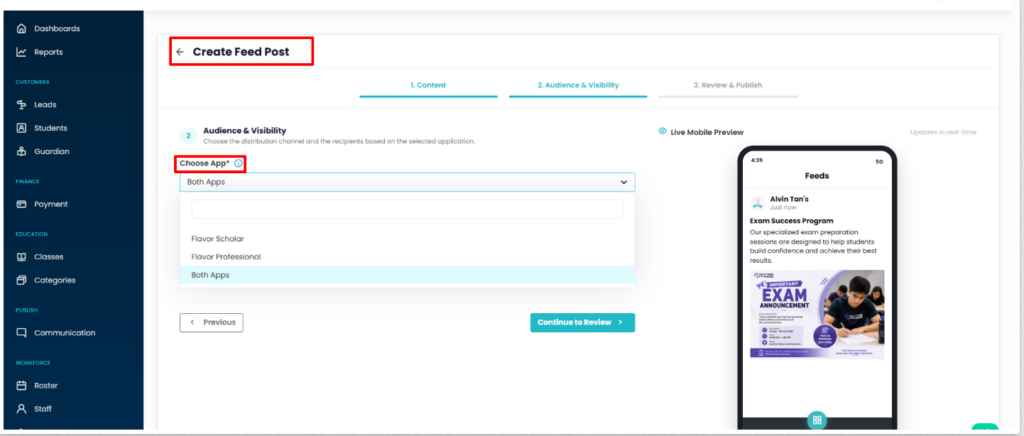
- On the Audience & Visibility page, select the app from the Choose App dropdown.
- Choose Flavor Scholar, Flavor Professional, or Both Apps, depending on where you want the announcement to be displayed.
- Review the Live Mobile Preview to verify how the announcement will appear in the selected app.
- Click Continue to Review to proceed.
Select the Target Audience
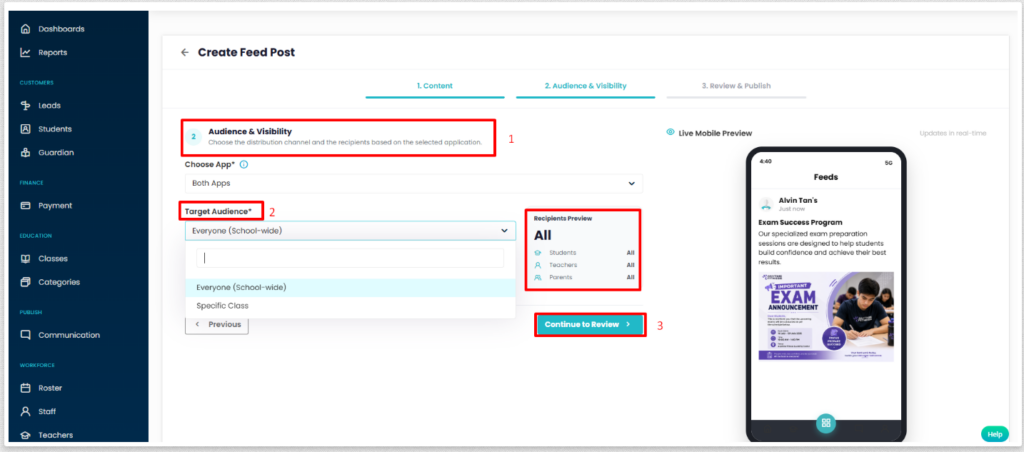
- On the Audience & Visibility page, select the Target Audience from the dropdown.
- Choose Everyone (School-wide) or Specific Class, depending on who should receive the announcement.
- Review the Recipients Preview to verify the selected recipients.
- Click Continue to Review to proceed.
Review & Publish
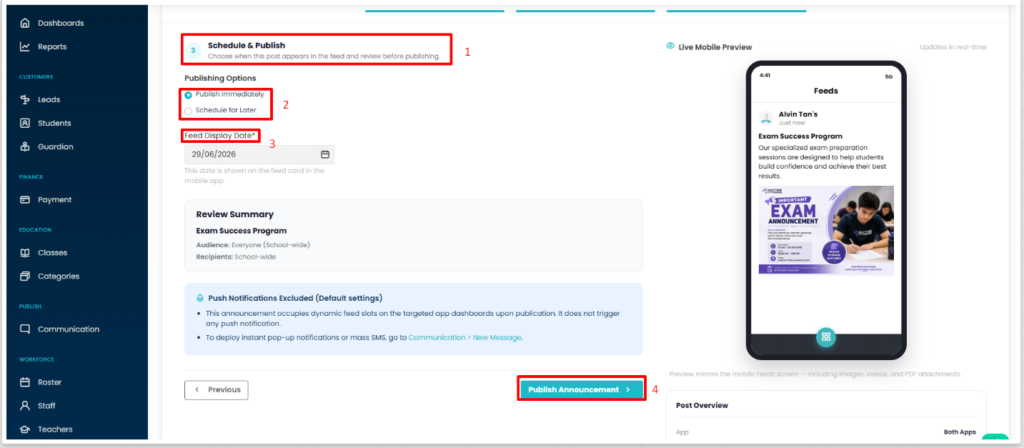
- On the Review & Publish page, choose the Publishing Options.
- Review the Feed Display Date and Summary.
- You can also preview the post before publishing to verify that all information is displayed correctly.
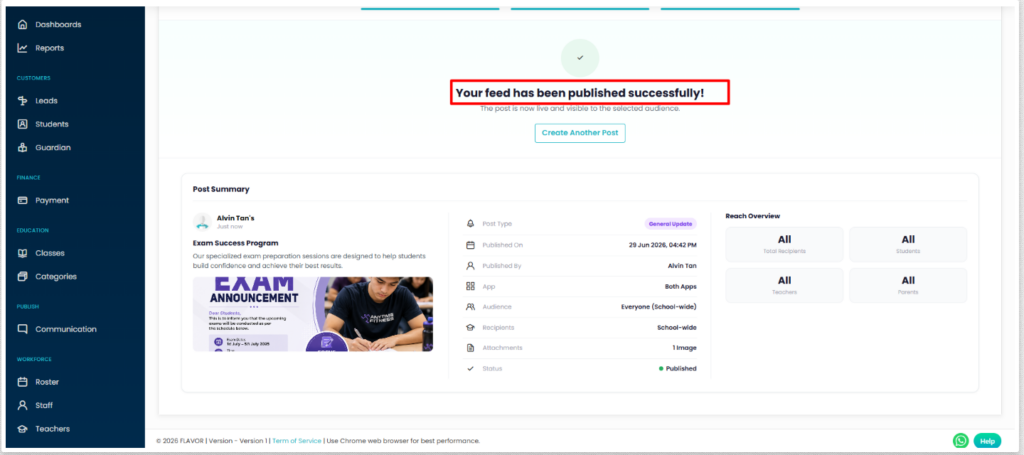
- Click Publish announcement to publish your feed in real-time.
Create a Post in the Flavor Professional – Flavor Teachers App
How to Use the Announcement Feed – Flavor Parent & Teacher Mobile App
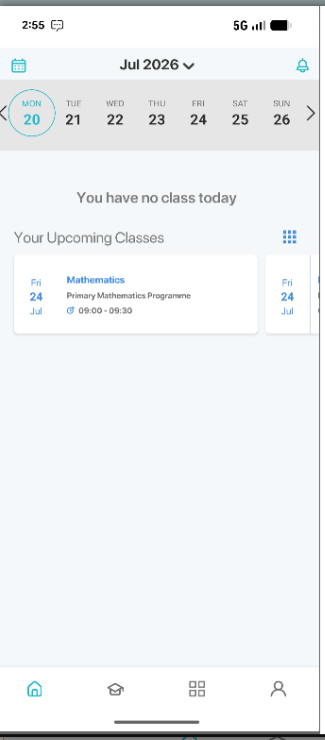
On the Teacher App home page, select the Announcement Feed (3rd icon).
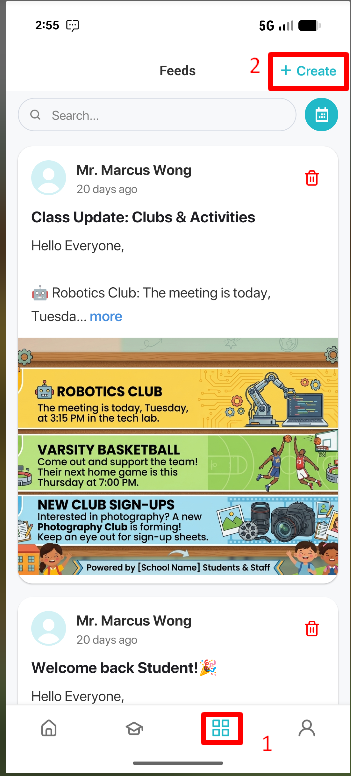
Tap the + (Plus) icon and select Create Feed.
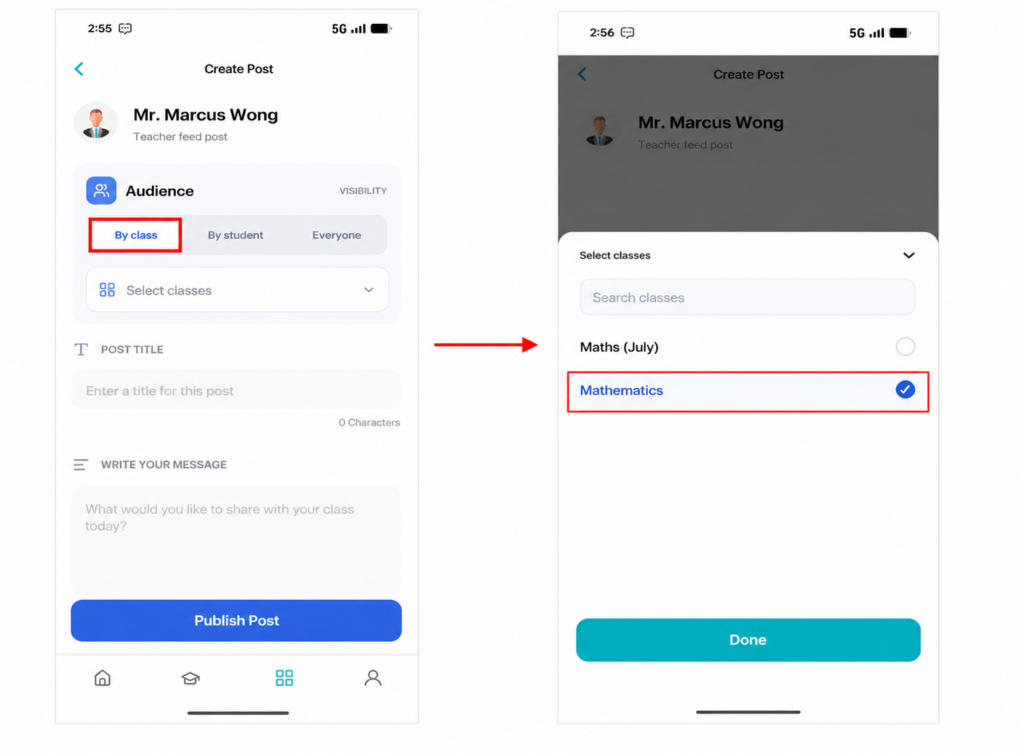
Choose the Audience: By Class, By Student, or Everyone.
If you select By Class or By Student, choose the appropriate class or student.
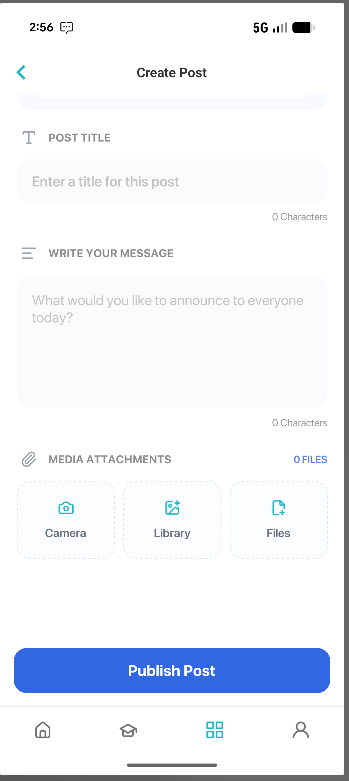
Enter a Title and write the Announcement for your audience.
Attach media if required.
Tap Publish Post to publish your announcement.
Accessing the Announcement Feed – Flavor Parent/Student Mobile App
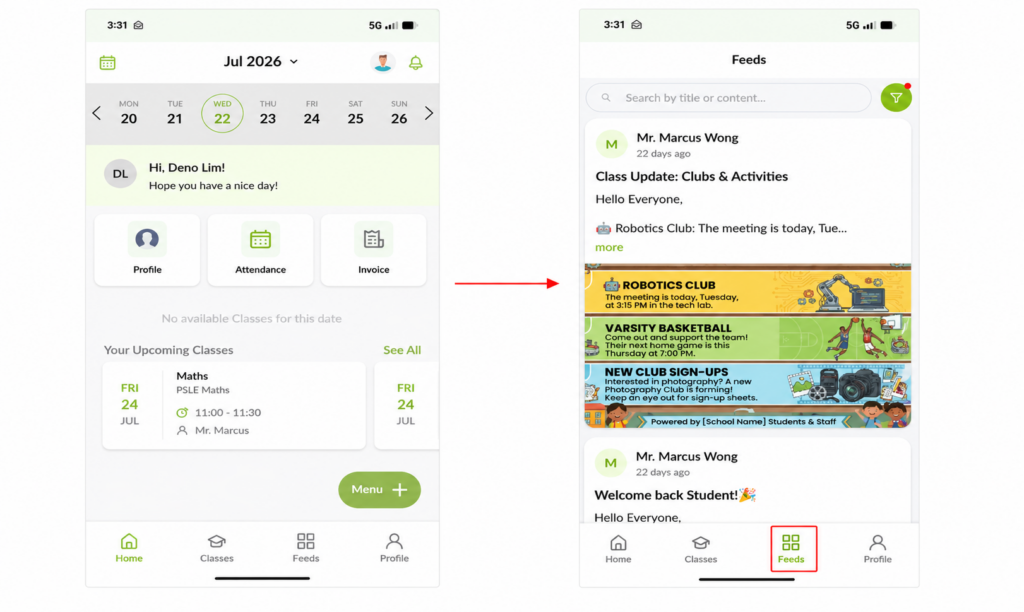
- Open the Flavor Student Mobile App and log in to your account.
- From the home screen, tap the Announcement Feed icon located on the bottom navigation bar.
- The Announcement Feed displays all announcements published by your school or teachers.
- Tap any announcement to view its details, attachments, and related information.
How to Use the Funnel Filter – Flavor Parent Mobile App
- In the Parent Mobile App, open the Announcement Feed.
- Tap the Funnel Filter icon at the top-right corner.
- Choose to filter announcements By Post or By Published Date.
- To filter By Post, select the desired user from the list.
- Tap Apply to view the filtered announcements.
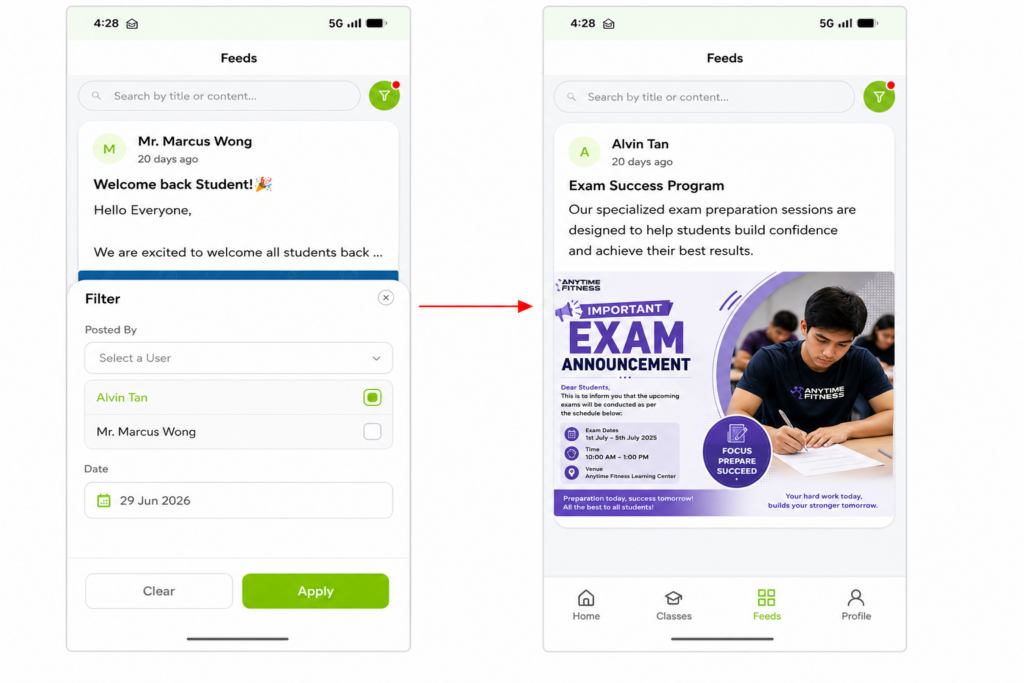
Note: You can use the filter to quickly find announcements based on the selected user or the published date.
Need more help? Ask us a question
Please let us know more of your details and our team will reach out to you very shortly.
