



Coupon Code In Flavor CRM
Discount Coupon in Flavor CRM allows organizations to create and manage promotional coupon codes for trial and regular class registrations. These coupon codes can be used to offer discounts, run marketing campaigns, encourage early registrations, or provide special pricing for selected courses and branches.
Discount Coupon Settings
To access the Discount Coupon Settings module :
Navigate to Settings > Click on Coupon Code Configuration > Select Manage Coupons under Discount Coupon Settings.
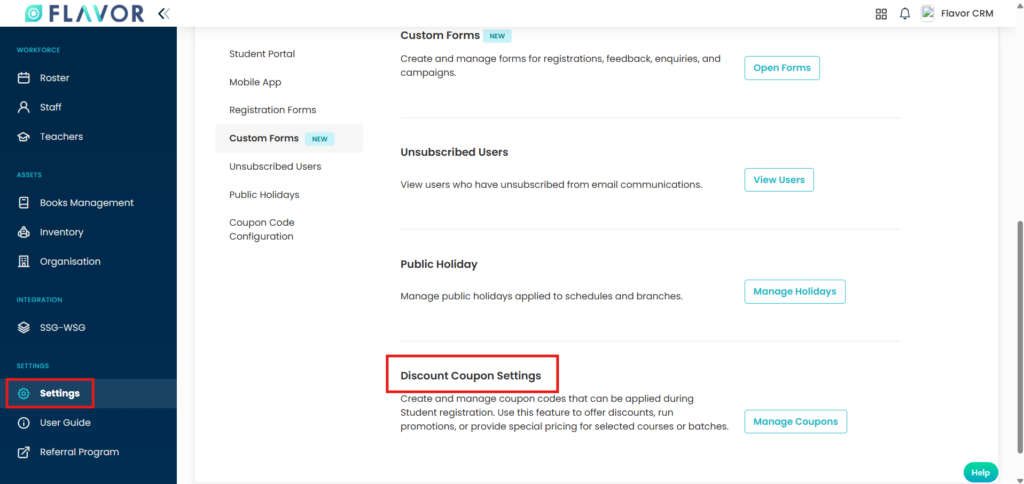
Coupon Code Listing Page
The Coupon Code listing page displays all created discount coupons along with important details such as :
Admins can easily monitor coupon usage and manage active promotions from this page.
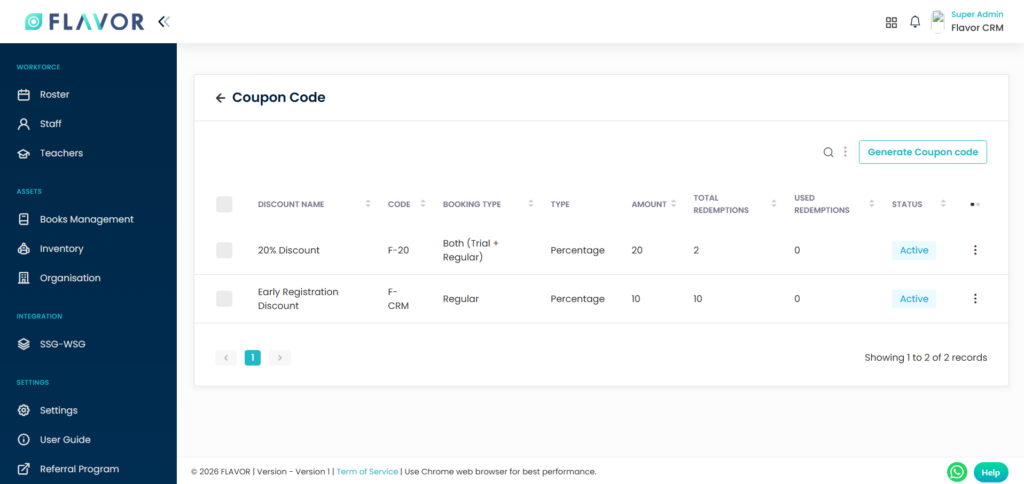
How to Generate a New Coupon Code?
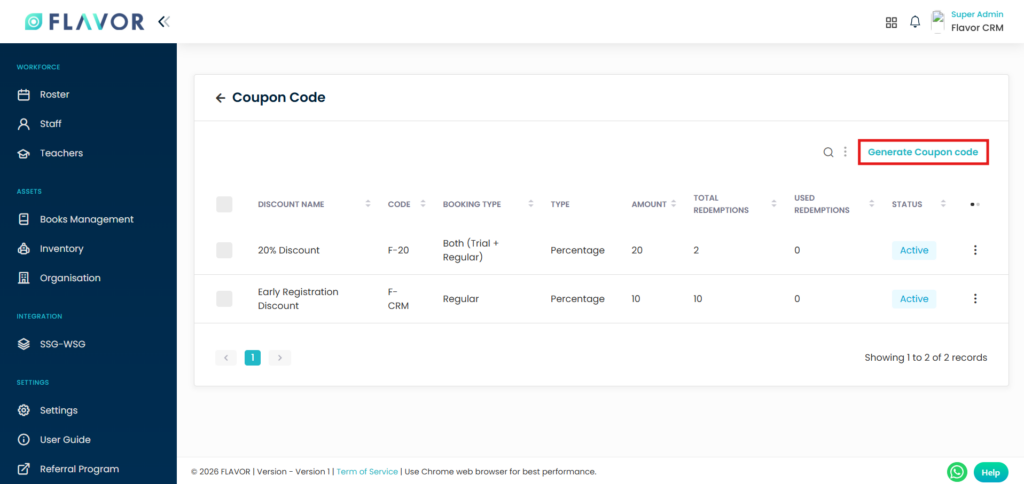
To create a new discount coupon :
- Click on the Generate Coupon code button located at the top-right corner of the Coupon Code page.
- The Generate Discount Code form will open.
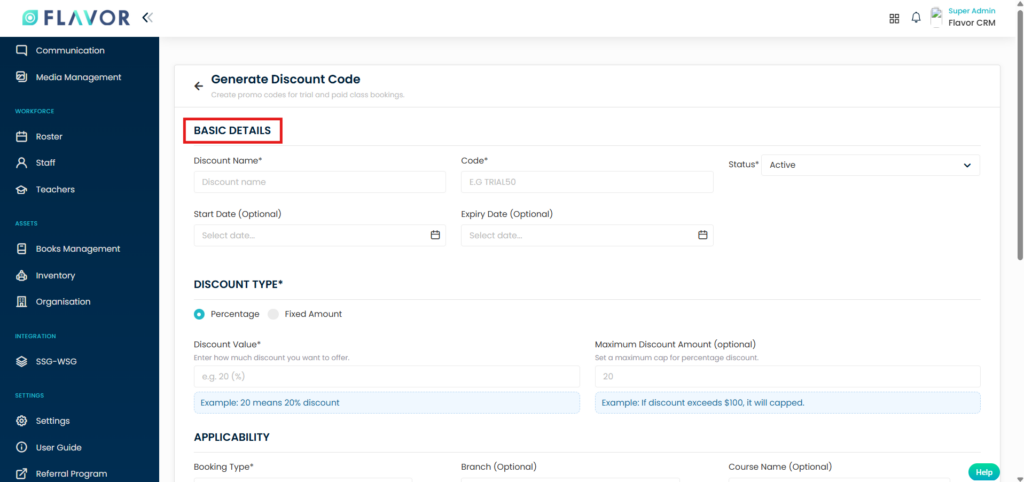
Generate Discount Code
The form is divided into multiple sections for better organizations.
Basic Details
- Discount Name : Enter a name for the coupon.
- Code : Enter the coupon code that users will apply during registration.
- Status :
- Active – Coupon can be used immediately.
- Inactive – Coupon is saved but unavailable for use.
- Start Date : Set the date from which the coupon becomes valid.
- Expiry Date : Set the expiry date after which the coupon can no longer be used.
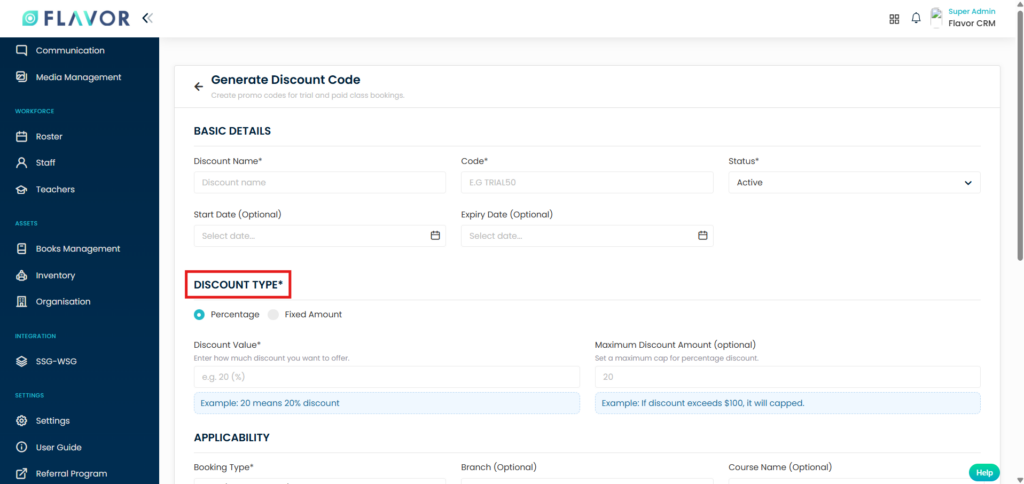
Discount Type
- Choose the type of discount you want to provide.
- Percentage : Provides a percentage-based discount.
- Fixed Amount : Provides a fixed monetary discount.
- Discount Value : Enter the actual discount amount or percentage.
- Maximum Discount Amount : Applicable mainly for percentage discounts. This limits the maximum discount value that can be applied.
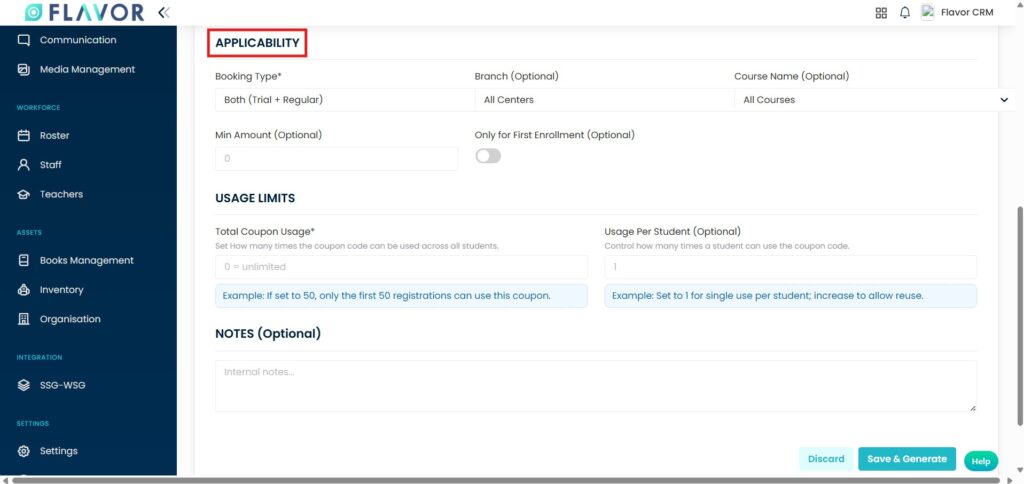
Applicability
This section defines where and when the coupon can be applied.
- Booking Type : Choose the booking type :
- Trial
- Regular
- Both (Trial + Regular)
- Branch : Select specific branches where the coupon should apply.
- Course Name : Select specific courses eligible for the coupon.
- Min Amount : Set the minimum booking amount required before the coupon can be used.
- Only for First Enrollment : Enable this option if the coupon should only be valid for a student’s first enrollment.
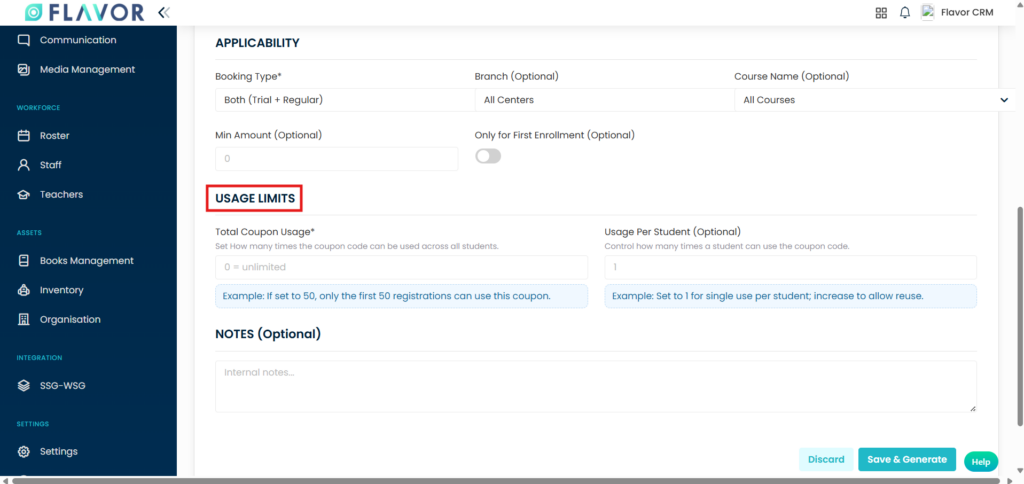
Usage Limits
This section controls how many times the coupon can be redeemed.
- Total Coupon Usage : Set the total number of times the coupon can be used across all students.
- Usage Per Student : Set how many times a single student can use the coupon.
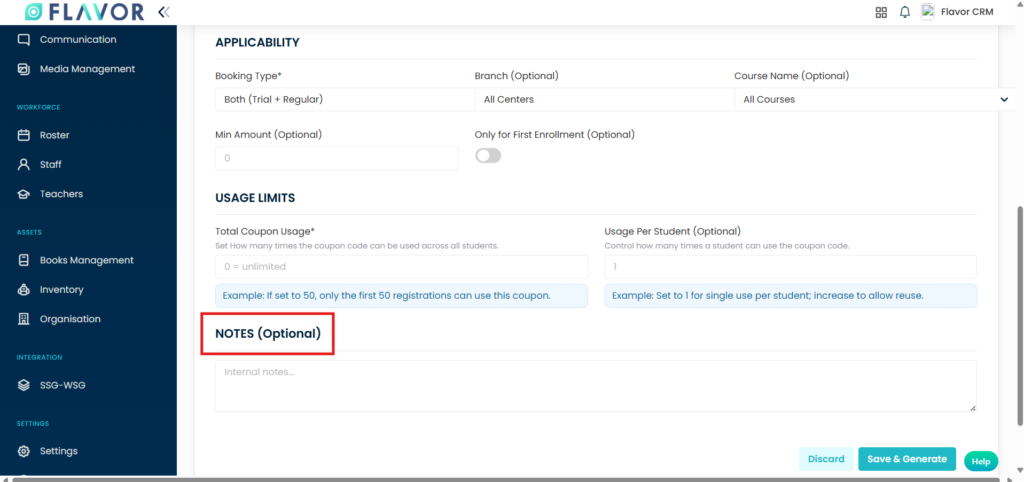
Notes
Add internal notes for administrative reference. These notes are not visible to students or parents.
Save Coupon
After completing all required fields click on Save & Generate. The coupon will then become available for use during eligible registrations.
Applying Code during Registration
Students or parents can apply discount coupons directly from the Registration Form during class booking or enrollment.
How to Apply a Coupon Code
- Complete the registration details.
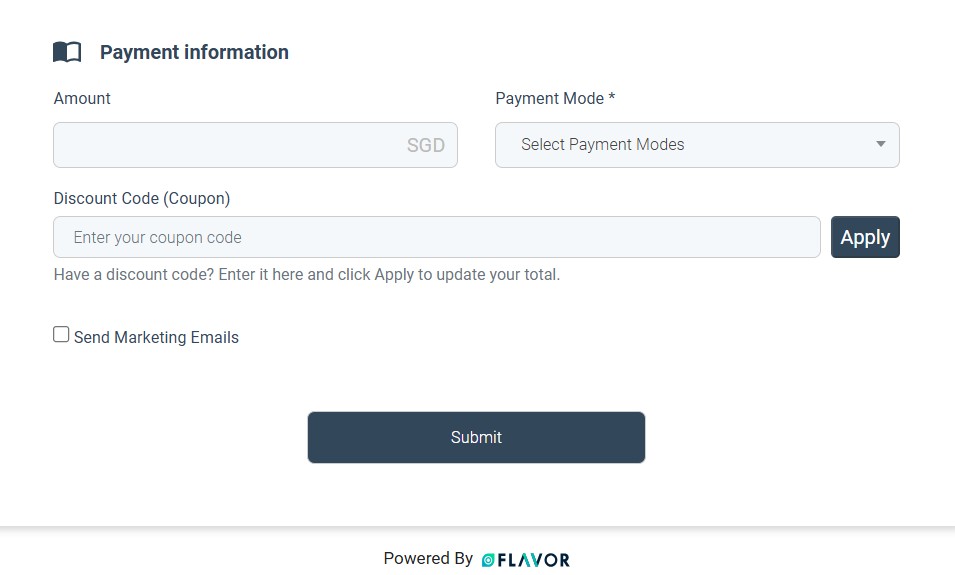
- Navigate to Payment Information section.
- Enter the coupon code in the Discount Code (Coupon) field. Click on Apply button.
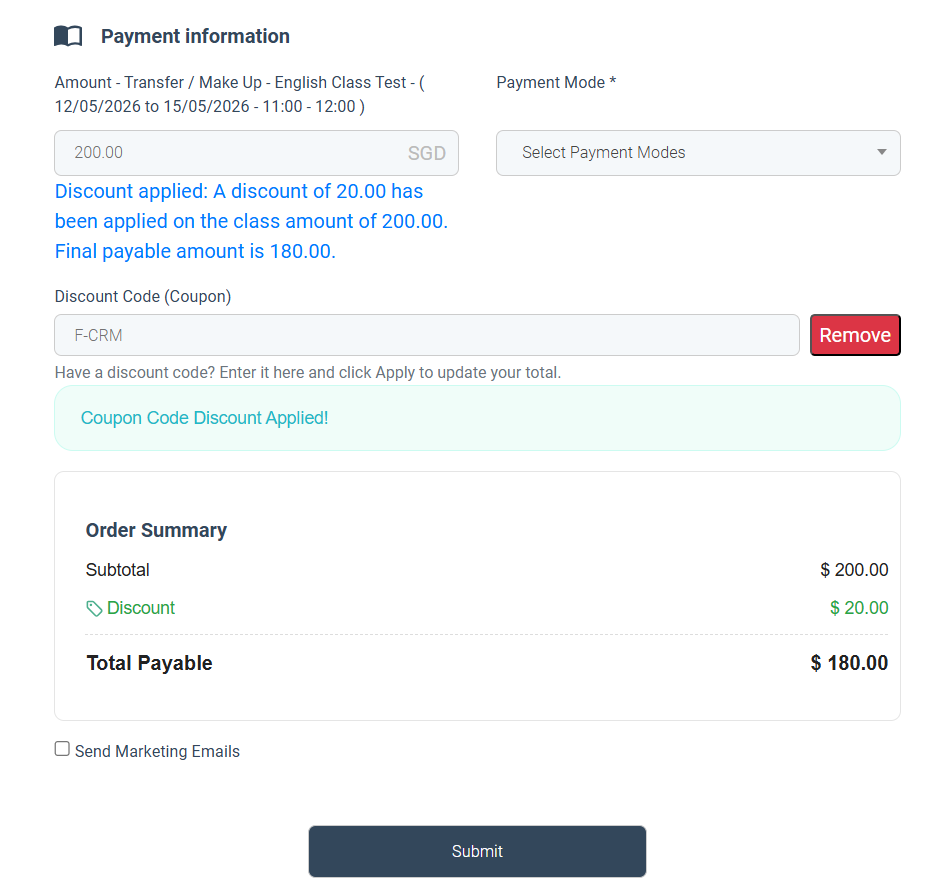
Order Summary Details
Once a valid coupon code is entered and applied successfully the Order Summary provides a clear breakdown of :
- Subtotal – Original class or registration amount.
- Discount – Amount deducted using the coupon code.
- Total Payable – Final amount after discount application.
Applying Code via Booking Link Form
Students or parents can apply discount coupons directly from the Booking Link Form during class booking or enrollment.
How to Apply a Coupon Code
- Complete the registration details.
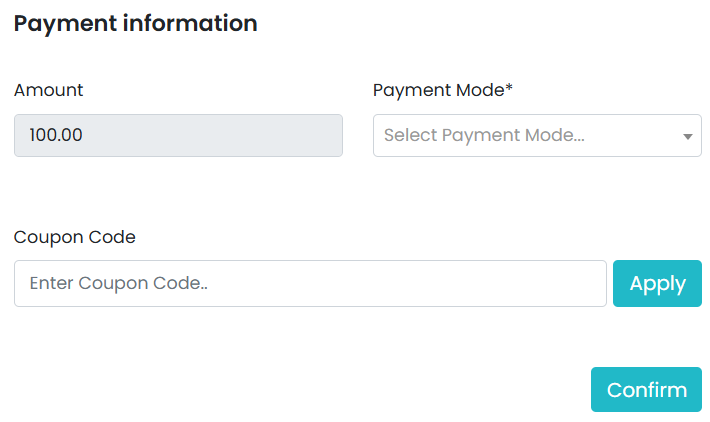
- Navigate to Payment Information section.
- Enter the coupon code in the Coupon Code field. Click on Apply button.
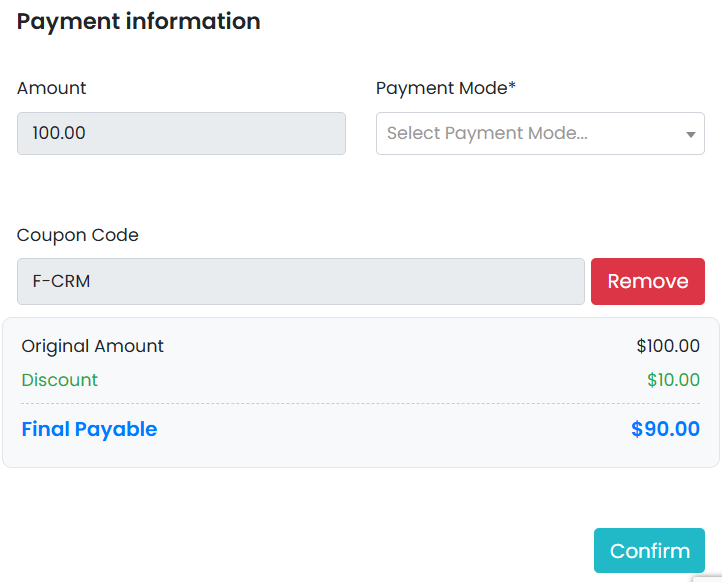
Summary Details
Once a valid coupon code is entered and applied successfully the Order Summary provides a clear breakdown of :
- Original Amount – Actual booking amount before discount.
- Discount – Discount value applied using the coupon code.
- Final Payable – Updated amount after applying the discount.
Apply Code From Scholar Portal
Students and parents can also apply discount coupons directly while registering for classes through the Scholar Portal.
How to Apply a Code in Scholar Portal?
- Navigate to Register a Classes.
- Select the desired class sessions.
- Click on Buy Now to proceed.
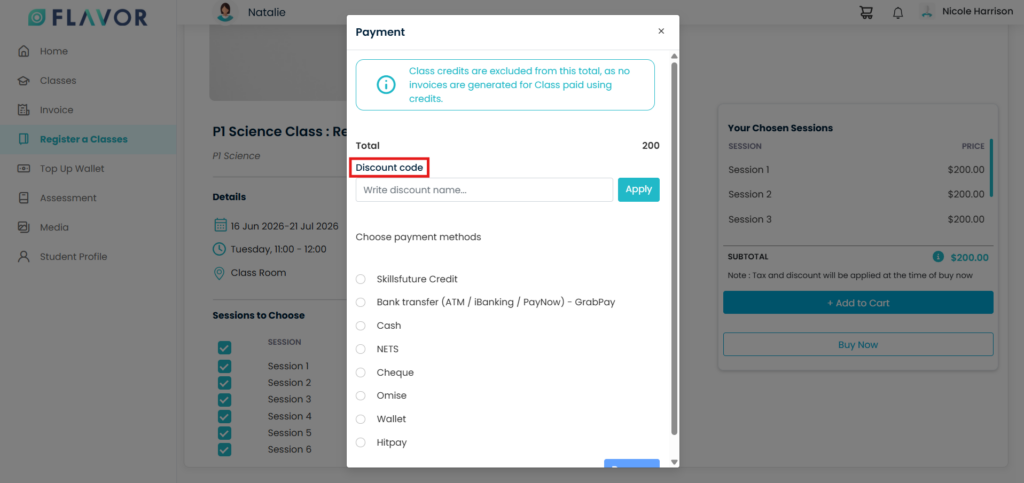
- Enter the coupon code in the Discount code field. Click Apply.
Apply Code In Class Invoices
Admins can also apply discount coupon codes directly while creating or editing invoices in Flavor CRM.
How to Apply Code in an Invoice :
- Open an existing invoice and edit Invoice
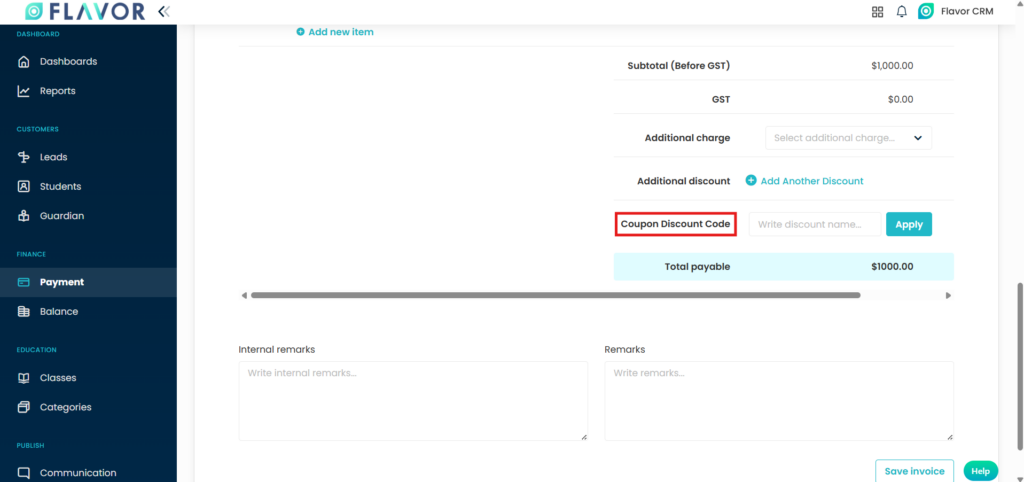
- Locate the Coupon Discount Code field.
- Enter the coupon code. Click the Apply button.
Discount Application Confirmation
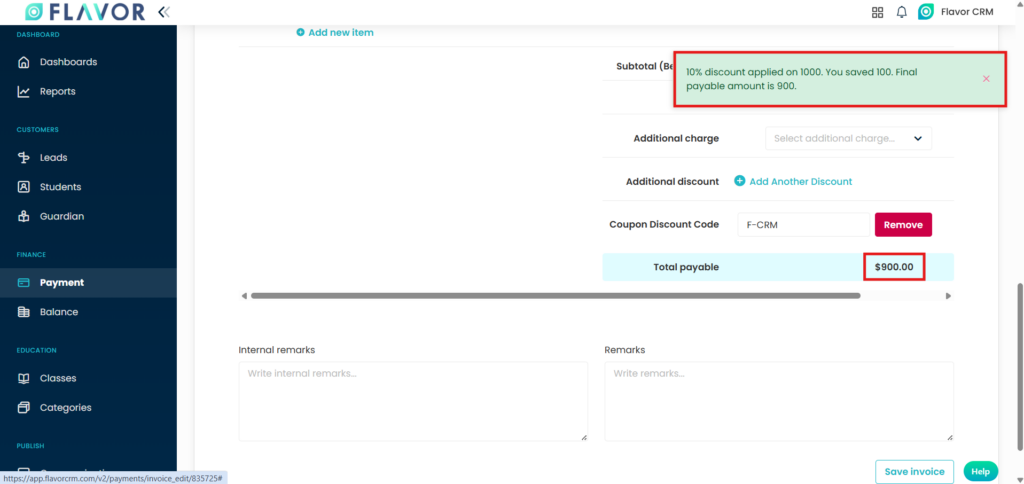
Once successfully applied, the system will display a confirmation message showing :
- Discount percentage or amount applied
- Total savings received
- Updated final payable amount
Apply Code When Creating Custom Invoice
Admins can apply discount coupon codes while creating Custom Invoices.
How to Apply a Coupon Code in a Custom Invoice
- Create a Custom Invoice.
- Add the invoice items and pricing details.
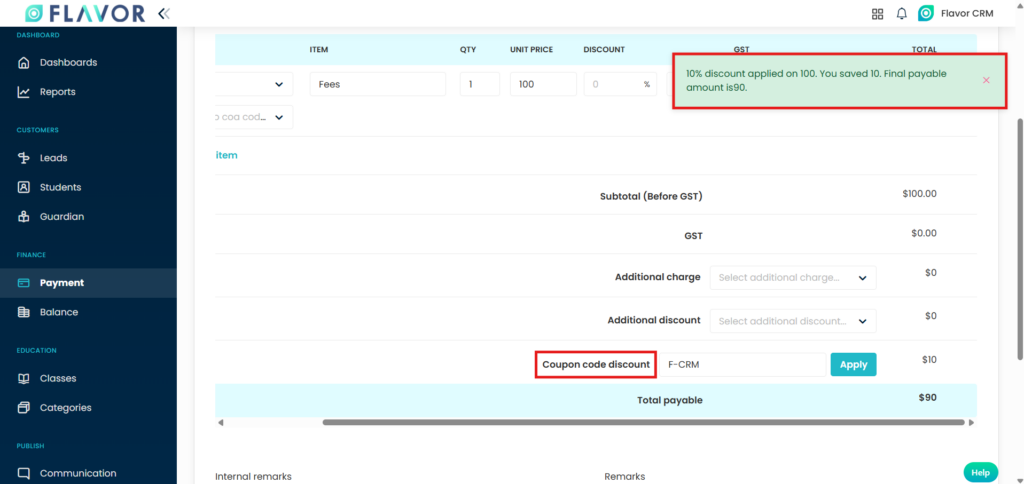
- Locate the Coupon code discount field. Enter the coupon code.
- Click Apply and Save the invoice.
Apply Code In Custom Invoices
Admins can also apply discount coupon codes directly while or editing invoices in Flavor CRM.
How to Apply Code in an Invoice :
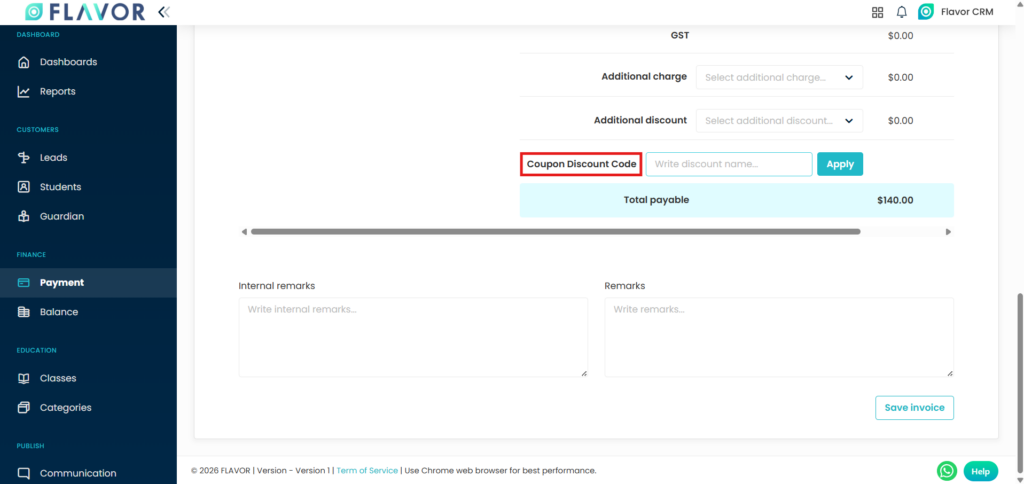
- Open an existing custom invoice and edit Invoice
- Locate the Coupon Discount Code field.
- Enter the coupon code. Click the Apply button.
Discount Application Confirmation
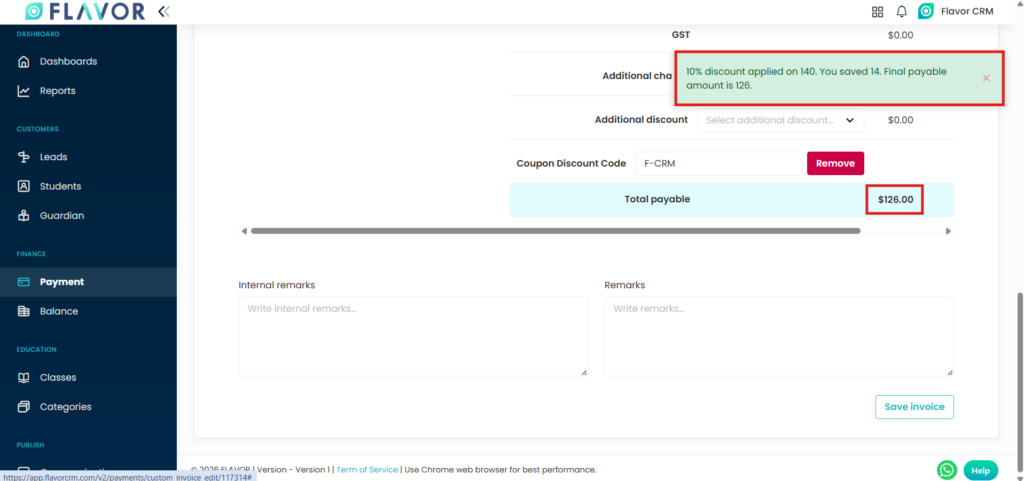
Once successfully applied, the system will display a confirmation message showing :
- Discount percentage or amount applied
- Total savings received
- Updated final payable amount
Need more help? Ask us a question
Please let us know more of your details and our team will reach out to you very shortly.
