



Reset Your Password When It Has Expired
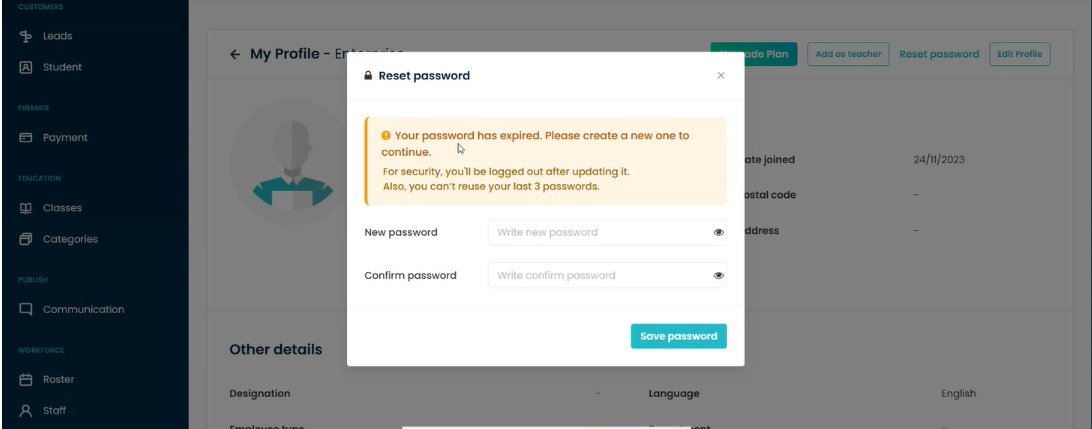
If your password has expired, Flavor CRM will prompt you to create a new password before you can continue accessing the system. Enter your new password, confirm it, and click Save password.
Note:
- You cannot reuse any of your last 3 passwords.
- For security purposes, you will be logged out after updating your password and will need to log in again using your new password.
Be Careful With Login Attempts After Resetting Your Password
After resetting your password, make sure you enter your new login credentials carefully when signing in to your account.
Note: If you enter an incorrect password multiple times and use all 7 login attempts, your account will be temporarily locked, and you will need to wait 30 minutes before trying to log in again.


Reset Your Password Using the “Forgot Password” Option
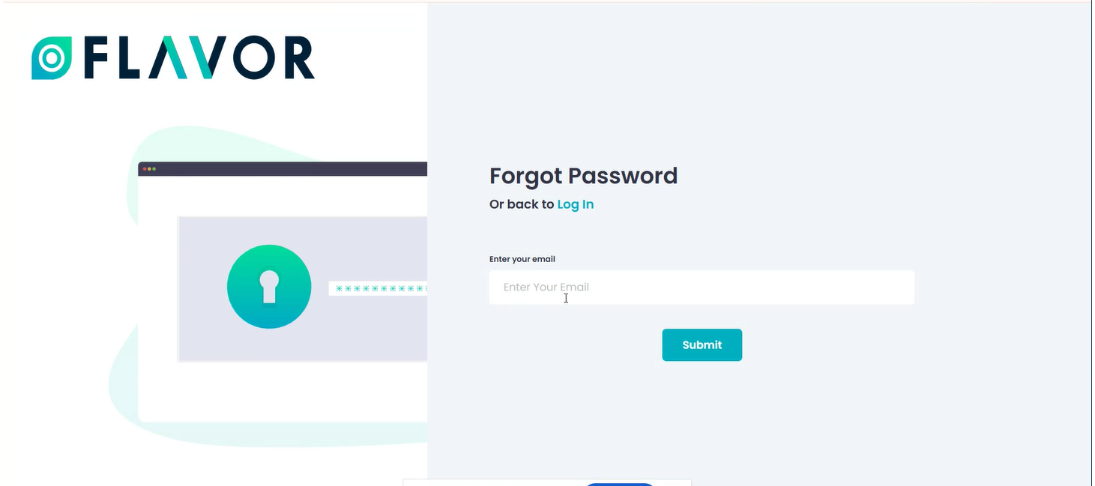
If you are still unable to log in to your account, click the Forgot Password? link on the login page. Enter your registered email address and click Submit to receive password reset instructions.
Note: If you are still facing the same issue, consider resetting your password using the Forgot Password option.
Reset Your Password Through Your Profile
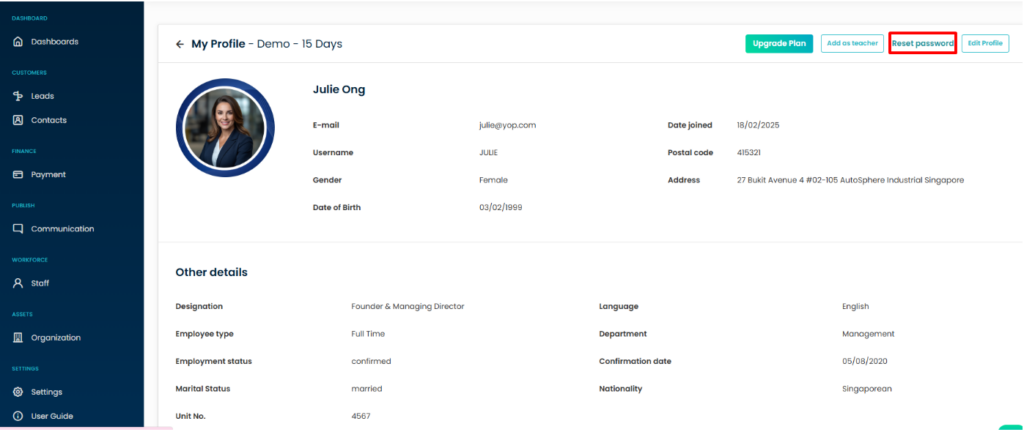
If you can log in to your account but would like to update your password, you can reset it directly from your profile.
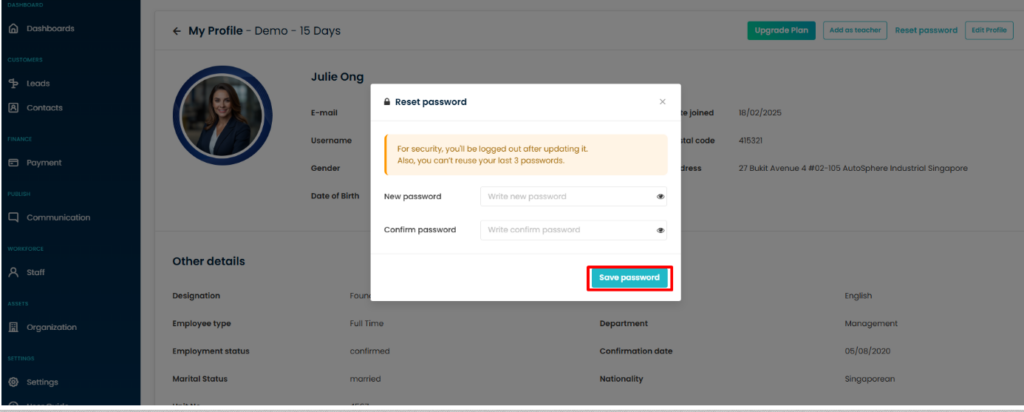
Go to My Profile and click Reset password. Enter your new password, confirm it, and click Save password to update your login credentials.
Note: For security purposes, you will be logged out after updating your password. You also cannot reuse your last 3 passwords.
Need more help? Ask us a question
Please let us know more of your details and our team will reach out to you very shortly.
