



Commission Module In Flavor CRM
The Commission Module in Flavor CRM is designed to help organizations efficiently manage, calculate, and track commissions for Teachers.
Using the Commission Module, you can : Assign commissions to Class / Users, Calculate commissions based on transactions & Track commission status and reports
Commission Configuration
Step 1 : Access Teachers Settings
- From the Dashboard, click on Teachers.
- Click on the Settings (⚙️) icon located within the Teachers module.
Step 2 : Enable Commission Calculation : In Settings, under Commission Settings, turn the toggle on for Enable Commission Calculation.
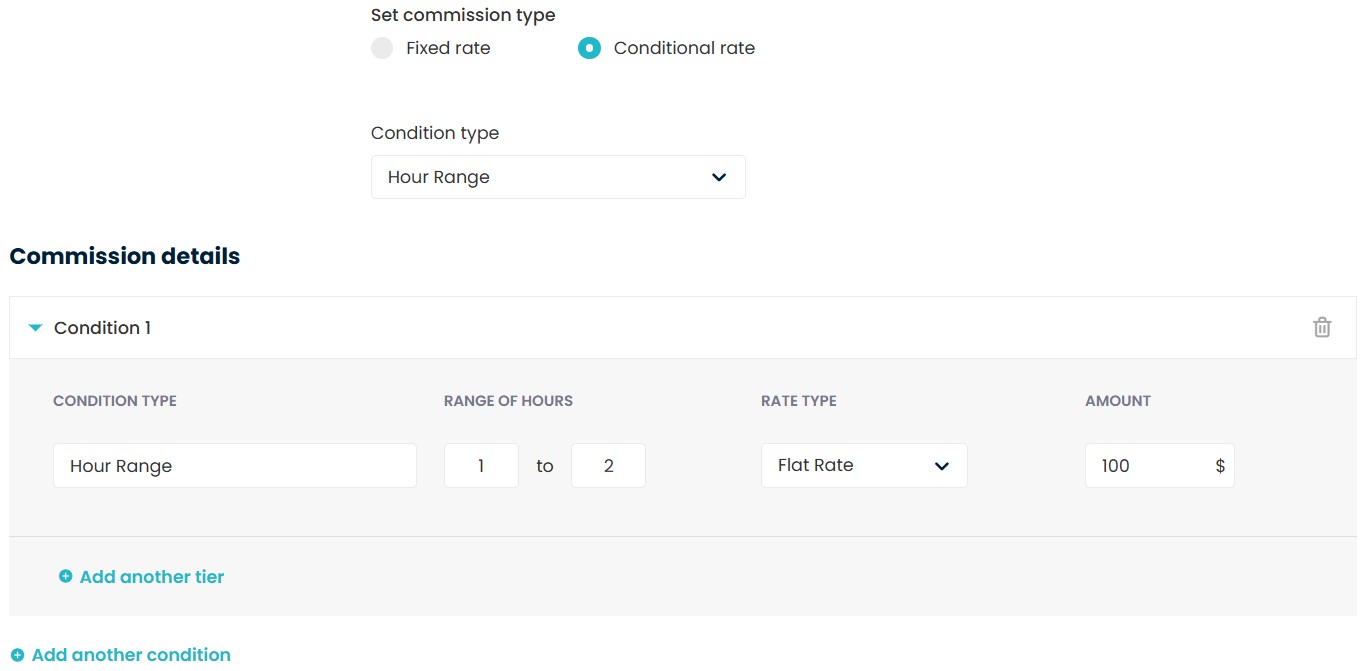
Calculation Method
1. Enrolment-Based Calculation : Commission is calculated based on student enrolments. When student is enrolled in the class, the commission is generated.
2. Attendance-Based Calculation : Commission is calculated only when attendance is marked as present.
This ensures commission is given only for classes that were actually attended.
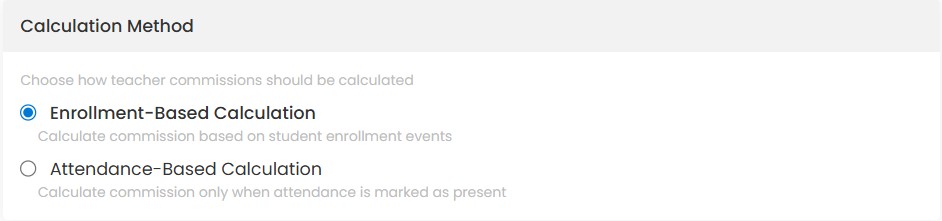
Student Movement Settings
1. Consider Transfer Out : Includes students who transfer out to another class in commission calculations.
Example : Total students enrolled = 4, Students transferred out = 2, Rate Type = Flat Rate, Amount = $20 per students
Consider Transfer Out : Enabled
Students counted = 4
Commission = 4 × $20 = $80
Consider Transfer Out : Disabled
Students counted = 2
Commission = 2 × $20 = $40
2. Consider Makeup Out : Includes students who attend a makeup class in another class.
Example : Total students enrolled = 6, Students makeup out = 2, Rate Type = Flat Rate, Amount = $20 per students
Consider Makeup Out : Enabled
Students counted = 6
Commission = 6 × $20 = $120
Consider Makeup Out : Disabled
Students counted = 4
Commission = 4 × $20 = $80
3. Consider Transfer In : Includes students who transfer into this class from another class.
Example : Total students enrolled = 4, Students transfer in = 2, Rate Type = Flat Rate, Amount = $20 per students
Consider Transfer In : Enabled
Students counted = 4
Commission = 4 × $20 = $80
Consider Transfer In : Disabled
Students counted = 2
Commission = 2 × $20 = $40
4. Consider Makeup In : Includes students who join this class as a makeup from another class.
Example : Total students enrolled = 6, Students makeup in = 2, Rate Type = Flat Rate, Amount = $20 per students
Consider Makeup In : Enabled
Students counted = 6
Commission = 6 × $20 = $120
Consider Makeup In : Disabled
Students counted = 4
Commission = 4 × $20 = $80
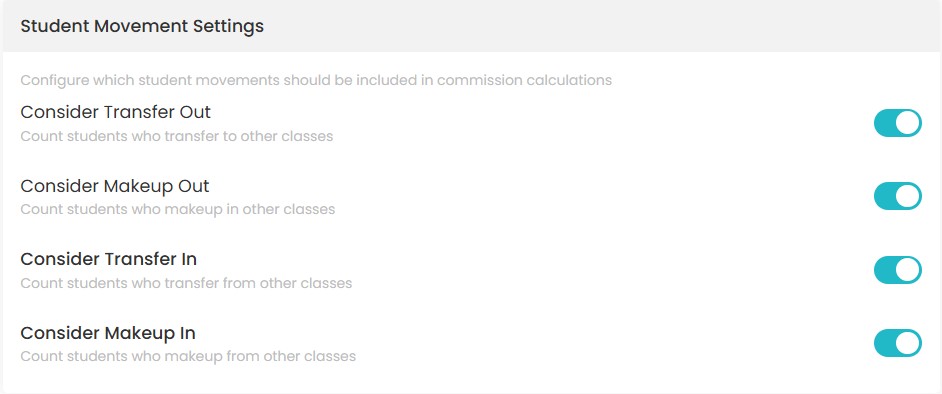
Schedule Settings
1. Consider Holiday Classes : Calculate commission for classes that are scheduled on holidays.
2. Consider Stopped Classes : Calculate commission for classes that are stopped.
3. Pay Commission if Entire Class Is Absent : Calculate commission even when all students in the class are marked absent.
Class-Specific Commission
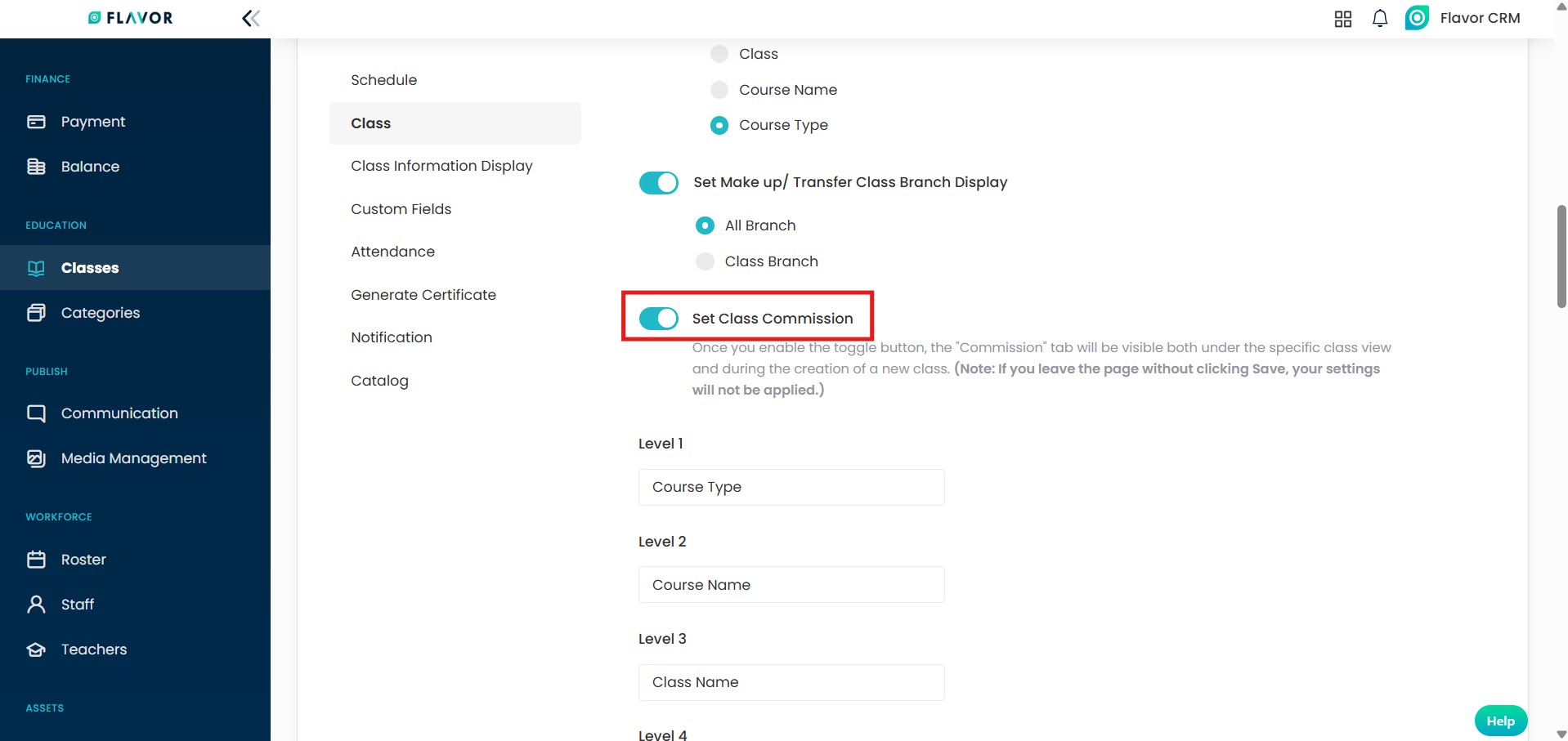
To use Class-Specific Commission, in Class settings, turn the toggle on for Set Class Commission. Once enabled, the Commission section will appear in Class.
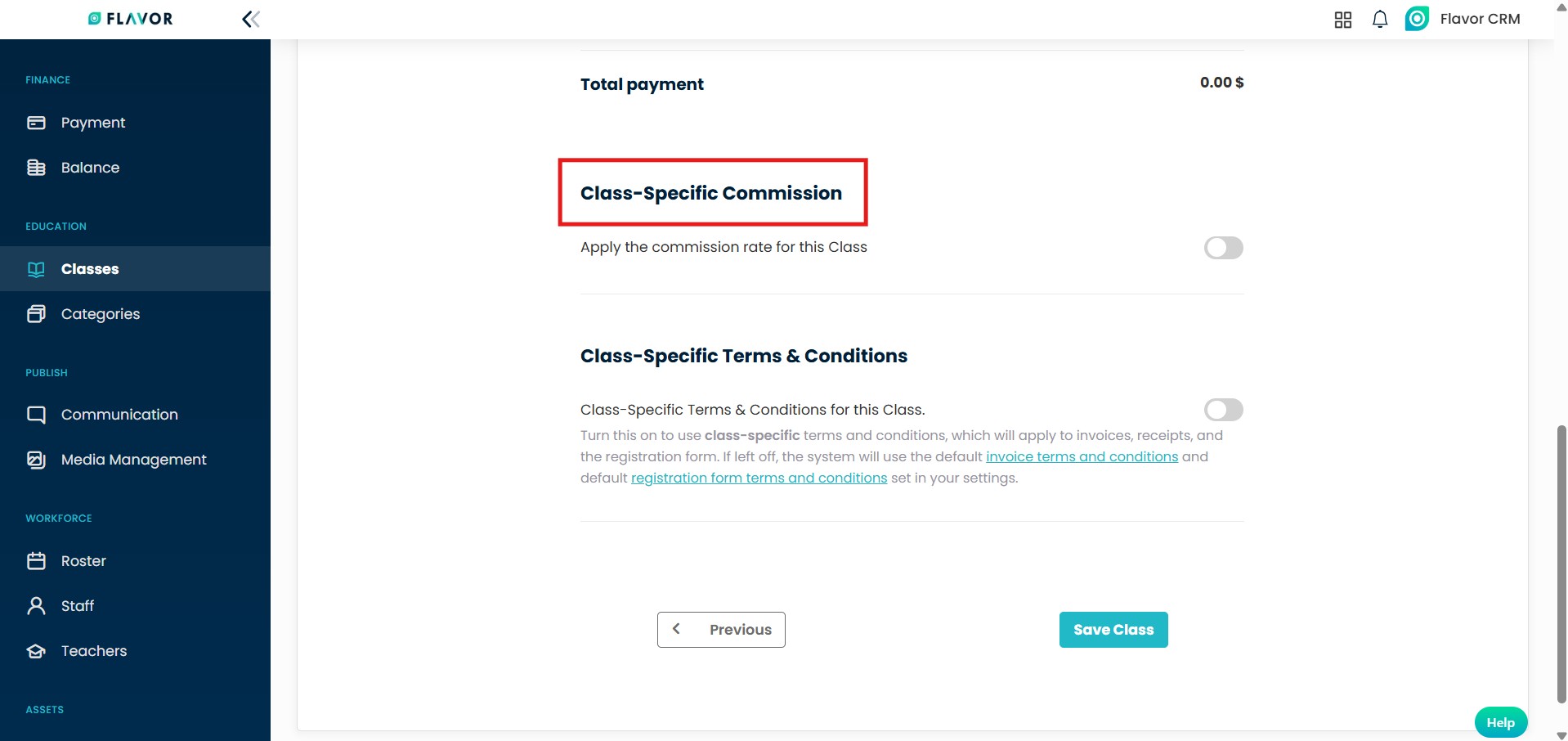
1. While creating a Class : In the third step Fill payment details, turn the toggle on for Class-Specific Commission and configure the commission as required.
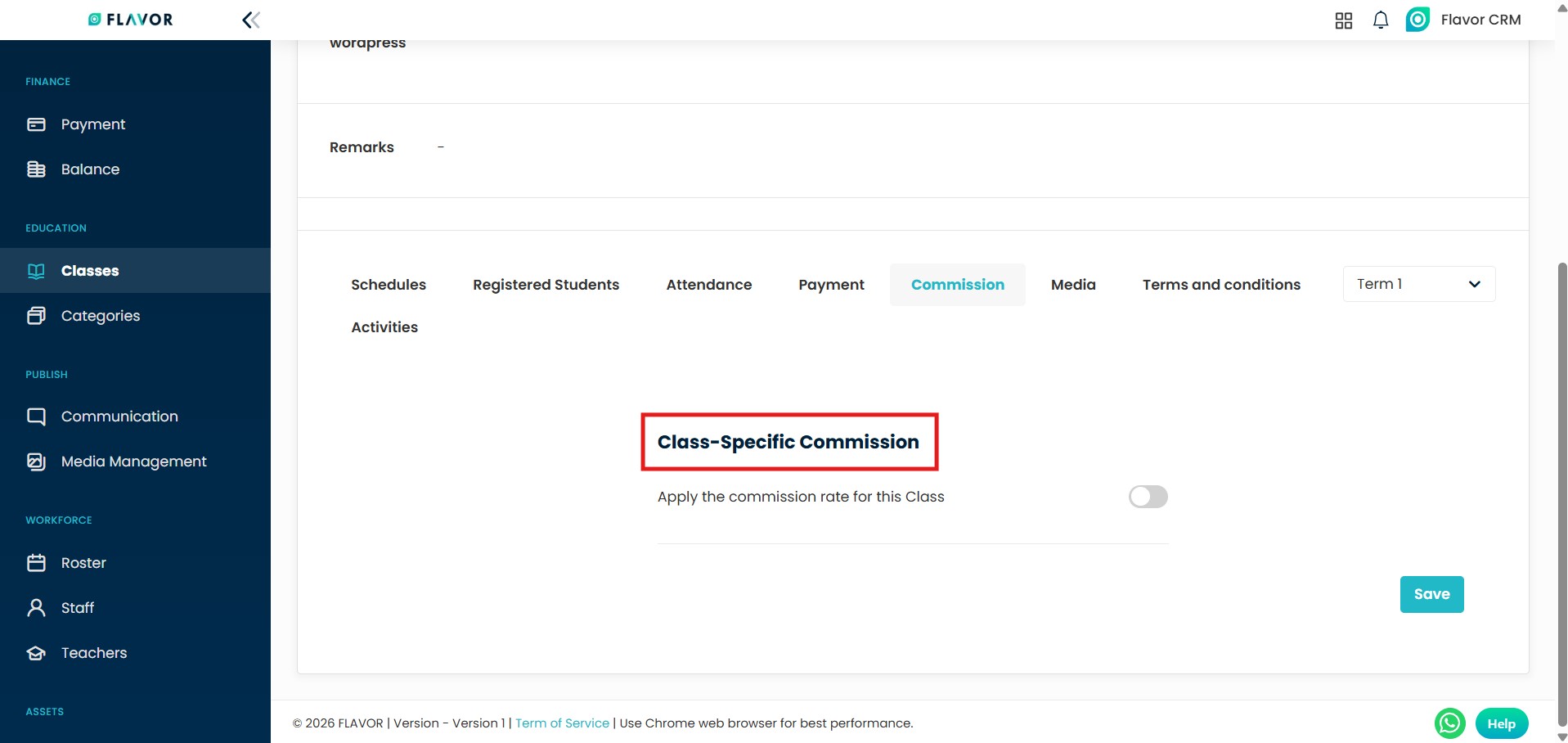
2. After Class is created : Open class, go to the Commission section, turn the toggle on for Class-Specific Commission and configure the commission as required.
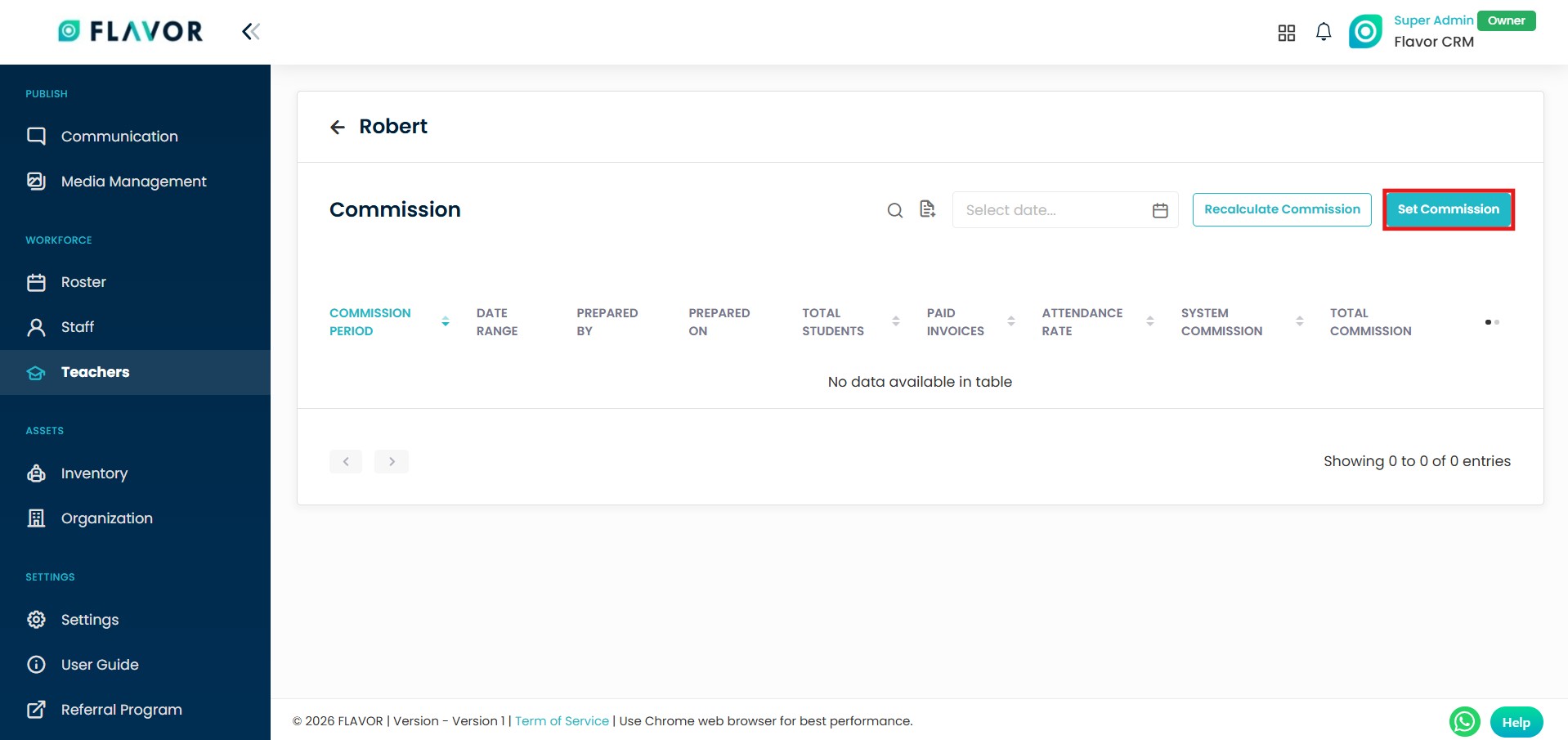
Teacher Set Commission
- In Teachers module, open the teacher profile for whom you want to set the commission.
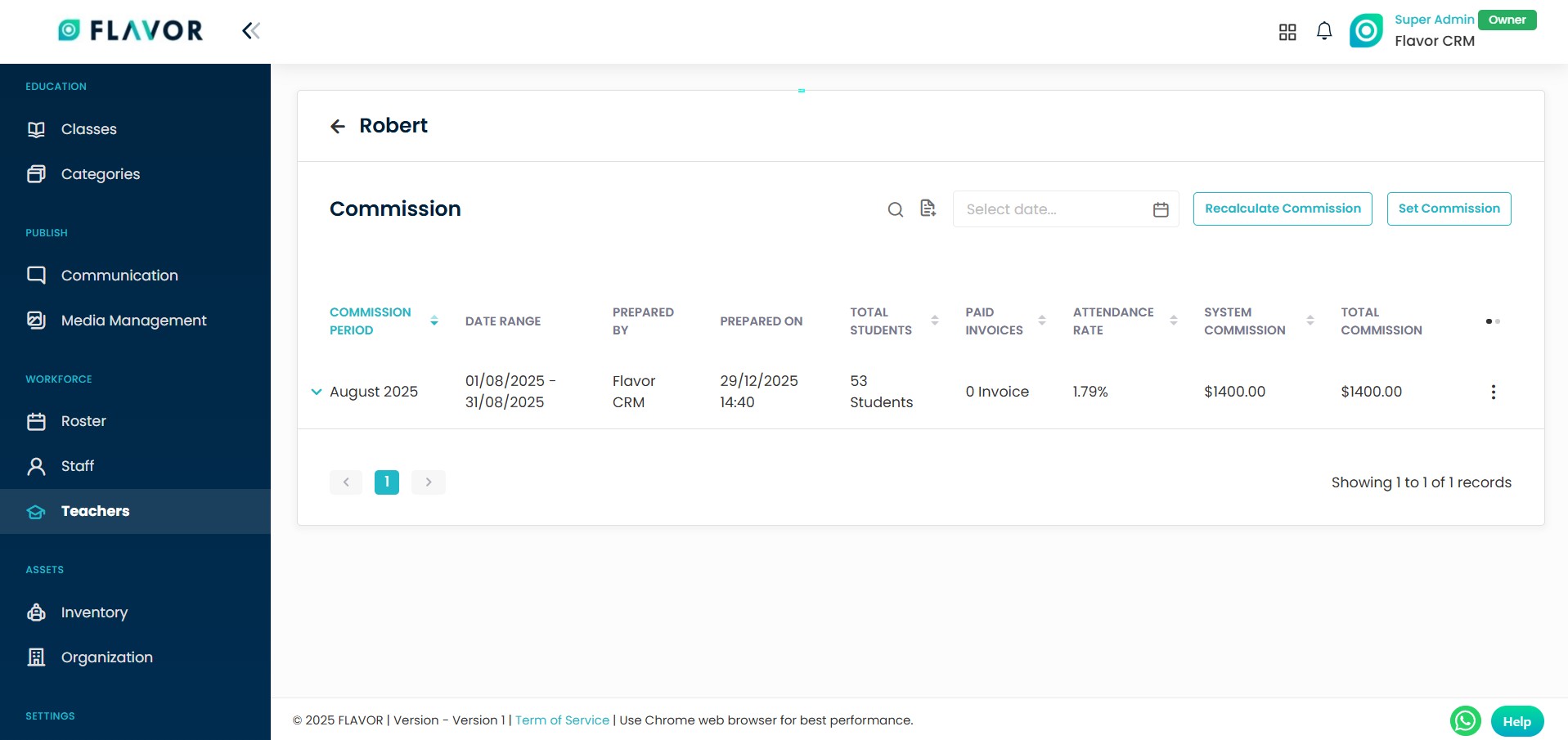
- Click on the Commission section.
- In top right, click Set Commission. Configure the commission as required and save the changes.
Types of Commission
When Commission is enabled, you can choose how the commission should be calculated. The commission type’s works the same for both Class-Specific Commission & Teacher Commission.
Note : If Class-Specific Commission is set, it will override the Teacher Set Commission.
Commission Type : Fixed Rate
1. Flat Rate : Select this option if you want to pay a fixed amount. Enter a flat rate amount, and teacher will receive the same commission amount, regardless of class size or duration.
Example : Flat Rate Amount – $100
Teacher will receive a fixed commission of $100 regardless of class size or duration.
2. Hourly : Select this option if the commission should be calculated per hour. Enter the hourly amount, commission calculated based on the total class duration.
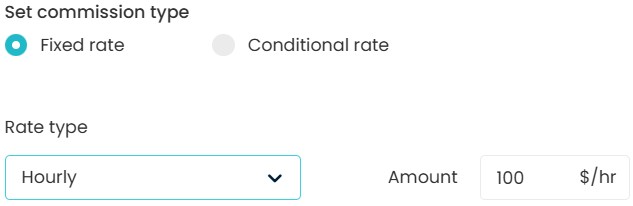
Example : Hourly Amount – $100
Class Duration = 2 hours
Commission = 2 x 100 = 200
Teacher receives commission of $200 based on class duration.
3. Revenue-Based : Select this option if the commission should be a percentage of the class revenue. Enter the percentage, commission calculated based on the amount earned from the class.
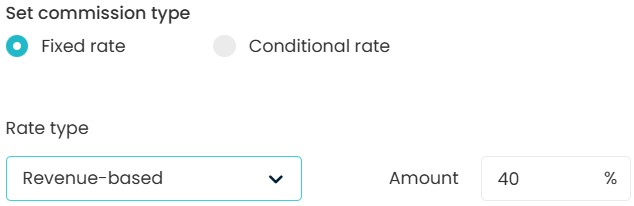
Example : Revenue-based Amount – 40%
Class Revenue = $100
Commission = 40% of 100 = 40
Teacher receives commission of $40 based on class revenue.
Commission Type : Conditional Rate
1. Student Range : When commission should be calculated based on number of Students in a Class. Enter Range Of Students, select Rate Type, and enter Amount.
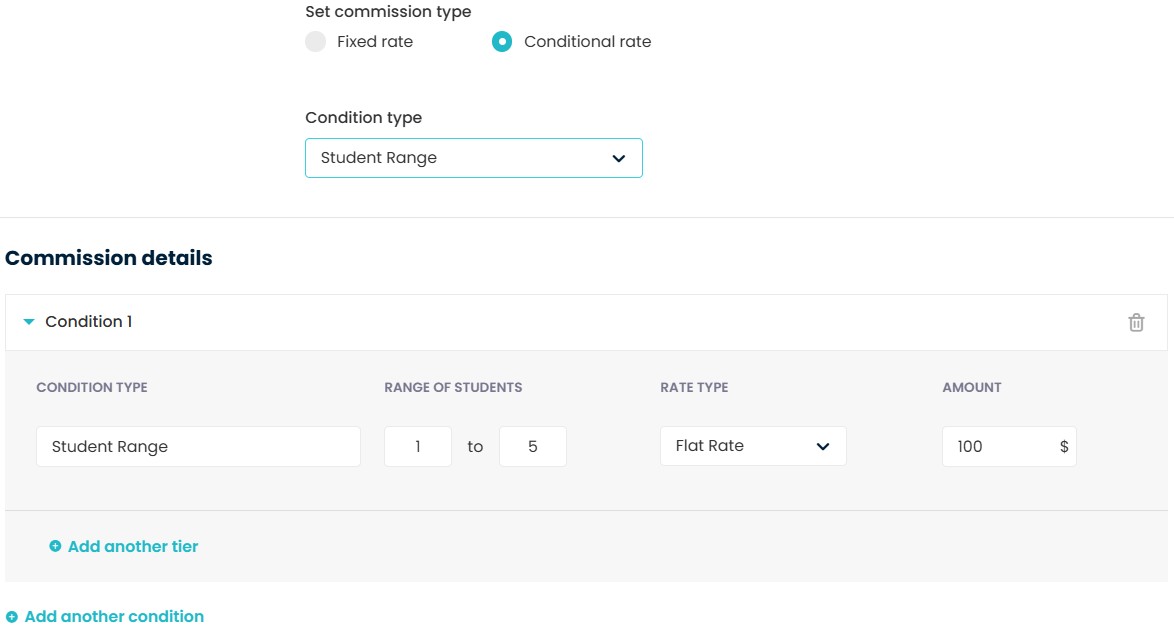
Example : Range of Students = 1 to 5
Rate Type = Flat Rate
Amount = $100
If class has 1to5 students, the teacher receives $100.
Tier Type : Added After : Applies incrementally after the previous range is completed.
Rate Type = Flat Rate
Amount = $20 paid per student
If class has 8 students, commission is $60 for 3 students (3 x 20).
The teacher receives $180 (100+80).
Tier Type : Final Tier – Override All Others : This tier overrides all previous tiers.
Range of Students = 5+
Rate Type = Flat Rate
Amount = $200
If class has 5 or more students, the teacher receives commission of $200 regardless of other tiers.
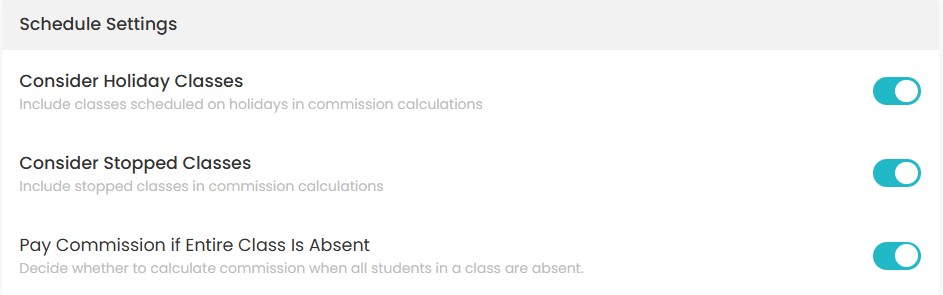
2. Hour Range : When commission should be calculated based on duration of Class. Enter Range Of Hours, select Rate Type, and enter Amount.
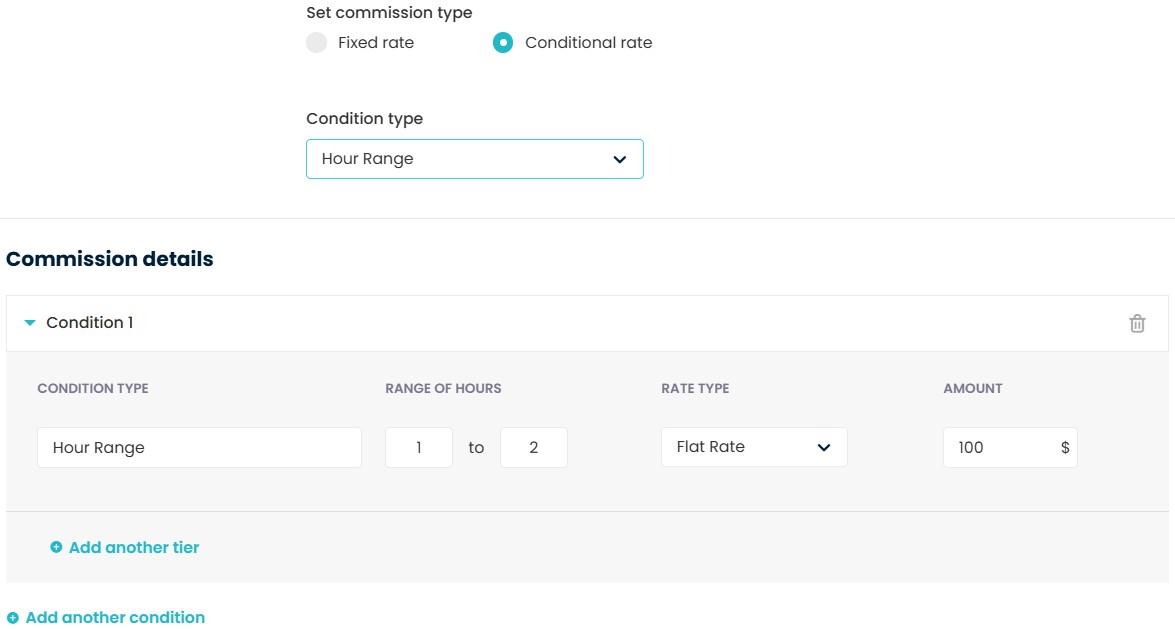
Example : Range of Hours = 1 to 2
Rate Type = Flat Rate
Amount = $100
If class duration is 1to2 hours, the teacher receives $100.
Tier Type : Added After : Applies incrementally after the previous range is completed.
Rate Type = Flat Rate
Amount = $20 paid per hour
If class duration is 4 hours, commission is $40 for 2 hours (2 x 20).
The teacher receives $140 (100+40).
Tier Type : Final Tier – Override All Others : This tier overrides all previous tiers.
Range of Hours = 2+
Rate Type = Flat Rate
Amount = $400
If class duration is 2 or more hours, the teacher receives commission of $400 regardless of other tiers.
Recalculate Commission
Recalculate Commission allows you to update or correct commission amounts based on the latest settings, changes in attendance, enrolments, or class details.
- Open the Teacher profile and click on Commission section.
- Select the Date Range and click on Recalculate Commission.
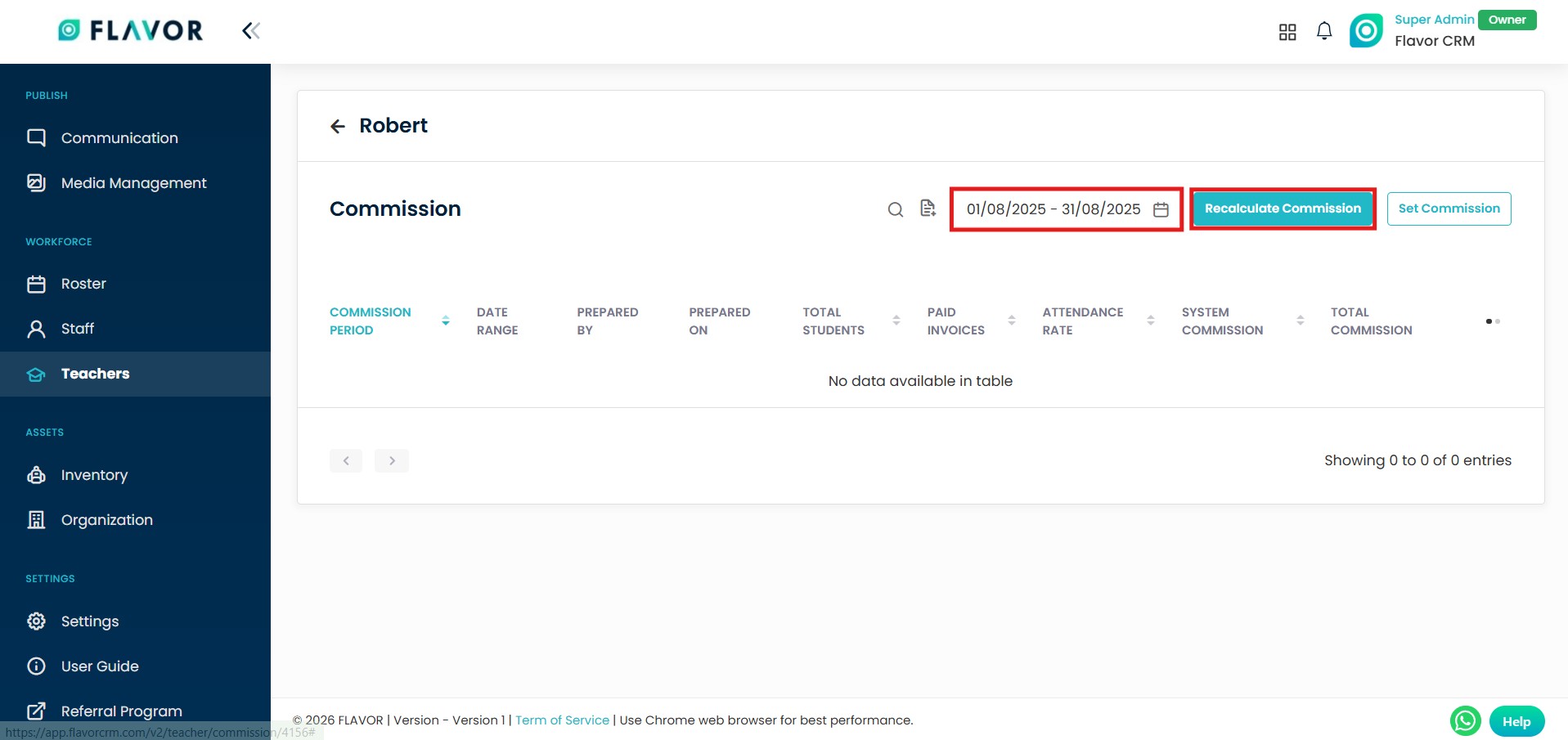
Once you click Recalculate Commission, the system generates an updated commission record for the selected date range.
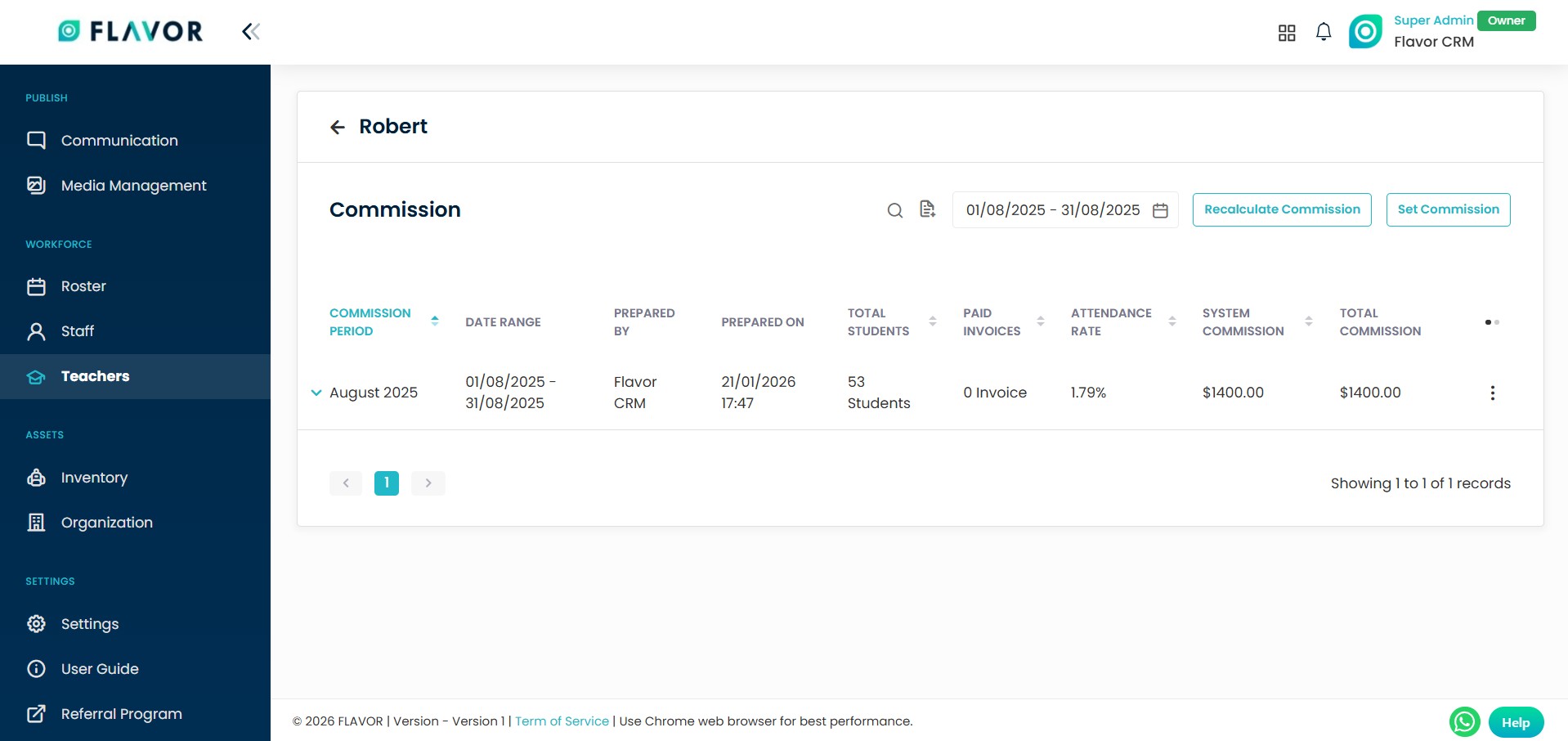
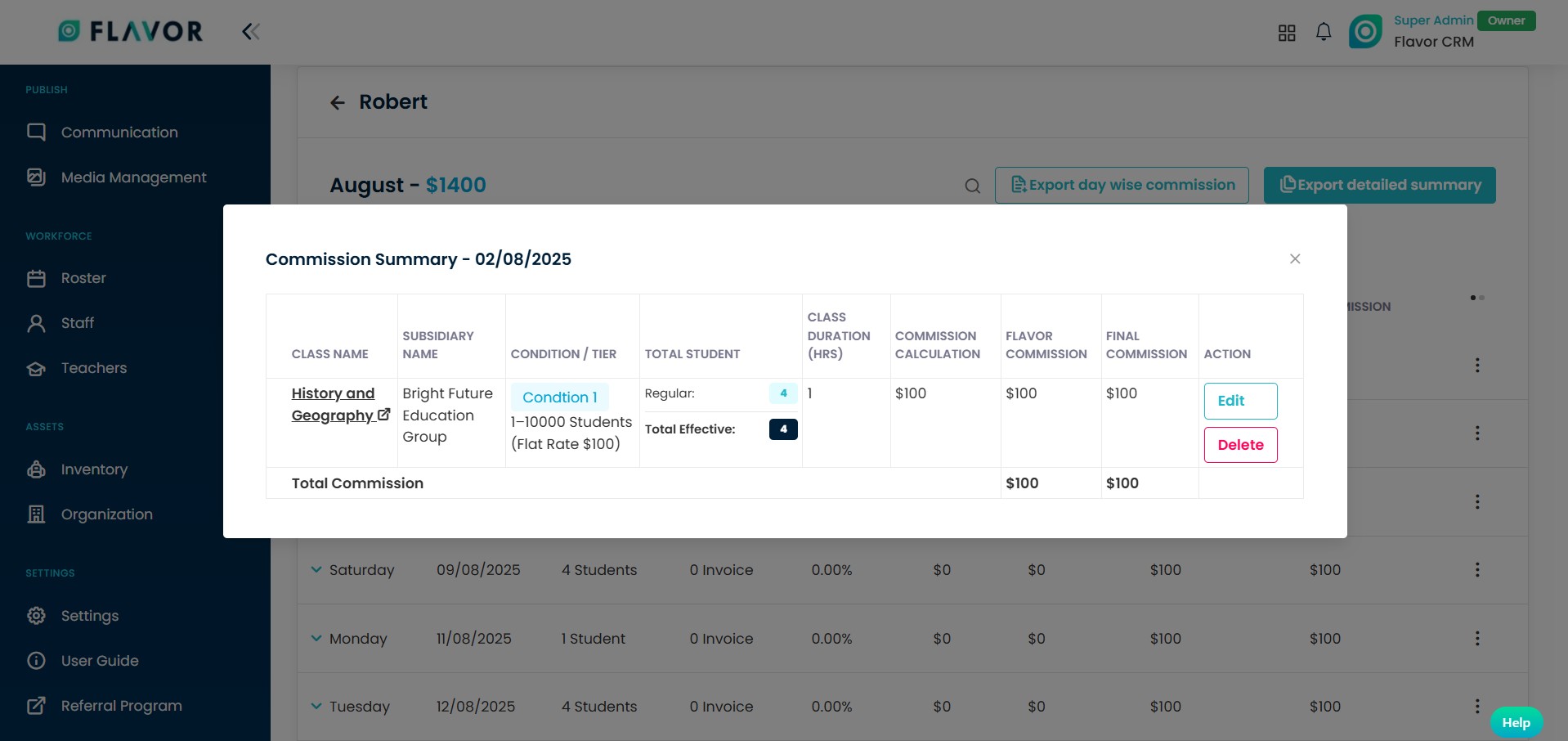
When you open a commission period, you will see a Day wise breakdown of the commission for that teacher. You can also export the commission report by clicking on Export day-wise commission or Export detailed summary.
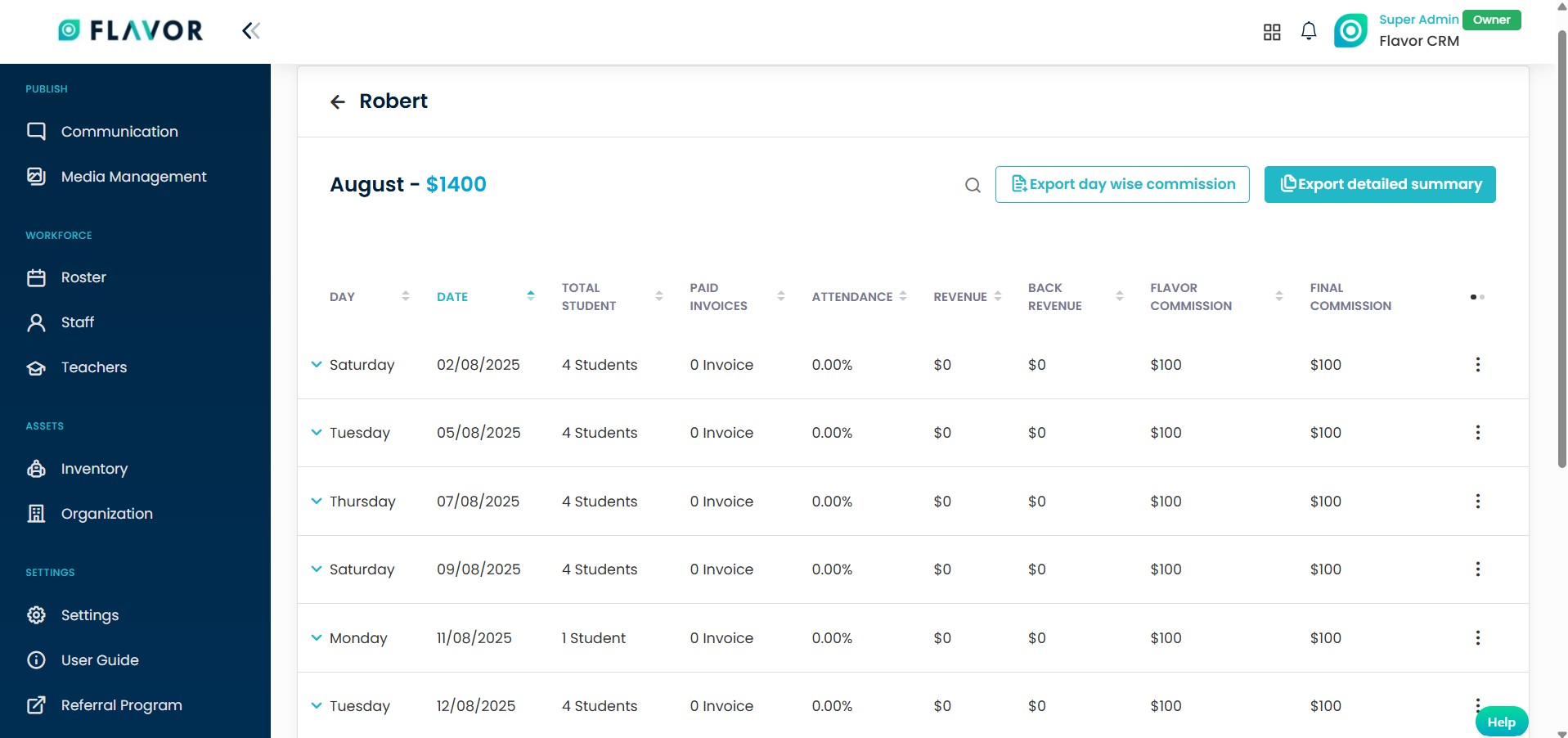
When you click on three dots (⋮) next to a commission record and select View Summary, a detailed Commission Summary popup is shown for the selected date.
Need more help? Ask us a question
Please let us know more of your details and our team will reach out to you very shortly.
