



Step 1
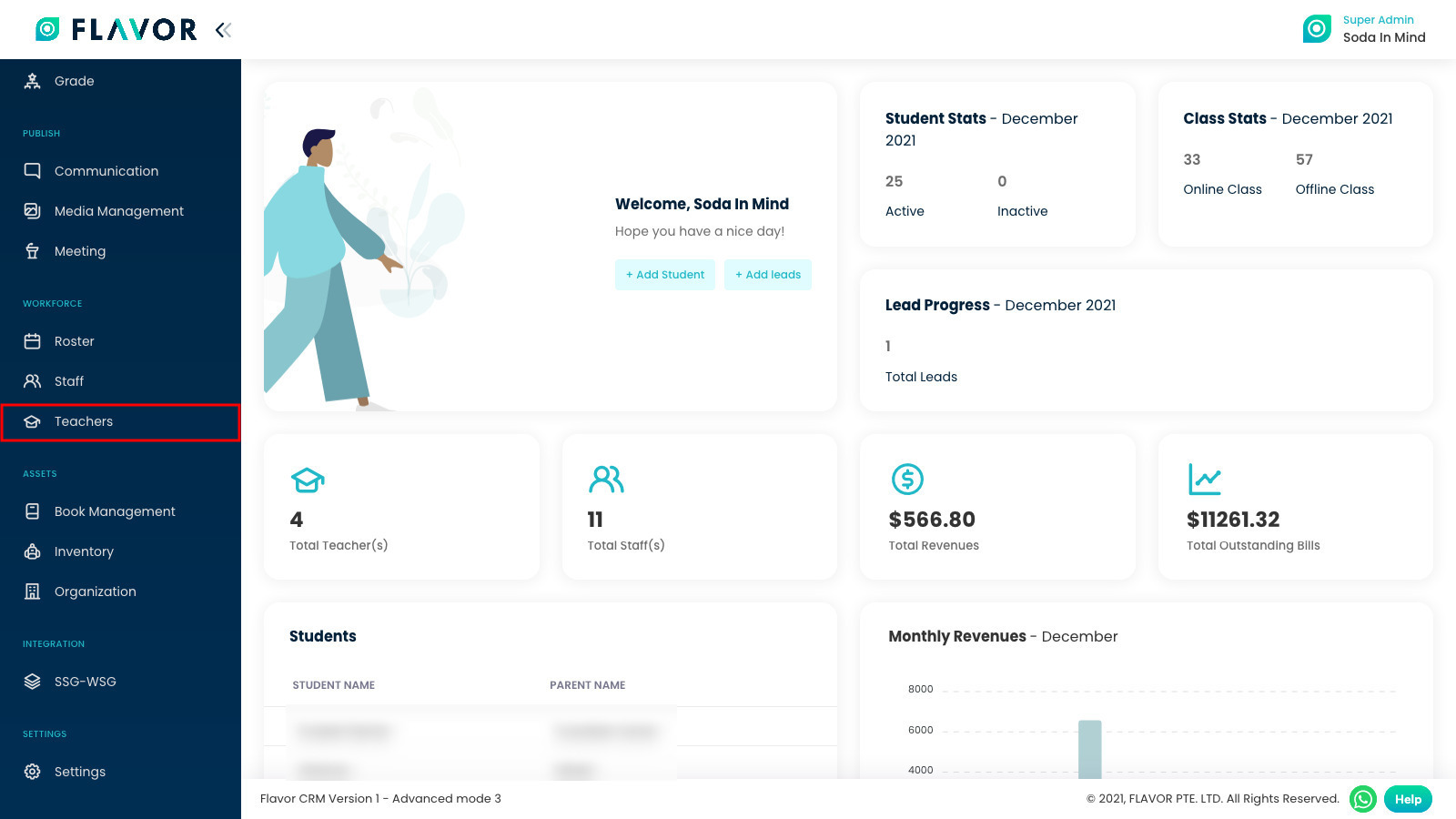
After login, system will redirect you to dashboard page. On left menu, click Teachers to go to Teacher’s list.
Step 2
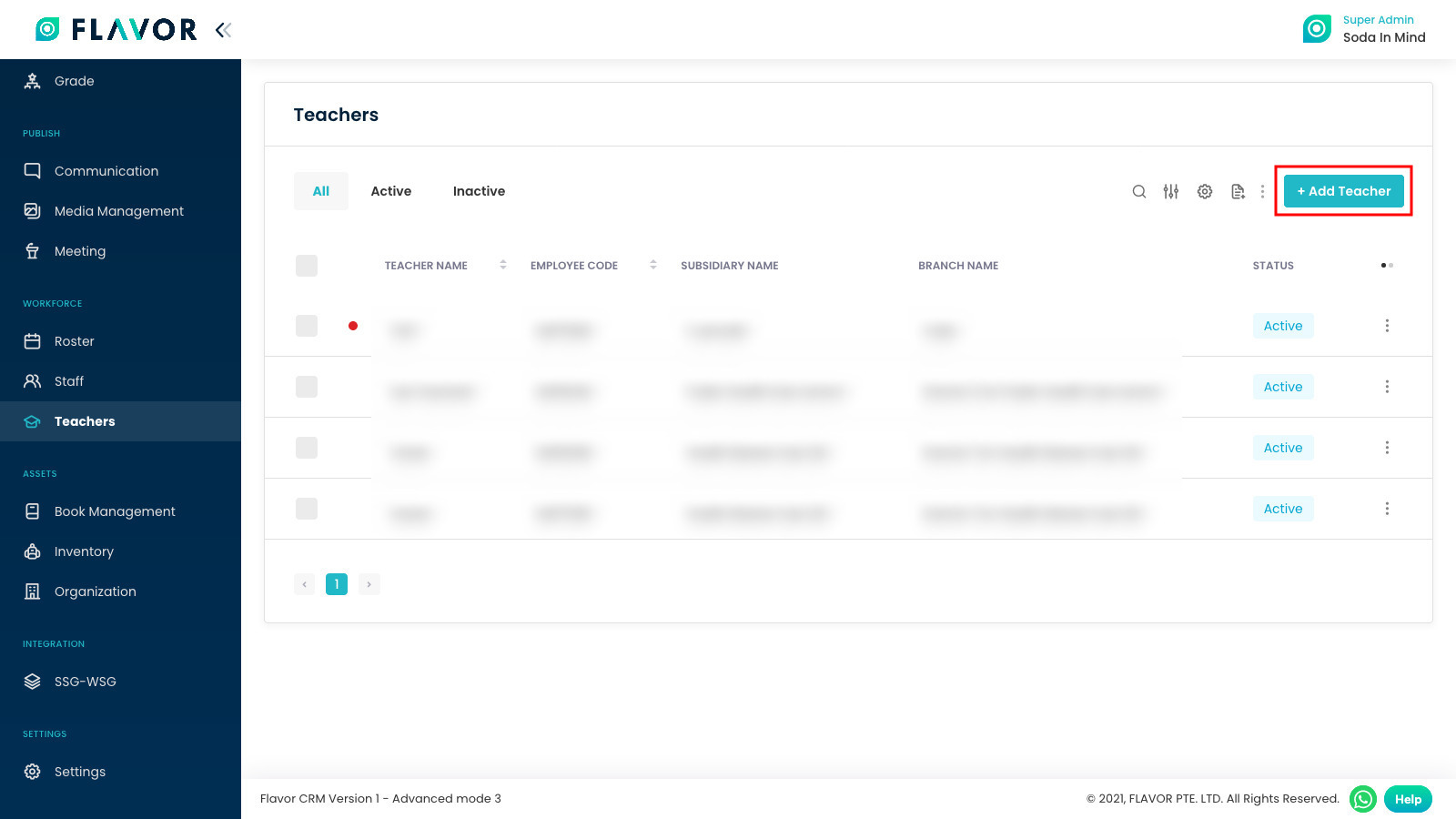
After you clicked Teachers, system will direct you to teacher page. To add new teacher, click Add Teacher.
Step 3
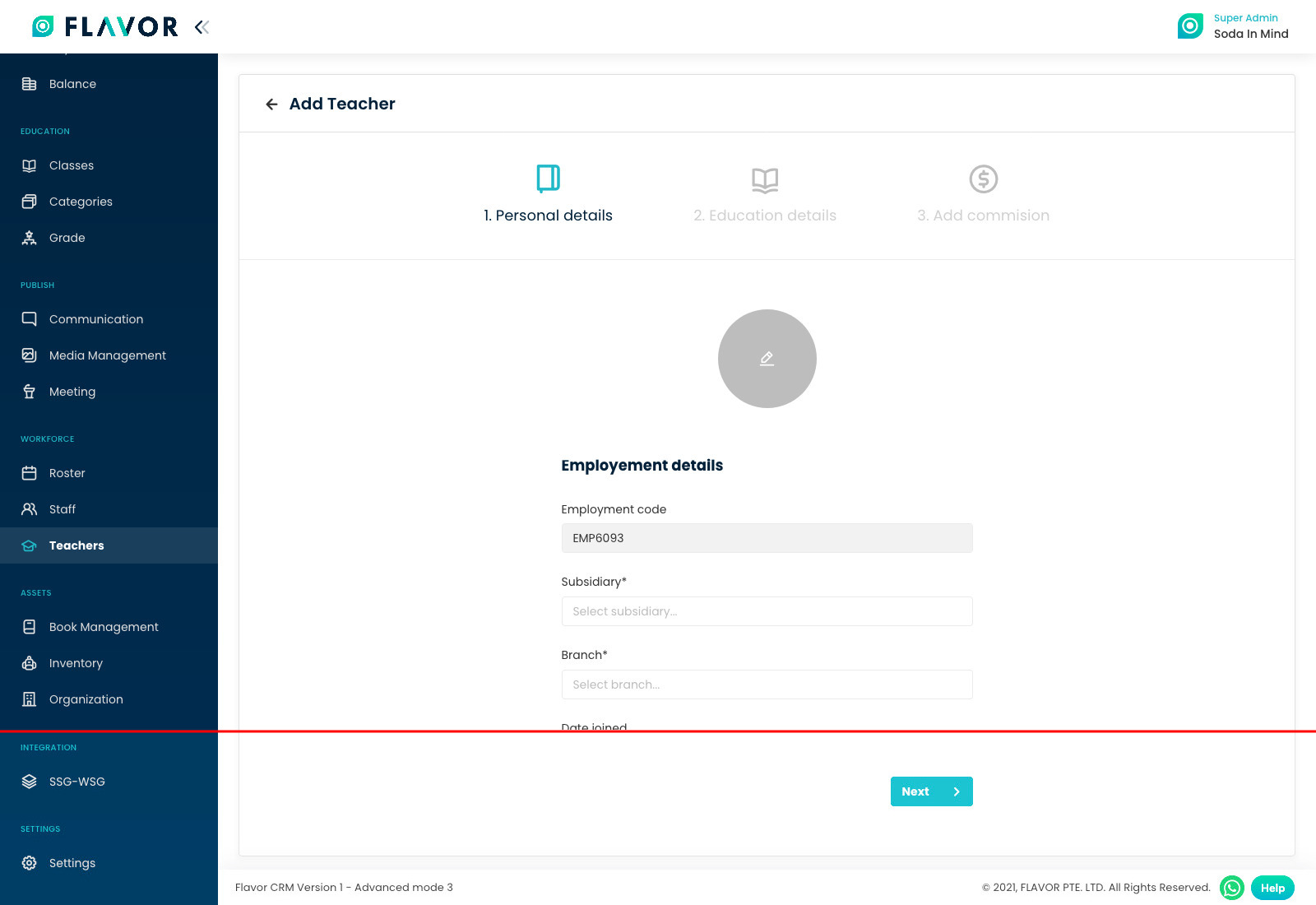
Here, you need to fill out all mandatory Personal details included username and password for Teacher to login by using their account.
After all data has been fully filled, click on Next button.
Step 5
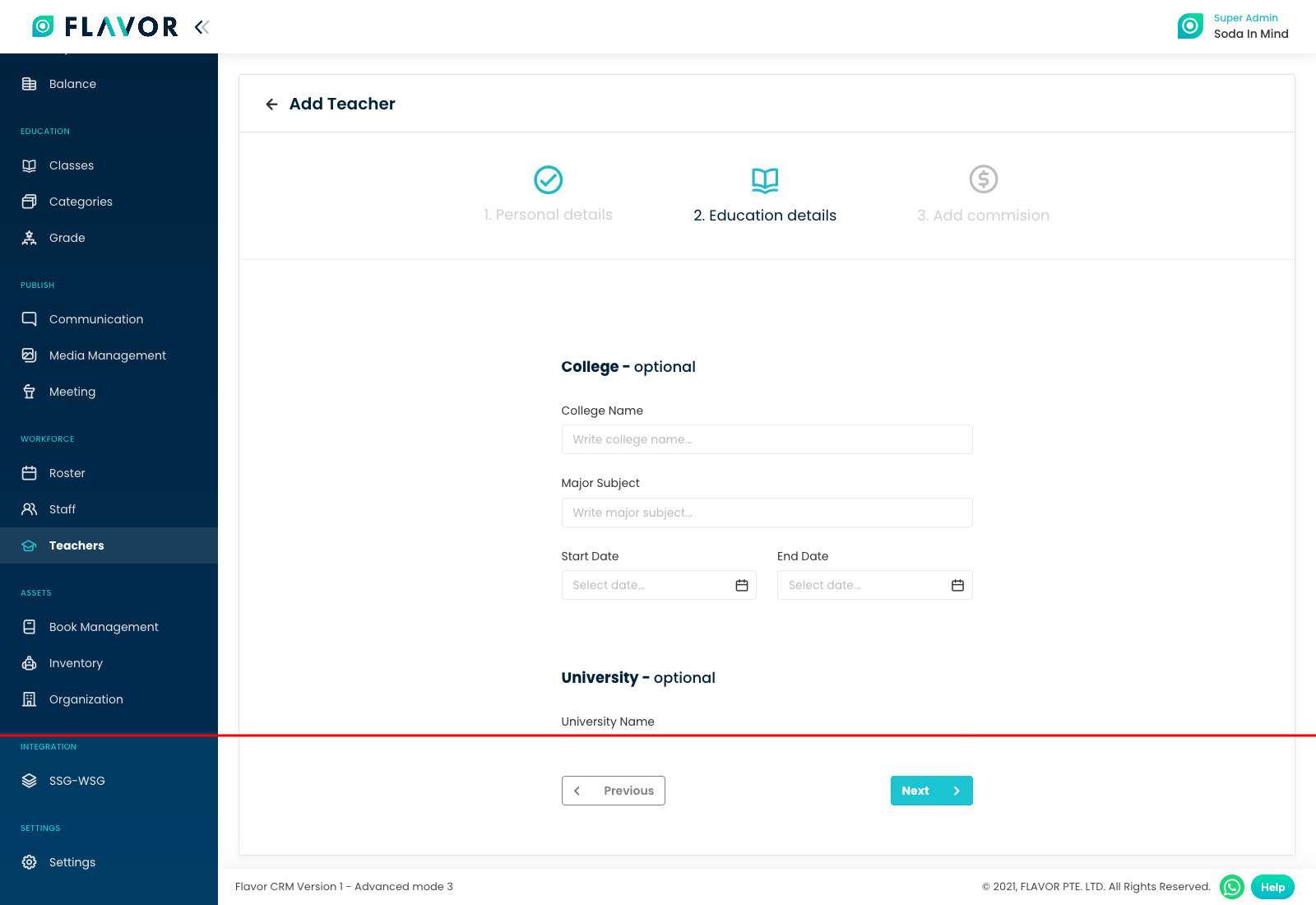
Here, fill out teacher’s Education details. After all data has been fully filled, click on Next / Save Teacher button.
Step 6
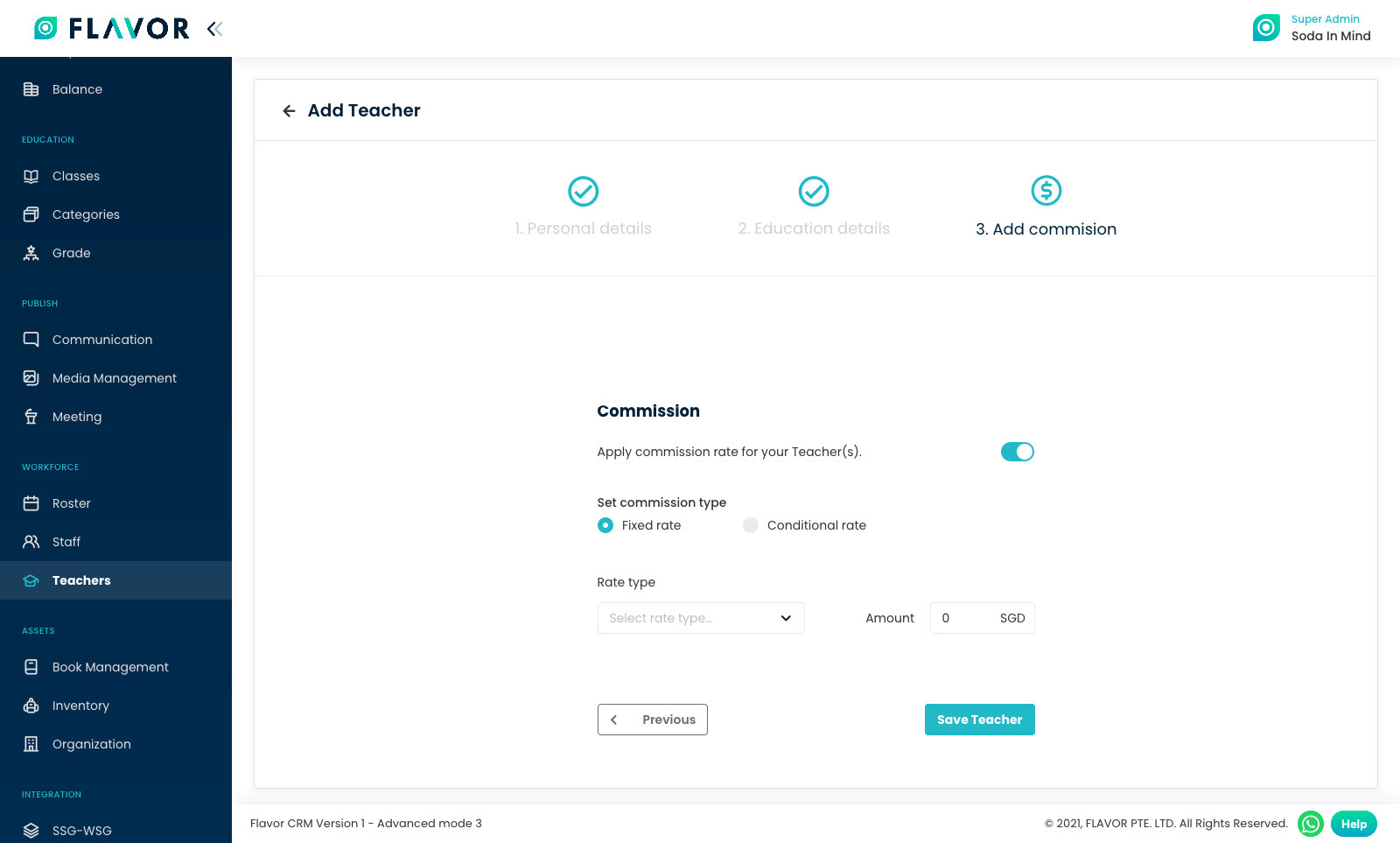
If teacher’s Commission System is enabled, only then you can set commission while adding a teacher. If this step is not showing up, contact the administrator. Fill out commission data and click on Save Teacher button.
Teacher Credentials
From the Dashboard, click on Teachers module, open teachers profile, select Credentials section and click on Manage Credentials.

After clicking Manage Credentials, the teacher’s login information’s will be displayed.
This includes the login credentials : Username & Password.
If the password is unknown, you can click on Reset Password to generate a new one.

Login URL : https://app.flavorcrm.com/
In the web portal, teacher can access the Attendance module to record and manage student attendance.

In the Flavor : Professional mobile app, teacher has access to more modules.
Kindly find attached a document on the Flavor Apps : Flavor App Portfolio
Note
When teacher status in Inactive, teacher cannot login to Flavor.
Need more help? Ask us a question
Please let us know more of your details and our team will reach out to you very shortly.
