



Enrolment Report
The Student Enrolment Report provides a complete overview of student enrolment activities within the selected period. It helps users monitor enrolment trends, track student registrations, analyze course participation, and review payment-related enrolment status using flexible filtering options.
This report supports better academic planning, operational tracking, and decision-making by presenting organized student enrolment records in a clear and structured format.
- Navigate to the Reports → Enrolment → Student Enrolment
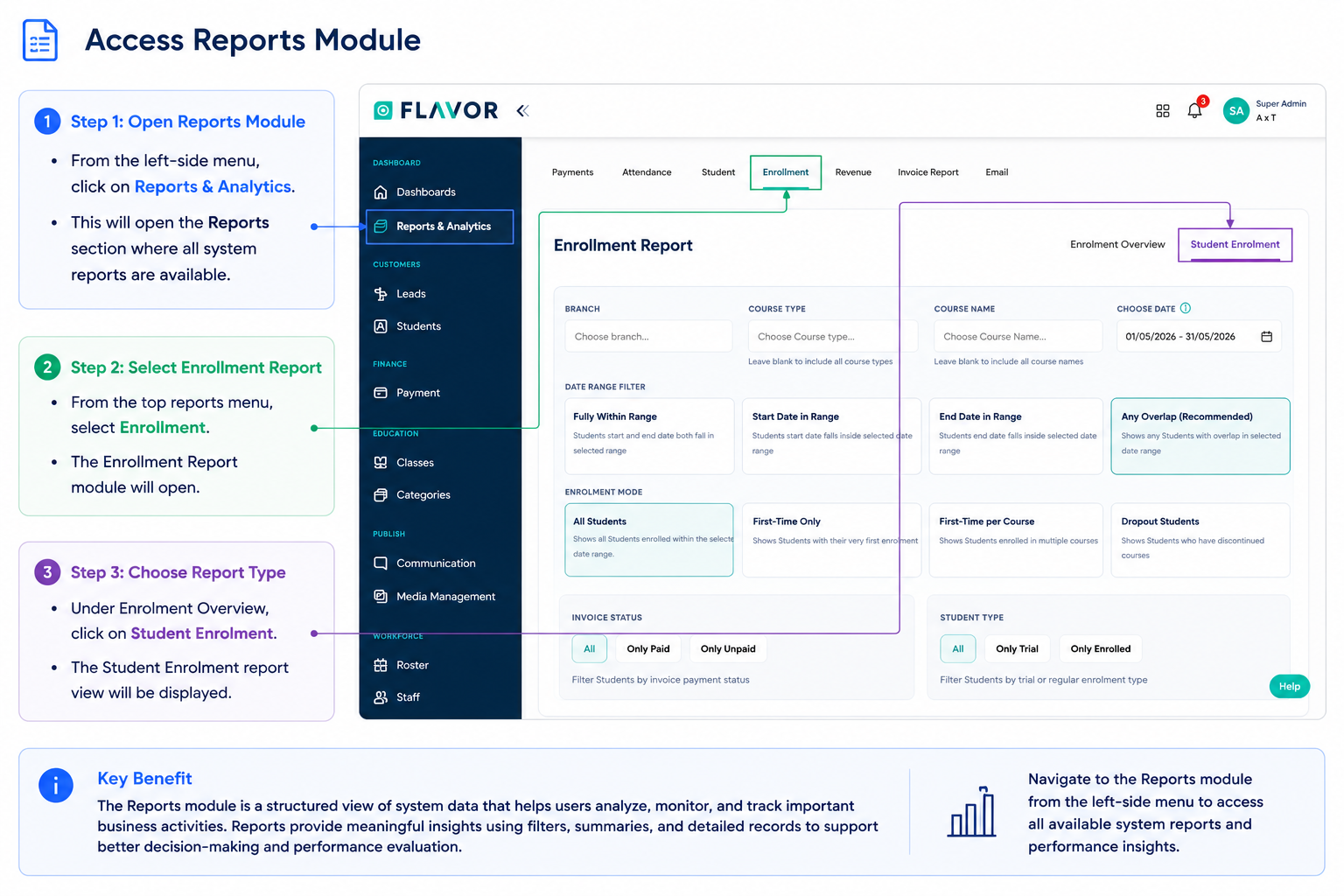
Enrolment Overview Section
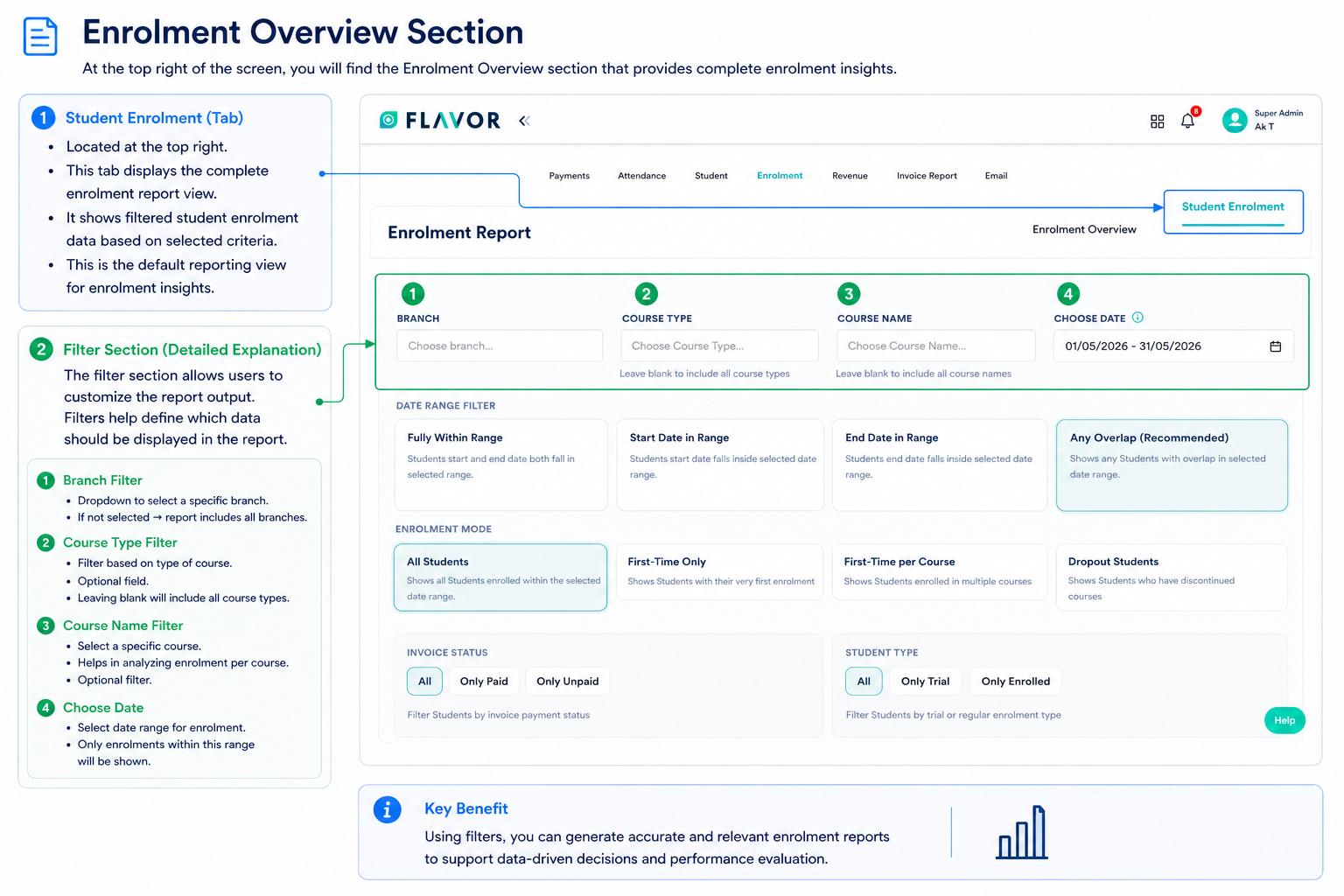
At the top right of the screen, you will find:
- Student Enrolment (Tab) This tab displays the complete enrolment report view. It shows filtered student enrolment data based on selected criteria.
- This is the default reporting view for enrolment insights.
- Filter Section (Detailed Explanation) The filter section allows users to customize the report output. Filters help define which data should be displayed in the report.
1. Branch Filter
- Dropdown to select a specific branch.
- If not selected → report includes all branches
2. Course Type Filter
- Filter based on type of course.
- Optional field.
- Leaving blank will include all course types.
3. Course Name Filter
- Select a specific course.
- Helps in analyzing enrolment per course.
- Optional filter.
4. Choose Date
- Select date range for enrolment.
- Only enrolments within this range will be shown.
Date Range Filter
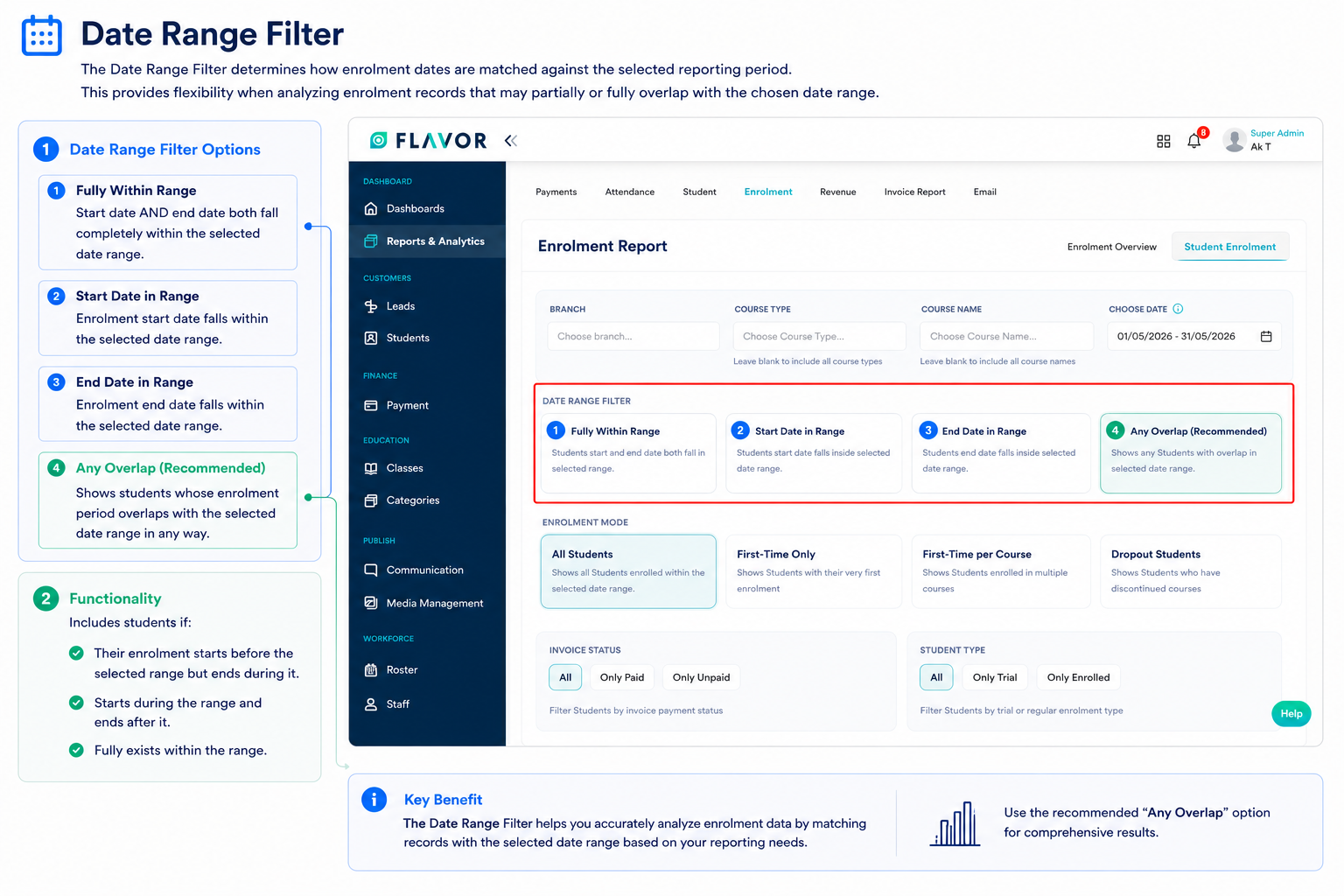
The Date Range Filter determines how enrolment dates are matched against the selected reporting period.
This provides flexibility when analyzing enrolment records that may partially or fully overlap with the chosen date range.
- Fully Within Range- Start date AND end date both fall completely within the selected date range.
- Start Date in Range- Enrolment start date falls within the selected date range.
- End Date in Range- Enrolment end date falls within the selected date range.
- Any Overlap (Recommended)- Shows students whose enrolment period overlaps with the selected date range in any way.
Functionality:
Includes students if:
- Their enrolment starts before the selected range but ends during it.
- Starts during the range and ends after it.
- Fully exists within the range.
Enrolment Mode Section
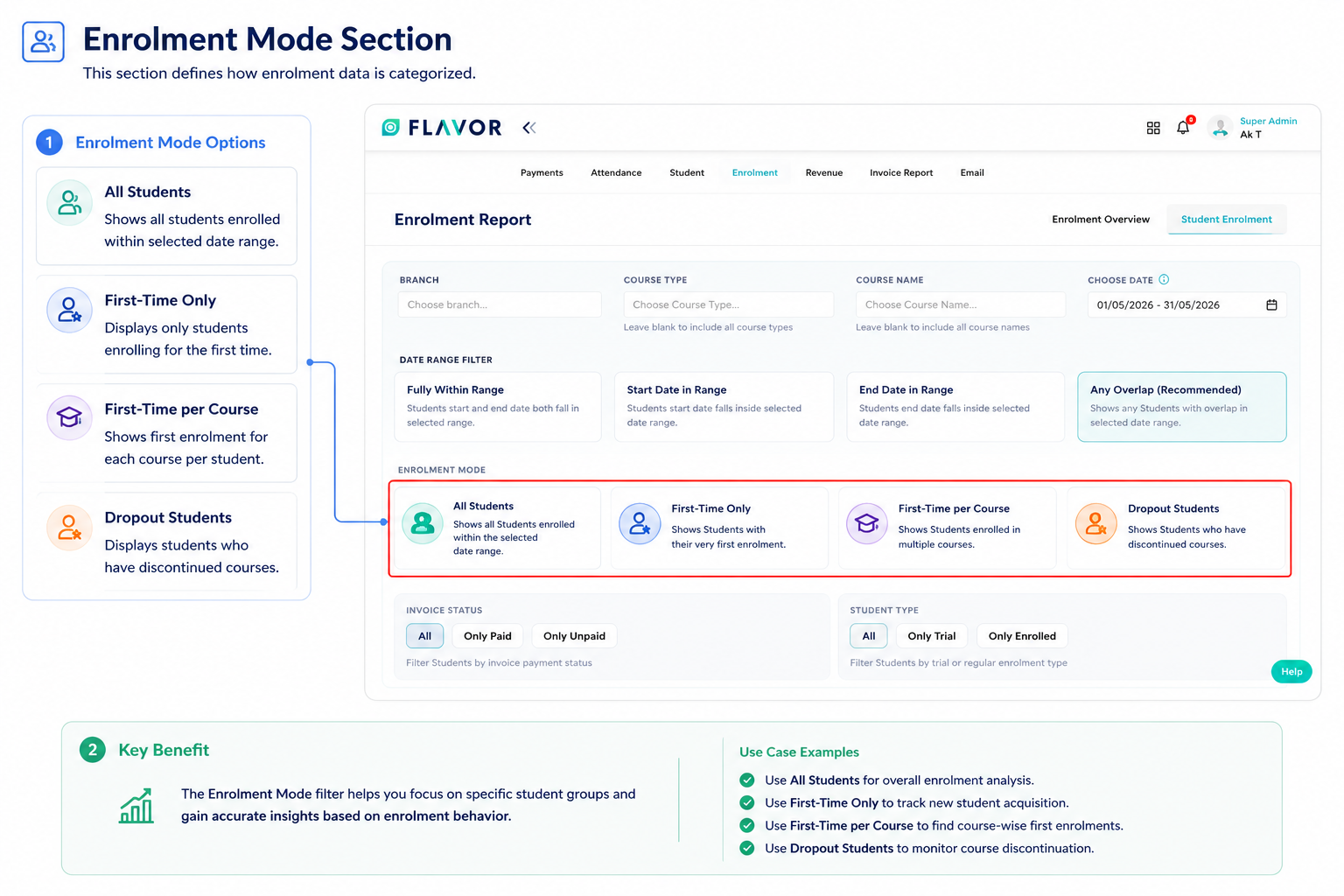
This section defines how enrolment data is categorized:
- All Students- Shows all students enrolled within selected date range.
- First-Time Only- Displays only students enrolling for the first time.
- First-Time per Course- Shows first enrolment for each course per student.
- Dropout Students- Displays students who have discontinued courses
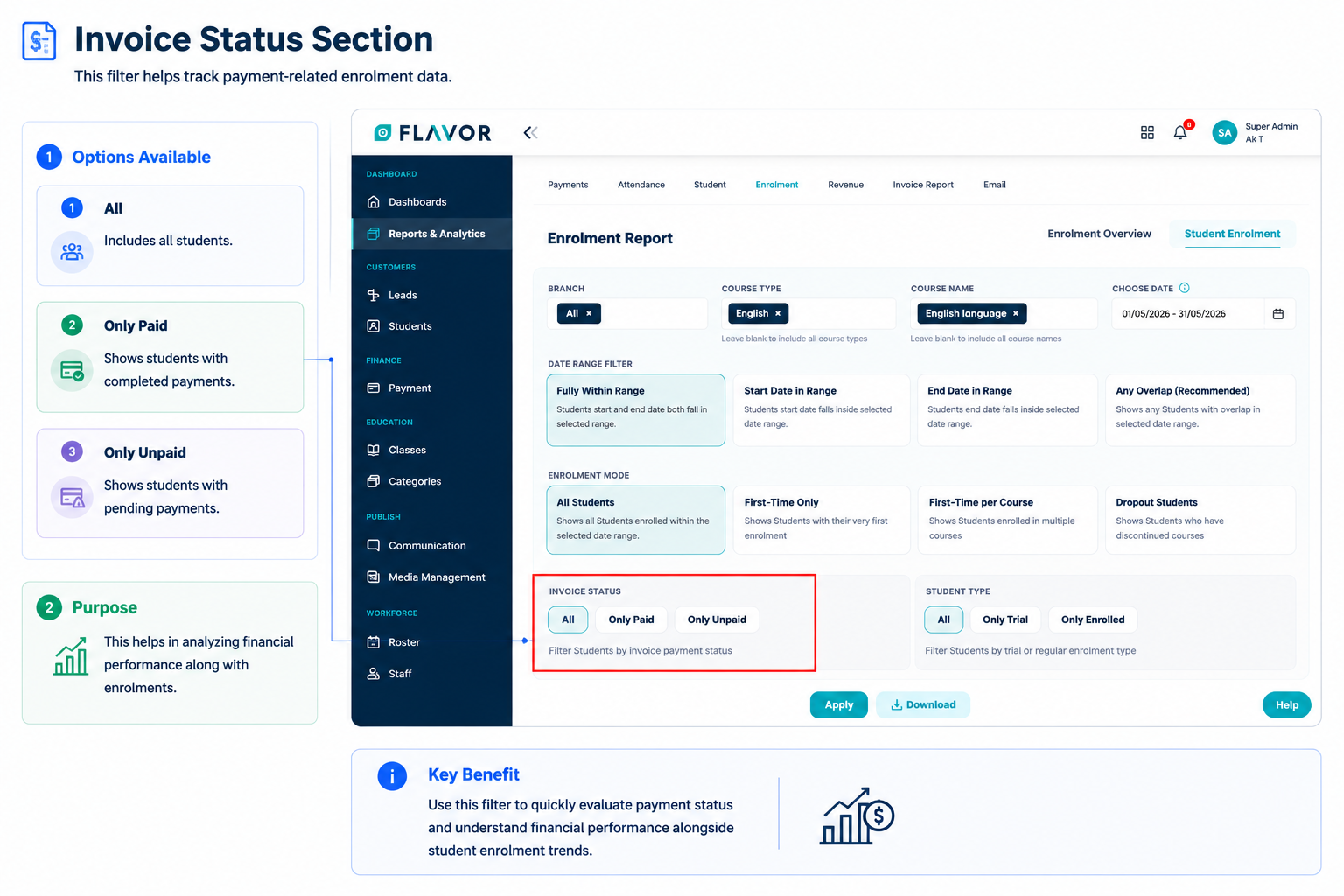
Invoice Status Section
This filter helps track payment-related enrolment data:
Options Available:
All → Includes all students
Only Paid → Shows students with completed payments
Only Unpaid → Shows students with pending payments
This helps in analyzing financial performance along with enrolments.
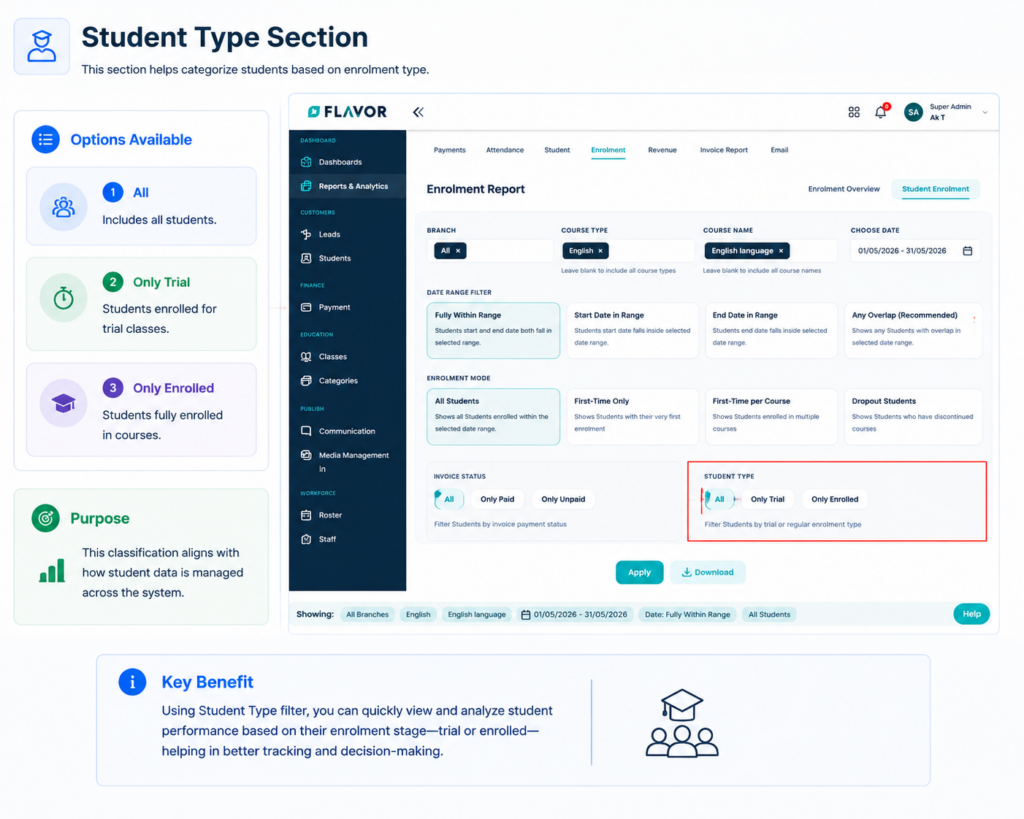
Student Type Section
This section helps categorize students based on enrolment type:
Options Available:
All → Includes all students
Only Trial → Students enrolled for trial classes
Only Enrolled → Students fully enrolled in courses
This classification aligns with how student data is managed across the system.
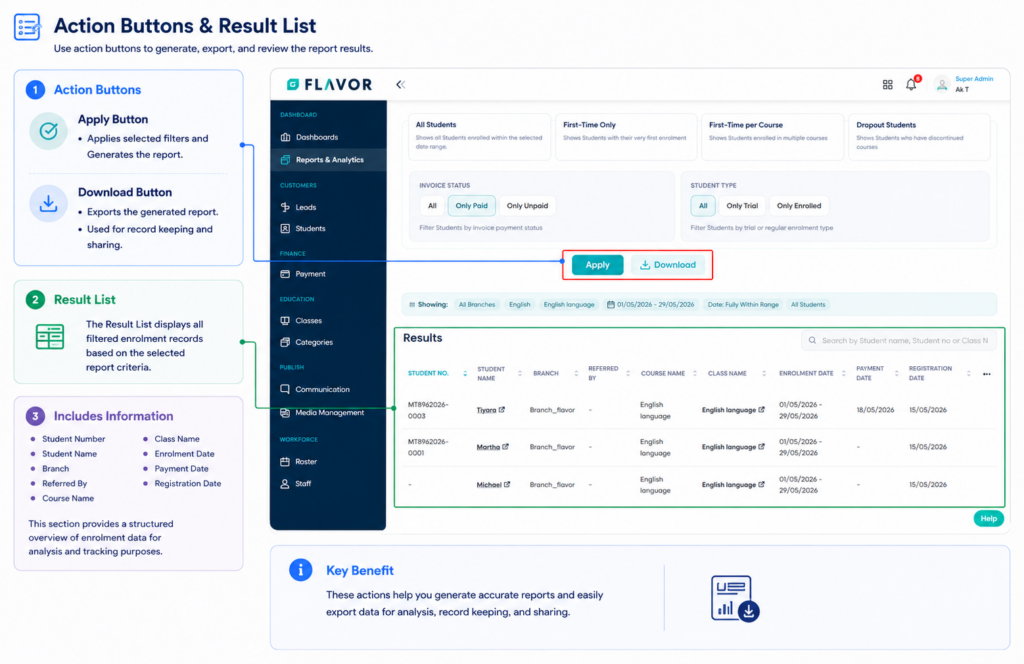
Action Buttons
Apply Button- Applies selected filters and Generates the report.
Download Button
Exports the generated report
Used for record keeping and sharing.
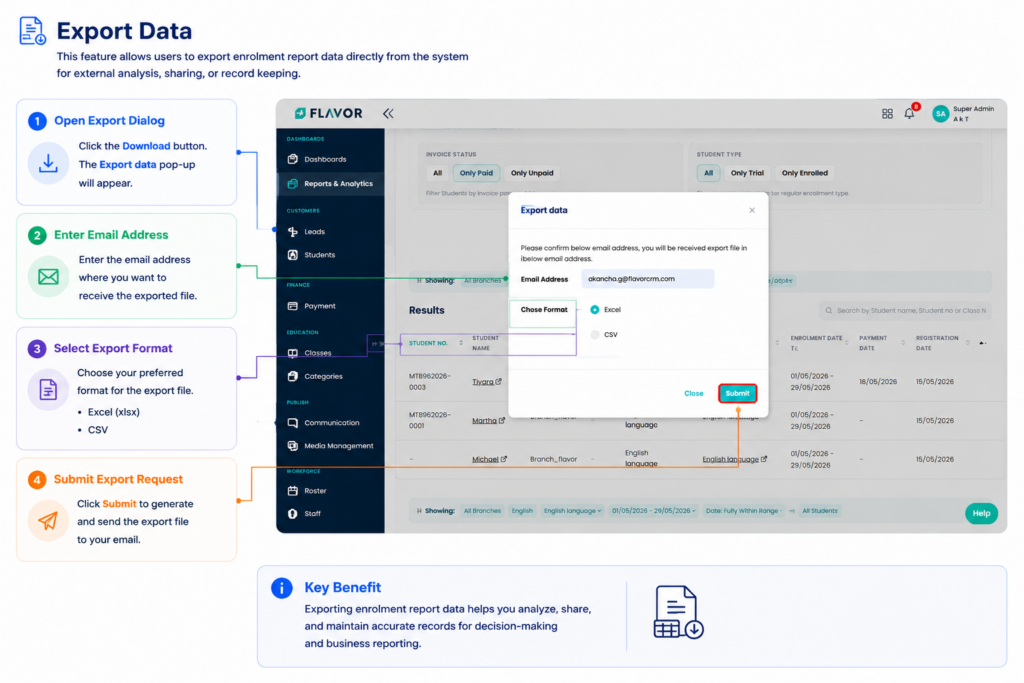
Export Data
This feature allows users to export enrolment report data directly from the system for external analysis, sharing, or record keeping.
Need more help? Ask us a question
Please let us know more of your details and our team will reach out to you very shortly.
