



Introduction
This user guide explains how to prepare your documents of Flavor CRM and how to complete your Productivity Solutions Grant (PSG) Claim Submission through the Business Grants Portal (BGP).
Flavor CRM helps you collect, organize, and download all necessary details (invoices, receipts, usage report, quotation, etc.).
The actual claim submission is done on the Business Grants Portal.
PSG Claim Submission Steps (Business Grants Portal)
Now that all Flavor CRM documents are ready, log in to the Business Grants Portal to submit your claim.
Portal Link: https://www.apply.gov.sg/grants/business
Step 1: Access the Business Grants Portal (BGP)
-
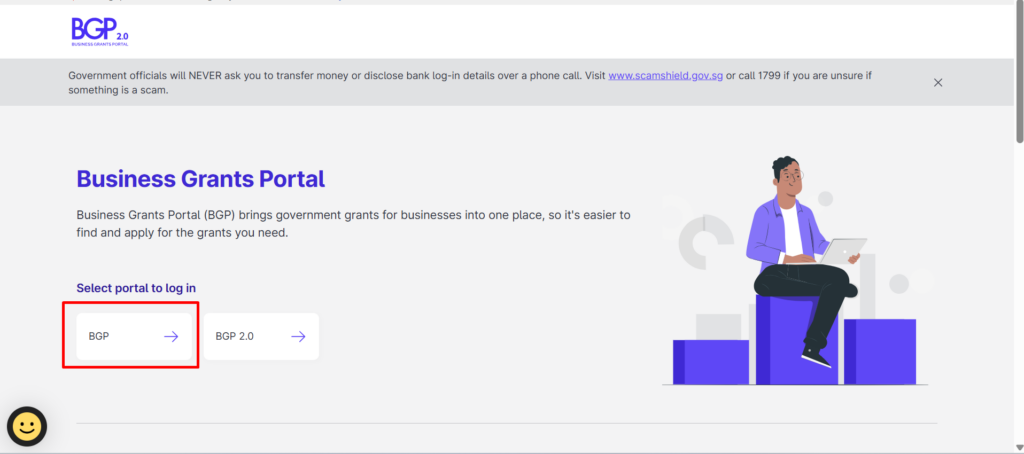
- Open the Business Grants Portal using the link above.
- On the portal selection page, click BGP to proceed to the login page.
Step 2: Log In and Select Your Business Entity
-
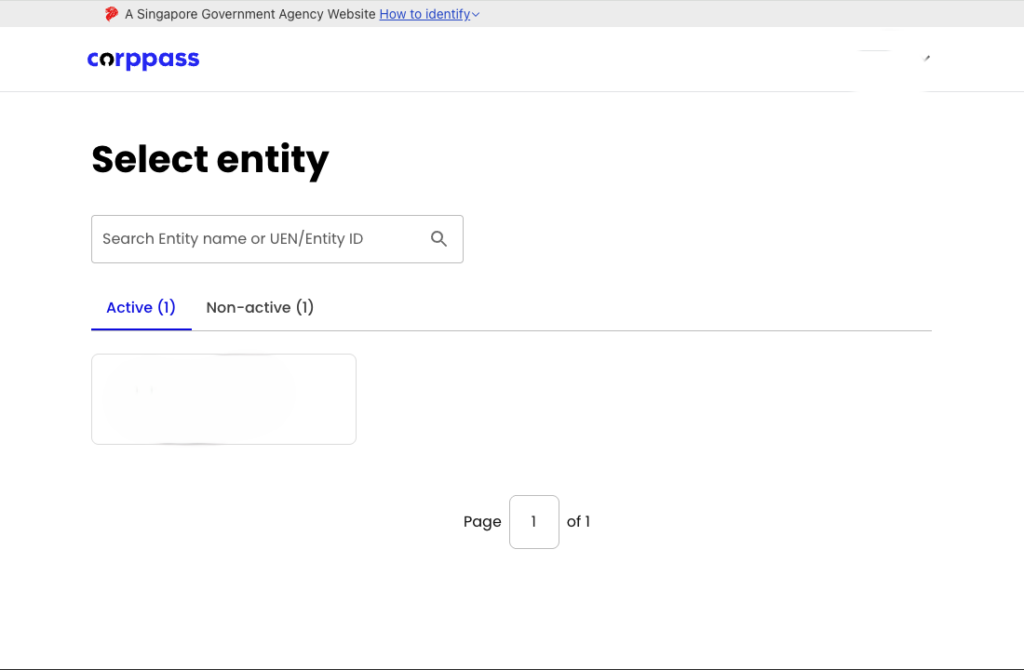
- Sign in using your CorpPass account.
- After successful login, the Select Entity page will appear.
- Select the business entity for which the PSG claim will be submitted.
Step 3: Log In Using SingPass
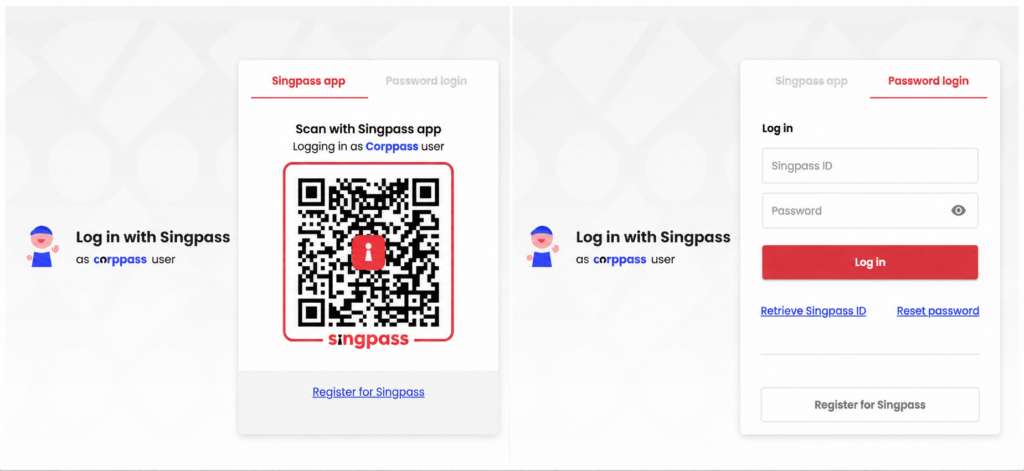
- On the login page, sign in using your SingPass account.
- You may log in either by scanning the QR code with the SingPass app or by entering your SingPass ID and password.
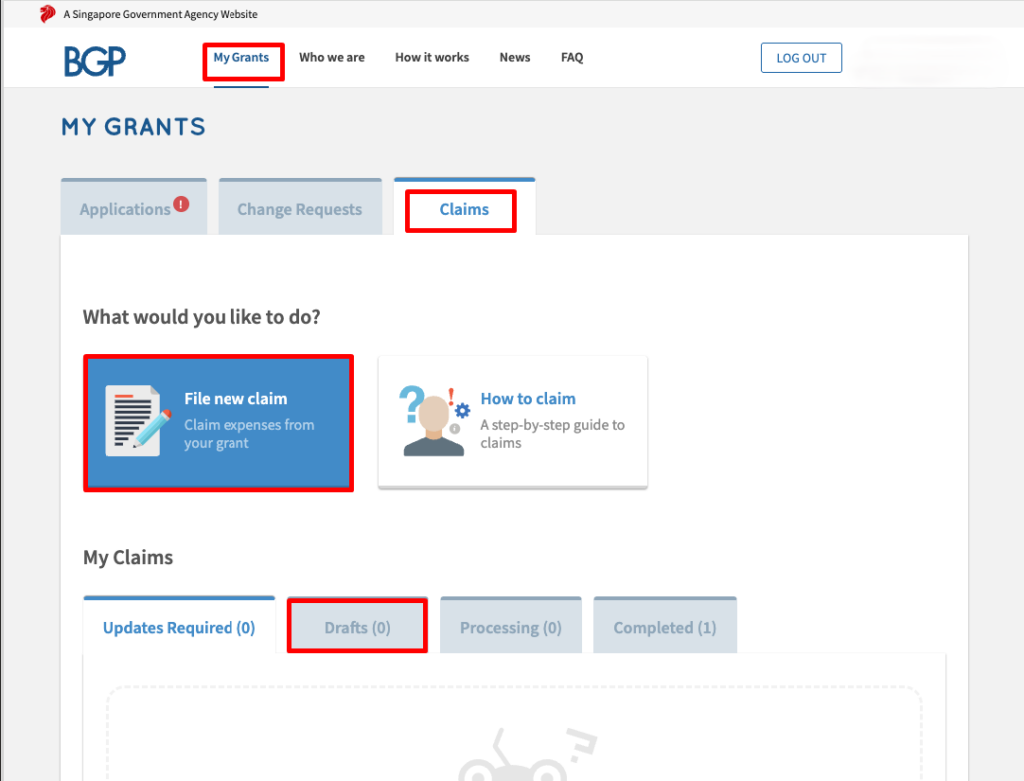
Step 4: Navigate to Claims
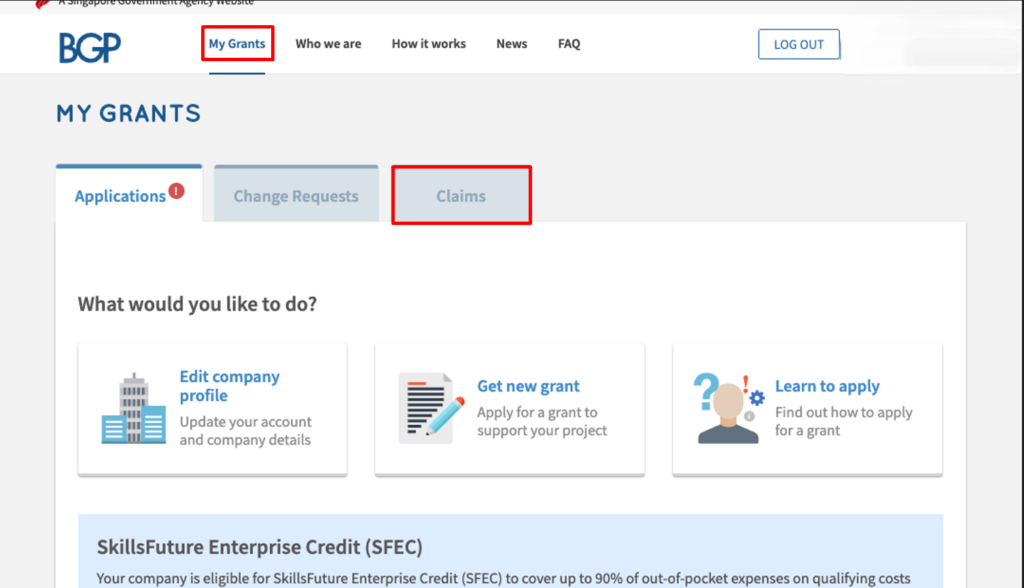
- After logging in, click My Grants from the top navigation menu.
- Select the Claims tab to access the claims section.
Step 5: Start a New Claim
- Under the Claims tab, click File New Claim.
- This will open the claim submission process for your approved grant.
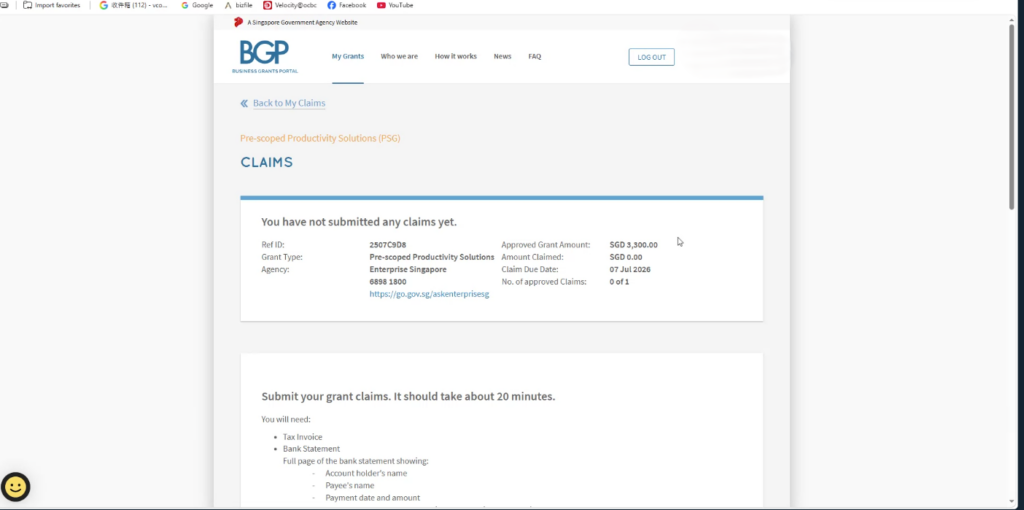
 Step 6: Select Your Approved PSG Project
- From the Claims page, locate and select your approved Flavor CRM PSG application.
- Review the project details to ensure you have selected the correct grant application.
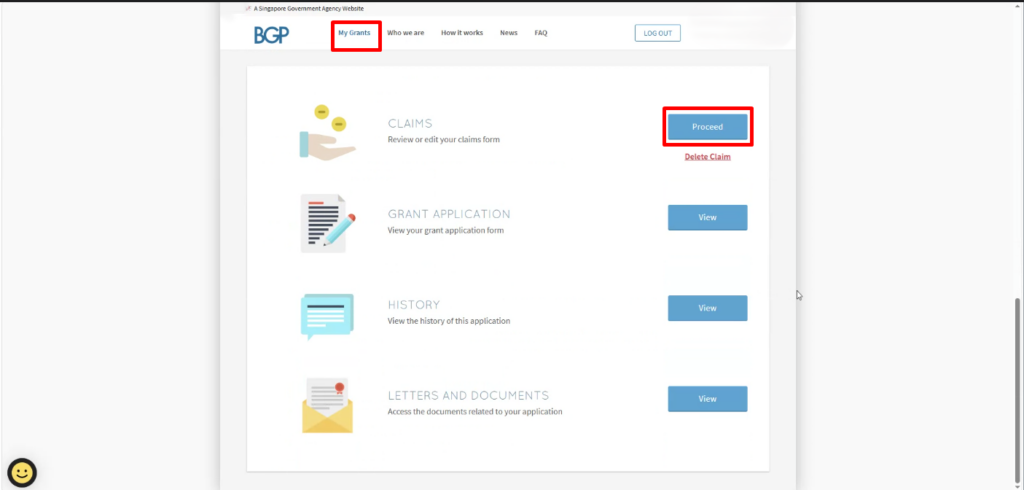
Step 7: Proceed to the Claim Form
- On the application page, navigate to the Claims section.
- Click Proceed to start completing the claim submission form.
Documents to Prepare in Flavor CRM
Before submitting the claim in BGP, gather the following documents from Flavor CRM:
✔ 1. Tax Invoice
Download the official Flavor CRM invoice issued to your company.
✔ 2. Bank Statement
Full page of the bank statement showing:
- Account holder’s name
- Payee’s name
- Payment date and amount
Document must be exported from desktop internet banking and unedited, not masked/cropped/folded.
✔ 3. Bank/Transaction advice (Receipt of Flavor CRM)
Payment receipt or transaction proof after subscription payment is completed.
✔ 4. Purchased Order or Signed Acceptance of Quotation/Contract(Quotation provide by Flavor CRM).
The signed quotation used in the original PSG Grant application.
✔ 5. Deployment Proof (Usage Report).
A Usage Report is a detailed summary that shows how the system or software is being used over a specific period. It includes information such as user activity, frequency of login, features accessed, tasks performed, and overall system engagement. The report helps demonstrate that the solution has been actively deployed and utilized within the organization.
✔ 6. Pictures
• Licence number(s) of software and/or serial number(s) of hardware if don’t have any than please upload the blank document.
✔ 7. Other Documents(Blank Document).
For other document section you will required a blank document to be uploaded.
All the files you submit must not exceed 50MB.
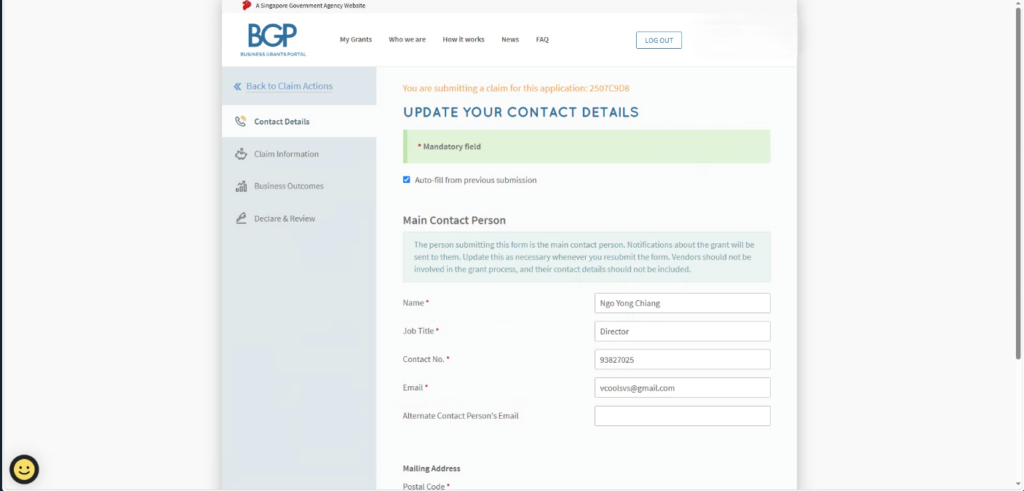
Step 8: Verify Contact Details
- Review the contact details displayed on the form.
- Update the information if any changes are required.
- Once the details are confirmed, click Next to continue.
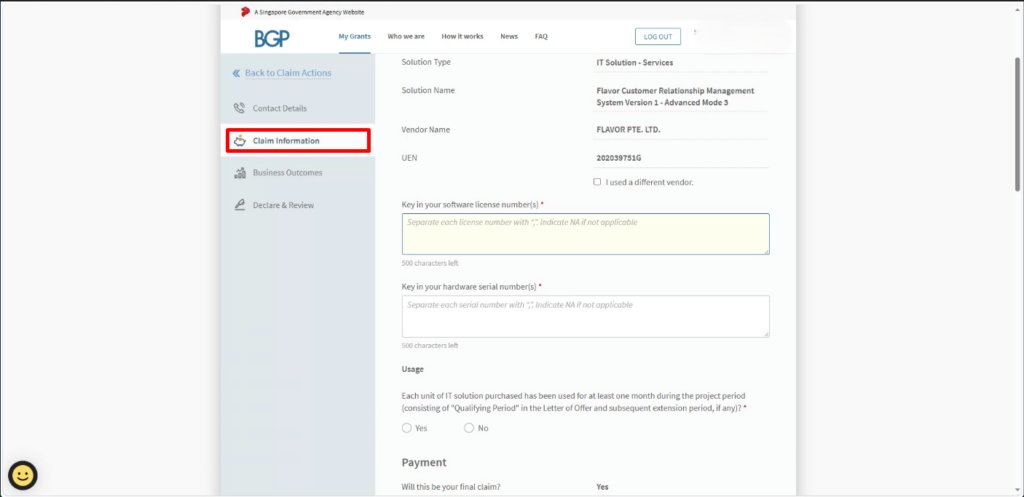
Step 9: Enter Claim Information
- Click Claim Information from the left-hand navigation panel.
- Complete the required fields based on your Flavor CRM project.
- Enter your software license number or equipment serial number.
- If there is no software license number or hardware serial number, enter “NA”.
Alternatively, you may enter: “Vendor advised there is no unique identification number and tracking is via email.”

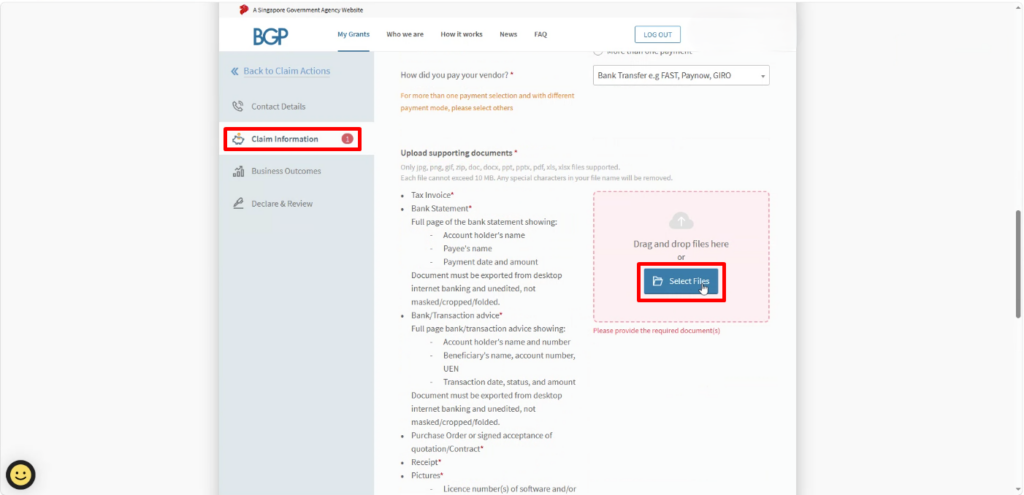
- Upload the supporting documents provided by Flavor CRM:
- Invoice
- Receipt
- Quotation
- Payroll Report
- Monthly Usage Report
- Drag and drop the documents into the Selected Files section.
- After uploading all required documents, verify that the files appear in the upload section before proceeding.
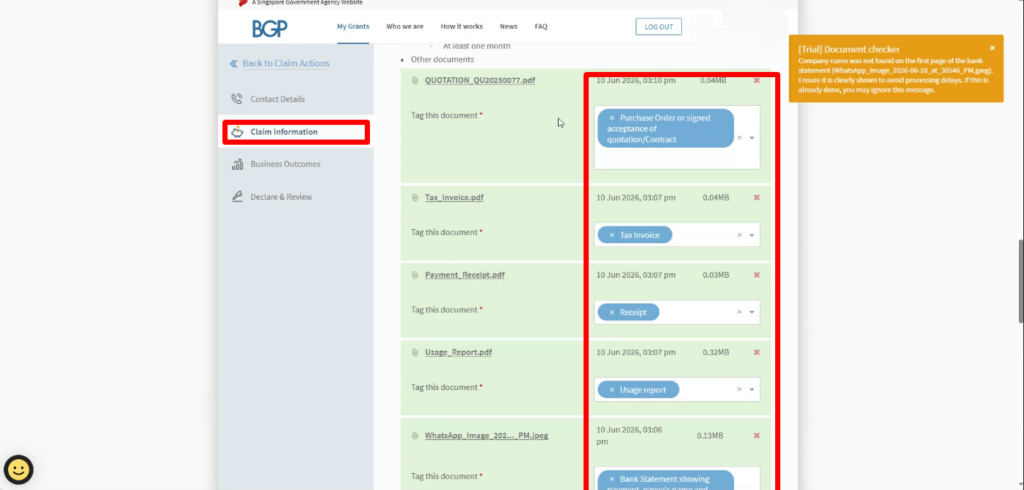
Upload Documents:
- Invoice from Flavor CRM
- Receipt / proof of payment
- Bank statement with transaction highlighted
- Deployment proof (Screenshots from Flavor CRM about Usage Report)
- Contract/quotation (Put the Signed quotation)
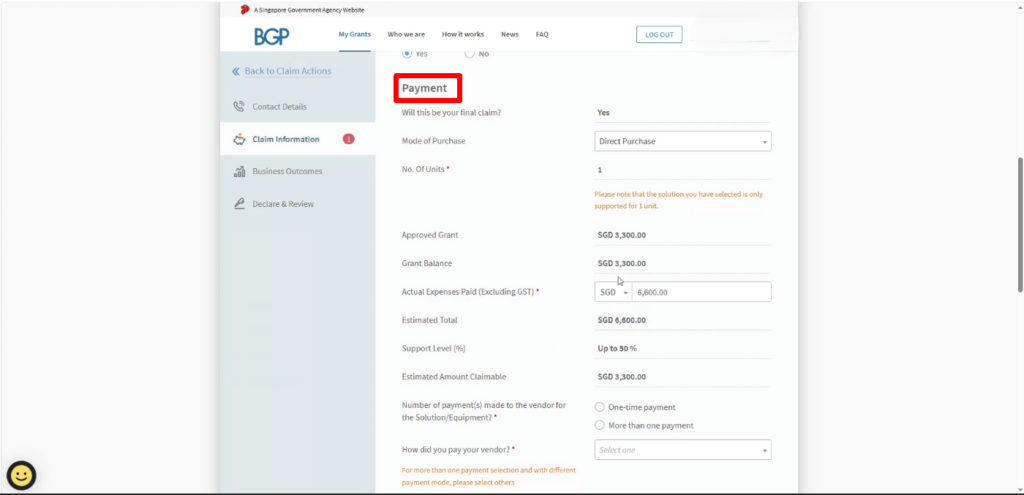
Payments Section:
- Select payment method (Bank Transfer, Card, etc.)
- Upload supporting transaction documents
- Upload a blank document under ‘Other Documents’, and if you do not have the license number, upload a blank document under ‘Pictures’ as well.
Click Next.
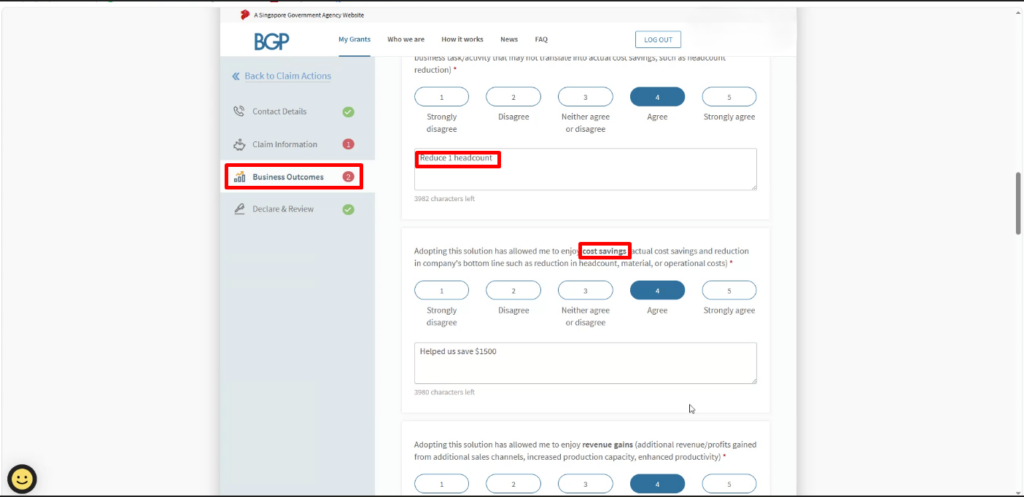
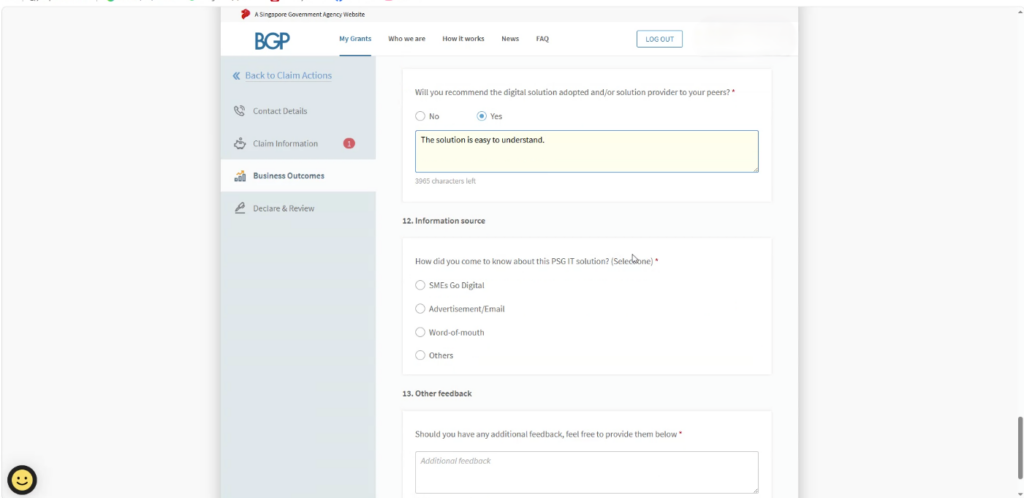
Step 10: Complete Business Outcomes
- Click Business Outcomes from the left-hand navigation panel.
- Enter the cost savings as a percentage value.
- The cost savings percentage should be based on your company’s calculation.
- For What tasks will be more efficient with the new solution, enter:
- Leads management and chat automation
- Enter the percentage value for the reduction of man-hours.
- Provide your feedback on the software.
- You may use one of the following examples:
- Great software, 10/10 will recommend to other companies.
- Customer service is amazing.
- You may use one of the following examples:
- Review all information entered before proceeding to the next section.
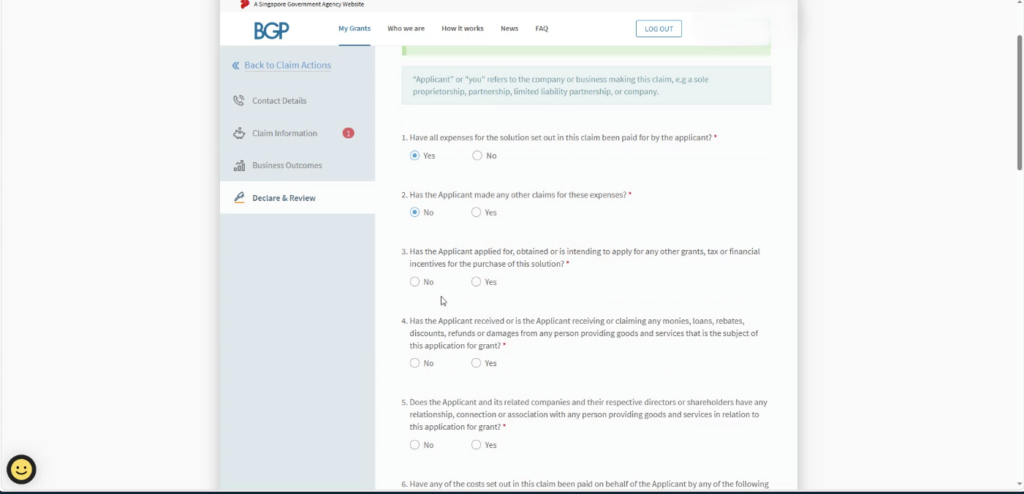
Step 11: Declaration & Submission
- Review your claim.
- Accept declarations.
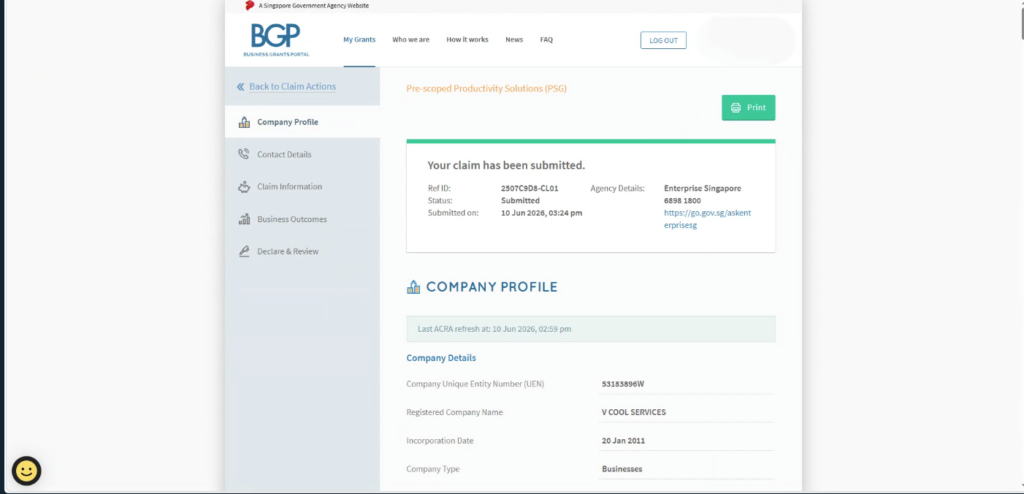
- Click Submit Claim.
Your PSG Claim will now be sent for processing.
Need more help? Ask us a question
Please let us know more of your details and our team will reach out to you very shortly.
