



Leads Module
Step 1 : Leads Module
From the left navigation menu, click Leads to access the Lead Management page.
Step 2 : Click Import / Export
Click on the Import / Export button located at the top right corner of the screen.
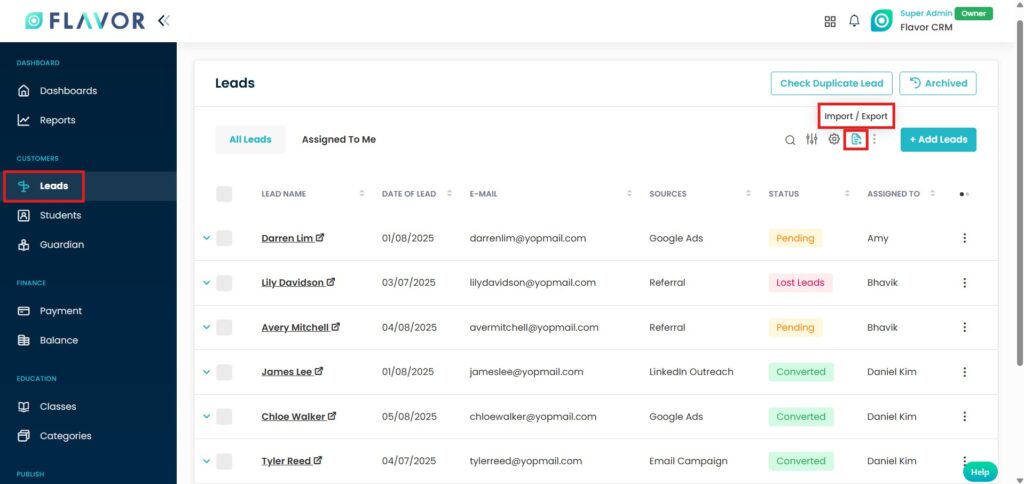
Download Template File
Select Import Data. In the Import Data window, select your preferred file format (CSV or XLSX) and click on Download to download the sample template.
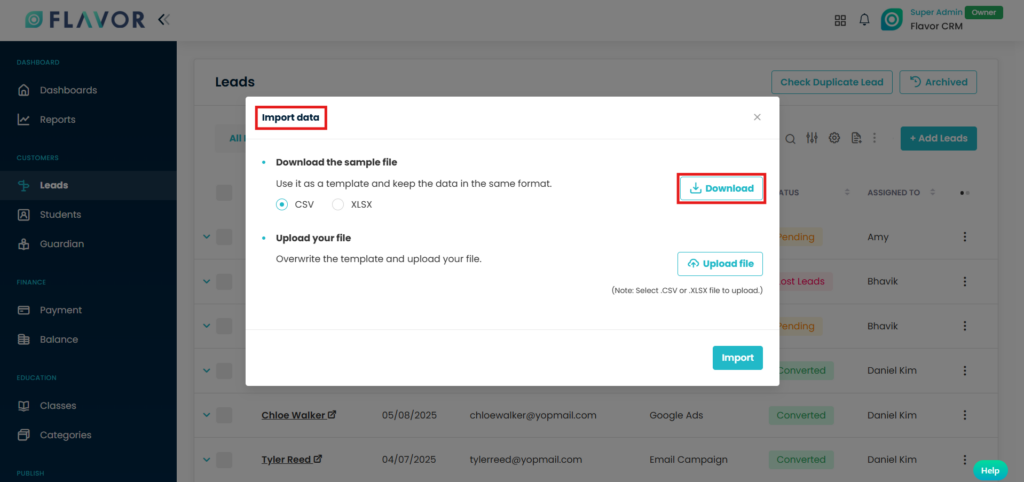
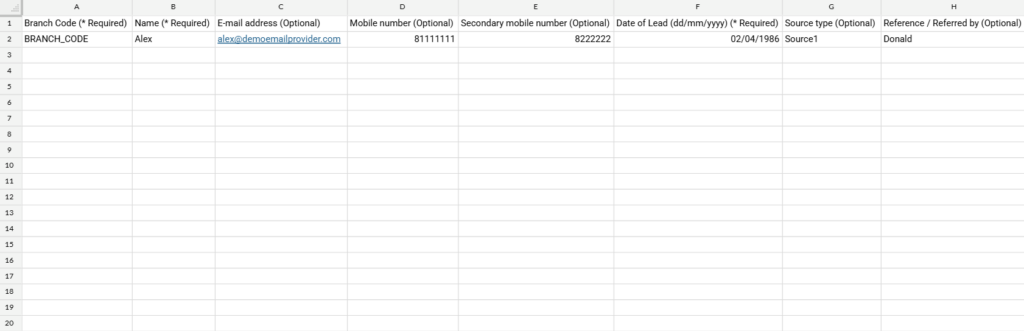
Template File
Open the downloaded template and enter your lead information in the corresponding columns.
Note : Do not modify the column headers in the template. Enter your lead information while keeping the same format.
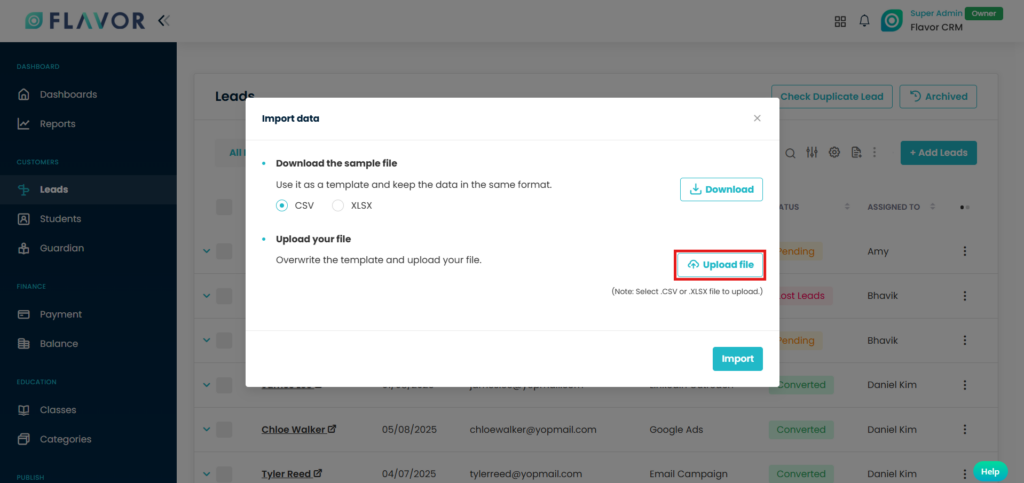
Upload File
After filling in the lead information, return to the Import Data window and click on Upload File.
Select the completed CSV or XLSX file from your computer and wait for the file to be uploaded successfully. Click on Import button to proceed.
Review the Import Data
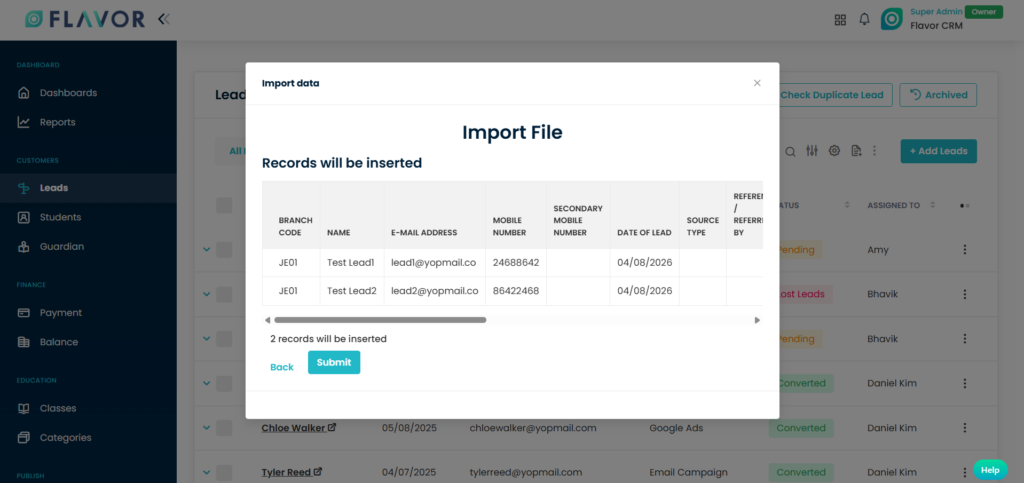
After uploading your file, Flavor CRM will display a preview of the records that are ready to be imported. It will also display the total number of records that will be inserted.
Once you have verified the data, click on Submit to complete the import process.
Import Complete
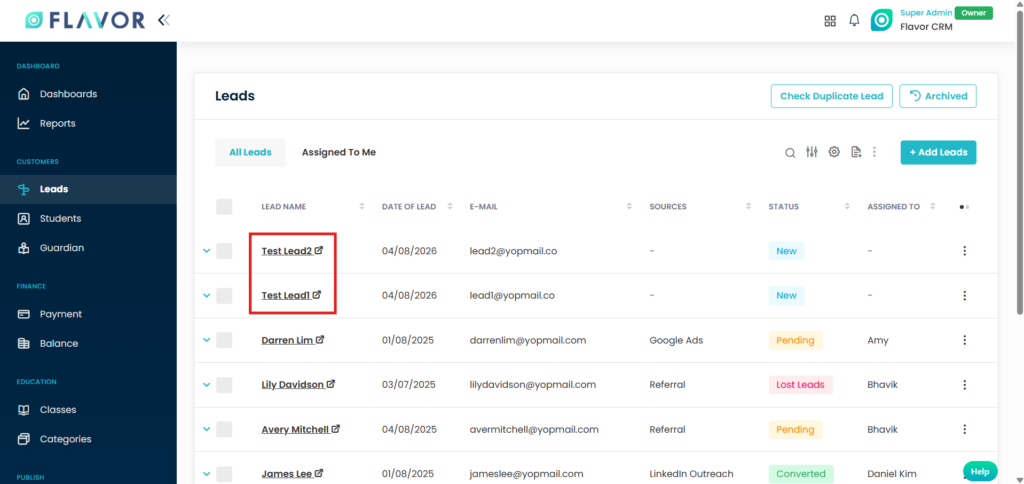
Once the import is completed, the lead records will be successfully added to Leads Module and individual lead profiles will be created accordingly.
Need more help? Ask us a question
Please let us know more of your details and our team will reach out to you very shortly.
