



Class & Attendance Tab
The Class & Attendance tab provides a centralized view of a student’s attendance statistics, upcoming classes, and makeup lesson requests.
Step 1
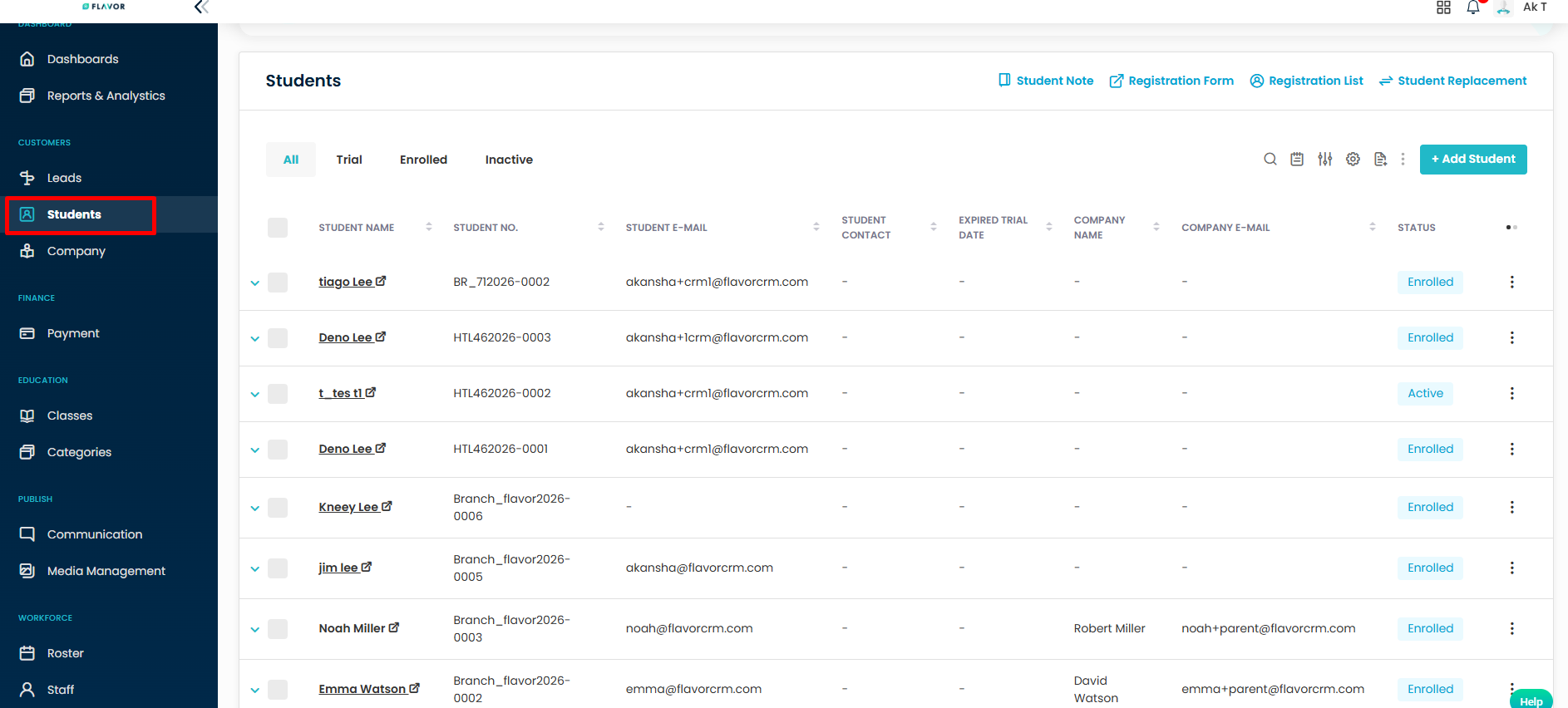
Navigate to Students/Customers from the left navigation menu.
Step 2
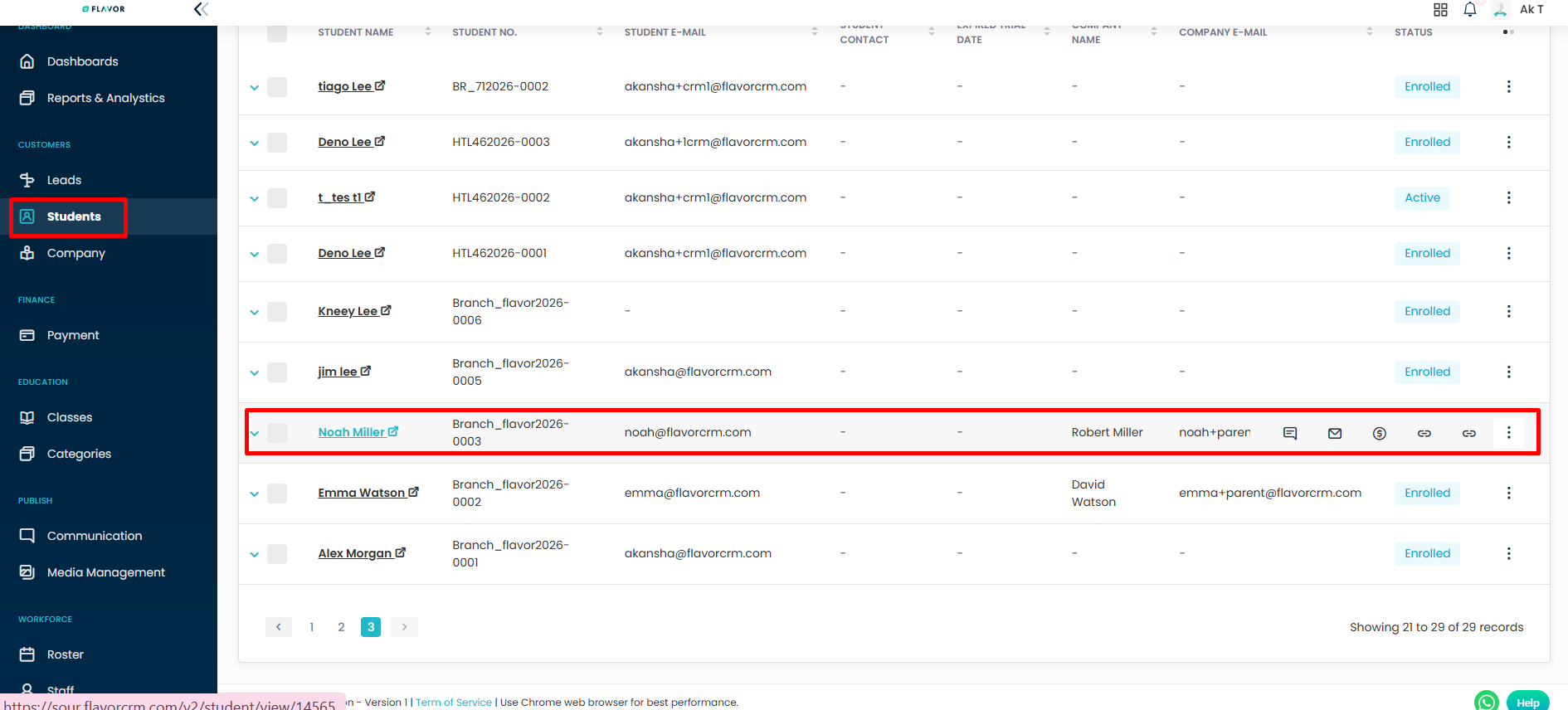
Open the student record you wish to view.
Step 3
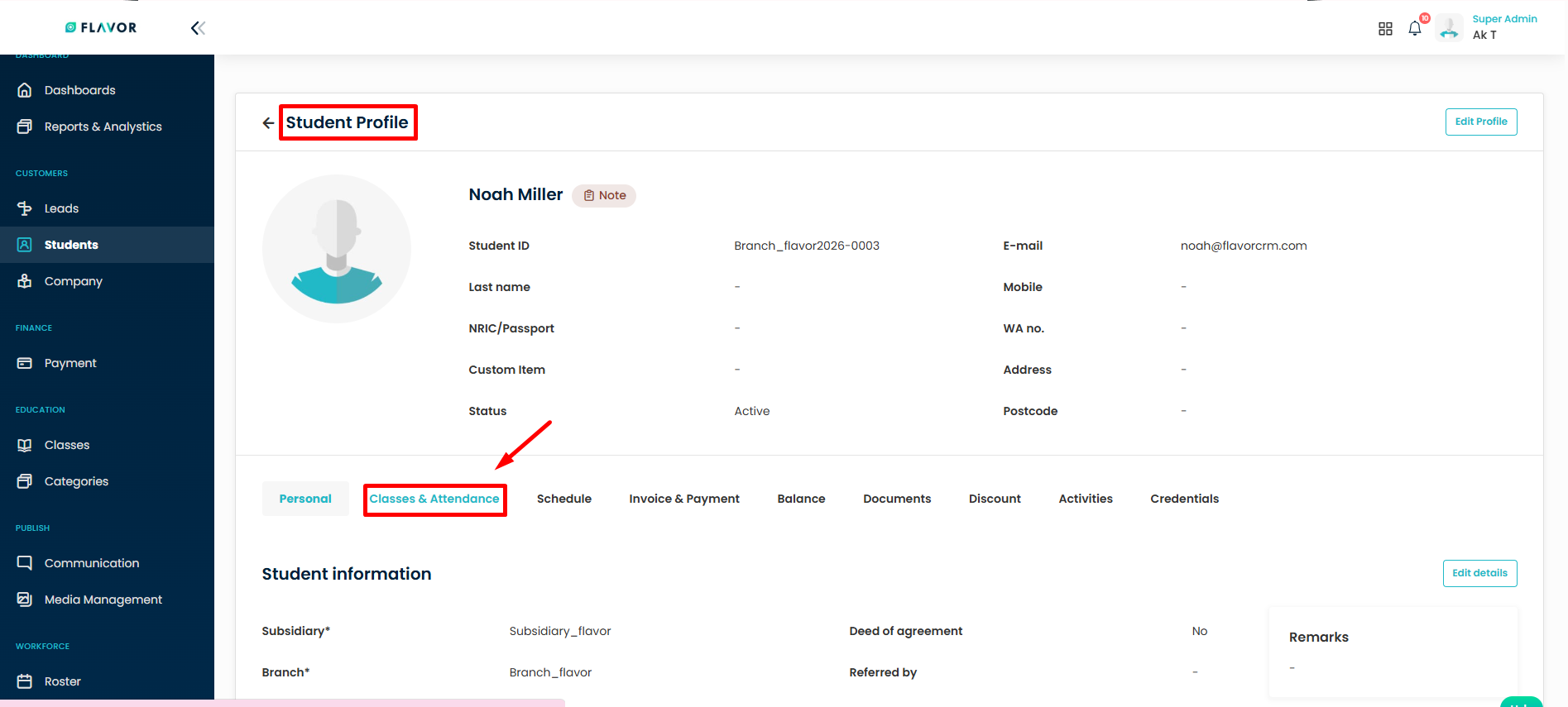
From the student profile, click on the Classes & Attendance tab.
Attendance Overview
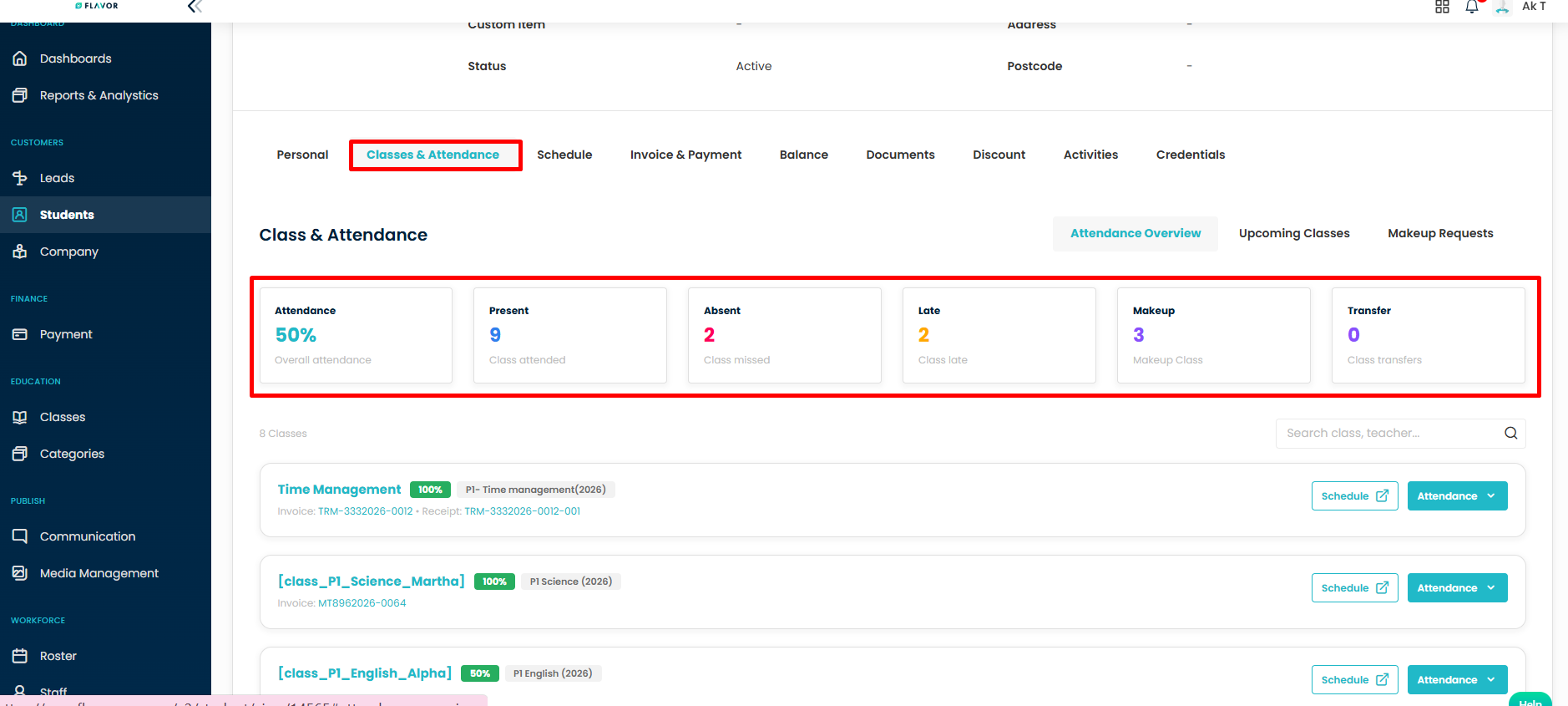
The system will display the Attendance Overview section, which provides a summary of the student’s attendance performance.
You can view:
- Overall Attendance Percentage
- Total Present Classes
- Total Absent Classes
- Total Makeup Classes
- Total Late Attendances
Enrolled Class View
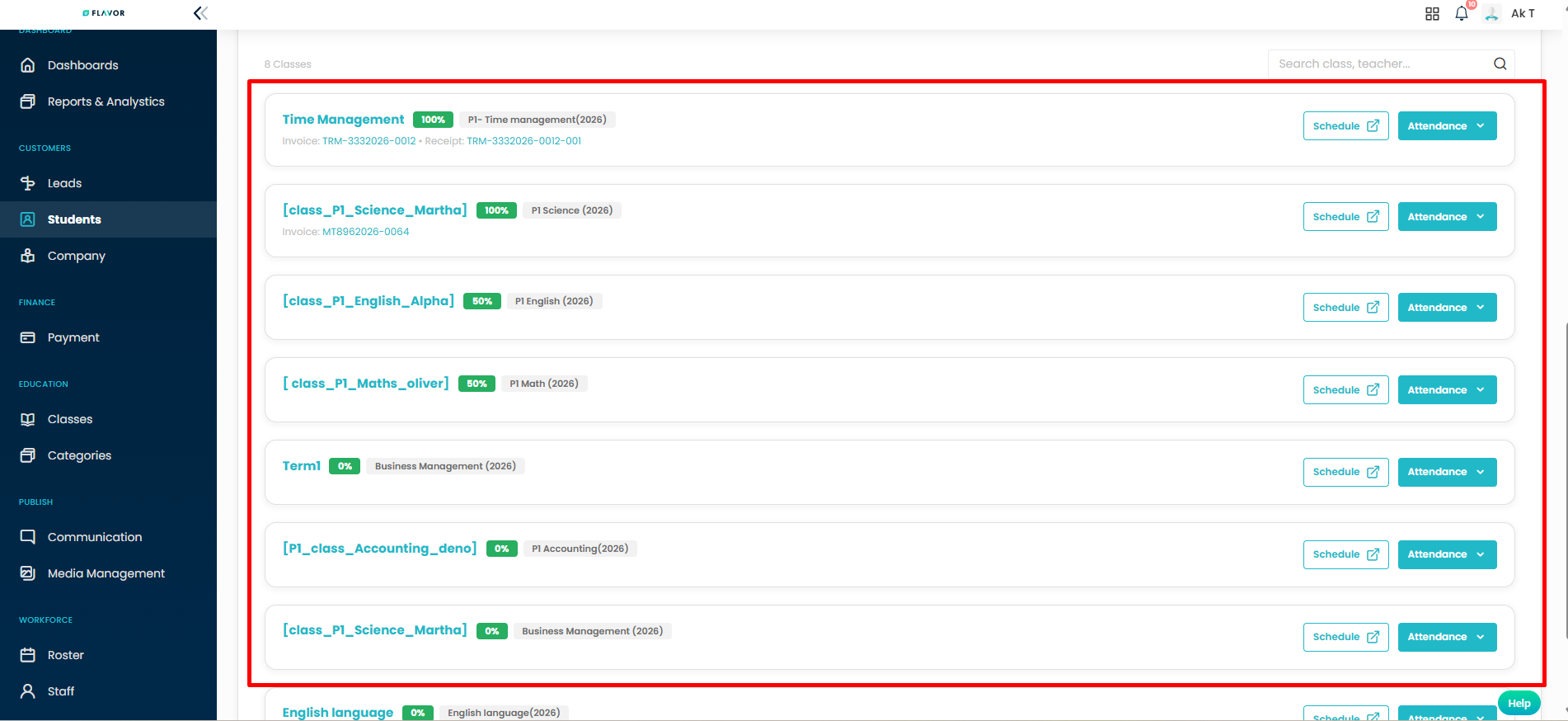
Scroll down to view the list of enrolled classes.
Each class card displays:
- Class Name: the name of the enrolled class.
- Schedule Details: Day(s) and time of the time of the class.
Search field
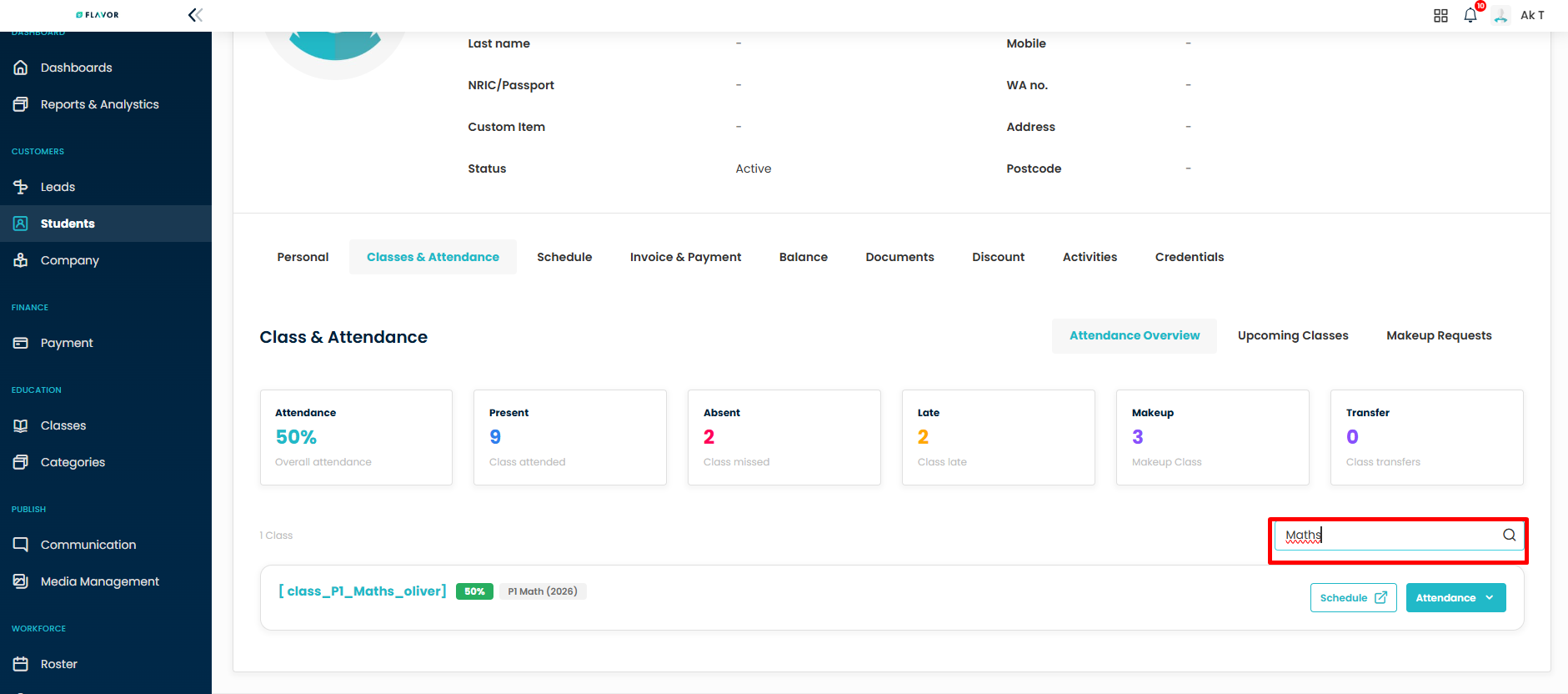
Use the Search field to quickly locate a class by class name or teacher name.
How it works:
Enter a class name (eg -“Maths”) or teacher name (eg-“Mr Alex tan”) in the search filed.
the system will instantly filter and display the matching class (es).
Schedule
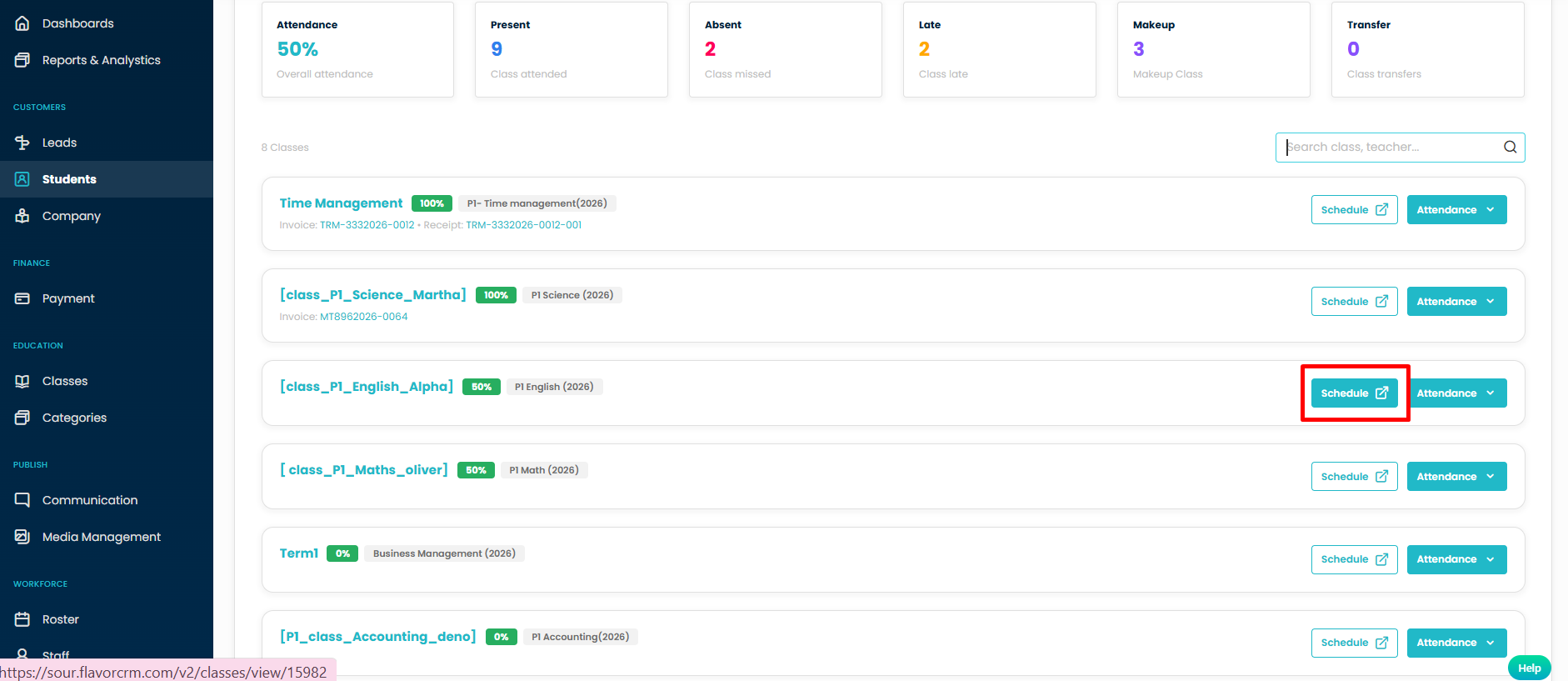
Click the Schedule button to view the selected class schedule.
Attendance View
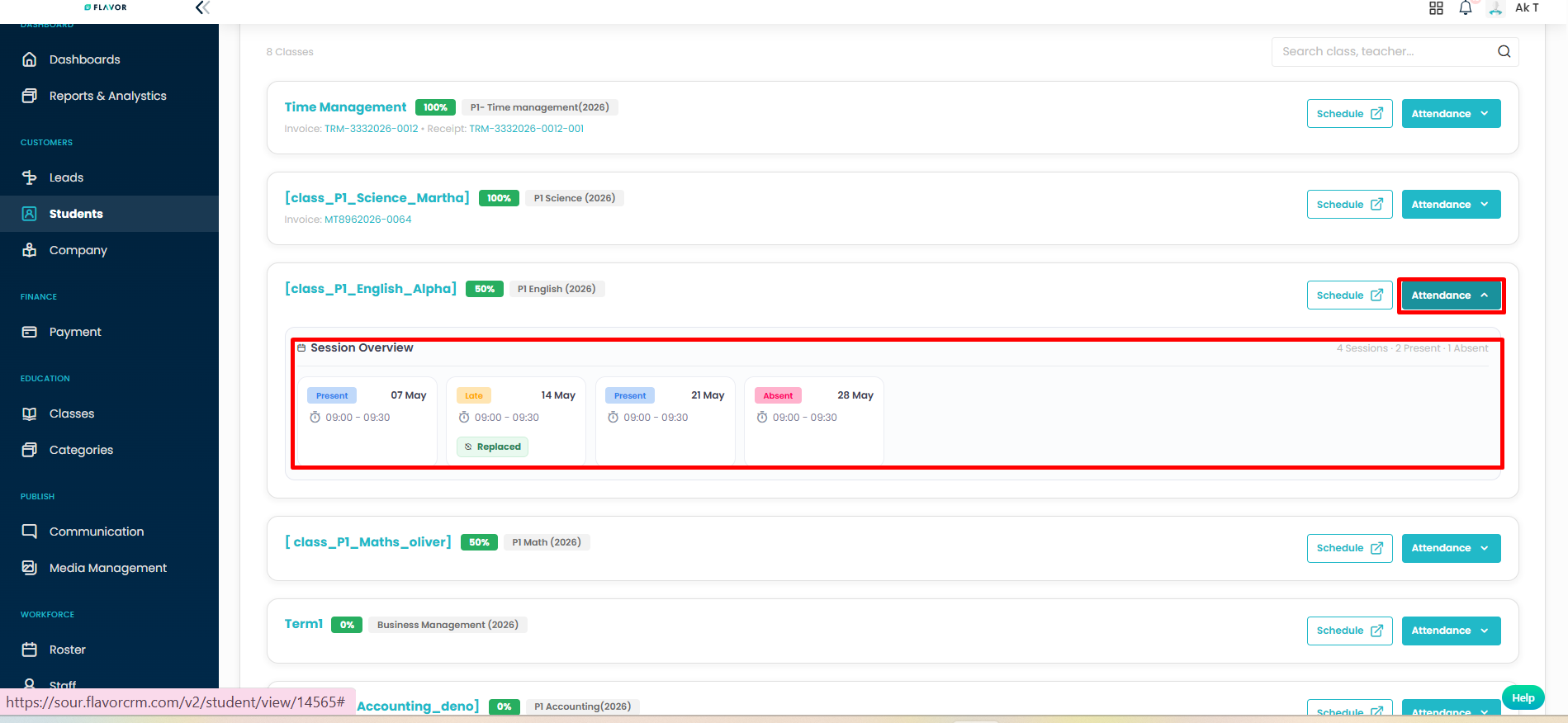
Click the Attendance dropdown button to access attendance-related actions and records for the selected class.
Session Overview:
View session-wise attendance summary.
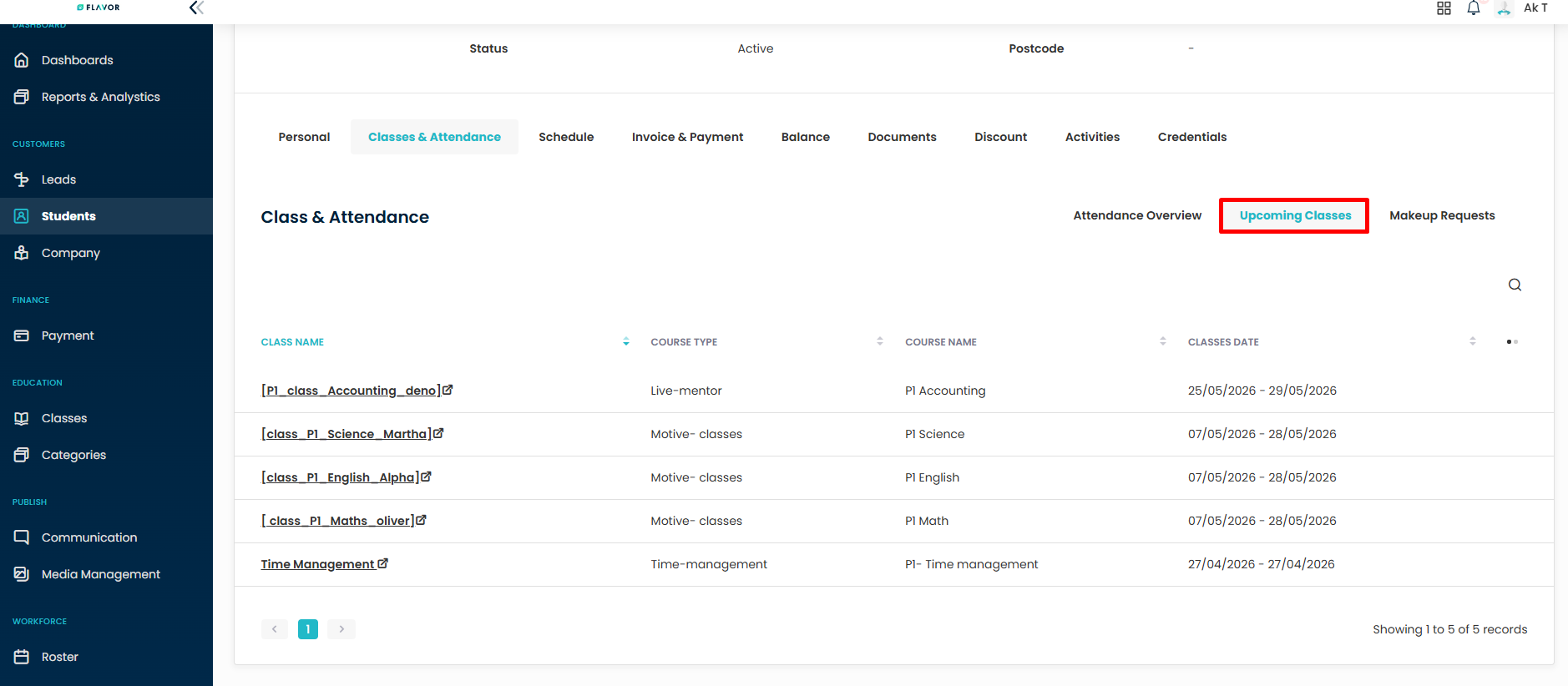
Upcoming Classes
Select the Upcoming Classes tab to view all future scheduled classes for the student.
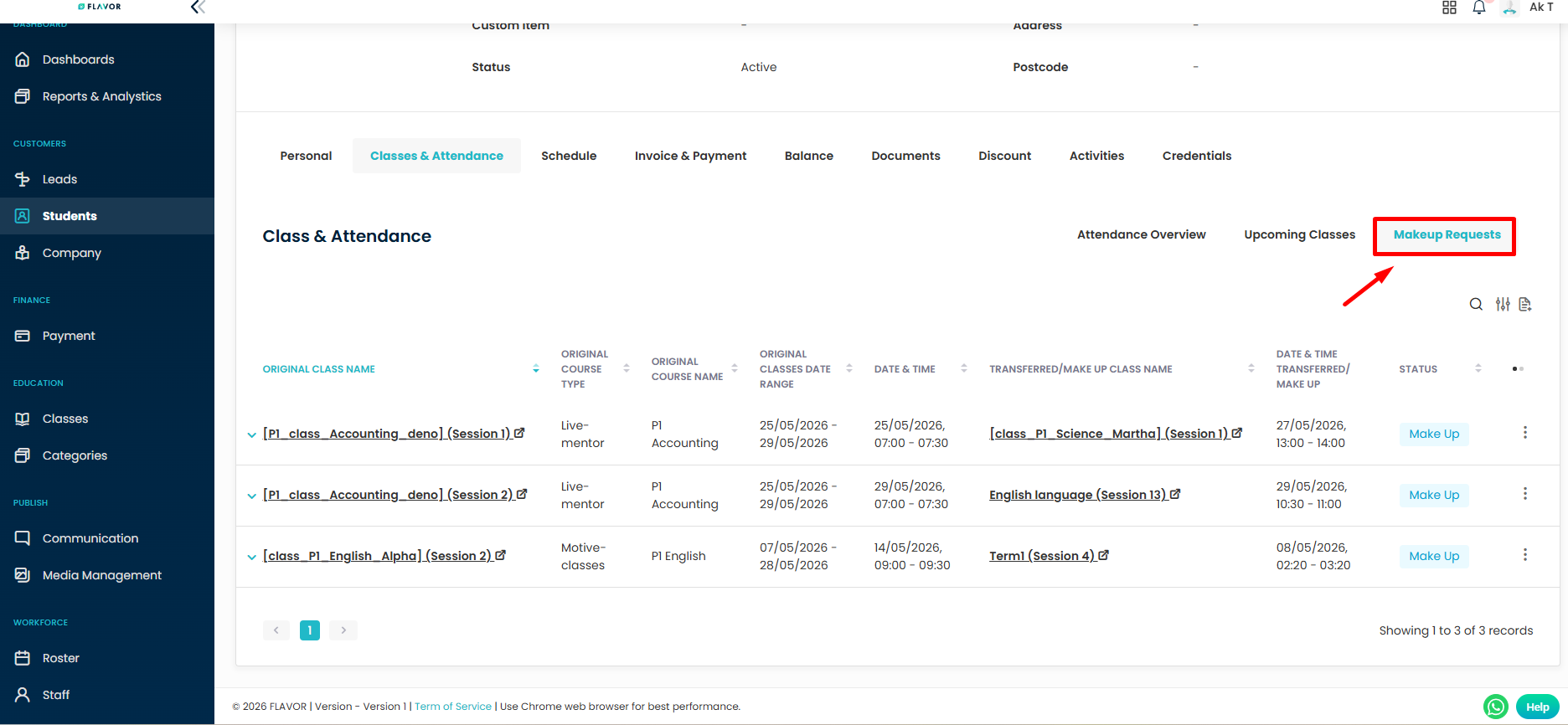
Makeup Requests
Select the Makeup Requests tab to review and manage makeup lesson requests submitted for the student.
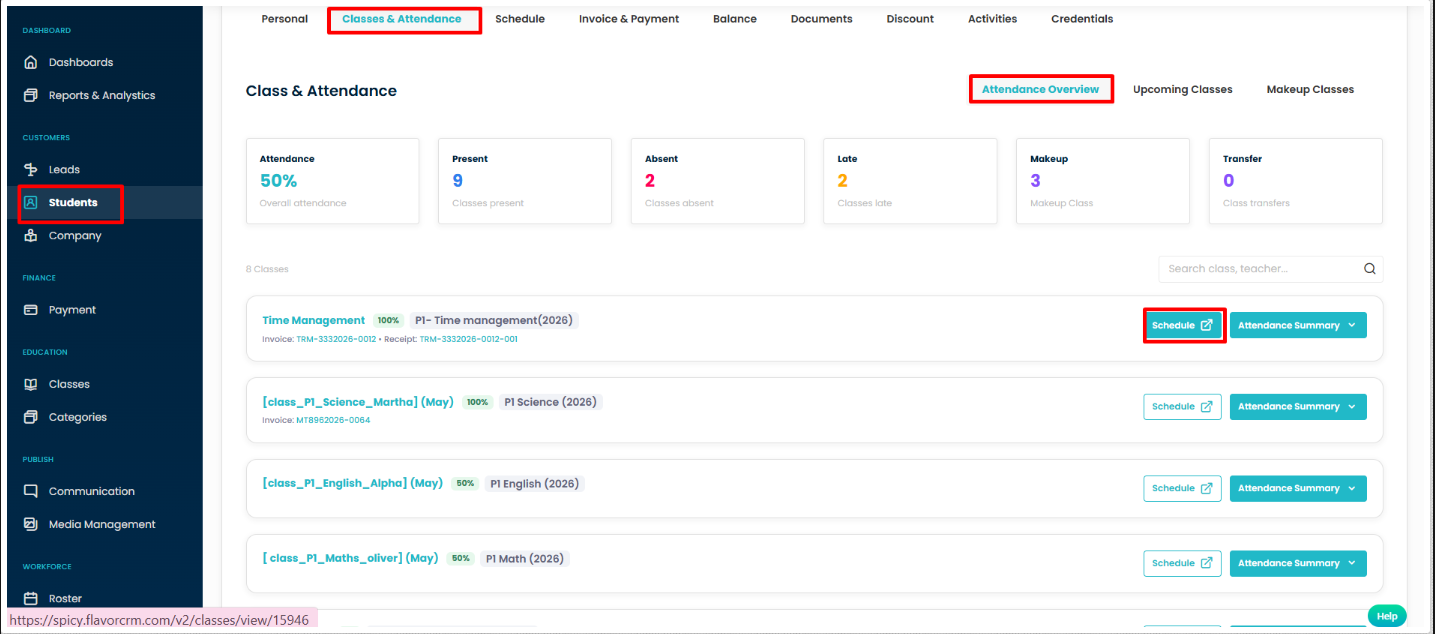
View Class Attendance Information in Student Profile
- Navigate to Students from the left-side menu.
- Open the required student profile and click the Classes & Attendance tab.
- Under the Attendance Overview section, view the student’s attendance statistics, including Attendance Percentage, Present, Absent, Late, Makeup, and Transfer records.
- Locate the desired class and click Schedule to view the class schedule and attendance details.
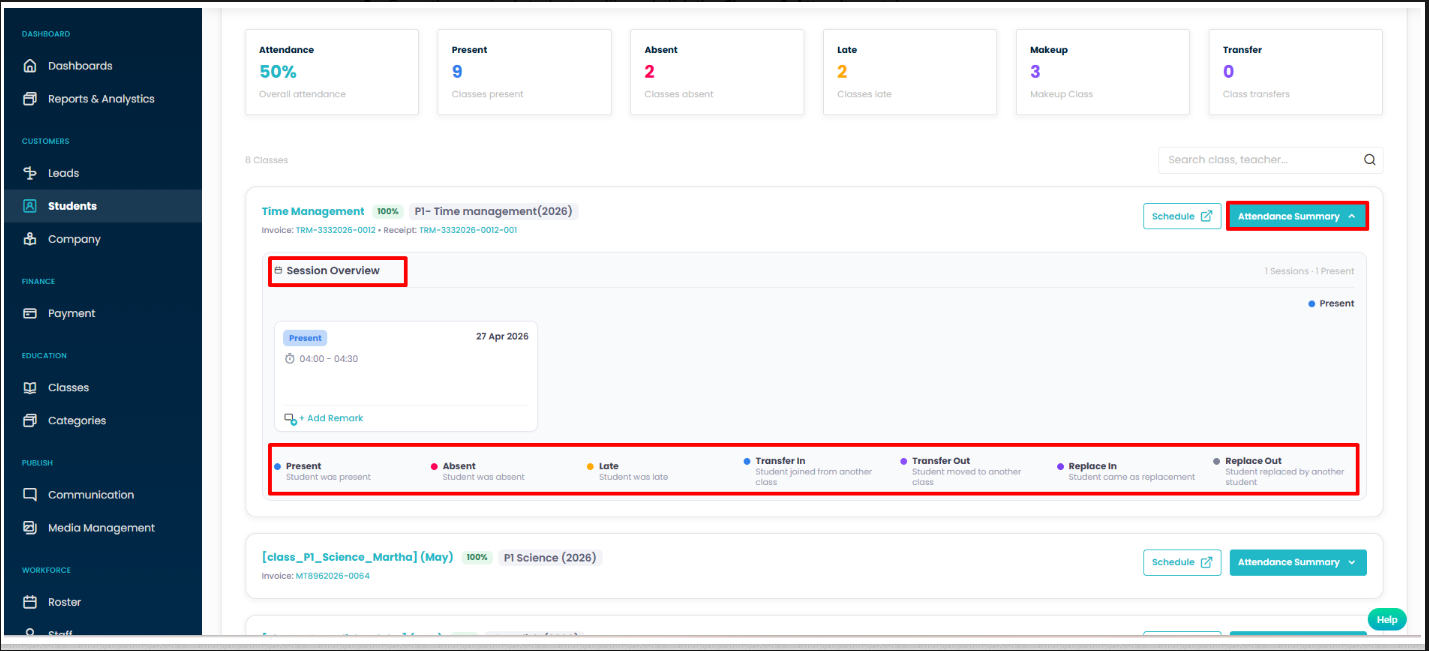
View Attendance Summary for a Class
- In the Classes & Attendance tab, locate the required class.
- Click the Attendance Summary dropdown button for the selected class.
- Review the Session Overview section to view attendance records for each class session.
- Check the attendance status displayed for the session, along with the session date and time.
- Refer to the attendance legend at the bottom to understand the different attendance statuses, including Present, Absent, Late, Transfer In, Transfer Out, Replace In, and Replace Out.
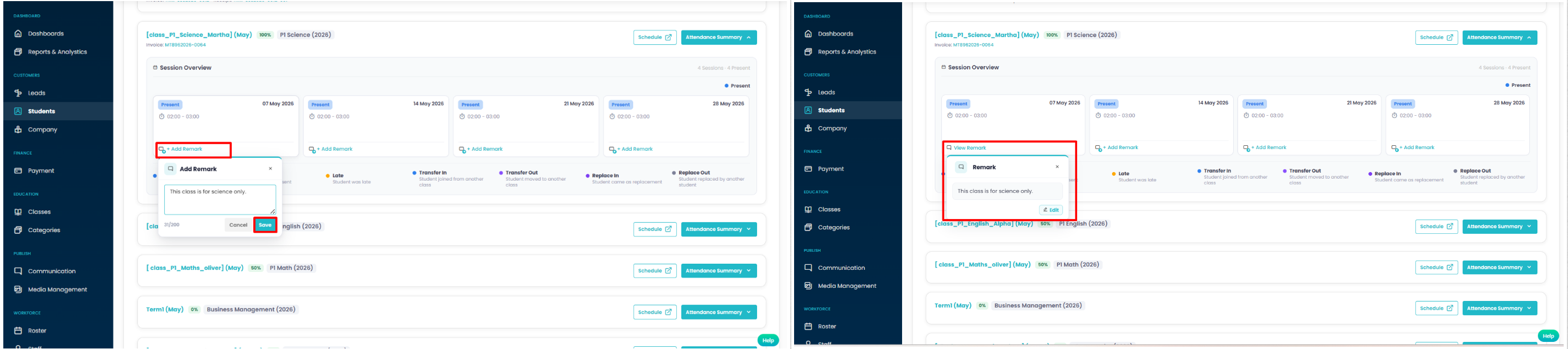
Add a Remark to an Attendance Session
- In the Attendance Summary section, locate the required session.
- Click + Add Remark below the session card.
- Enter the remark in the text box provided.
- Click Save to add the remark to the session.
View a Session Remark
- In the Attendance Summary section, locate the session that contains a remark.
- Click View Remark below the session card.
- Review the remark details displayed in the popup window.
- Click Edit if you need to modify the existing remark.
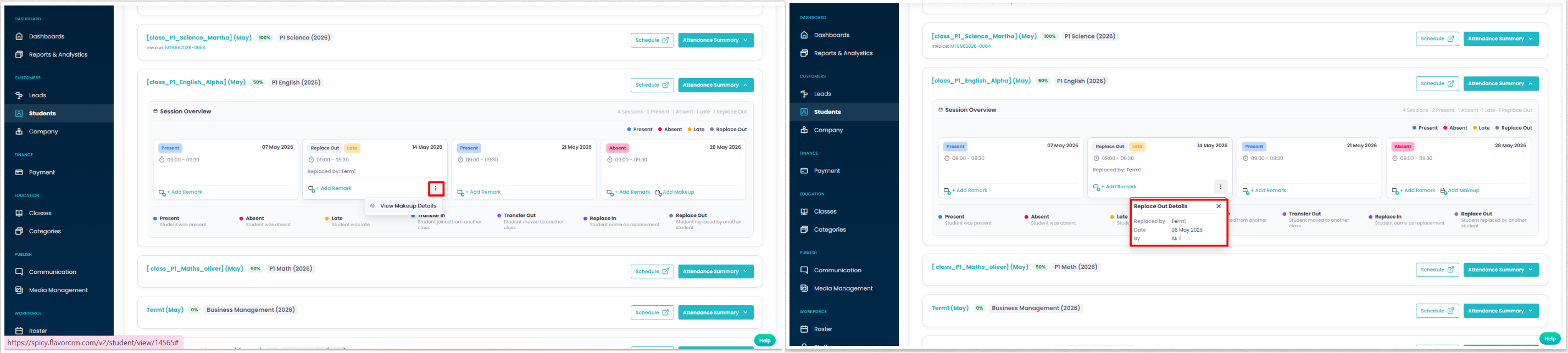
View Replace Out Details
- In the Attendance Summary section, locate the session marked with the Replace Out status.
- Click the More Options (⋮) icon on the session card.
- Select View Makeup Details from the dropdown menu.
- Review the Replace Out Details popup to view information such as the replacement class, date, and student details.
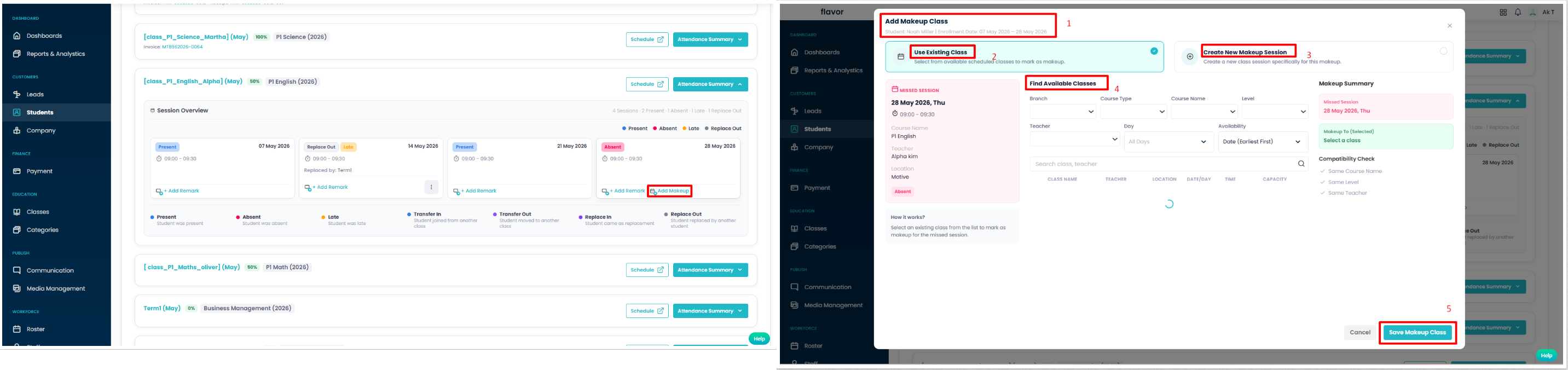
Add a Makeup Class for an Absent Session
- In the Attendance Summary section, locate the session marked as Absent.
- Click Add Makeup below the session card.
- In the Add Makeup Class window, choose one of the following options:
- Use Existing Class to select from available scheduled classes.
- Create New Makeup Session to create a dedicated makeup session.
- If using an existing class, apply the required filters and click Find Available Classes to view matching classes.
- Select the preferred makeup class and review the Makeup Summary section.
- Click Save Makeup Class to confirm the makeup arrangement.
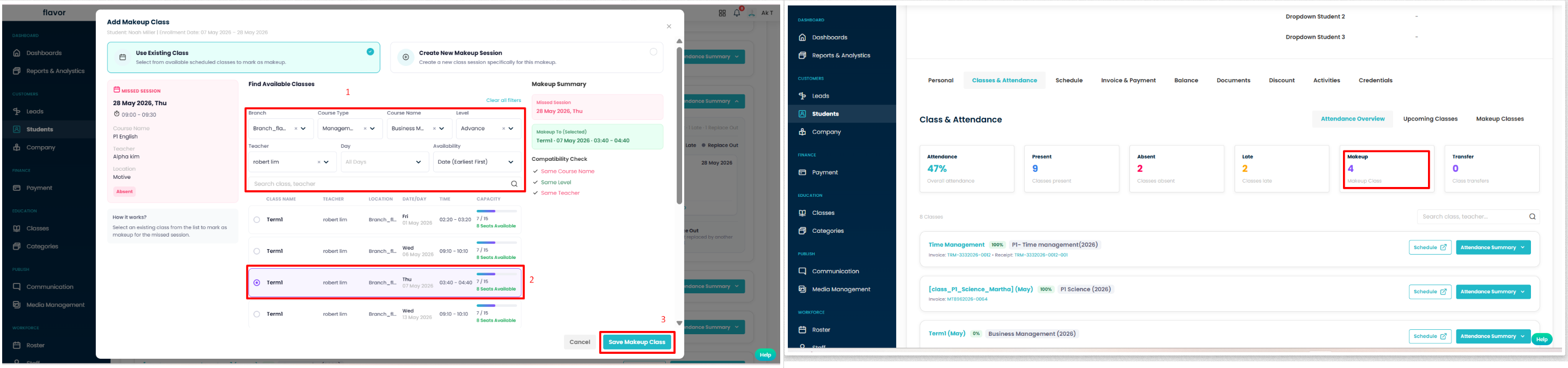
Schedule a Makeup Class Using an Existing Class
- In the Add Makeup Class window, select Use Existing Class.
- Apply the required filters under Find Available Classes to search for suitable makeup classes.
- Select the preferred class from the list of available classes.
- Review the Makeup Summary and Compatibility Check sections to confirm the selected class.
- Click Save Makeup Class to schedule the makeup class.
- Once saved, the Makeup count in the Attendance Overview section will be updated automatically.
Result
Need more help? Ask us a question
Please let us know more of your details and our team will reach out to you very shortly.
