



SSG-WSG Certificate
In a CRM system, the SSG-WSG certificate is used to facilitate the secure integration with the Singapore government’s SkillsFuture Singapore (SSG) and Workforce Singapore (WSG) portals.
It enables the CRM to automate administrative tasks related to training and government funding claims. The primary function is to establish a secure and authenticated connection between the CRM software and the official SSG-WSG system.
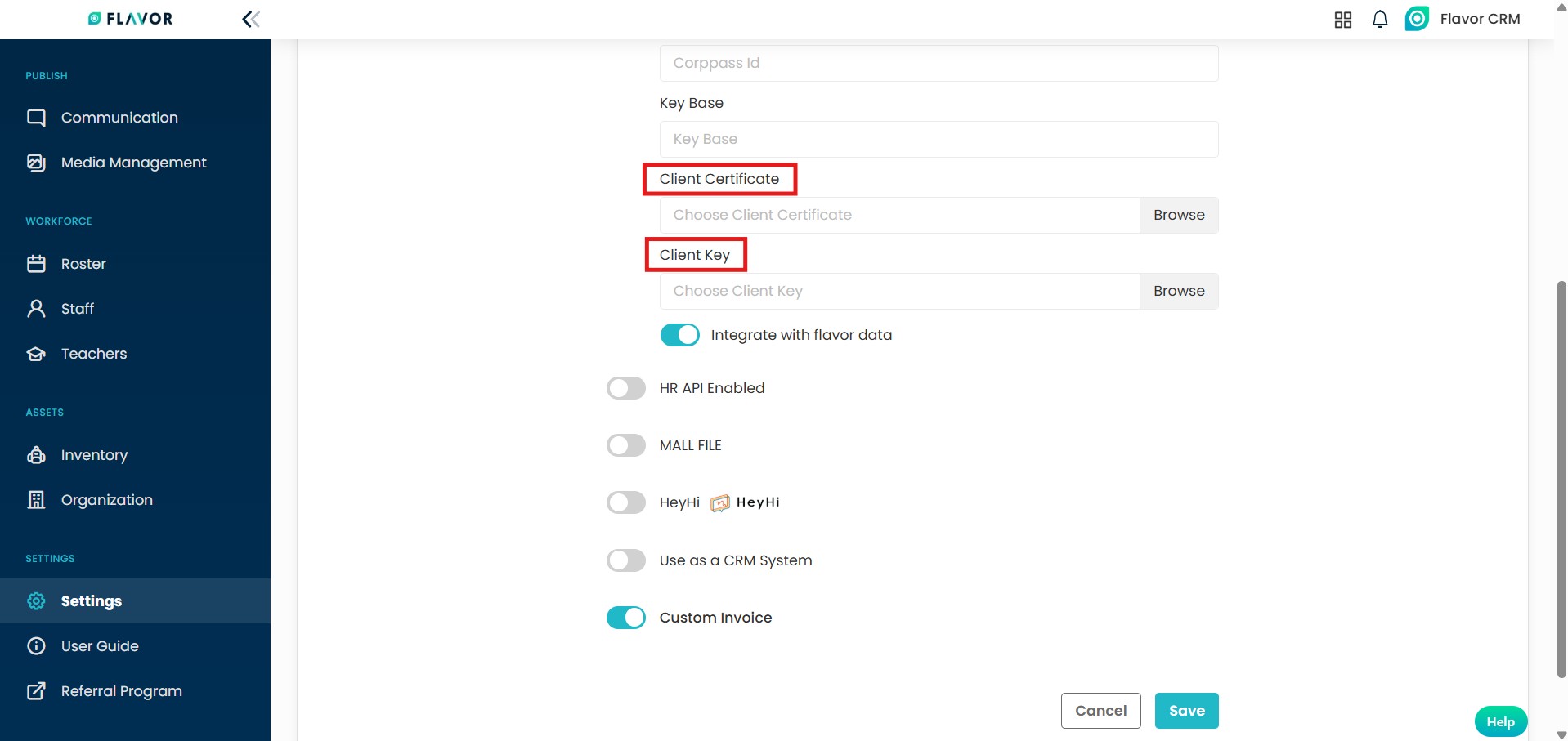
Upload Certificate in Flavor
Note : Contact the Flavor team by raising a support ticket to obtain the SSG-WSG Certificate files.
- Once you receive the files, from the Dashboard, click on Settings, navigate to Other Integrations under System section.
- Upload the provided files into their respective fields, by placing the certificate file in the Client Certificate field and the key file in the Client Key fields.
- Make sure to click on Save to apply the configuration successfully.
Upload Certificate in SSG-WSG Website
Step 1 : SSG-WSG Website
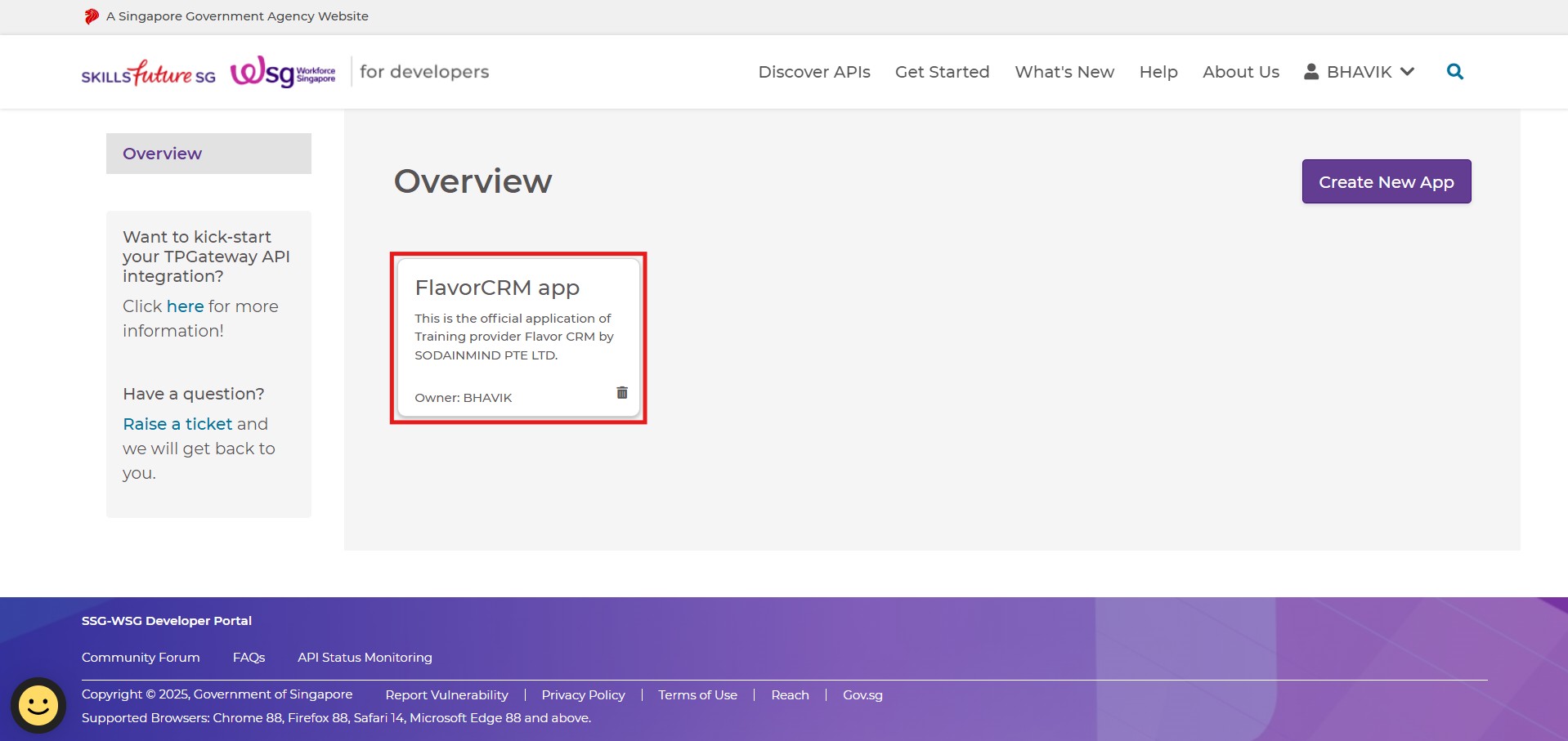
- Log in to the official SSG–WSG website https://developer.ssg-wsg.gov.sg/webapp/home, on the login page make sure to select For Corporate Developers option.
- On the overview page, click on Flavor CRM App to proceed.
Step 2 : Credentials
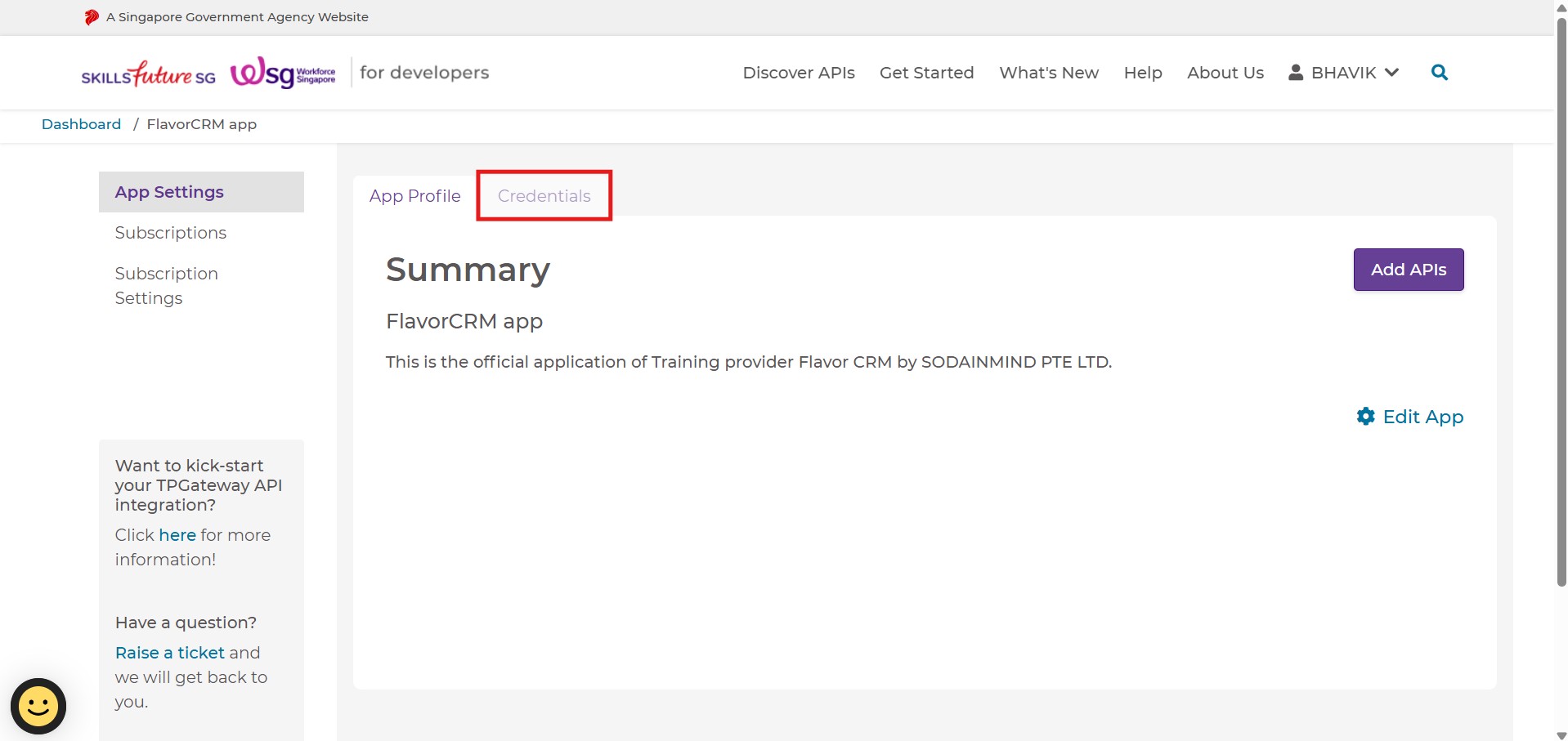
After selecting the Flavor CRM App, from the App Settings menu click on Credentials to proceed.
Step 3 : Upload Certificate
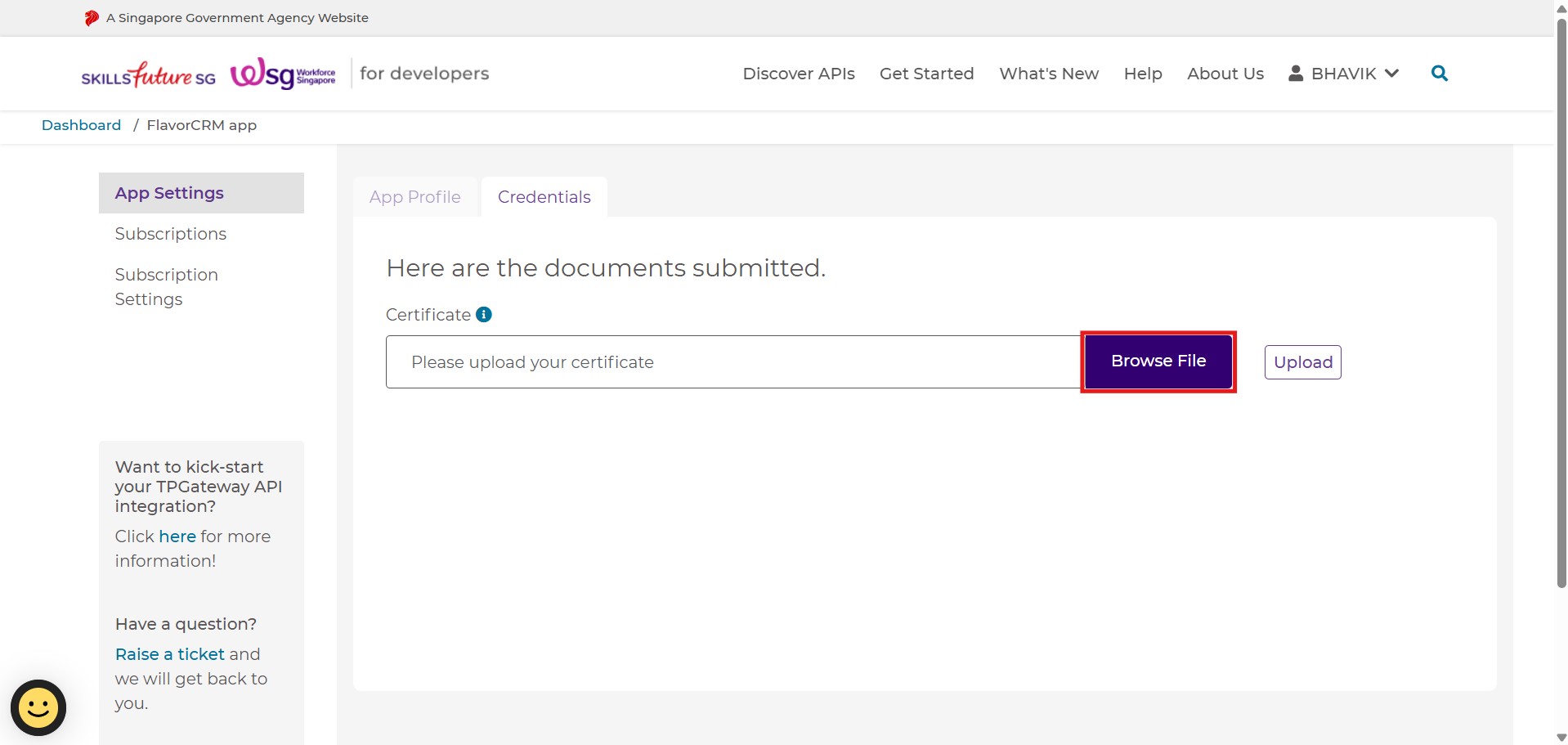
Within the Certificate field, click on Edit to enable changes.
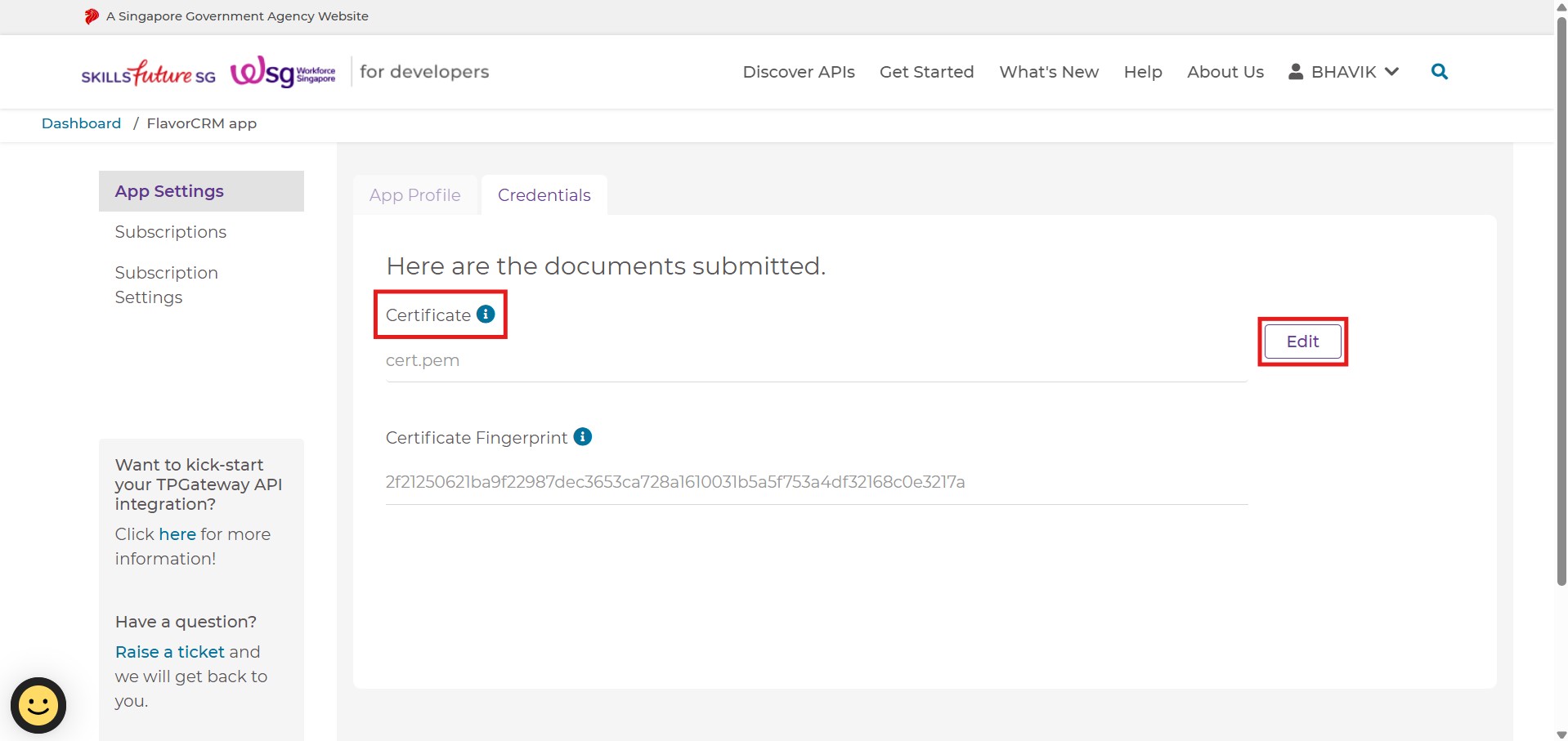
Once editing is enabled, click on Browse and upload the certificate file provided by the Flavor CRM team.
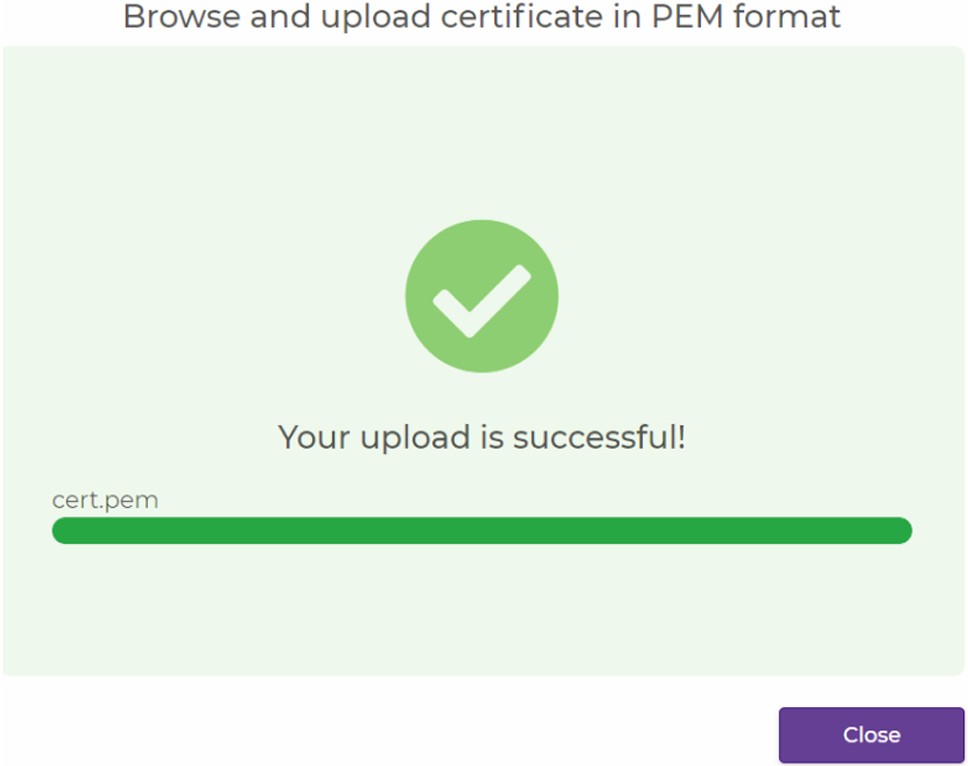
Once the certificate file has been uploaded successfully, a confirmation message will be displayed on the screen indicating that the upload was completed without any errors.
Create App in SSG-WSG Website
If you do not have an existing app listed in your SSG–WSG account, you need to create a new app before proceeding.
On the Overview page, click on Create New App located at the top right.
On the Create New App , enter the details as following :
- App Name : FlavorCRM app <TP Name>
(Replace <TP Name> with your Training Provider’s registered name.) - Description : App for Flavor TMS to clearly identify the purpose of the application.
- Authentication : Select Certificate.
Click on Create to register the app and proceed with the next configuration steps.
Add APIs via the App
Once the app is created, select the Flavor CRM App, then from the App Settings menu click on Add APIs to proceed.
On the Add APIs screen, first select a Product. Once product is selected, choose the relevant API(s) from the list displayed by selecting the corresponding check boxes. Click on Add APIs to confirm.
Domain Name & Call Back URL For Claim Request
After selecting the Flavor CRM App, from the Subscription Settings menu click on Additional Information to proceed.
Enter the details as following :
Domain Name : https://app.flavorcrm.com/
Callback URL : https://app.flavorcrm.com/v2/ssg_wsg/enrolment/callback
API Information
The list of APIs required is as below :
COURSES > Courses
1.Get courses by UEN
2. TPG Course Details
COURSES > Training Providers
3. Course Runs By Run Id (New)
4. Course Session Attendance
5. Course Sessions
6. Add Course Run (New)
7. Upload Course Session Attendance
8. Course Runs By Reference Number (New)
9. Edit Course Run (New)
PROGRAMMES FOR INDIVIDUAL > Grant Calculator
10. Grant Calculator- Individual
11. Grant Calculator – Personalised
PROGRAMMES FOR INDIVIDUAL > SkillSFuture Credit Pay
12. Payment Request Encryption
13. Payment Response Decryption
14. Upload Supporting Documents
15. View Claim Details
16. Cancel Claim
PROGRAMMES FOR INDIVIDUAL > Enrolment
17. Create Enrolment
18. Update or Cancel Enrolment
19. Search Enrolment
20. View Enrolment
21. Update Enrolment Fee Collection
PROGRAMMES FOR INDIVIDUAL > Assessment
22. Create Assessment
23. Update or Void Assessment
24. Search Assessment
25. View Assessment
Need more help? Ask us a question
Please let us know more of your details and our team will reach out to you very shortly.
