



HitPay Integration
If you want to use HitPay as your payment integration, sign up for a an account using this link : HitPay Sign Up
Payment Via HitPay
In the invoice, the HitPay payment button is displayed under the Payment Instructions section.
The button clearly shows the payable amount (e.g., Pay $100). Clients can click on this button to proceed with the payment using their preferred method such as Card or PayNow.
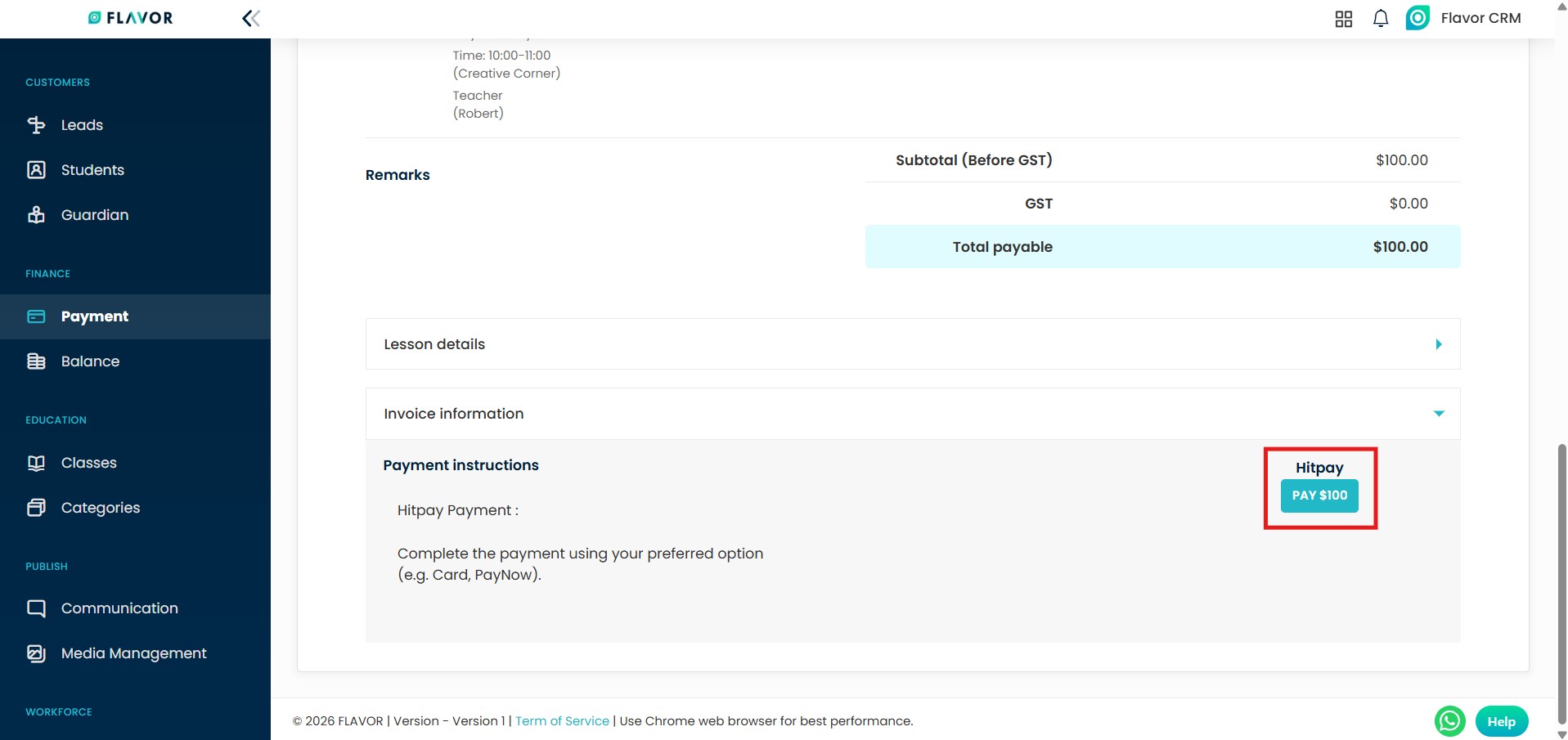
After clicking the HitPay payment button, the client is redirected to a secure HitPay payment page.
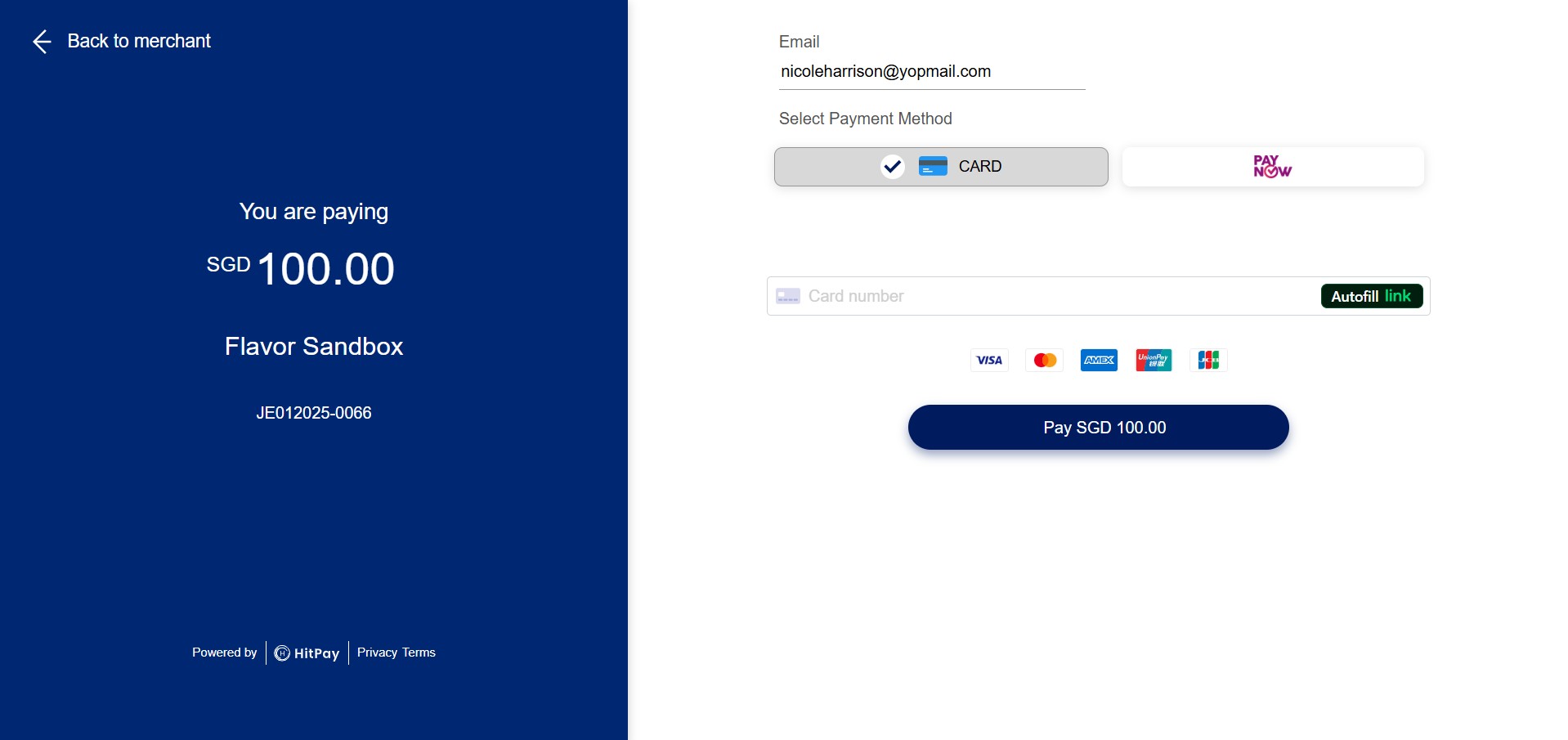
The page clearly displays the payable amount, merchant name, and invoice reference. Clients can select their preferred payment method, such as Card or PayNow.
For Card Payment, the client can securely enter their card details and proceed by clicking the Pay button.
For PayNow, a QR code is shown for scanning via a supported banking app.
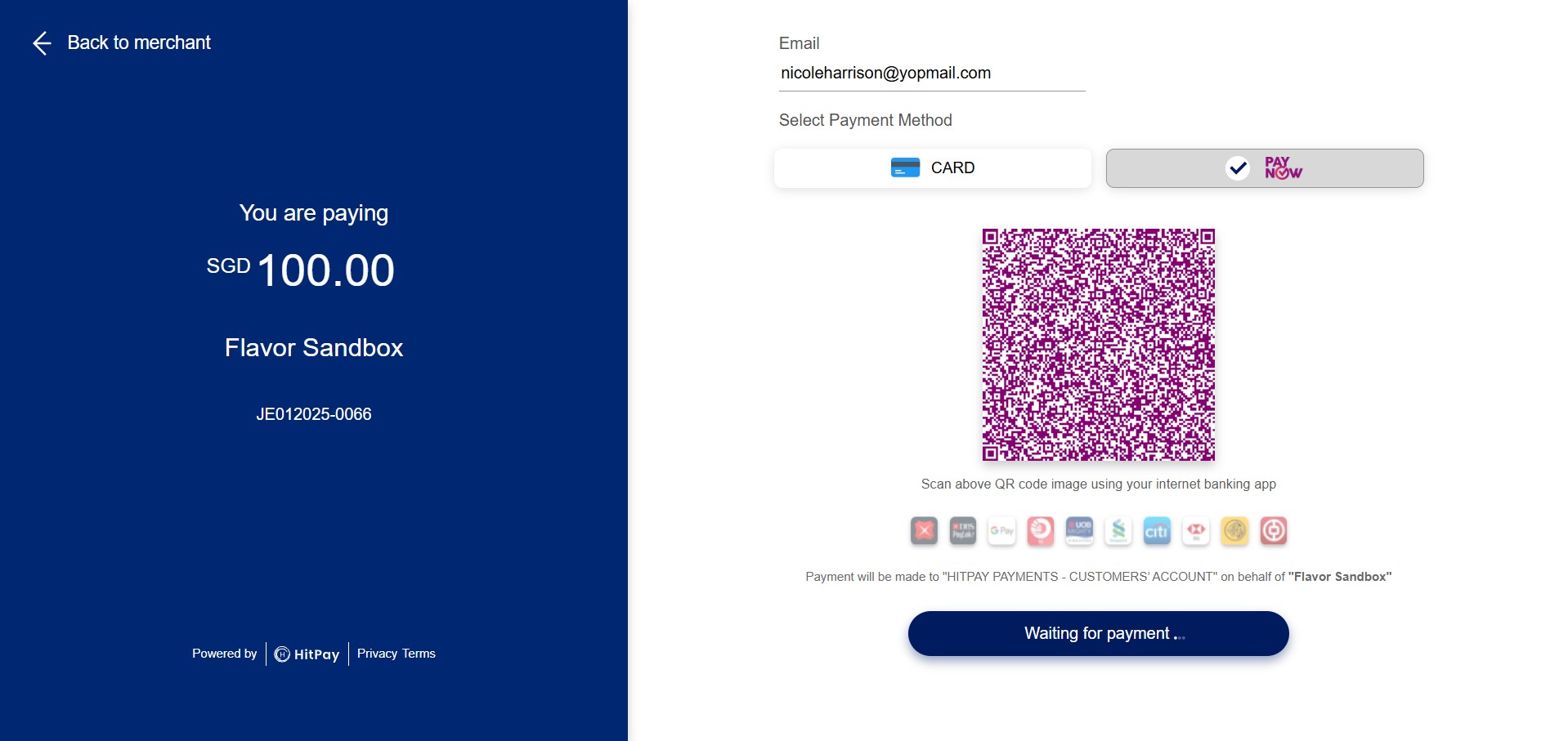
Once the payment is completed, the system automatically processes the transaction and updates the payment status.
Payment Success
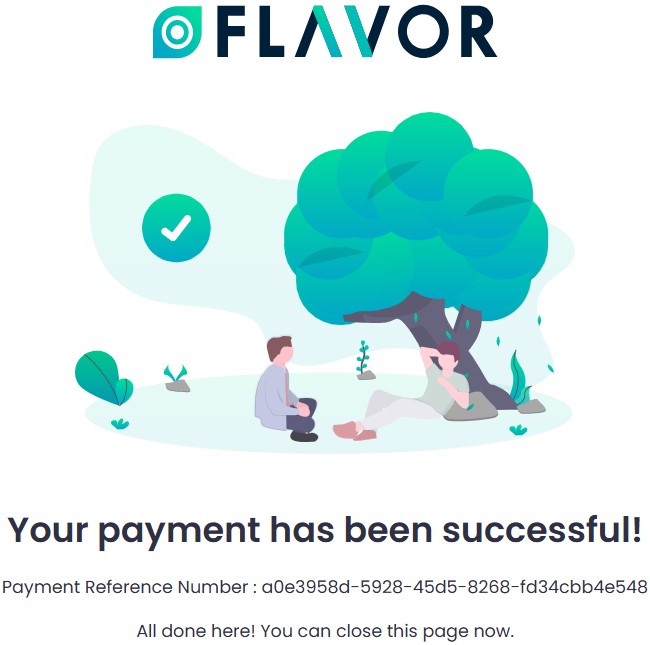
After the payment is successfully completed, a confirmation page is displayed indicating that the payment is processed successfully, it also shows the payment reference number and that no further action is required. The client may safely close the page at this stage.
When Invoice Deleted Or Voided
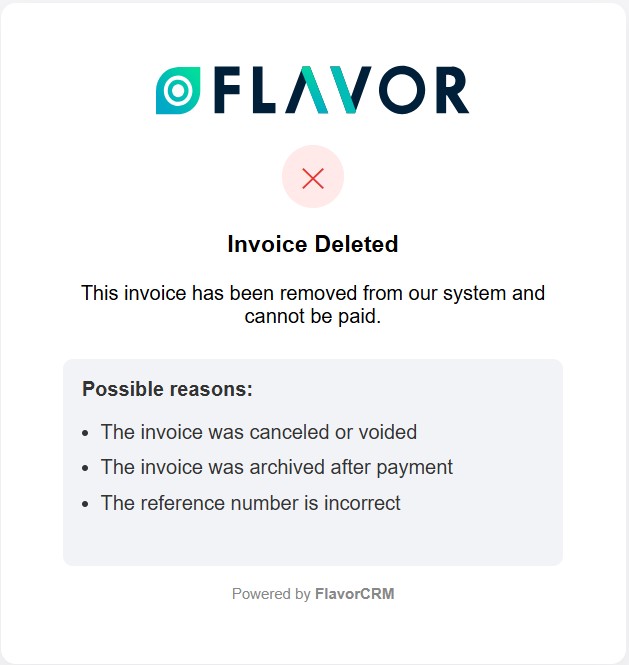
If a previously sent invoice has been deleted, cancelled, or voided, it will no longer be available for payment.
When client attempts to pay such an invoice, a message is displayed indicating that the invoice has been removed from the system and cannot be paid.
When Invoice Already Paid
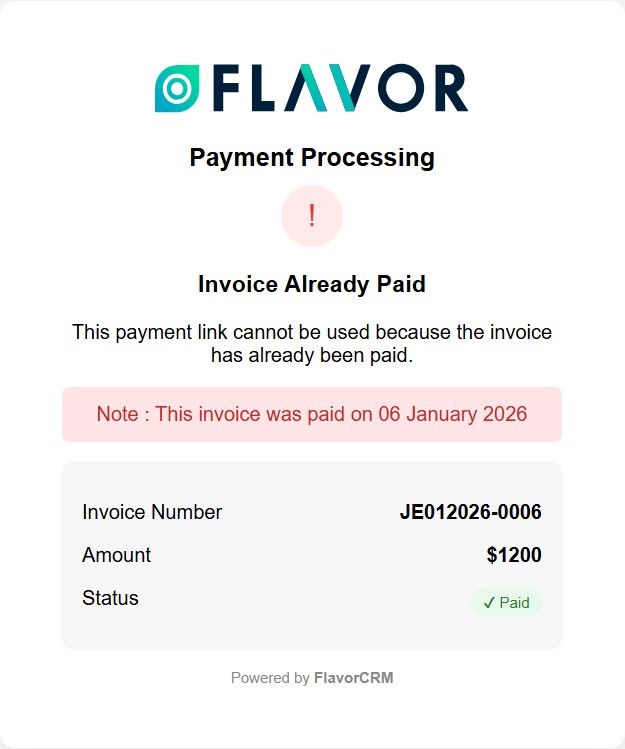
When a client attempts to pay an invoice that has already been paid, a message is displayed indicating that the invoice has been paid and the payment link is no longer valid.
The page shows the invoice number, payment amount, payment status, and the date on which the payment was completed.
Need more help? Ask us a question
Please let us know more of your details and our team will reach out to you very shortly.
