Invoice Sync
Invoices in Flavor CRM can be synced with Xero in two ways.
Option 1 : Sync from the Payments Module
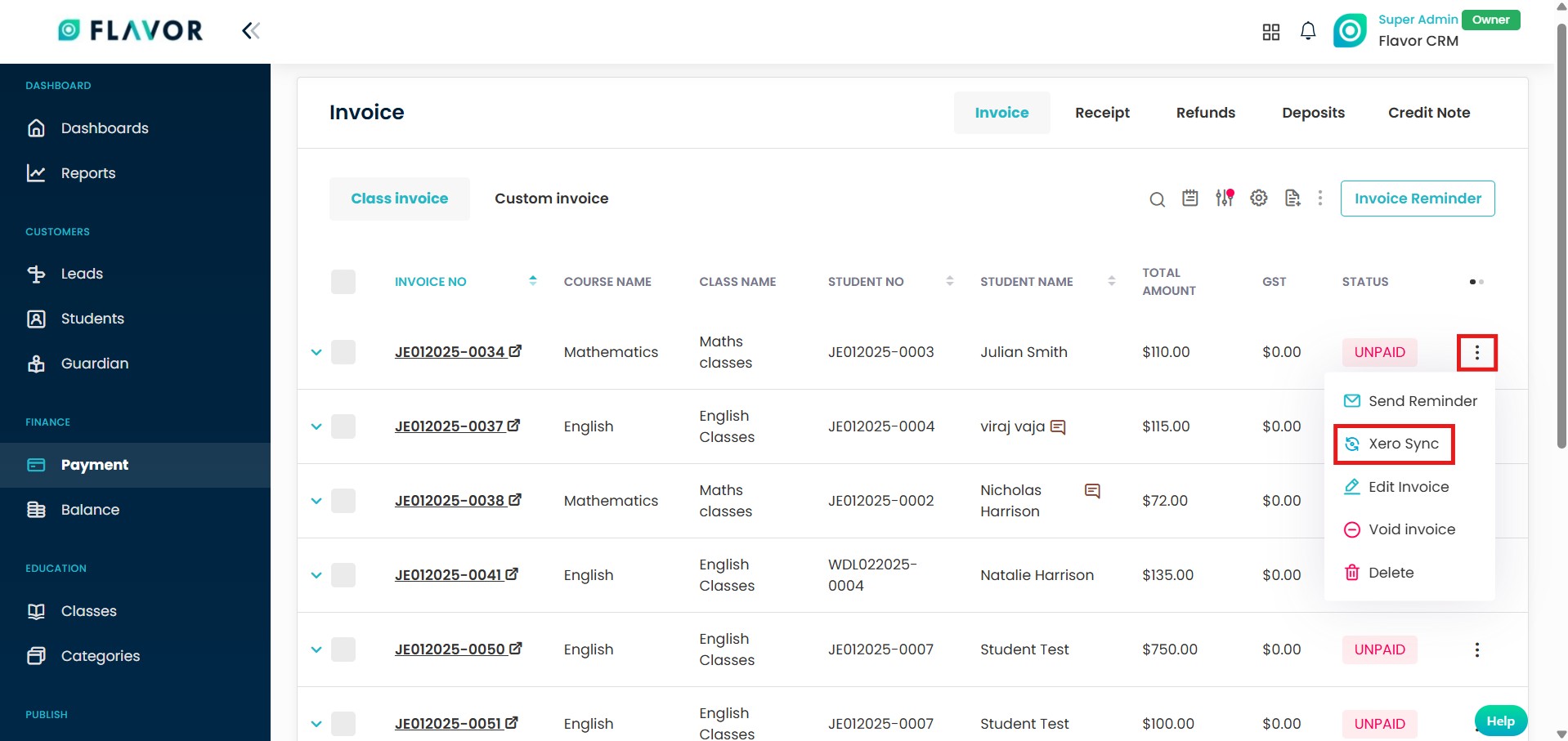
- From Payment in the left menu, locate the invoice you want to sync.
- Click on the three dot menu (⋮) on the right side of the invoice.
- Select Xero Sync.
Option 2 : Sync from the Invoice View
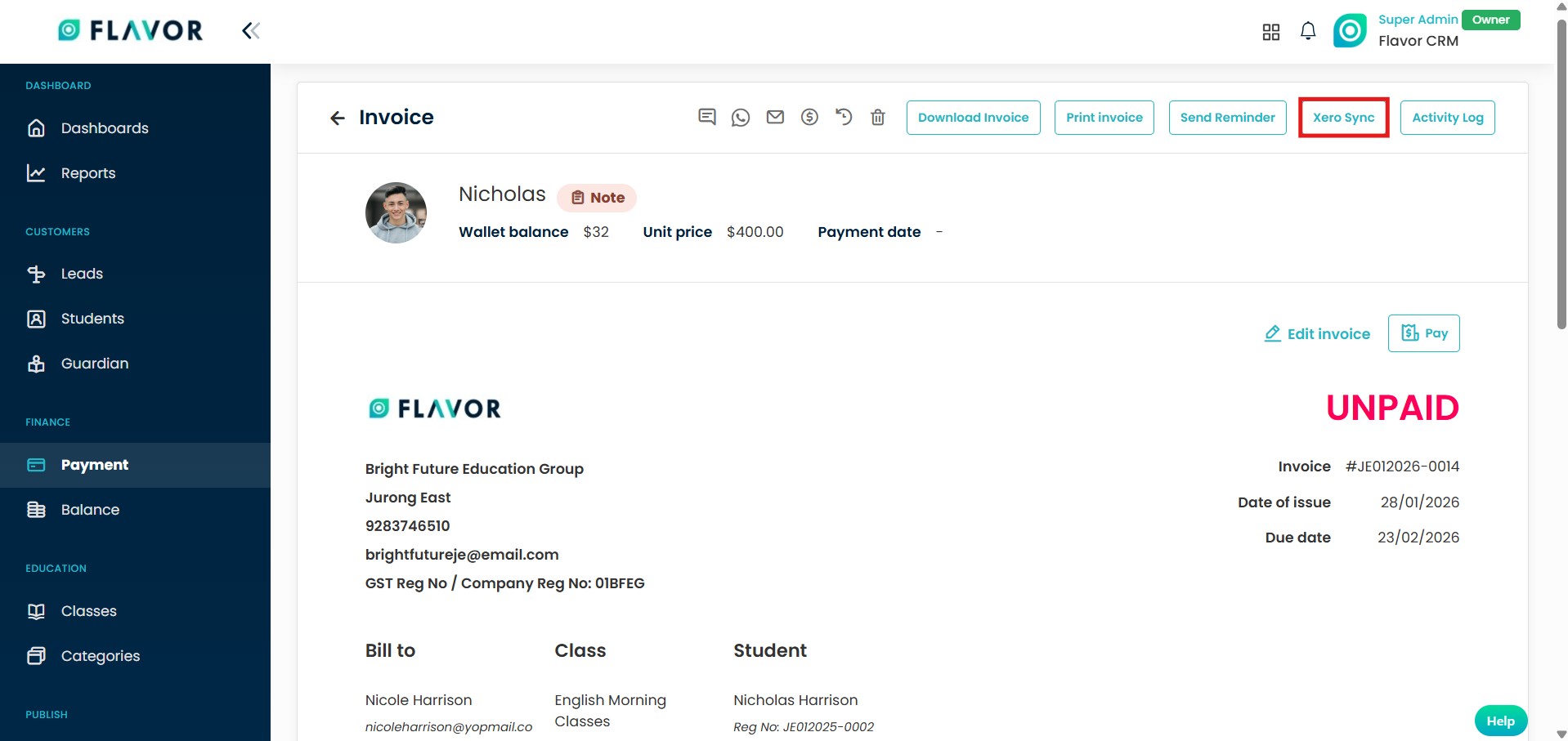
- Open the invoice you want to sync.
- In the invoice details page, click on the Xero Sync button at the top right.
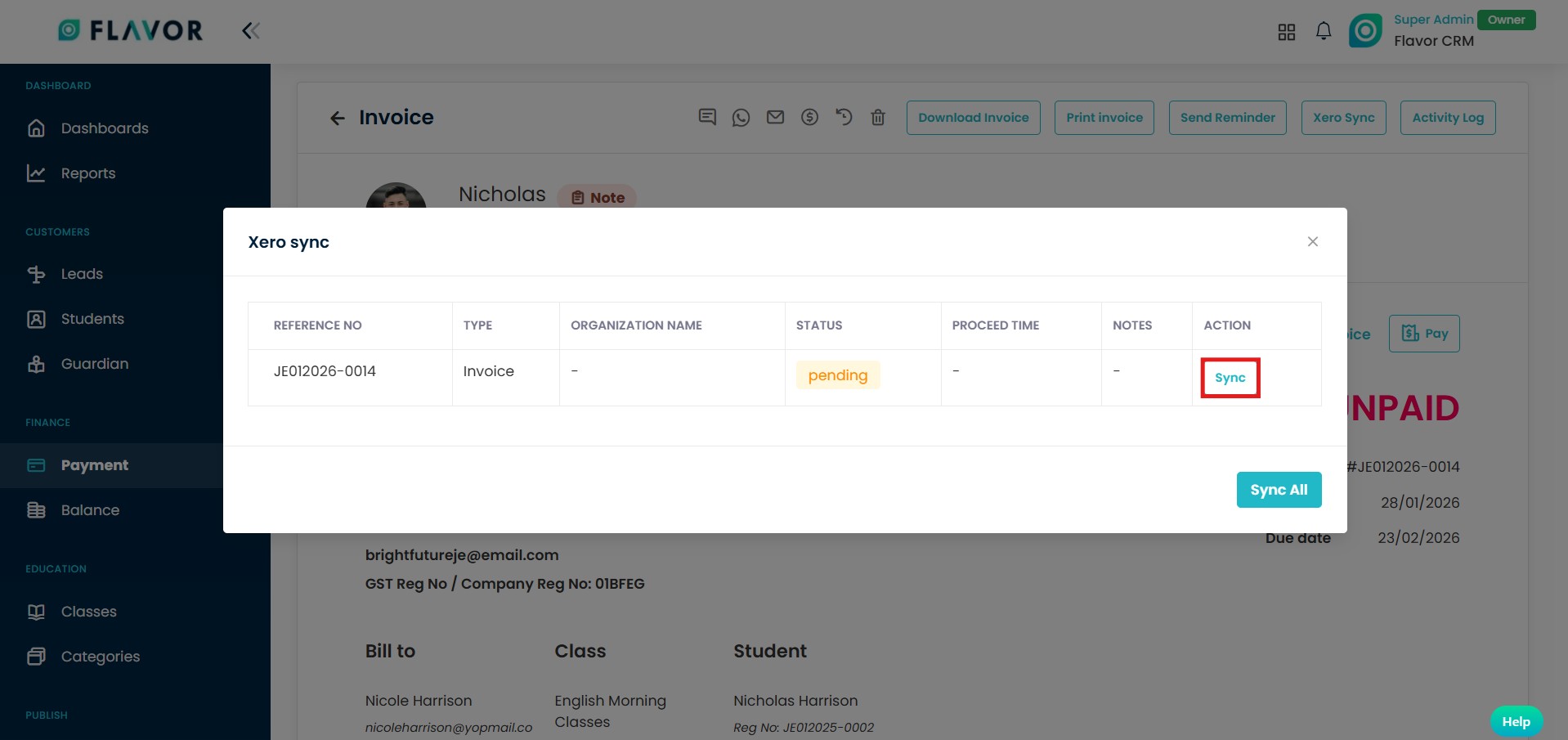
A Xero Sync window will appear displaying the invoice details and sync status. To proceed with the sync : Click on Sync button under the Action column.
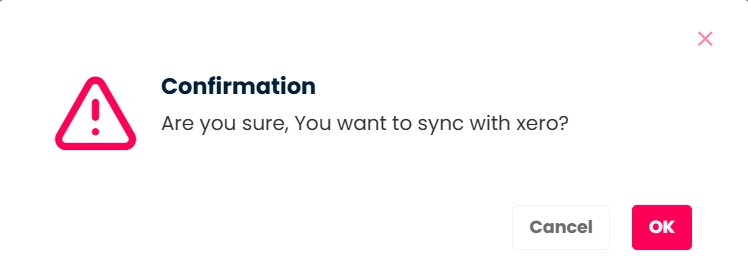
A confirmation message will appear asking if you want to sync the invoice with Xero. Click on OK to confirm and proceed with the sync.
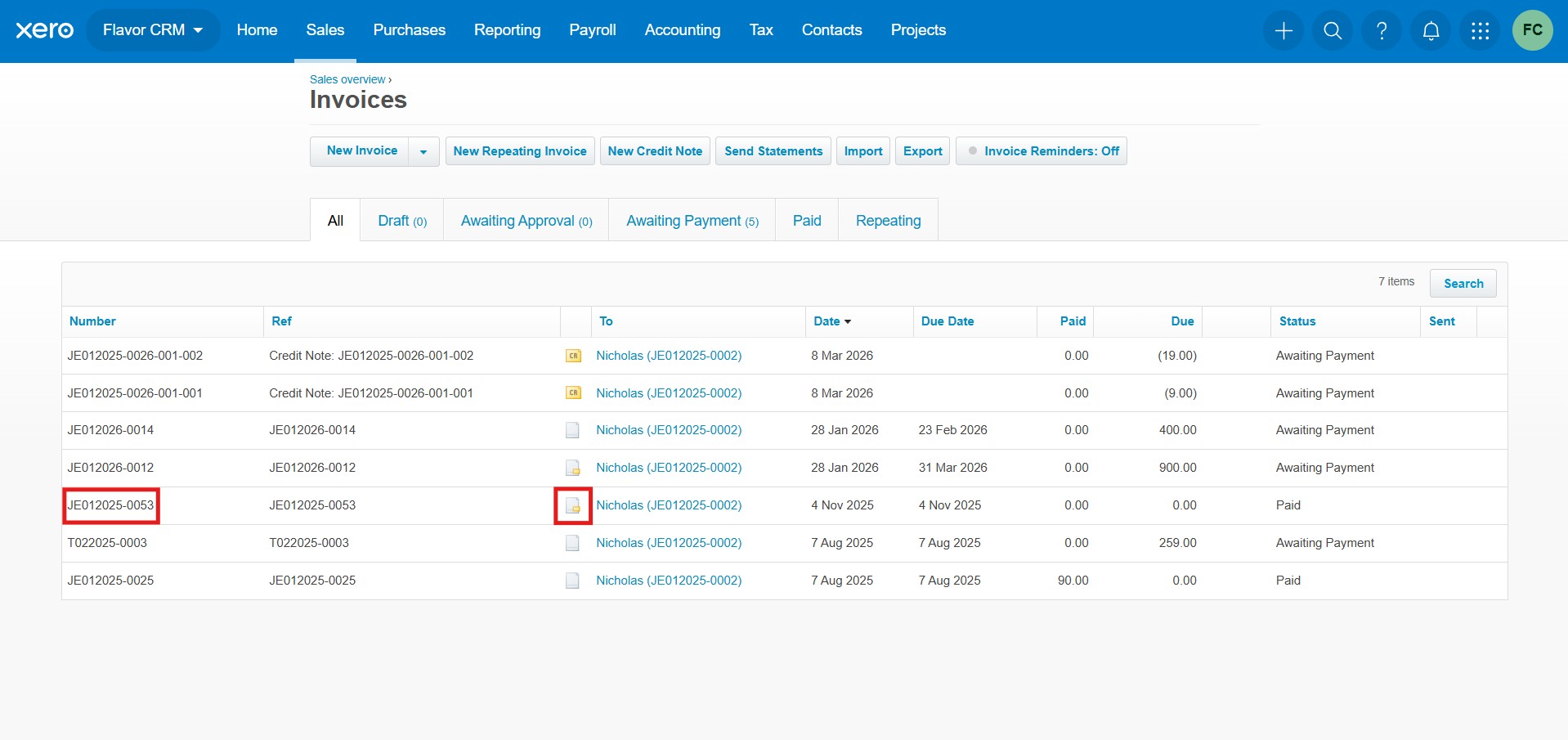
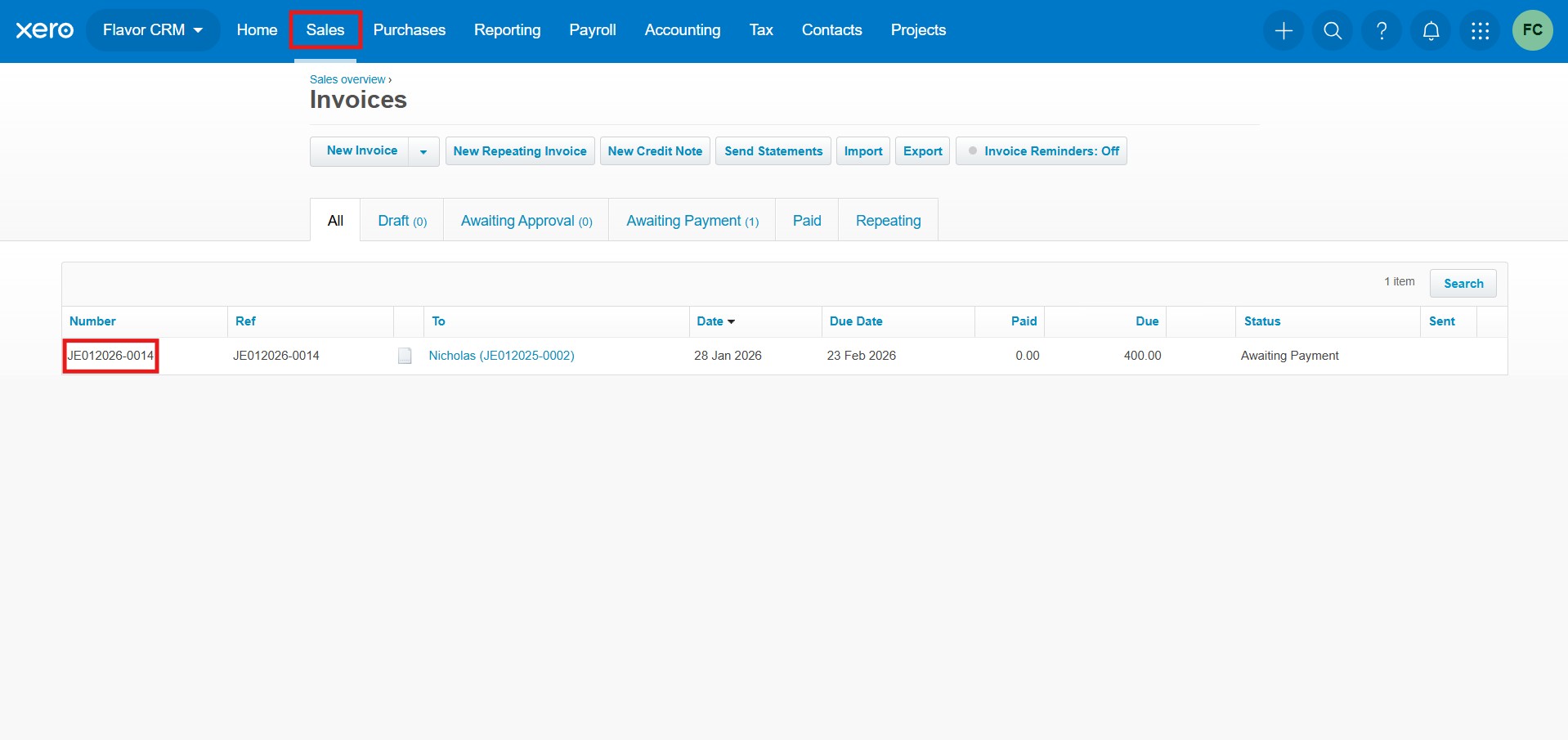
After the sync is completed, the invoice will appear in the Sales > Invoices section in Xero. You can view the synced invoice there along with its details and payment status.
Receipt Sync
Receipts in Flavor CRM can be synced with Xero in two ways.
Option 1 : Sync from the Payments Module
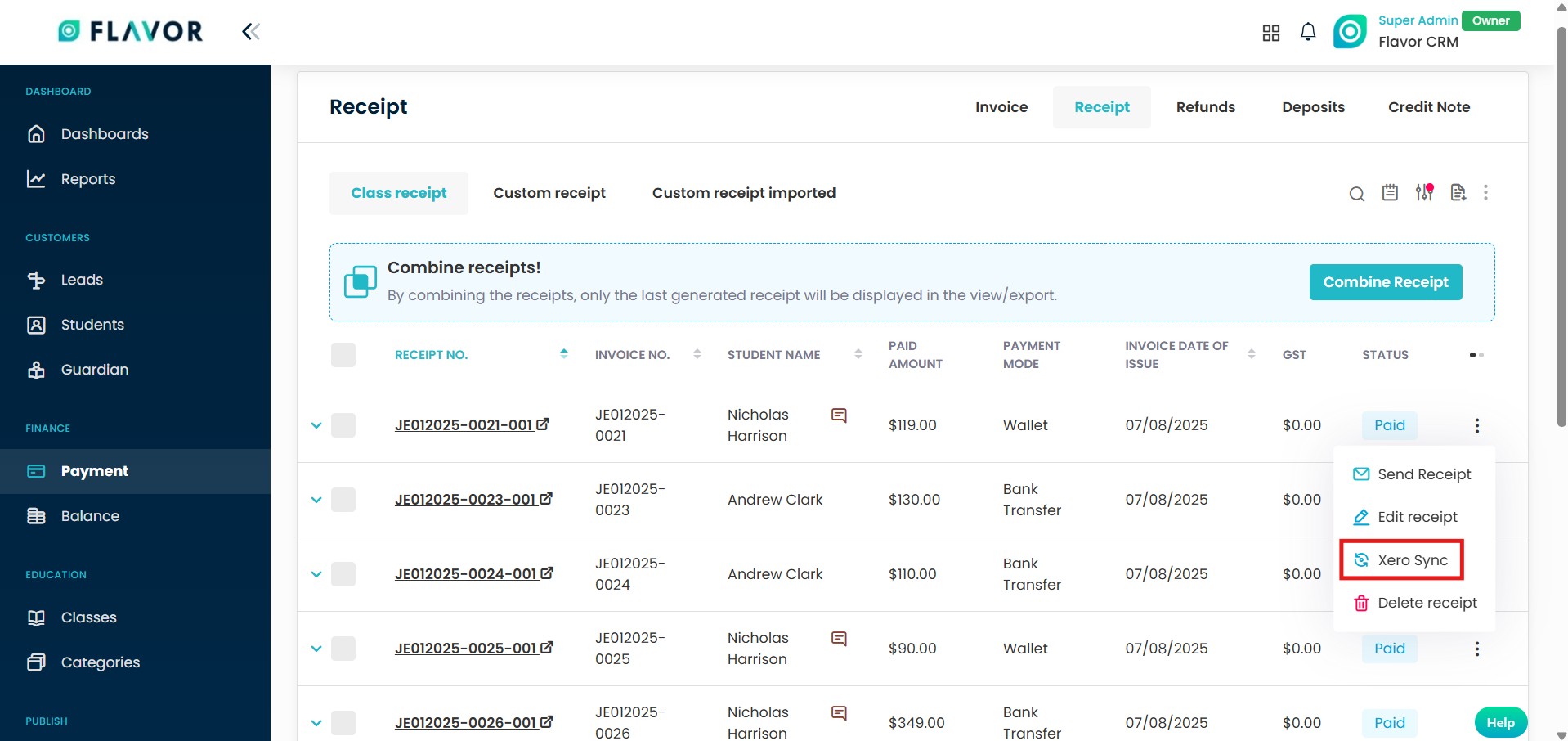
- From Payment in the left menu, locate the receipt you want to sync.
- Click on the three dot menu (⋮) on the right side of the receipt.
- Select Xero Sync.
Option 2 : Sync from the Receipt View
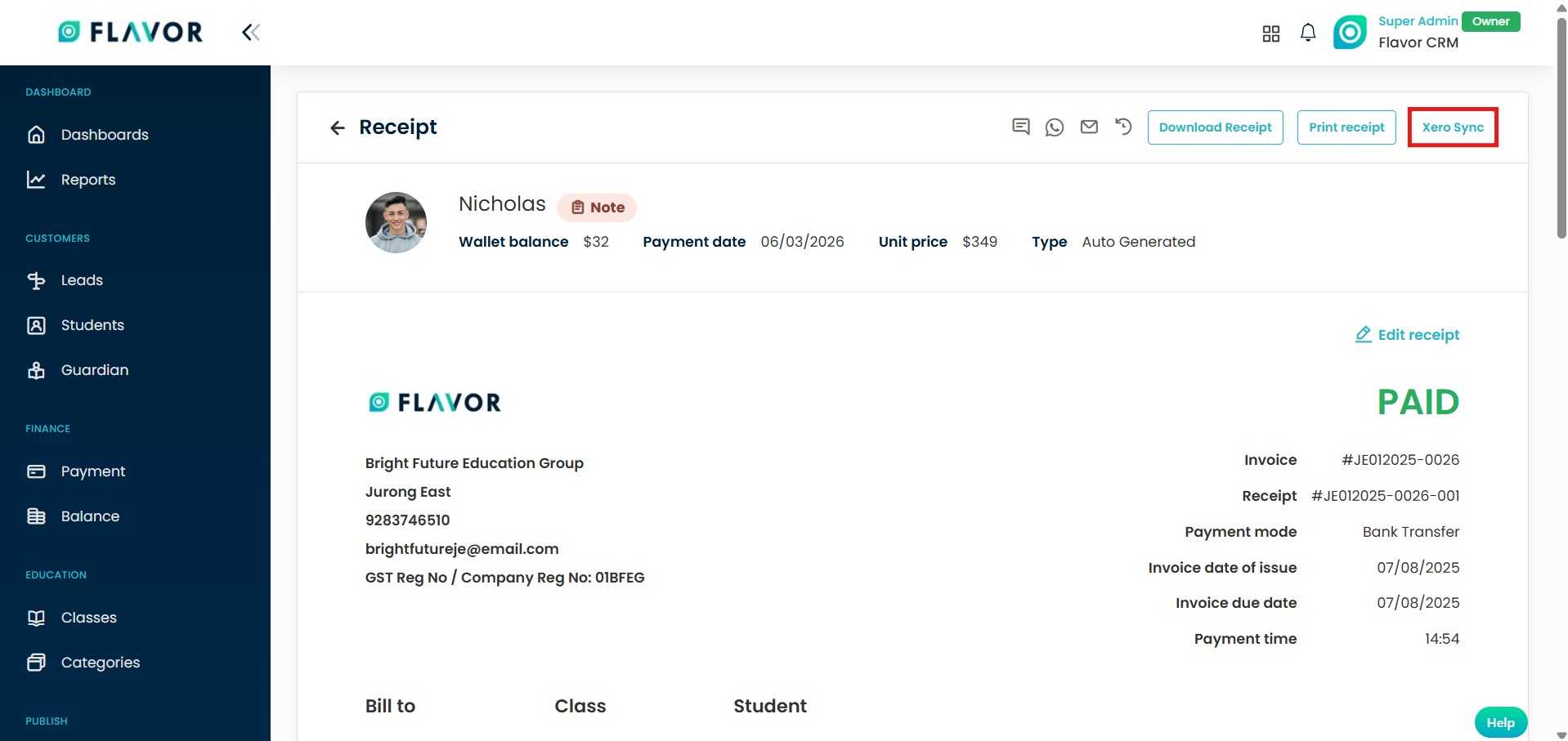
- Open the receipt you want to sync.
- In the receipt details page, click on the Xero Sync button at the top right.
A Xero Sync window will appear displaying the invoice and receipt details with their sync status.. To proceed with the sync, click on Sync button under the Action column.
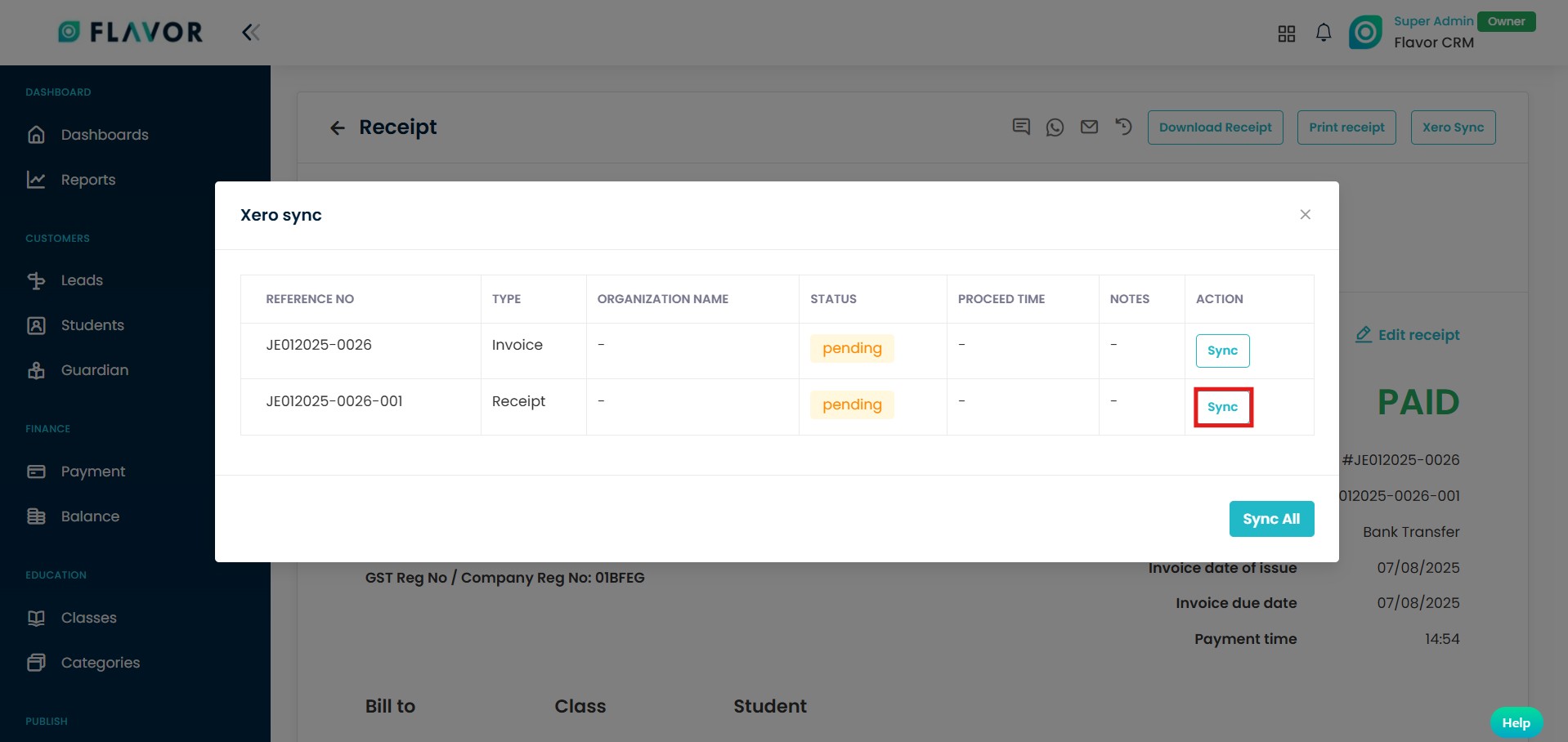
A confirmation message will appear asking if you want to sync the receipt with Xero. Click on OK to confirm and proceed with the sync.
If a receipt is synced while the related invoice has not been synced, the system will automatically sync the invoice first, followed by the receipt.
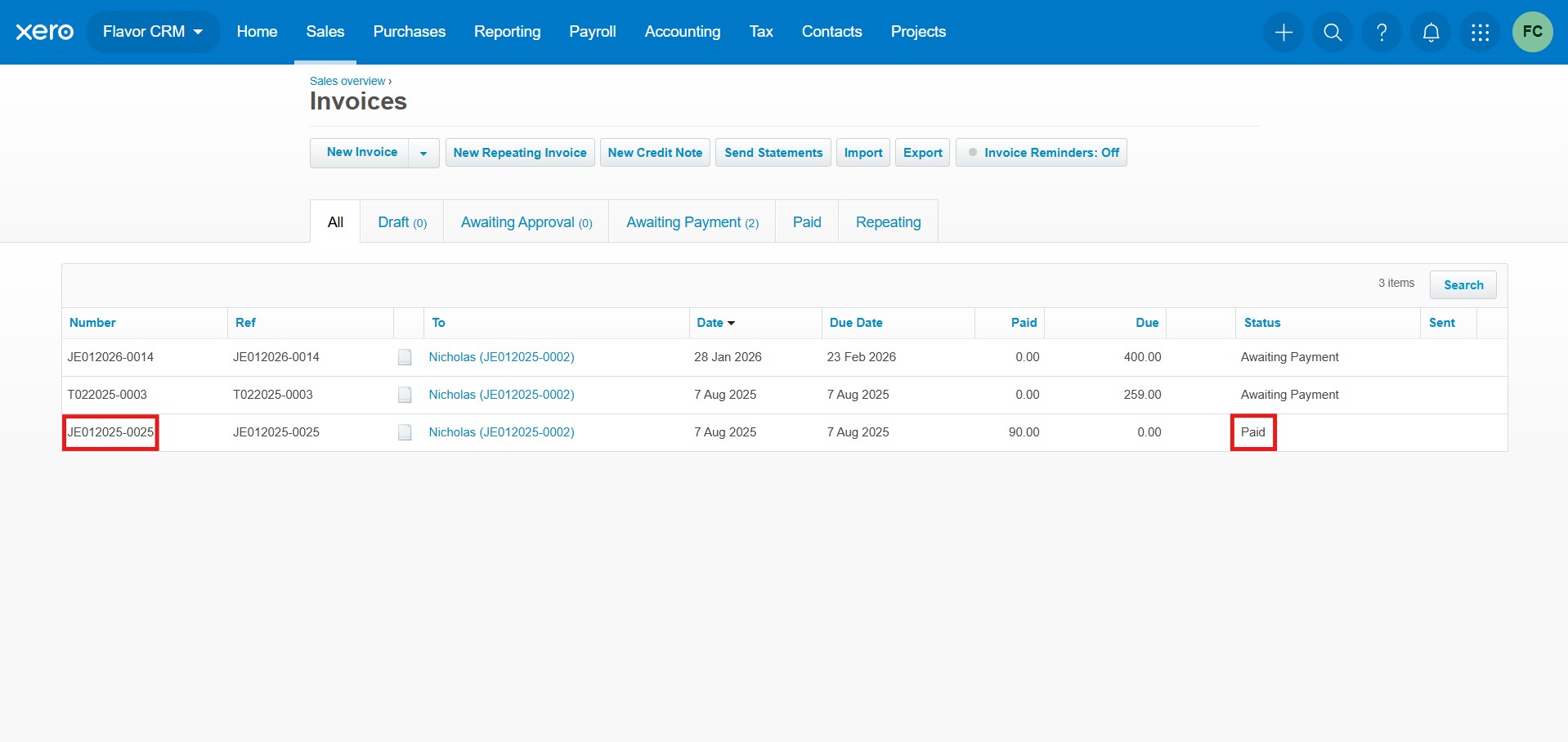
After the sync is completed, the invoice in Xero will be updated and the payment status will appear as Paid.
Credit Note Sync
Credit Note in Flavor CRM can be synced with Xero in two ways.
Option 1 : Sync from the Payments Module
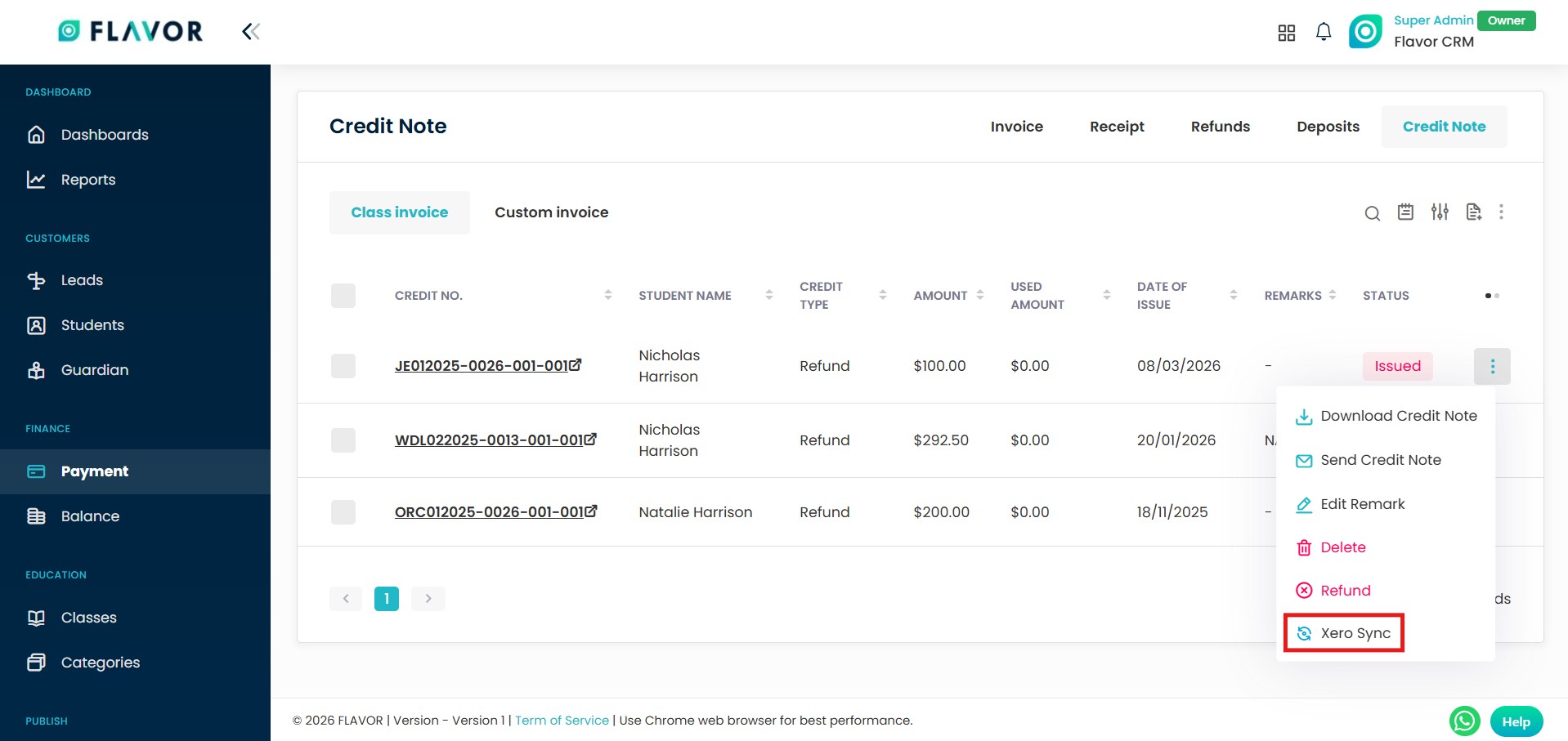
- From Payment in the left menu, locate the credit not you want to sync.
- Click on the three dot menu (⋮) on the right side of the credit note.
- Select Xero Sync.
Option 2 : Sync from the Credit Note View
- Open the receipt you want to sync.
- In the credit note details page, click on the Xero Sync button at the top right.

A Xero Sync window will appear displaying the credit sync details with their sync status.. To proceed with the sync, click on Sync button under the Action column.
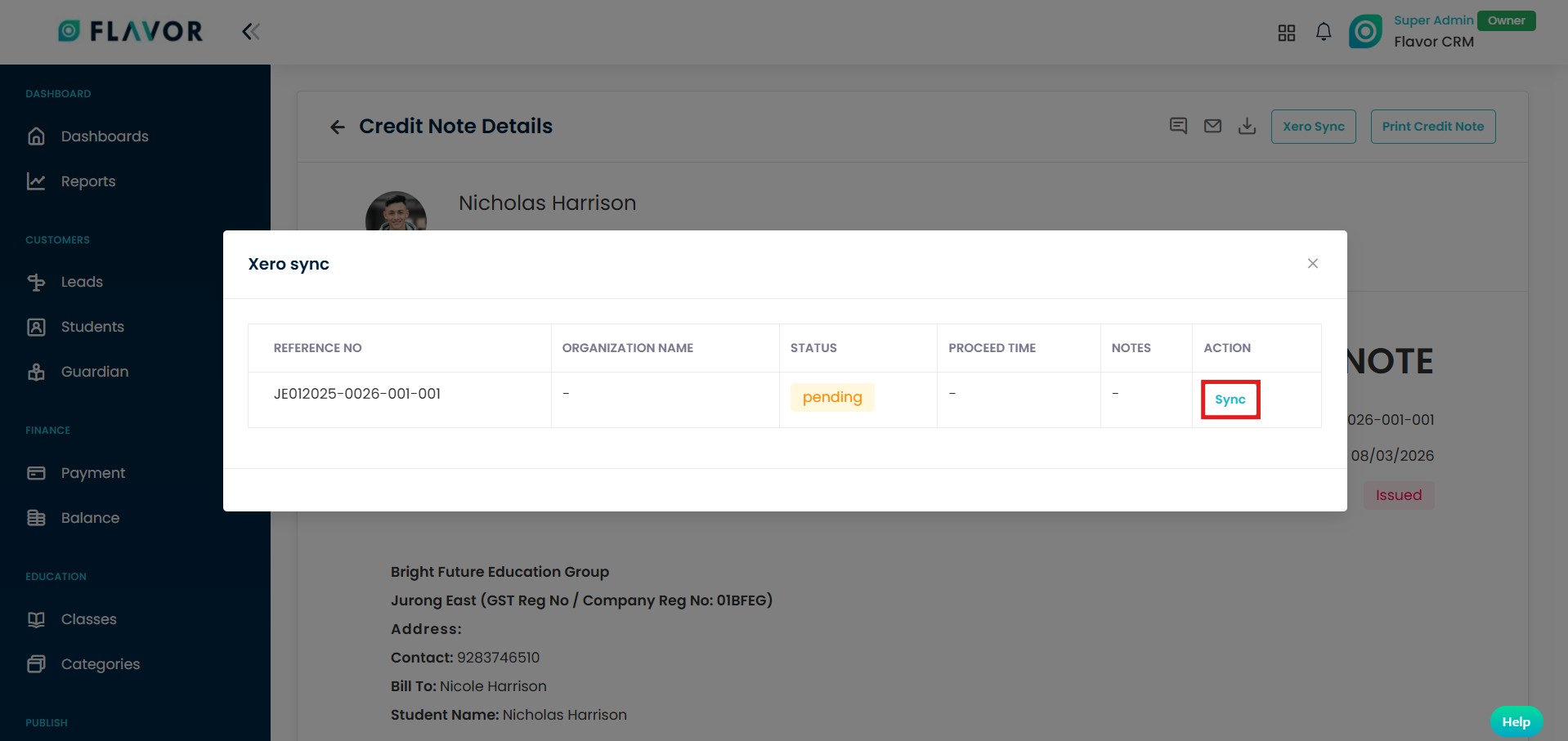
A confirmation message will appear asking if you want to sync the receipt with Xero. Click on OK to confirm and proceed with the sync.
After the sync is completed, the credit note will appear in the Sales > Invoices section in Xero. You can view the synced credite note there along with its details and status.
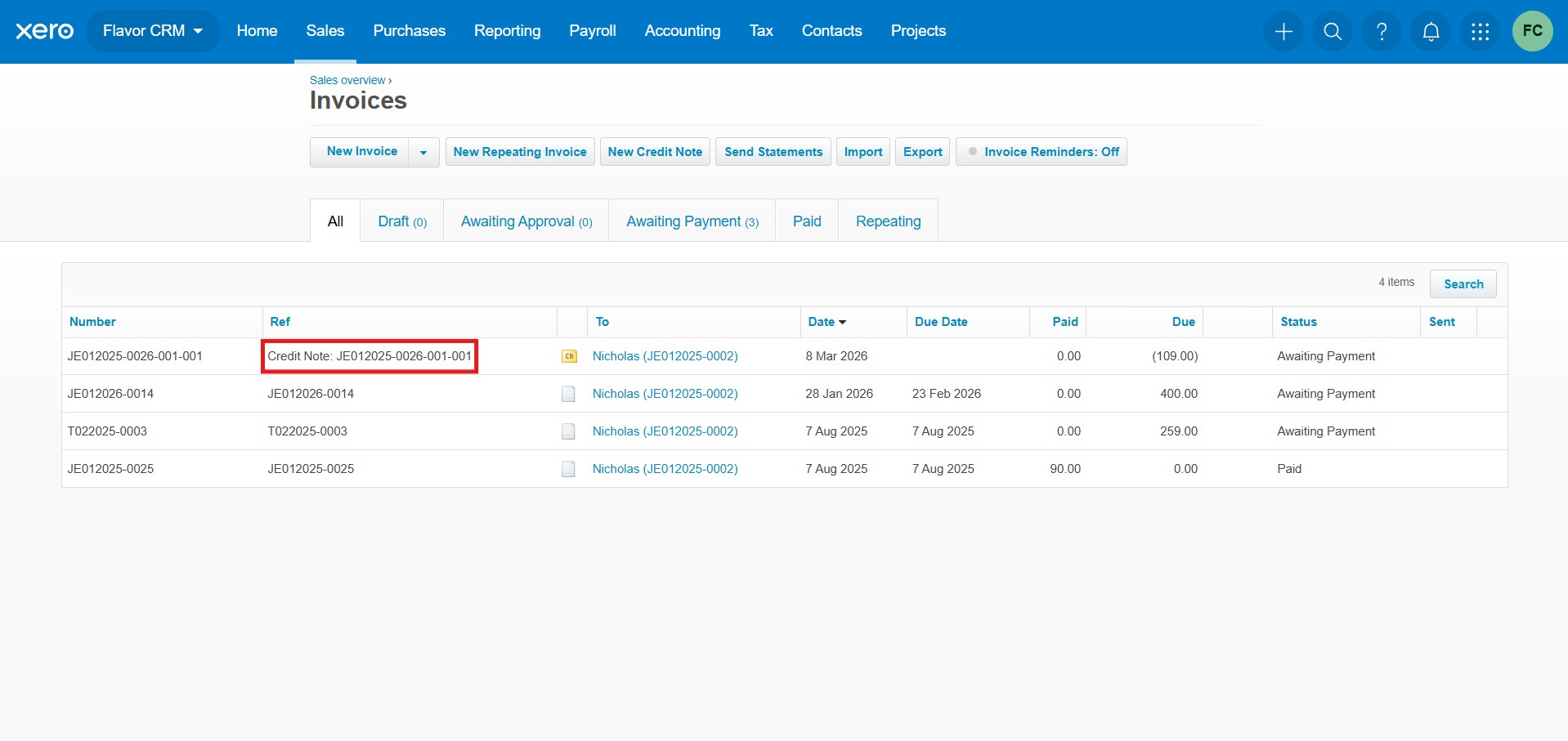
Pay Invoice With Credit Note
When an invoice is paid using a Credit Note, and the credit note is already synced with Xero, the related invoice will automatically be synced with Xero during the payment process.
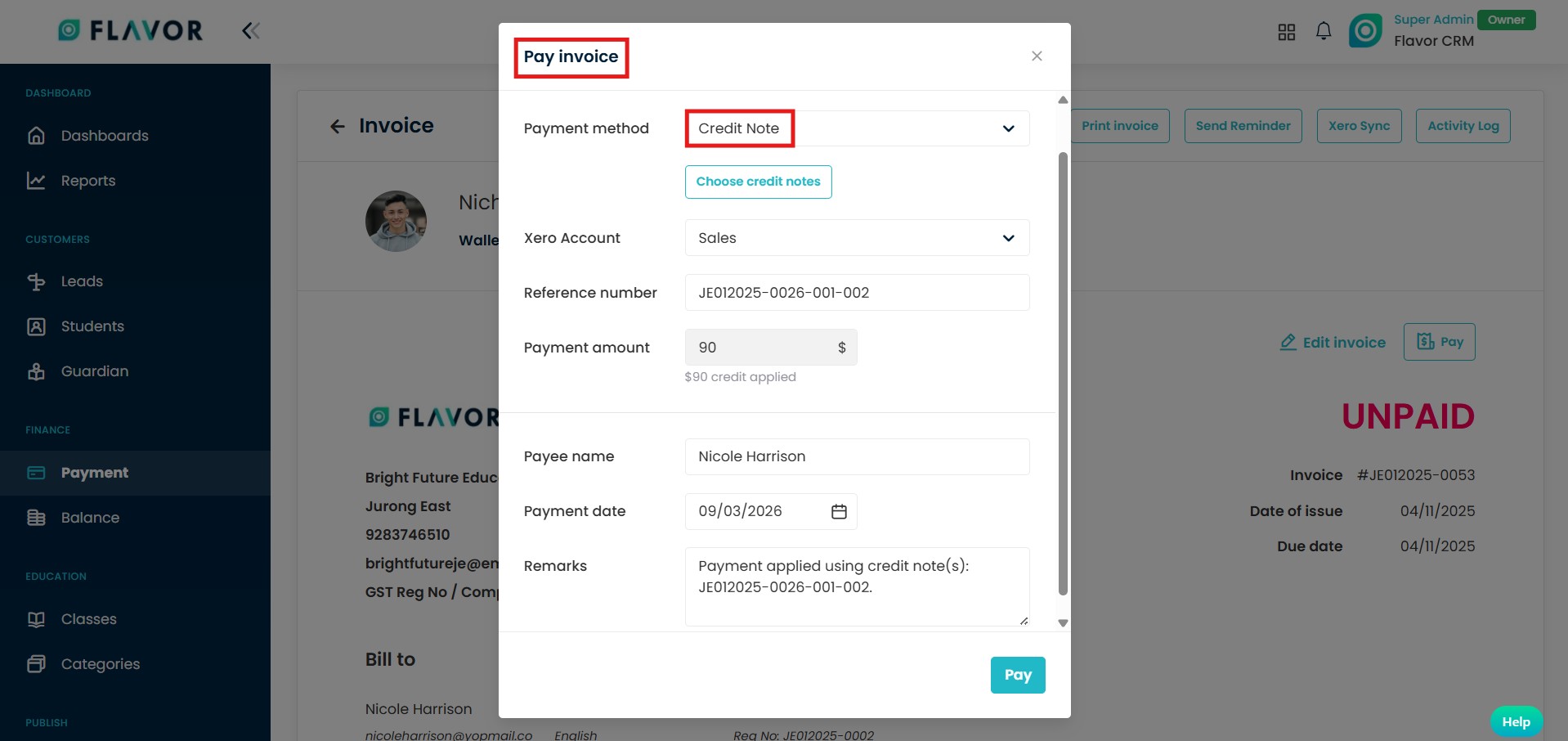
After the payment is completed, the invoice in Xero will be updated and marked as Paid, reflecting the credit note applied to the invoice.