


Once HitPay is configured and enabled, a Pay button will appear in the Payment Instructions section of the invoice.

HitPay Account
HitPay integration in Flavor CRM allows you to securely collect online payments from customers using credit/debit cards, PayNow, and other supported payment methods. Once configured, payment links can be included in invoices and sent directly to customers.
1. Create HitPay Account : To begin the integration, you must first create a HitPay account. Sign up to HitPay using the provided link : HitPay Sign Up Link
2. Complete Account Set Up : After creating your HitPay account, ensure that all setup steps are completed to fully activate your account.
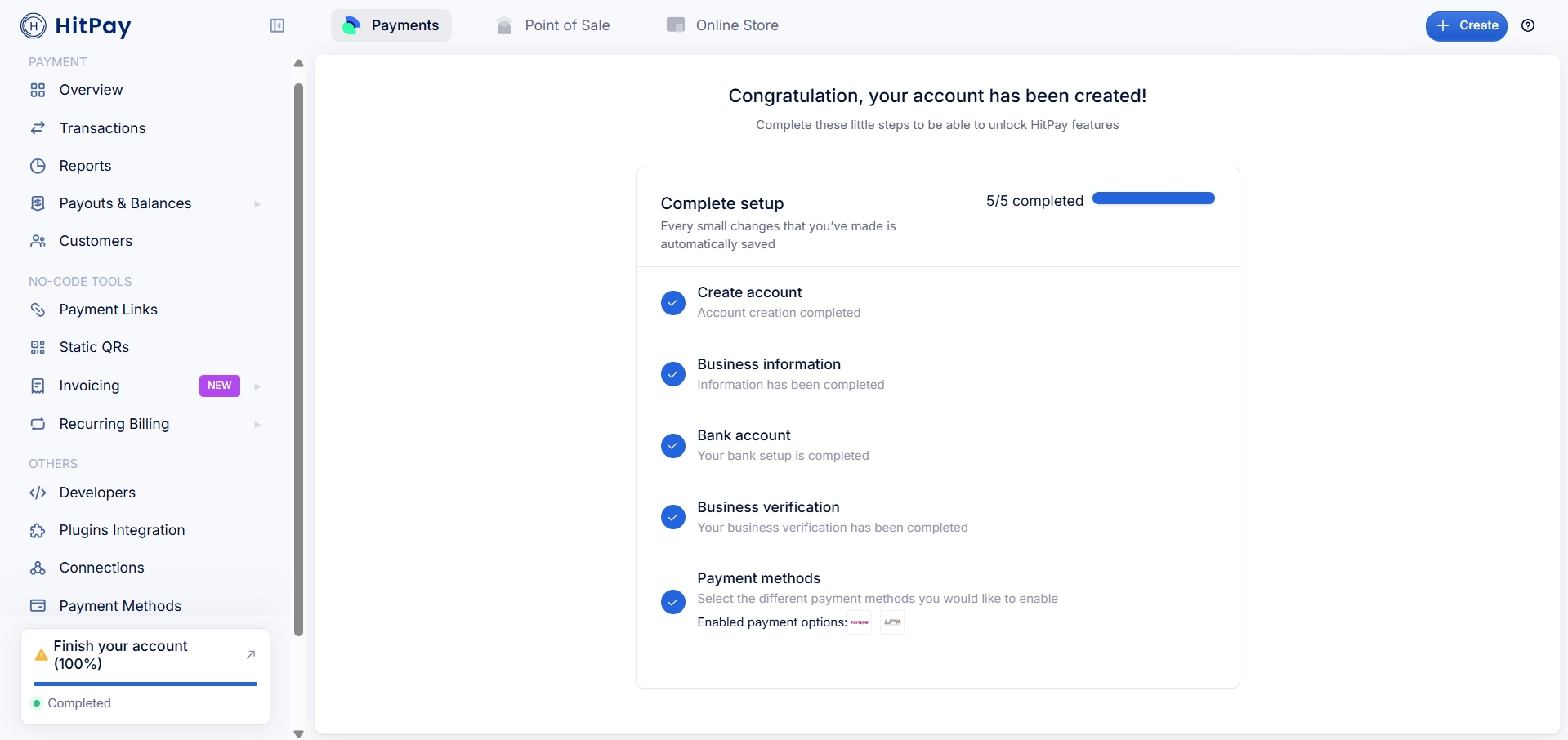
To complete the setup, in your HitPay Dashboard, ensure the listed items are marked as completed Once all steps show as completed (100%), your HitPay account is fully activated and ready for integration with Flavor CRM.
HitPay Integration
1. Enable HitPay integration in Flavor
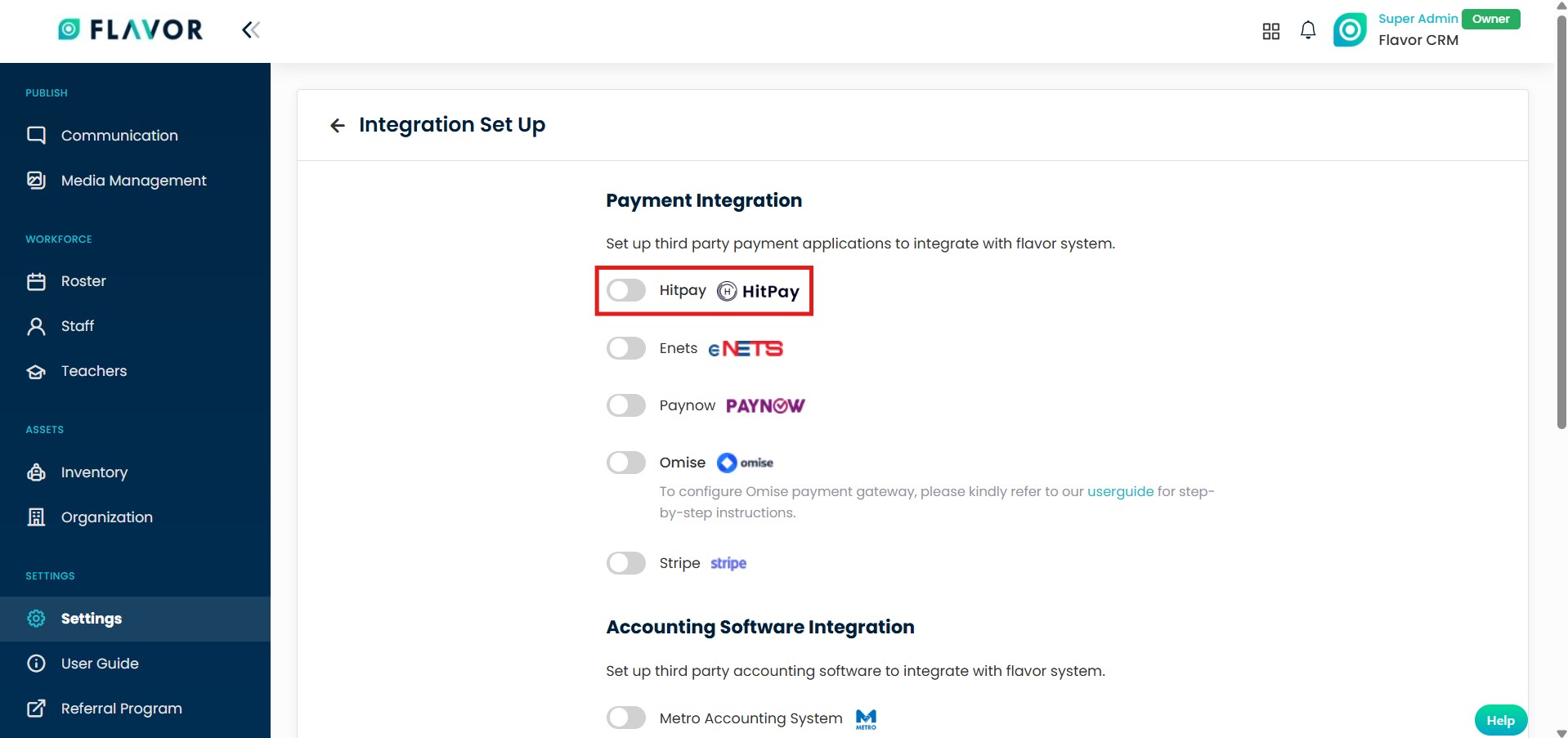
Activate HitPay integration in Flavor CRM, from Settings > select System > click on Payment Integration > and enable the HitPay option.
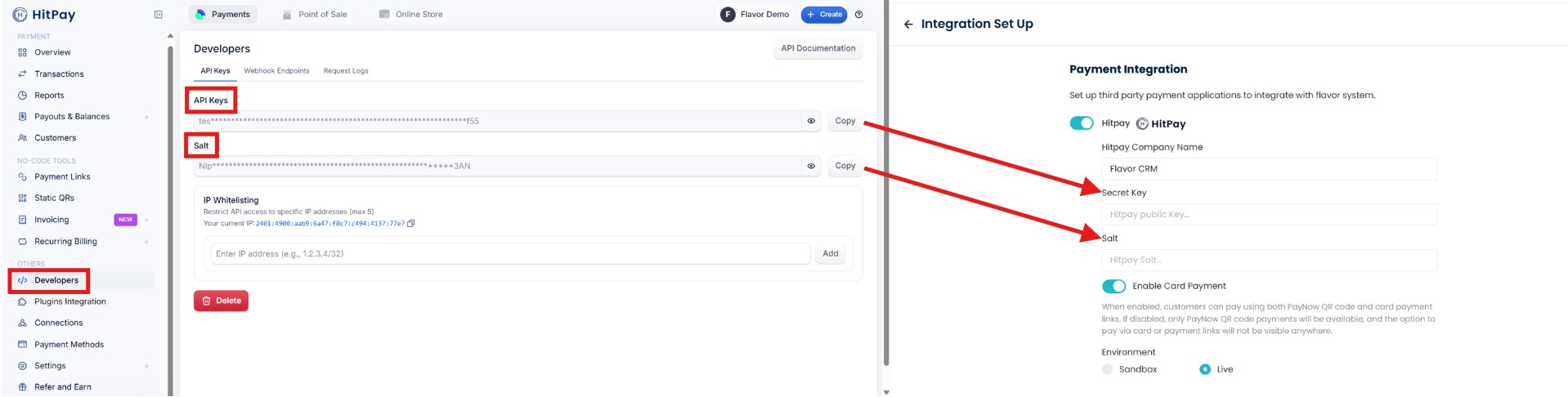
2. API Setup & Configuration
Invoice Configuration
1 Payment Settings
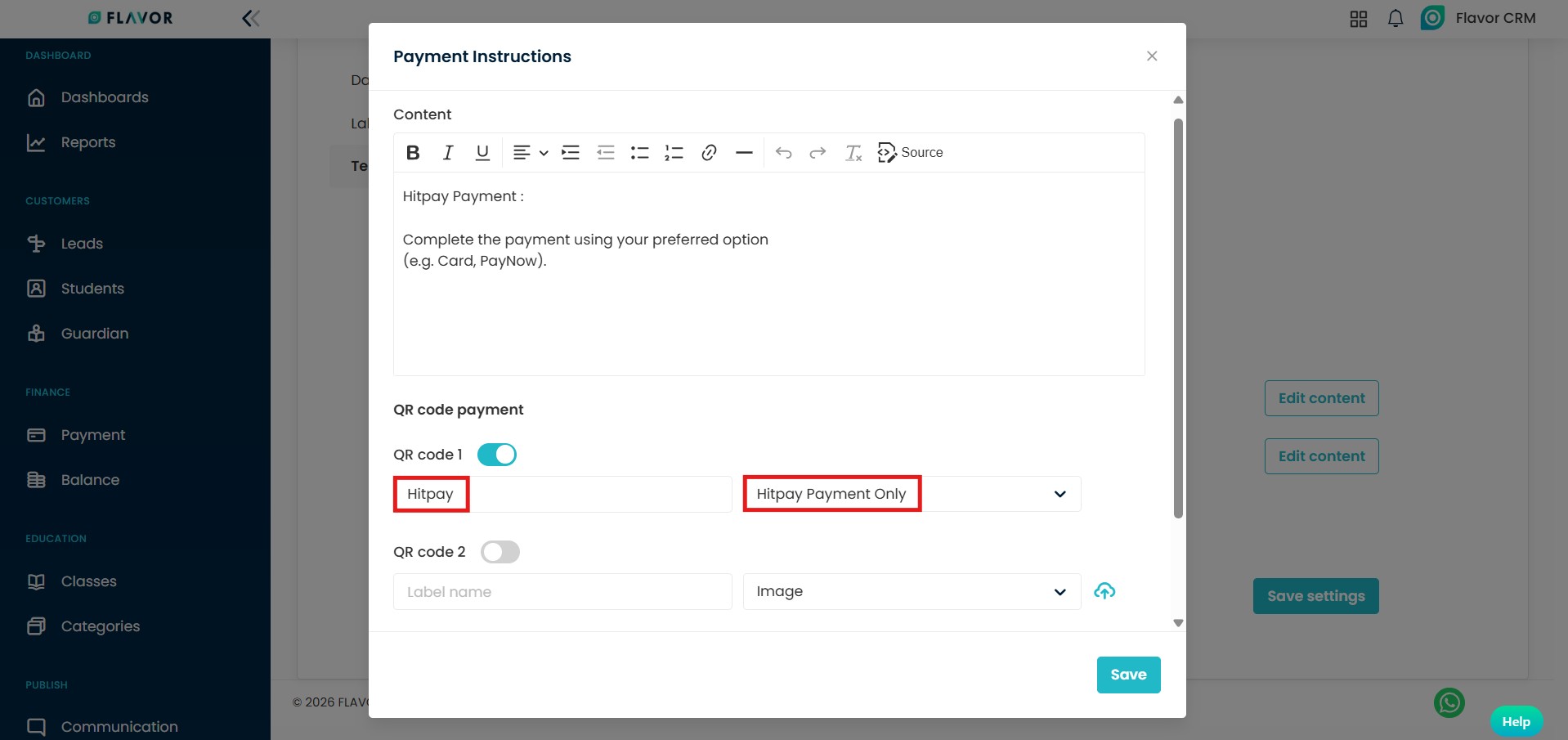
To enable HitPay payment in Invoices, from Payment Settings > select Invoice Configuration > navigate to Payment Instructions > and click on Edit Content.
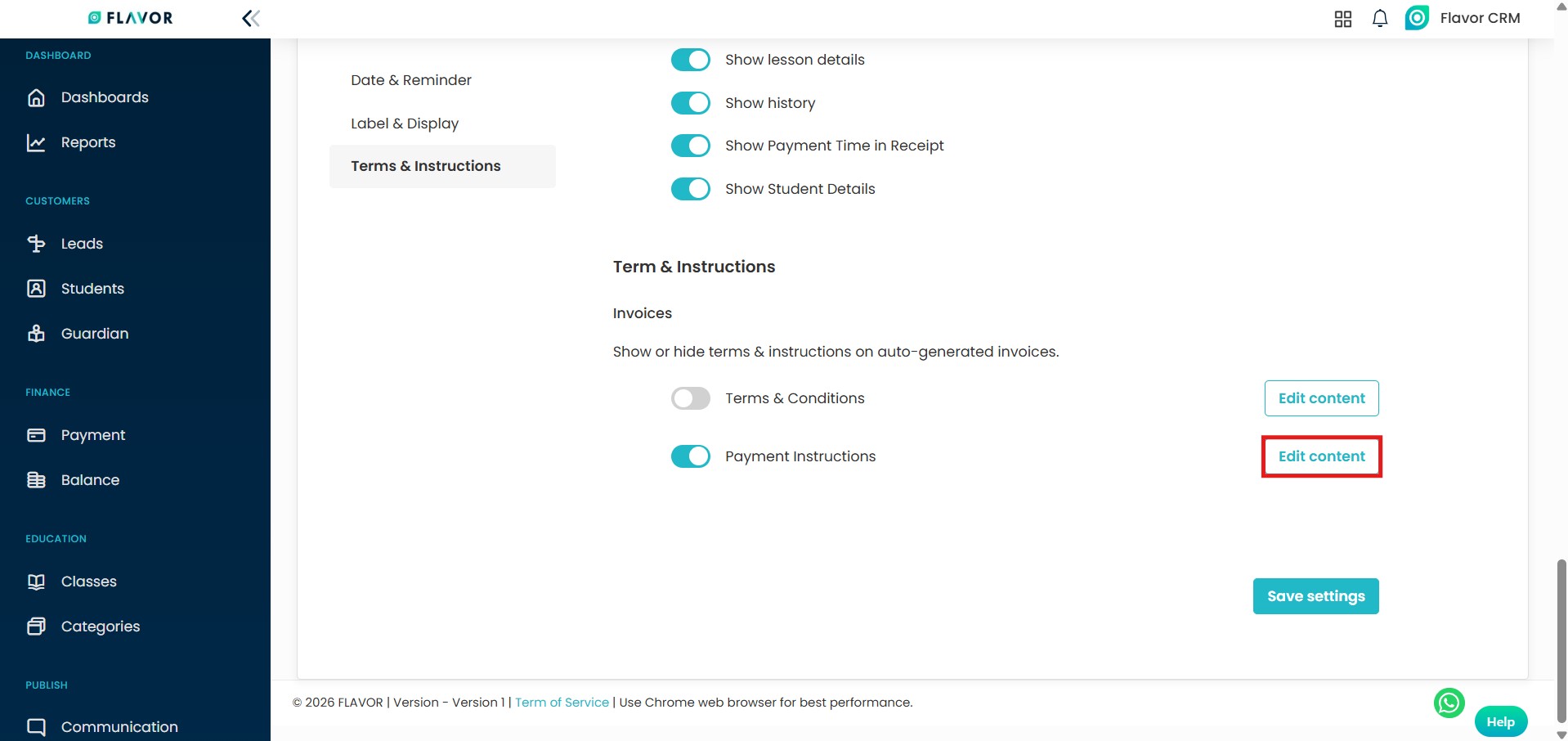
Enable a QR Code toggle > in the label field write HitPay > & from the dropdown, select HitPay Payment Only > click on Save & then Save Settings.
2. HitPay Payment Button in Invoice
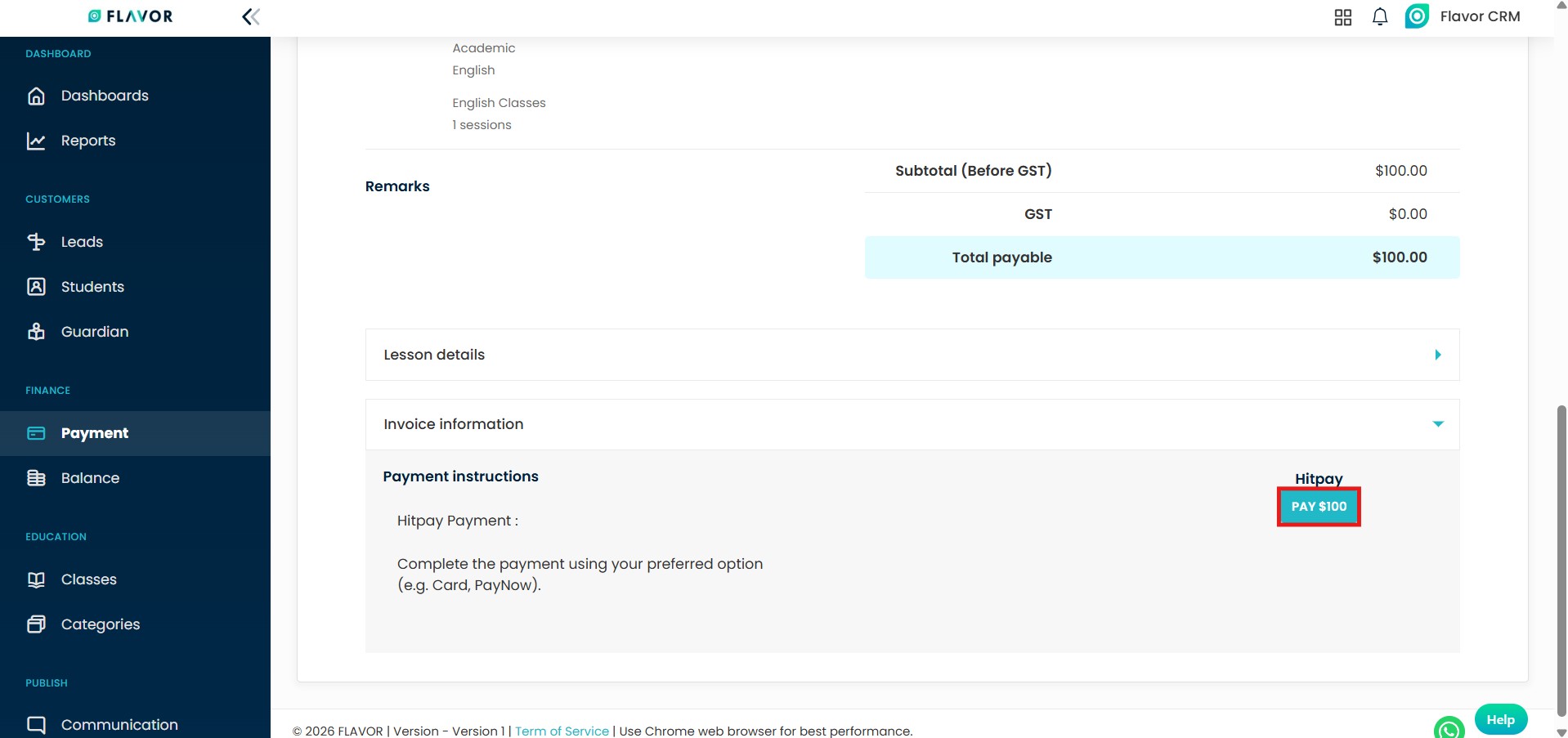
Customers can click the Pay button to proceed with the online payment using HitPay. The system will redirect them to the secure payment page to complete the transaction.
After successful payment, the invoice status will automatically update in Flavor. Refer to this guide for Payments : Pay Invoices With HitPay In Flavor CRM
Need more help? Ask us a question
Please let us know more of your details and our team will reach out to you very shortly.
