



Generate EDM In New Email Message
Step 1 : New Message
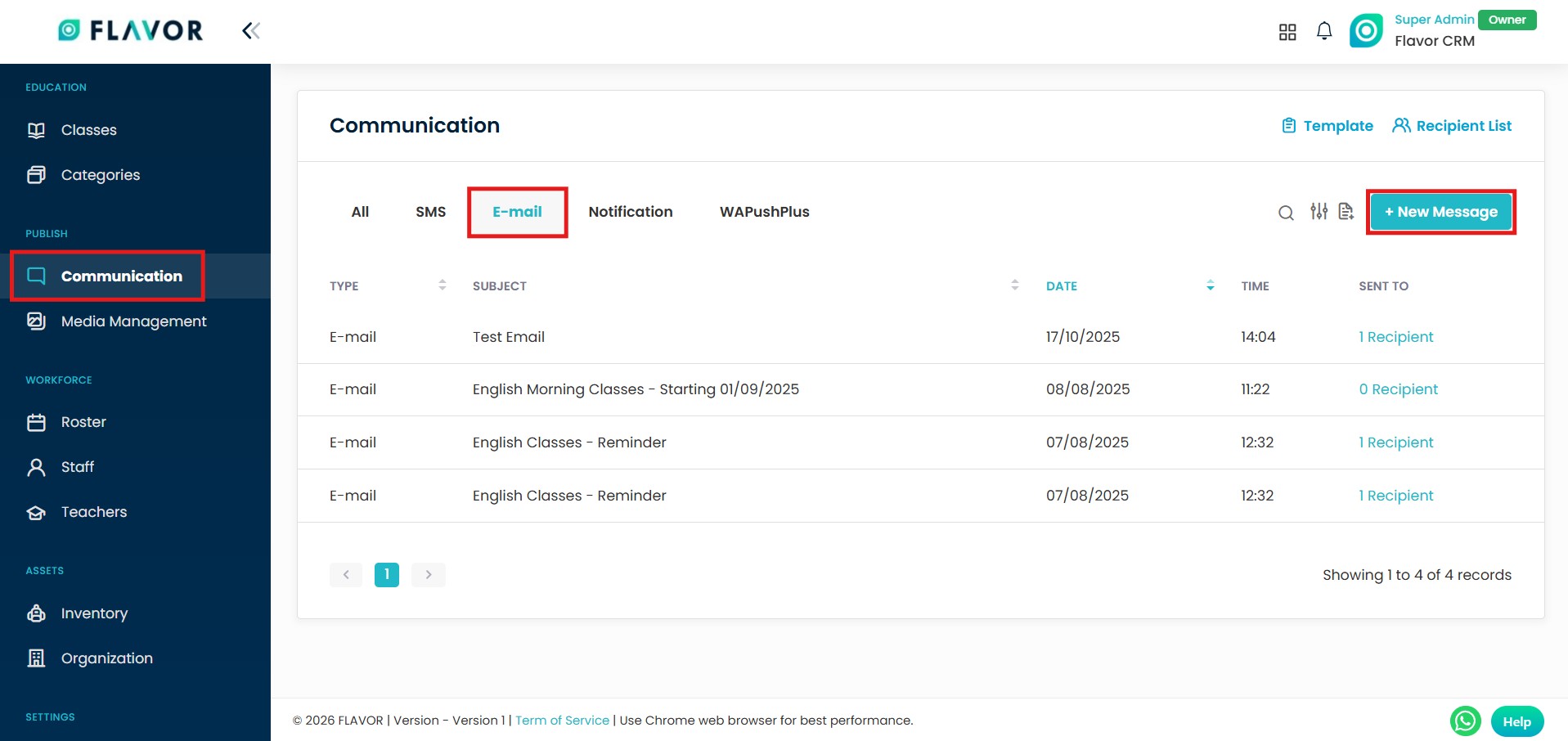
- From the Dashboard, click on Communication.
- Select the Email section within the Communication module.
- Click on the New Message option at the top right.
Step 2 : Generate EDM
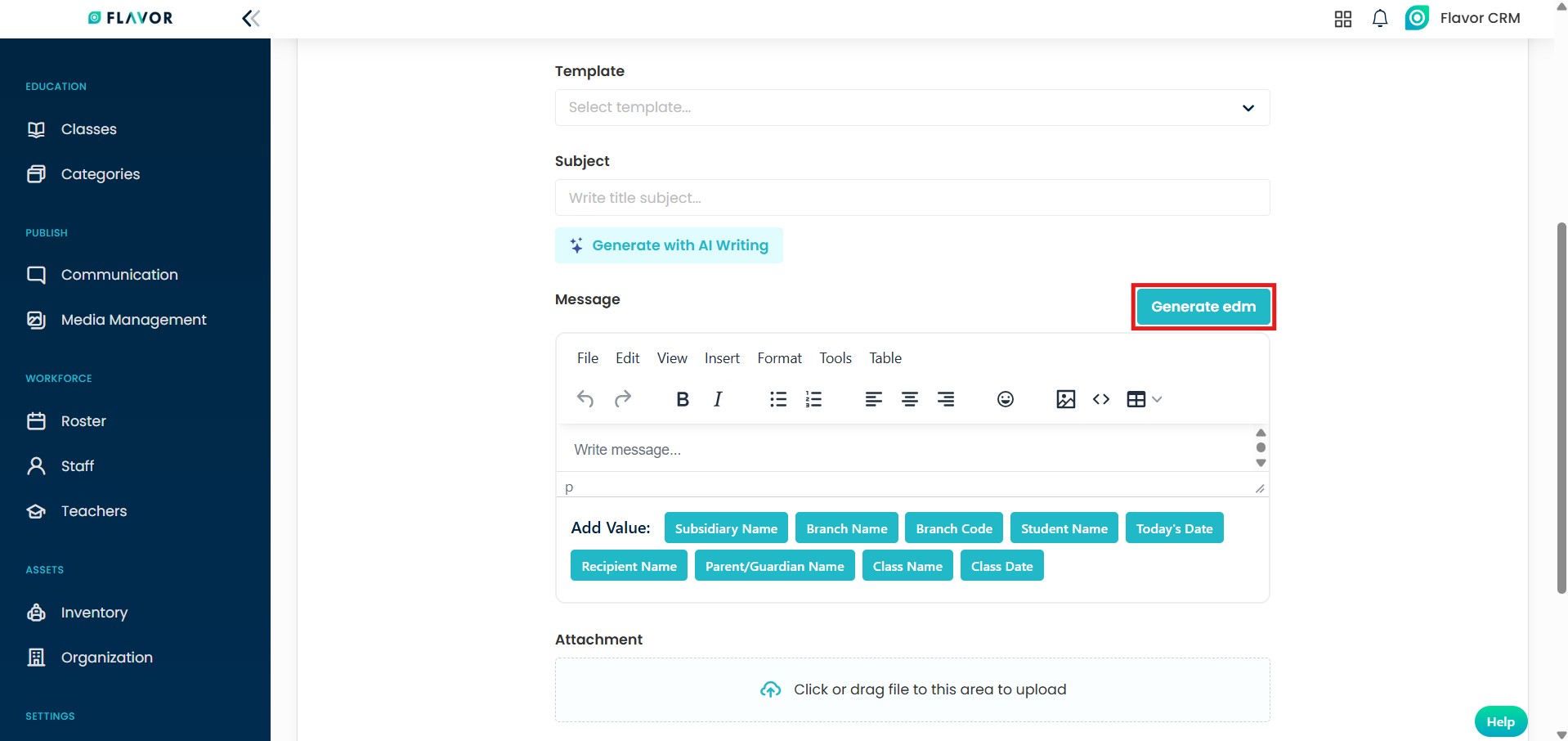
- When creating new email message.
- In the Message section, click on Generate EDM option to open the EDM editor.
Step 3 : Edit EDM
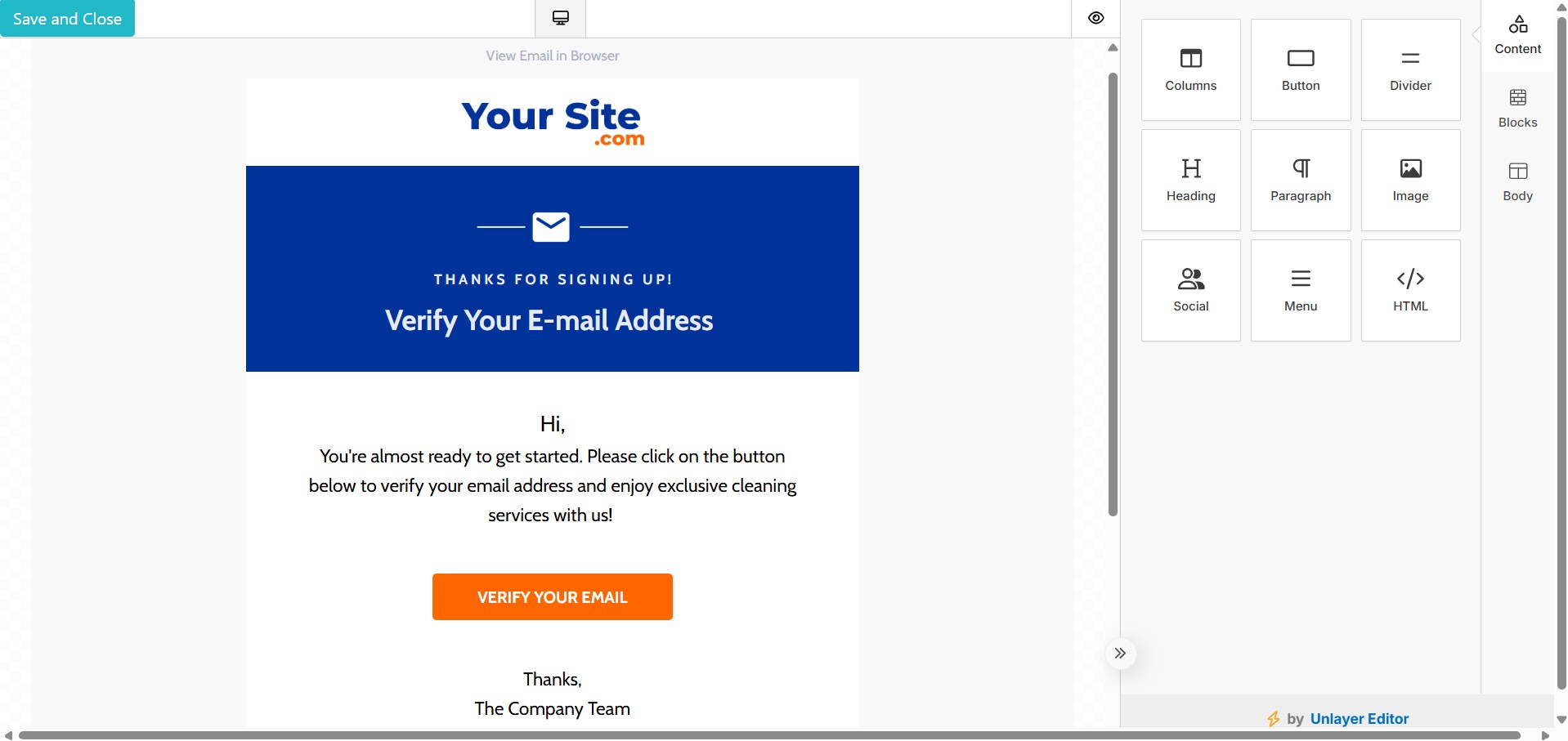
- The system opens the EDM Email Editor in a new interface.
- This editor provides a visual, drag-and-drop environment to design professional email layouts.
- Customize the EDM as per your requirements, once design is completed, click on Save and Close.
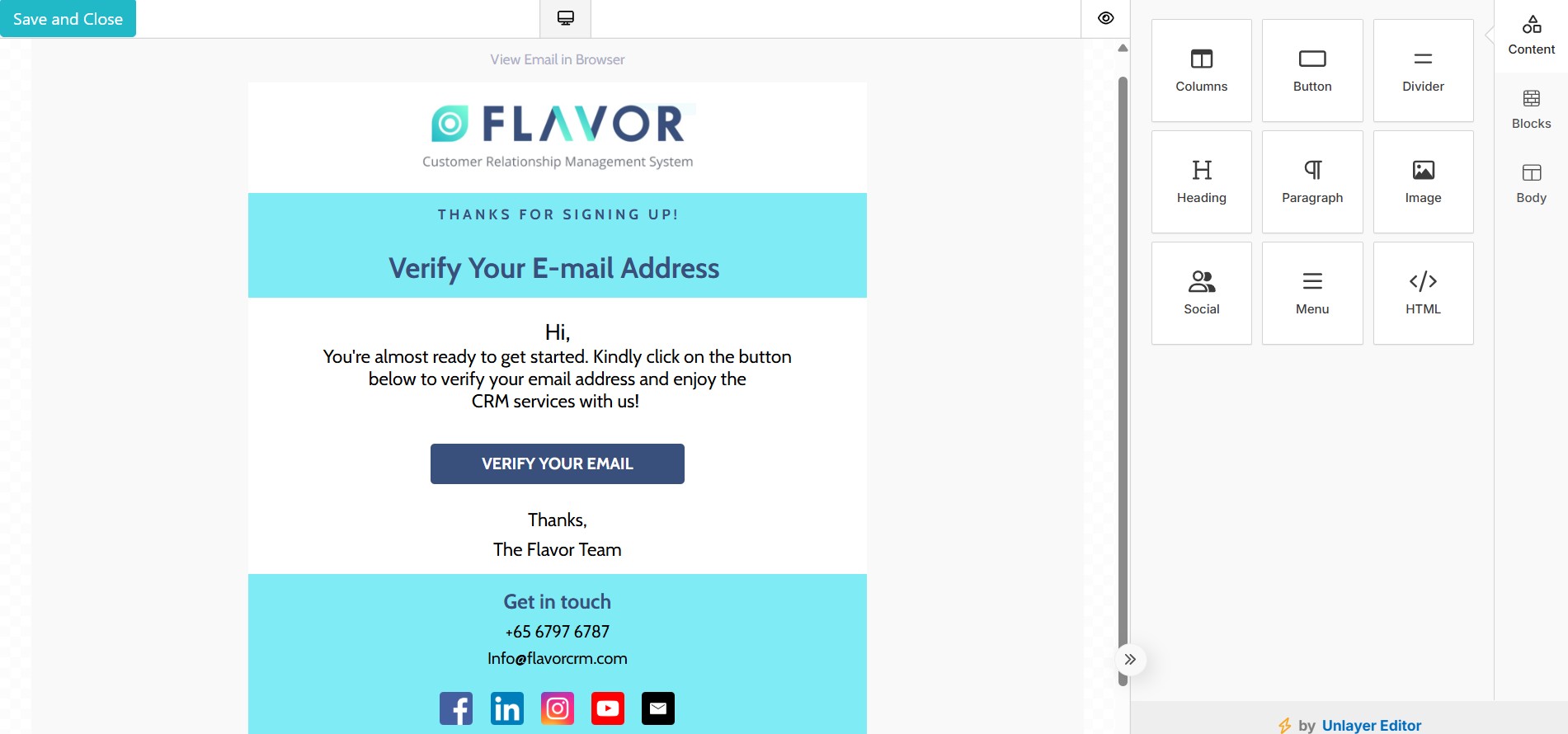
An example of an edited EDM to illustrate how changes and modifications made appear.
Step 4 : Email Message
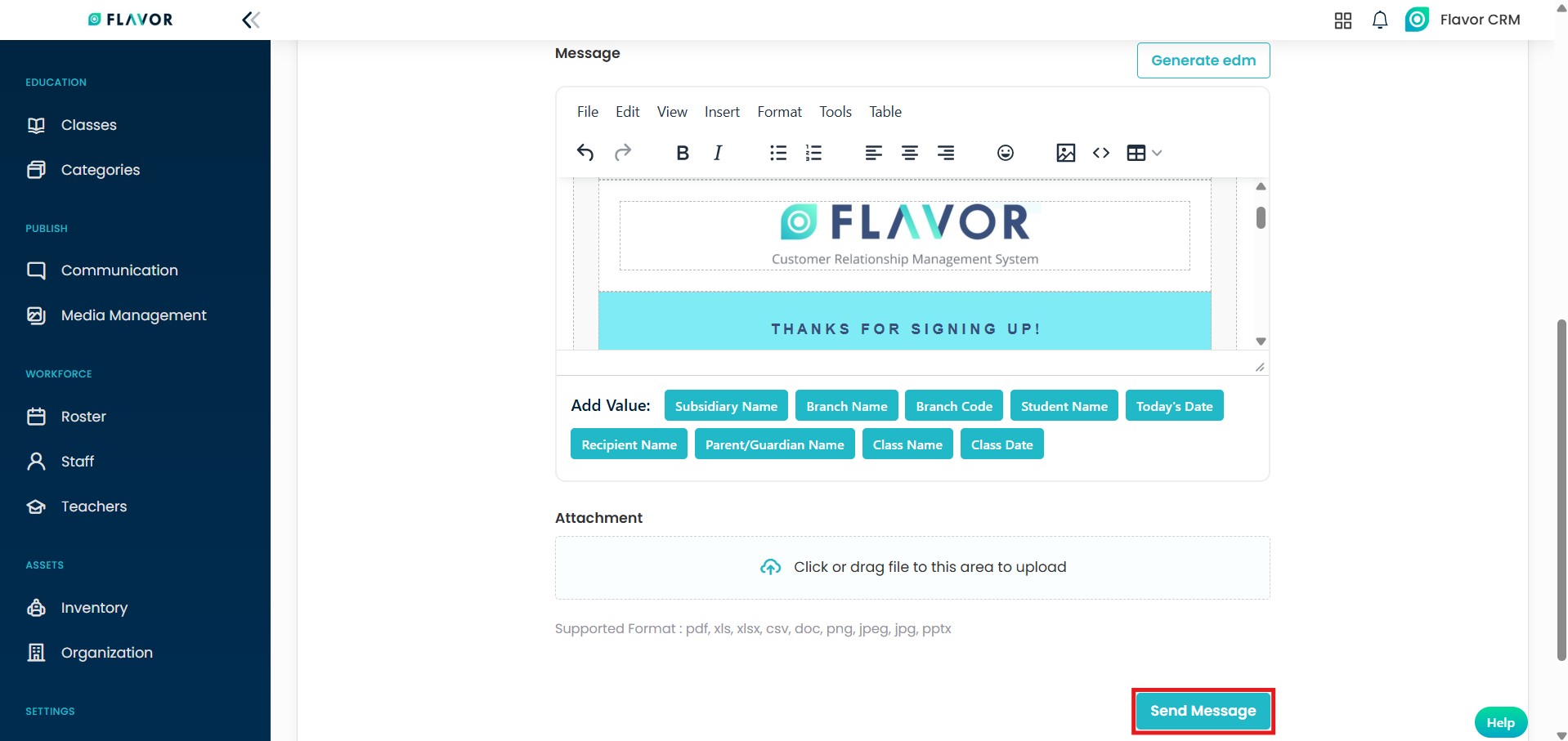
- After clicking Save and Close, the designed EDM is embedded directly into the Message.
- Once confirmed, click on Send Message to send the email to the selected recipients.
Create Template Using EDM
Step 1 : Add Template
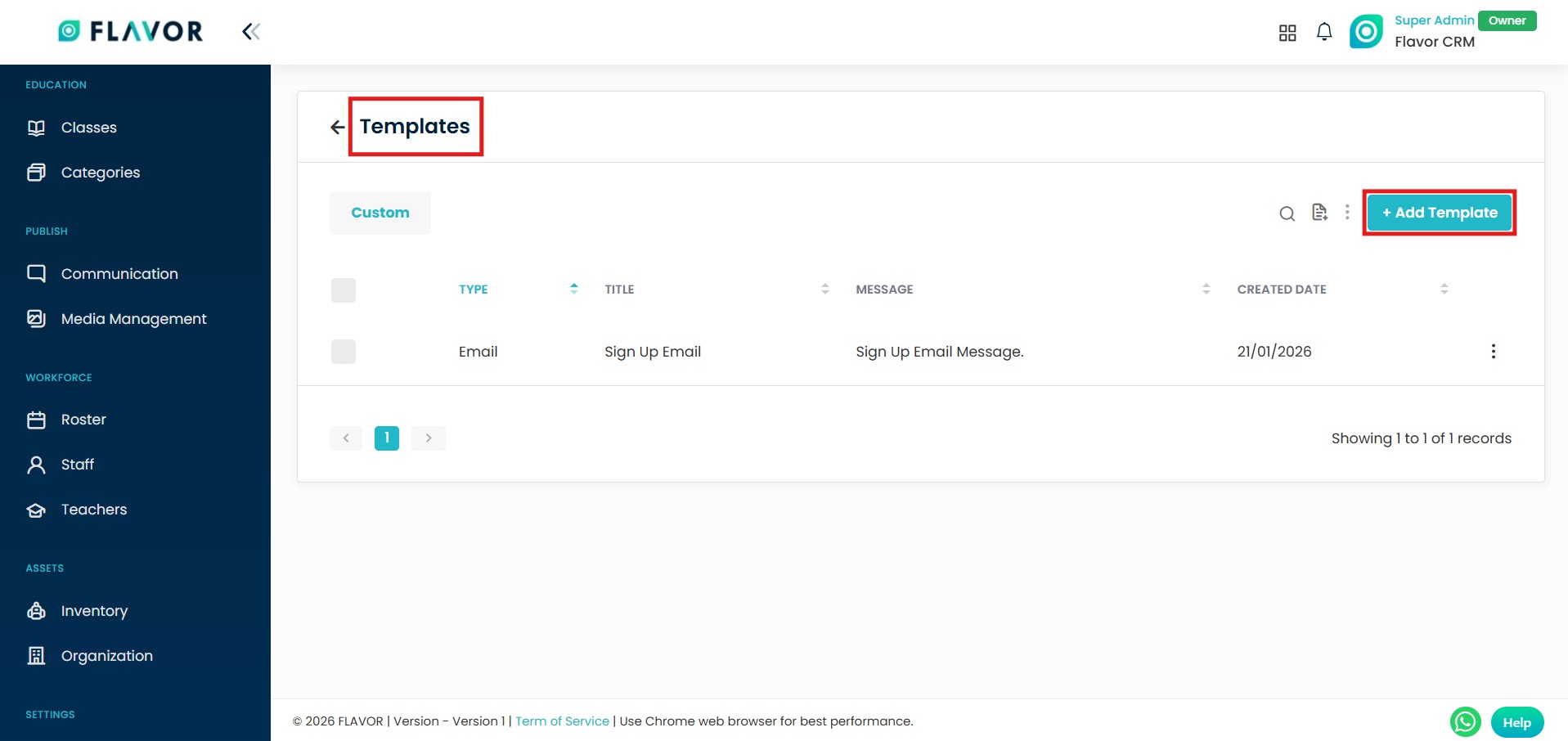
- From the Communication module, click on Template at the top right.
- From the Templates section, click on the Add Template option at the top right.
Step 2 : Generate EDM
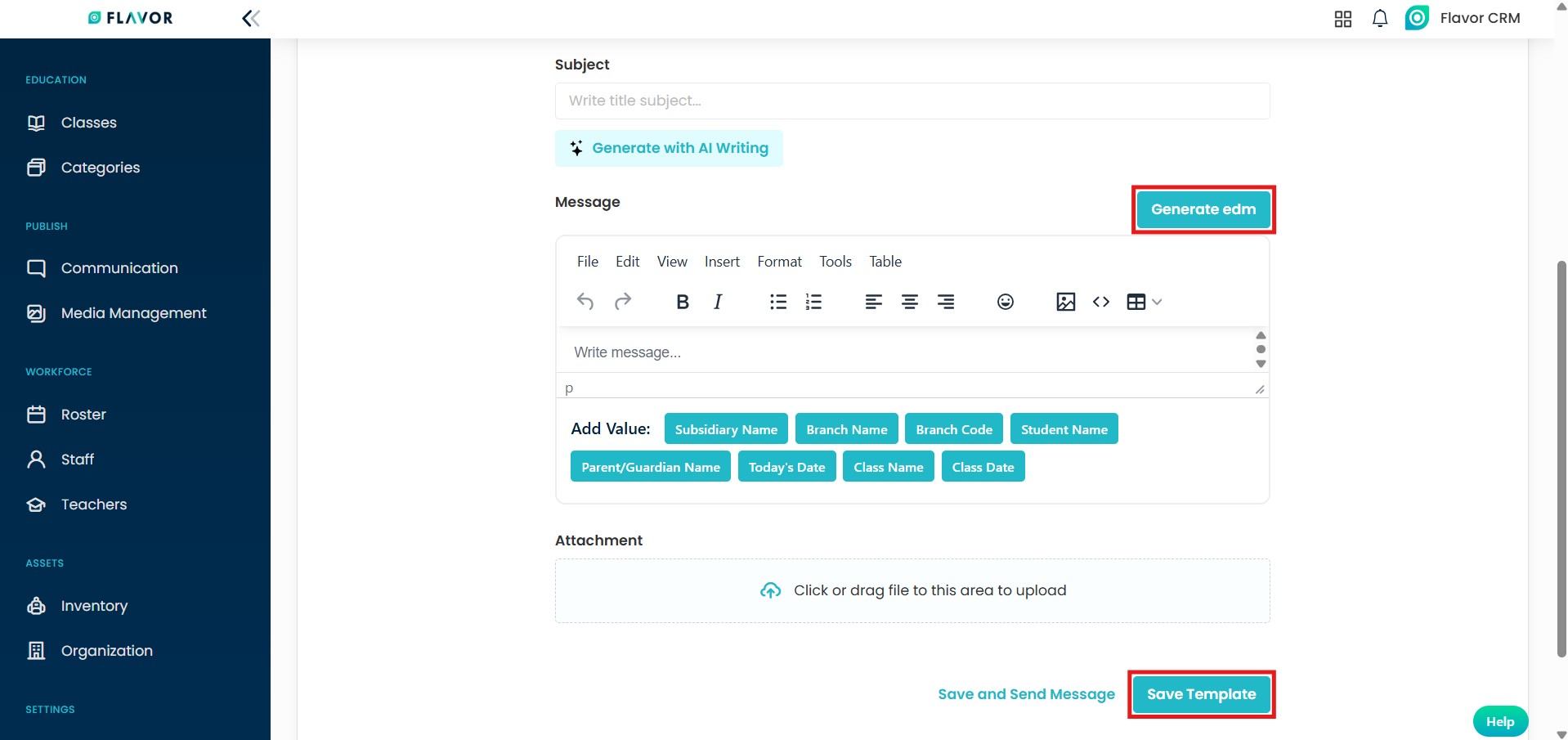
- In the Message section, click on Generate EDM option to open the EDM editor.
- Customize the EDM as per your requirements, once design is completed, click on Save Template.
Use EDM Template
Step 1 : Template
- Click on the New Message in the Email section.
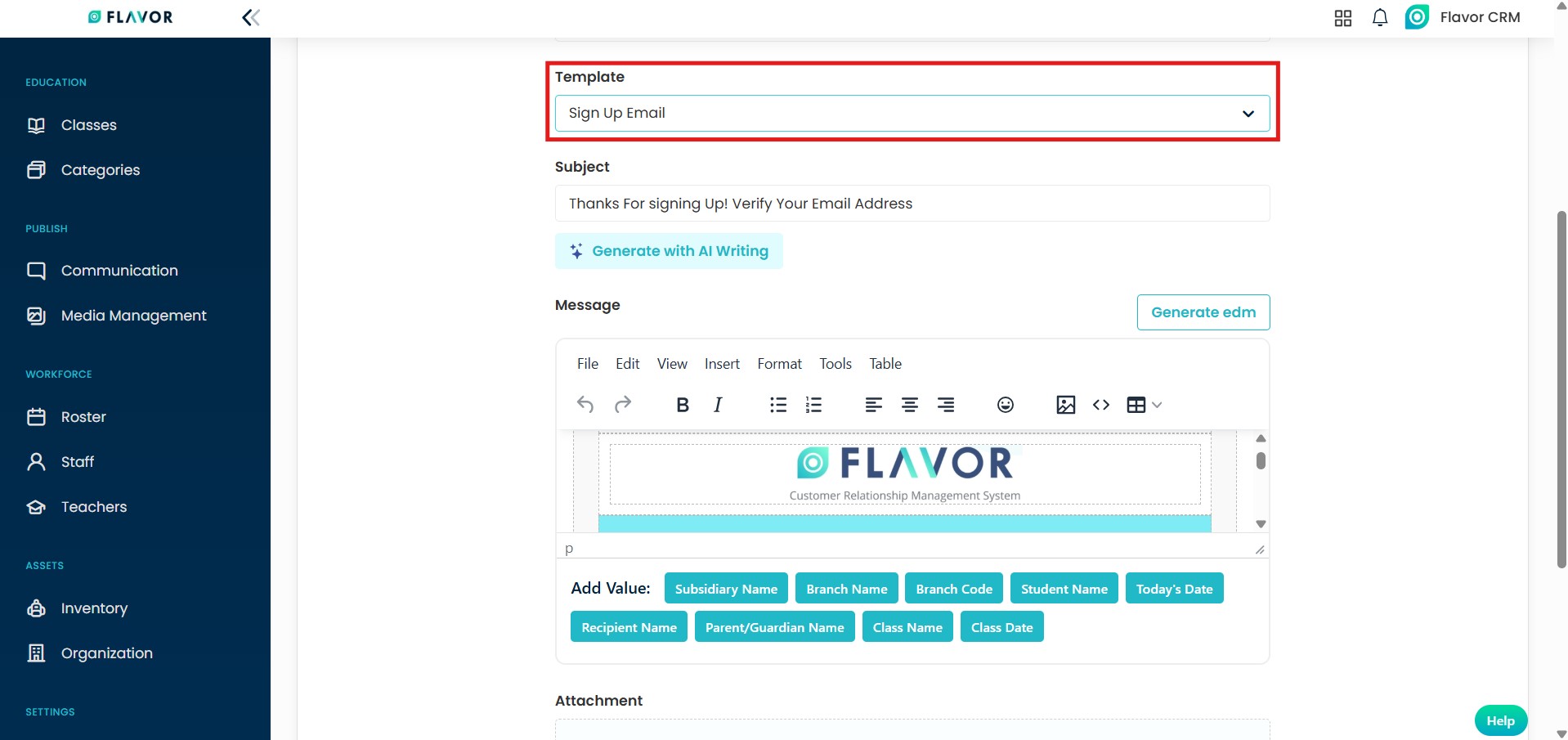
- When creating new email message, in the Template section, select the created template.
- The created template is embedded directly into the Message.
- Click on Send Message to send the email to the selected recipients.
Need more help? Ask us a question
Please let us know more of your details and our team will reach out to you very shortly.
